
A PDF to video converter can turn a document into a narrated slideshow, a presenter-led video, or a short summary. This guide compares seven tools, showing what each one creates, how it uses your PDF, and where it works best. Not every PDF to video converter handles the source in the same way: some keep the original pages visible, while others use the document’s content to build new visuals. The comparison table gives you a quick overview before the individual reviews explain each tool’s features, advantages, and limitations.
Key Takeaways
- Choose Recastia when you want a PDF-based video and may also reuse the same document as a flipbook, presentation, or other format.
- Choose NoteGPT for a straightforward narrated video that follows the PDF’s pages. Scholarly is more useful when the video is part of a study workflow with chapters and flashcards.
- Choose AI Studios or Leadde for an avatar-led explanation. AI Studios emphasizes editable video drafts; Leadde focuses on business documents and training.
- Choose Pictory to turn a PDF into a shorter, editable video summary. Choose invideo AI if you are willing to paste the PDF’s text into a prompt and direct the video yourself; its PDF workflow does not use a direct file upload.
PDF to Video Converter Comparison
| Tool | PDF Input | Video Approach | Best For | Main Trade-off |
| Recastia | Direct upload | PDF pages with effects; narration and avatar options | Reusing one PDF across formats | Free-plan videos include Recastia branding |
| AI Studios | Direct upload | AI-generated script, scenes, and optional avatar | Presenter-led training or explainers | Generated scenes and script need review against the source |
| Scholarly | Direct upload | Narrated lecture with chapters and study tools | Learning from a PDF | MP4 download requires a paid plan |
| NoteGPT | Direct upload | Narrated video slides based on PDF pages | Quick page-led lessons | Limited editing compared with a full video editor |
| Leadde | Direct upload | Editable script, scenes, and avatar narration | Business training and internal guides | Review the generated outline before sharing policy or process details |
| Pictory | Direct upload | Summarized storyboard with visuals and voiceover | Short videos from reports or articles | Long PDFs can produce weaker summaries |
| invideo AI | Paste text from PDF | Prompt-led video with stock visuals and voiceover | Social videos built from selected ideas | Does not preserve the PDF’s page layout |
The table compares workflows, not rendering speed or video quality. Features and plan limits can change, so check the linked product pages before you choose a paid plan.
Seven PDF to Video AI Tools
1. Recastia
Recastia accepts a PDF and lets you create a video that uses its pages. Minimal Mode makes a page carousel without narration; Easy and Advanced Modes add narration and presenter options. You can select the pages to include and work on the voiceover script before generating the video. The same PDF can also be used for other Recastia formats, including a flipbook and a presentation. See the PDF to video workflow for the full process.
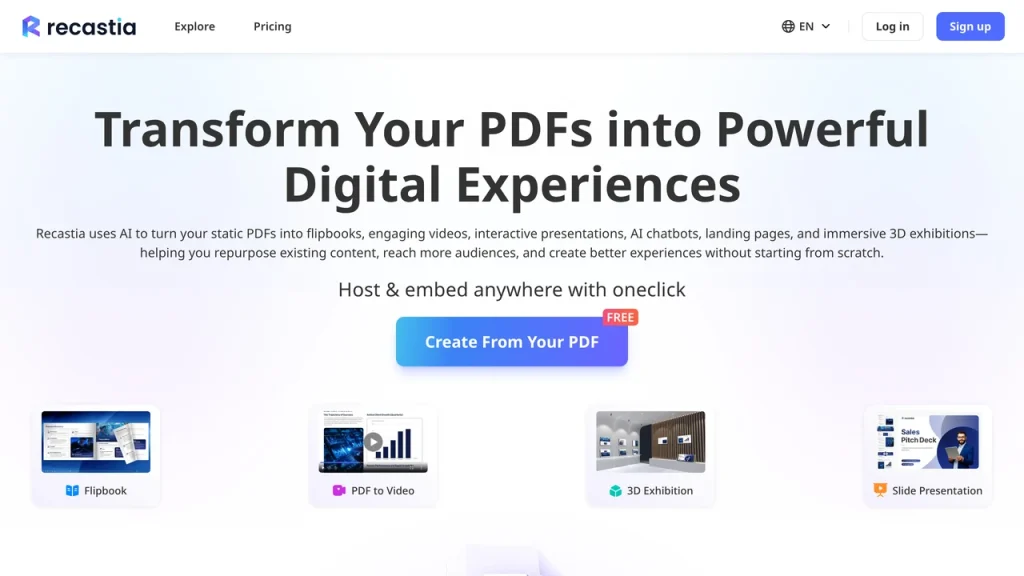
Key Features: Direct PDF upload; three video modes; page selection; script, voice, subtitle, and visual controls.
Pros: Keeps the source pages available for the video; supports other outputs from the same document.
Cons: Free-plan videos include Recastia branding; removing it requires a paid plan.
Best For: Teams that want a page-based video and may publish the same PDF in more than one format.
2. AI Studios
AI Studios’ Docs to Video tool accepts PDFs and builds an editable video draft with a script, scenes, visuals, and optional avatar narration. You can direct the intended audience and tone, then revise the script and visual choices. AI Studios also lets you choose visuals from the uploaded file or other sources as you edit the draft.
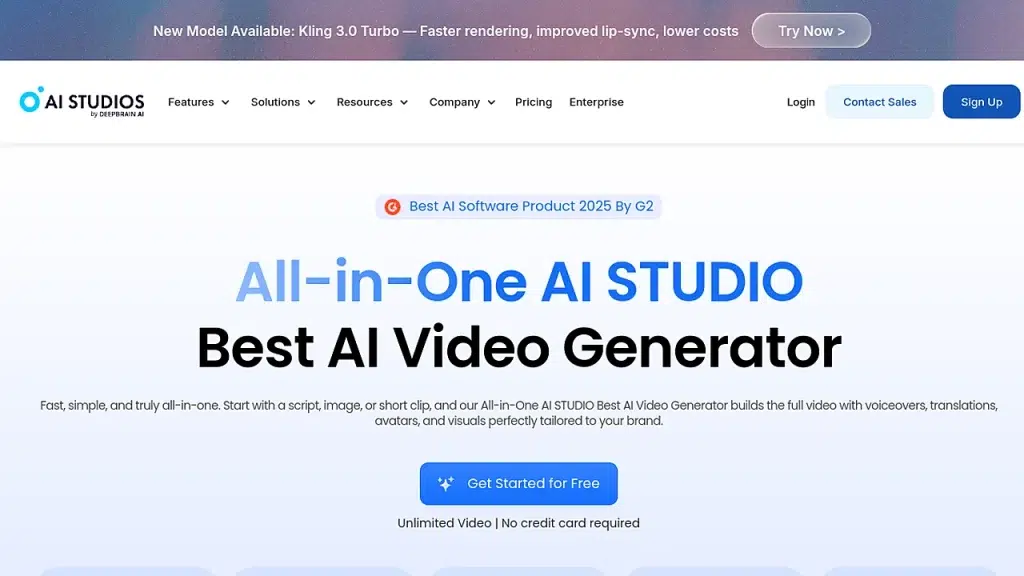
Key Features: Direct document upload; generated script and scenes; avatars; alternative visual sources, including material from the file.
Pros: Makes a presenter-led draft without filming; lets you revise the script and scenes.
Cons: AI may summarize or rearrange source material, so a training script needs a factual review.
Best For: Trainers and educators who want an avatar to explain material from a PDF.
3. Scholarly
Scholarly turns a PDF or other study source into a narrated lecture with chapters and a transcript. Its study tools can turn the lecture into flashcards and questions, so the video can be a starting point for review rather than a standalone clip. Scholarly offers MP4 downloads on paid plans.
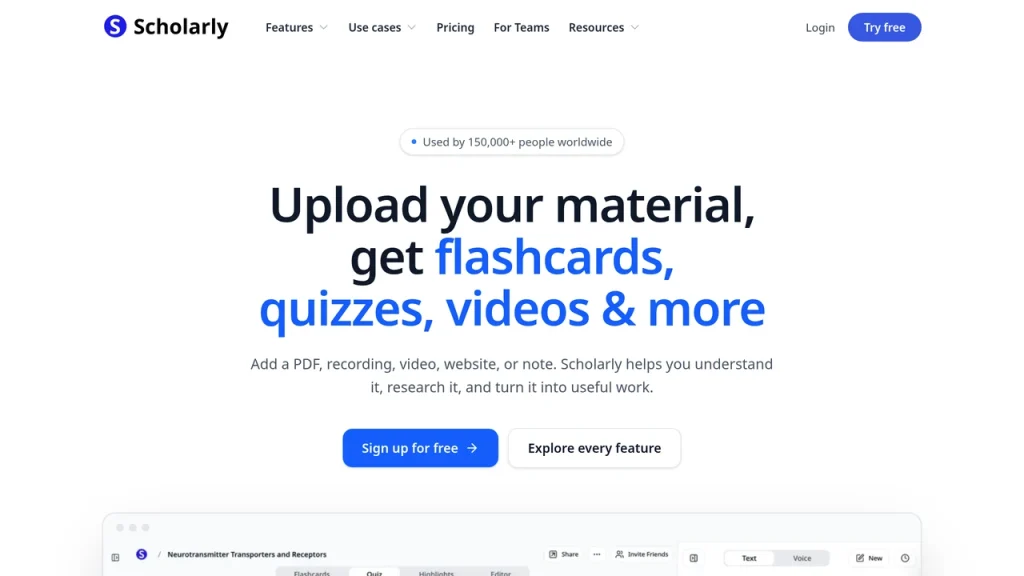
Key Features: PDF-based video lectures; chapters and transcript; linked flashcards, questions, and AI chat.
Pros: Connects the explanation to study and recall tools; viewers can return to a specific chapter.
Cons: Free users can share a viewing link, but downloading the rendered MP4 requires a paid plan.
Best For: Students who need an explanation of course material and a way to review it afterward.
4. NoteGPT
NoteGPT’s PDF to Video tool accepts a file and turns its pages into narrated video slides. The page-led approach suits lesson slides or handouts when you want viewers to see the material in sequence. NoteGPT lets you choose an AI voice, adjust the layout and timing, and export the video as an MP4.
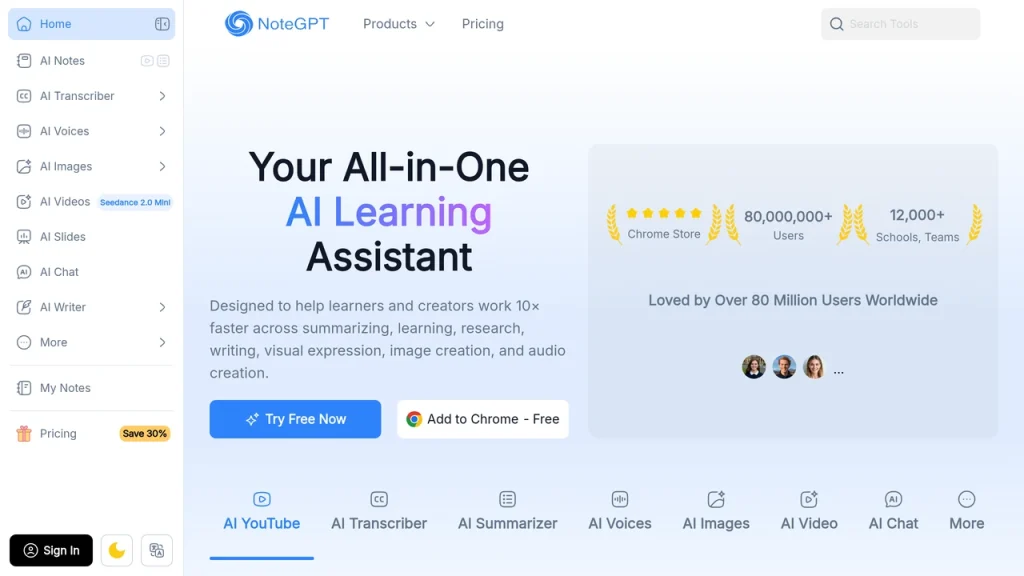
Key Features: Direct PDF upload; page-based video slides; AI voice; MP4 output.
Pros: Simple input and output; keeps the document sequence easy to follow.
Cons: It offers fewer editing controls than a scene-based video editor; check each page’s readability on a phone.
Best For: Teachers or students turning slides and handouts into a narrated viewing copy.
5. Leadde
Leadde takes a PDF and drafts a video outline, script, scenes, subtitles, and narration. It supports an AI presenter and lets you edit the generated parts before export. That review step matters for manuals and policy documents: the video should match the approved wording and sequence.
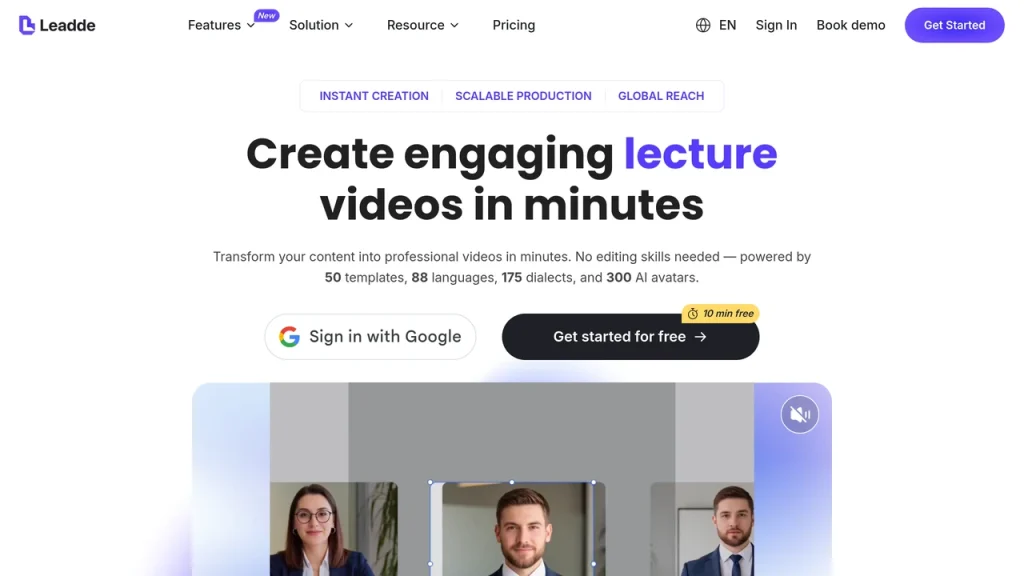
Key Features: Direct PDF upload; editable script and scenes; avatar narration; subtitle and language controls.
Pros: Gives business teams a draft they can review and revise; supports documents as a direct input.
Cons: An automatically shortened script may omit a condition or exception from a policy or procedure.
Best For: Training, onboarding, and internal communication based on business documents.
6. Pictory
Pictory’s Doc to Video tool now accepts a PDF directly. It summarizes the document, builds a storyboard, and lets you edit the script, scenes, visuals, and voiceover. This is a better fit for a concise video about a report than for a page-by-page reading of it. Pictory recommends PDFs under 50 pages for stronger summaries.
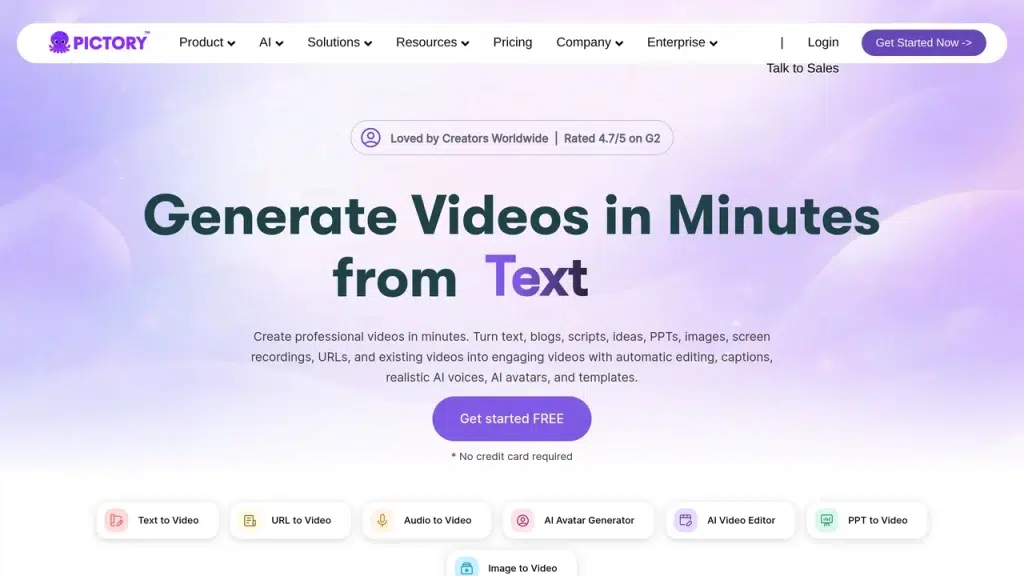
Key Features: Direct PDF upload; summarized storyboard; editable scene text; visual, audio, and format controls.
Pros: Saves the manual step of copying PDF text into its script workflow; gives editors control over the summary.
Cons: Pictory notes that longer PDFs may produce weaker summaries. Check omitted details before export.
Best For: Marketers who want a short video drawn from a report, guide, or article.
7. invideo AI
invideo AI is the most indirect PDF workflow in this list. invideo AI asks you to copy text from the PDF and paste it into a prompt; you cannot upload the PDF file directly to that prompt box. From there, you can direct the script and visuals and refine the video with follow-up instructions.
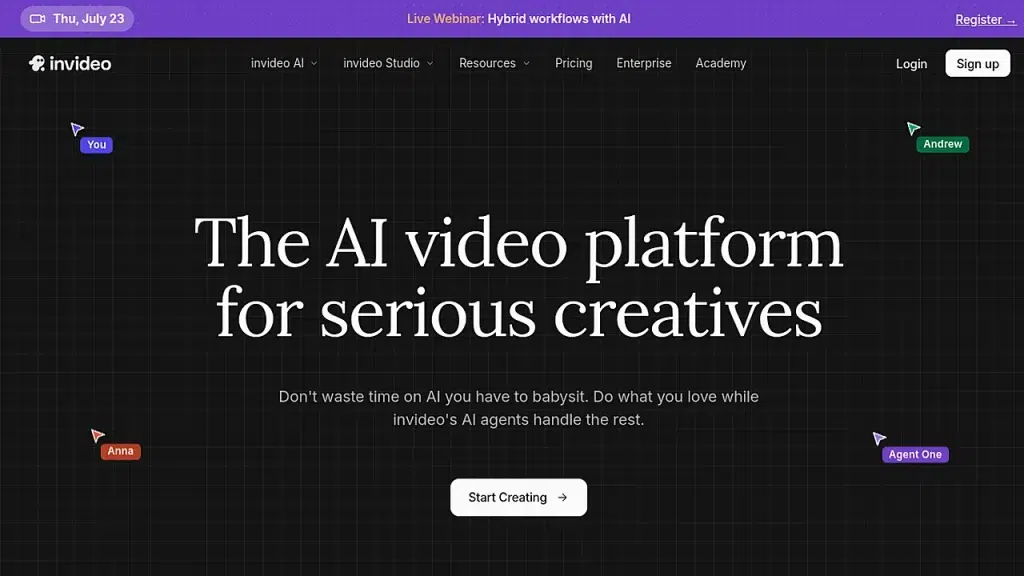
Key Features: Text-and-prompt input; AI-generated script and visuals; follow-up editing instructions.
Pros: Lets you select a few ideas from a long PDF and shape them into a short video.
Cons: Requires text extraction or copying; the original page layout is not carried into the video.
Best For: Creators making a social video from selected points rather than converting a PDF page by page.
What to Check Before You Export
The main check depends on the workflow you chose. For a page-led video, confirm that text and charts remain legible at the intended screen size. For an AI summary, compare the script with the PDF and restore any important numbers, conditions, or context. For an avatar-led video, listen to names and technical terms before sharing it.
If you need a step-by-step Recastia tutorial, see how to turn a PDF into a video. If your choice depends mainly on free-plan limits, use the separate free PDF to video converter comparison.
FAQ
Recastia and NoteGPT are the clearest page-led choices in this list. Recastia provides page selection and several generation modes; NoteGPT turns PDF pages into narrated video slides. AI Studios can also use document visuals, but its Docs to Video workflow generates a new script and scenes, so review how closely the result follows the original pages.
No. Recastia, AI Studios, Scholarly, NoteGPT, Leadde, and Pictory document a direct PDF input. For the invideo AI workflow described here, copy the relevant text from your PDF into a prompt. This difference matters if you need the video's visuals to follow the document's original page design.
AI Studios and Leadde both turn an uploaded PDF into a video with an optional AI presenter. Choose AI Studios when you want to shape the script, scenes, and visual sources in an editable draft. Leadde is aimed at business documents such as onboarding guides and procedures. Recastia also offers presenter options if you want the video to retain selected PDF pages.
Decide whether the video must cover every page or only the main points. A page-led video can keep the document sequence, but small text may be hard to read on a phone. For a summary, split a long report into focused sections and check each generated script against the source. Pictory specifically recommends PDFs under 50 pages for stronger summaries.
The Bottom Line
Choose a PDF to video converter by the kind of video you need. Recastia and NoteGPT can keep the PDF pages on screen. Scholarly turns the material into a narrated lesson, while Pictory creates a shorter video summary. invideo AI starts with text copied from the PDF, so it does not keep the original page design.
If you also need a flipbook or presentation from the same PDF, Recastia offers those formats alongside video. Before sharing the result from a PDF to video converter, check the visuals and narration against the source PDF.
Bring Your PDF to Life With Recastia
Create, customize, and share your content in a more engaging way.