
To make a video from PDF pages in Recastia, choose a video template and upload your document. You can turn the pages into a slideshow without narration, add one continuous voiceover, or write a separate explanation for each page.
Below, you’ll find a short introduction to Recastia followed by the complete workflow. Follow the steps to create a video from PDF content and share it as a video file, a viewing link, or an embedded player.
Key Takeaways
- Start with an existing PDF rather than rebuilding its pages in a video editor.
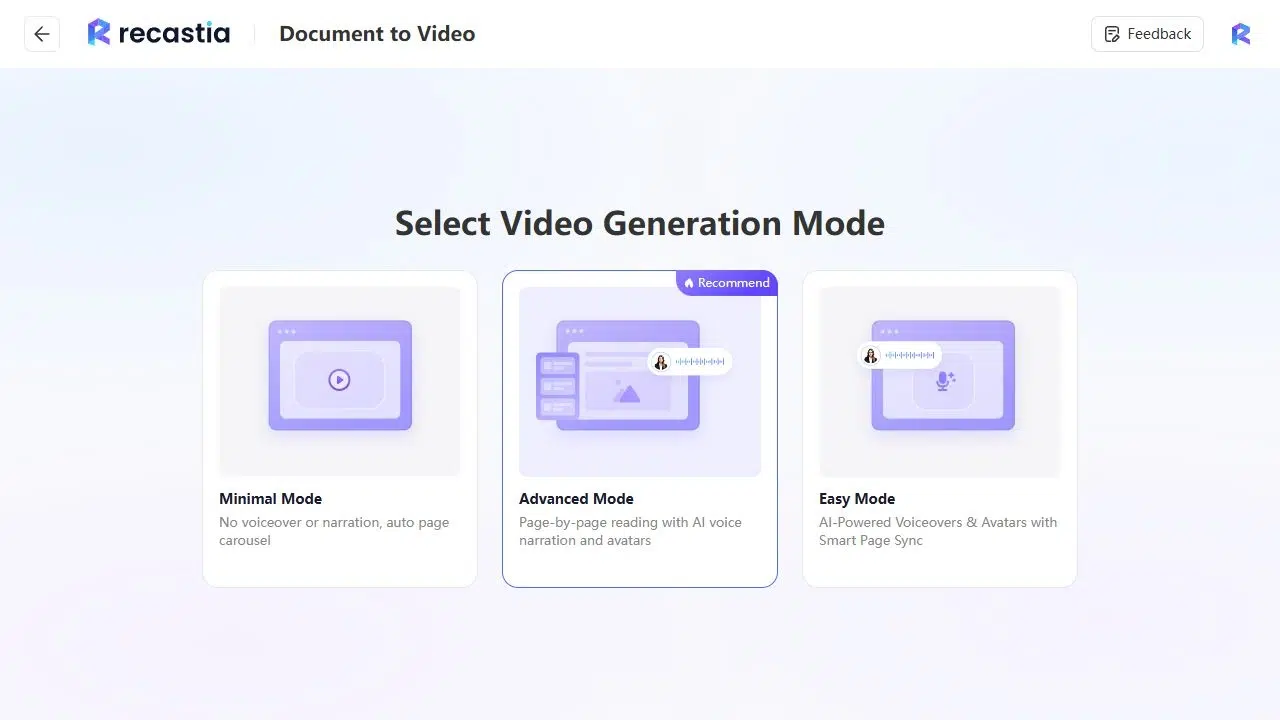
- Choose Minimal Mode for a page slideshow, Easy Mode for a continuous script, or Advanced Mode for page-by-page narration.
- Adjust page timing in Minimal Mode, or choose voice and subtitle settings for a narrated video.
- Preview the finished video before downloading it or sharing its link.
What Is Recastia?
Recastia is an online content repurposing platform. It turns existing documents into formats you can publish and share, including videos, flipbooks, and presentations. For example, a brochure can become a page-turning publication for browsing or a narrated video that explains the offer.
Its PDF to Video tool turns document pages into video scenes, with options for voice narration, subtitles, visual effects, and an avatar presenter. Use it to introduce a service, explain a chart, or walk through a training document using the material you’ve already prepared. The three generation modes give you different ways to handle narration and page timing.
Choose the Right PDF to Video Mode
Choose a mode after uploading your PDF. The main difference is how you want to explain the pages: no voiceover, one continuous script, or individual page scripts.
Minimal Mode: Show the Pages Without Narration
Minimal Mode creates a page slideshow without a spoken script. Select the pages, then set how long they stay on screen. You can use a fixed duration per page or set a total duration and divide it equally across the selected pages.
- What you prepare: PDF pages that communicate through their own text and visuals.
- What you control: Selected pages, page duration, video ratio, visual effect, background, and music. Choose No Music if you don’t want a soundtrack.
- Best for: A visual portfolio preview, a short brochure slideshow, or a sequence of product images with concise captions.
Give text-heavy pages more reading time. If a chart needs an explanation beyond its labels, choose a narrated mode instead.
Easy Mode: Use One Continuous Voiceover Script
Easy Mode gives you one script area for the whole video rather than a separate box beside each page. Choose Manual Input to write or paste the narration, or AI Copywriting to draft a script from the PDF. You also select the PDF pages to include.
- What you prepare: One connected explanation covering the selected pages.
- What you control: The overall script, selected pages, voice, avatar, video ratio, music, and subtitle settings.
- Best for: A company introduction or a brochure overview where the narration tells one continuous story.
Easy Mode uses Smart Page Sync to coordinate the pages with the narration. Write the script in the same order as the document, then preview the result to check the transitions. For instructions that must match a particular page, Advanced Mode gives you direct page-by-page script control.
Advanced Mode: Write the Explanation for Each Page
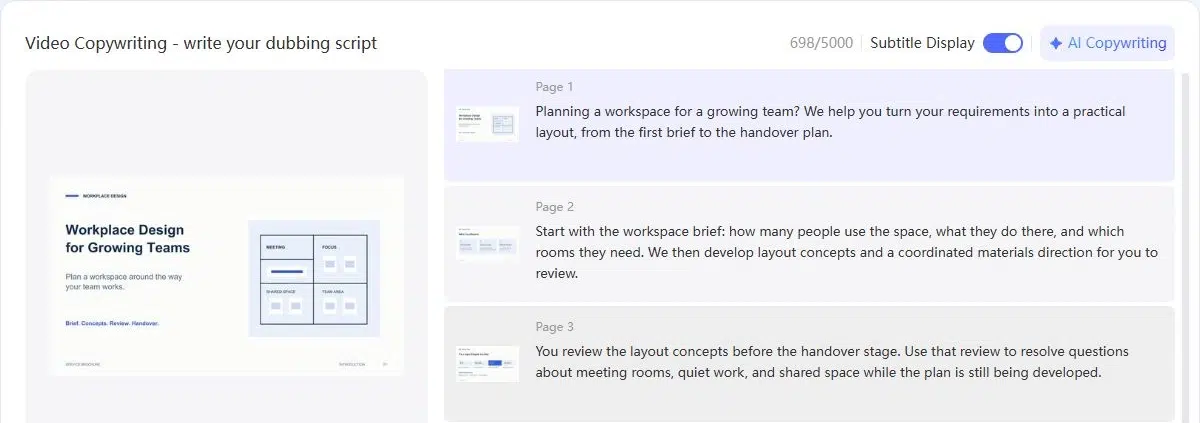
Advanced Mode places narration fields beside individual PDF pages. After selecting the pages, choose Manual Input to write each explanation, or use the AI Copywriting option and review the resulting text. You can explain a chart without reading every label or add context that isn’t written on the page.
- What you prepare: A short spoken explanation for each selected page.
- What you control: Individual page scripts, voice, avatar, subtitles, video ratio, visual effect, background, and music.
- Best for: Training materials, process walkthroughs, and presentations where each page needs its own explanation.
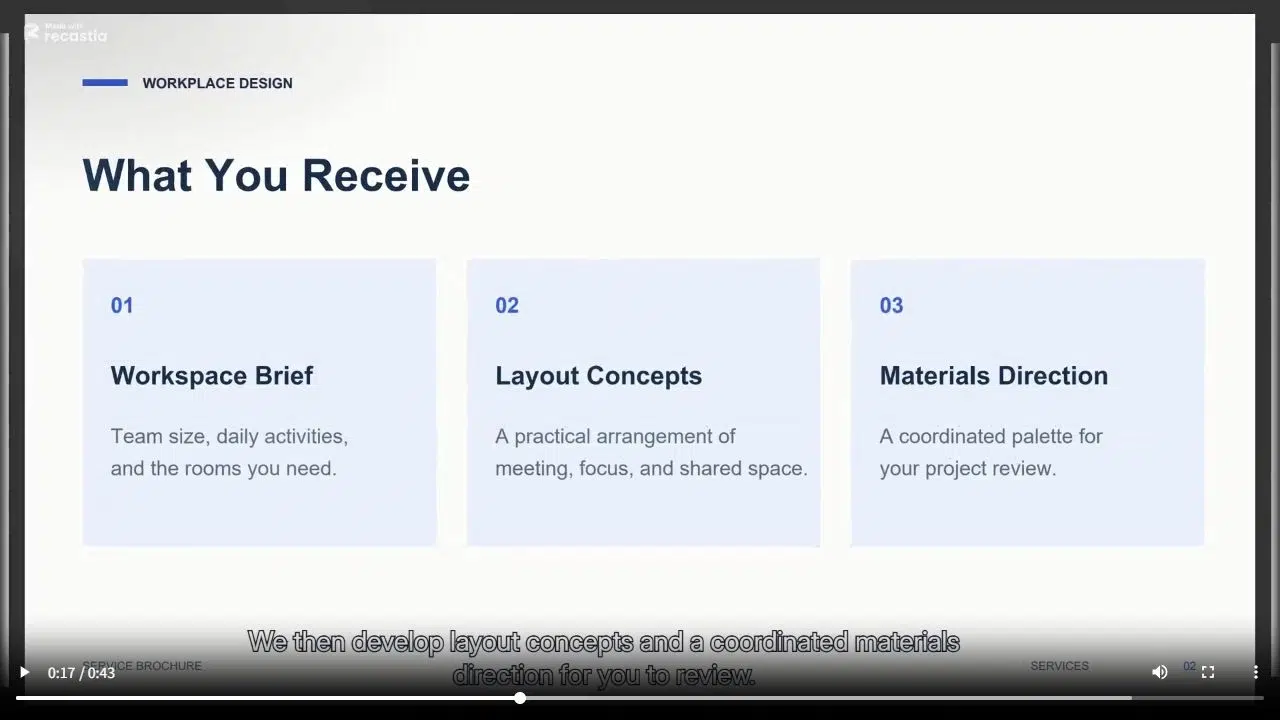
For example, a service-brochure page listing project stages could say: “We start with your workspace brief, then develop layout concepts for you to review.” The narration explains the sequence instead of repeating the headings.
How to Make a Video from PDF Pages
Open the PDF to Video tool and follow these steps with your PDF ready.
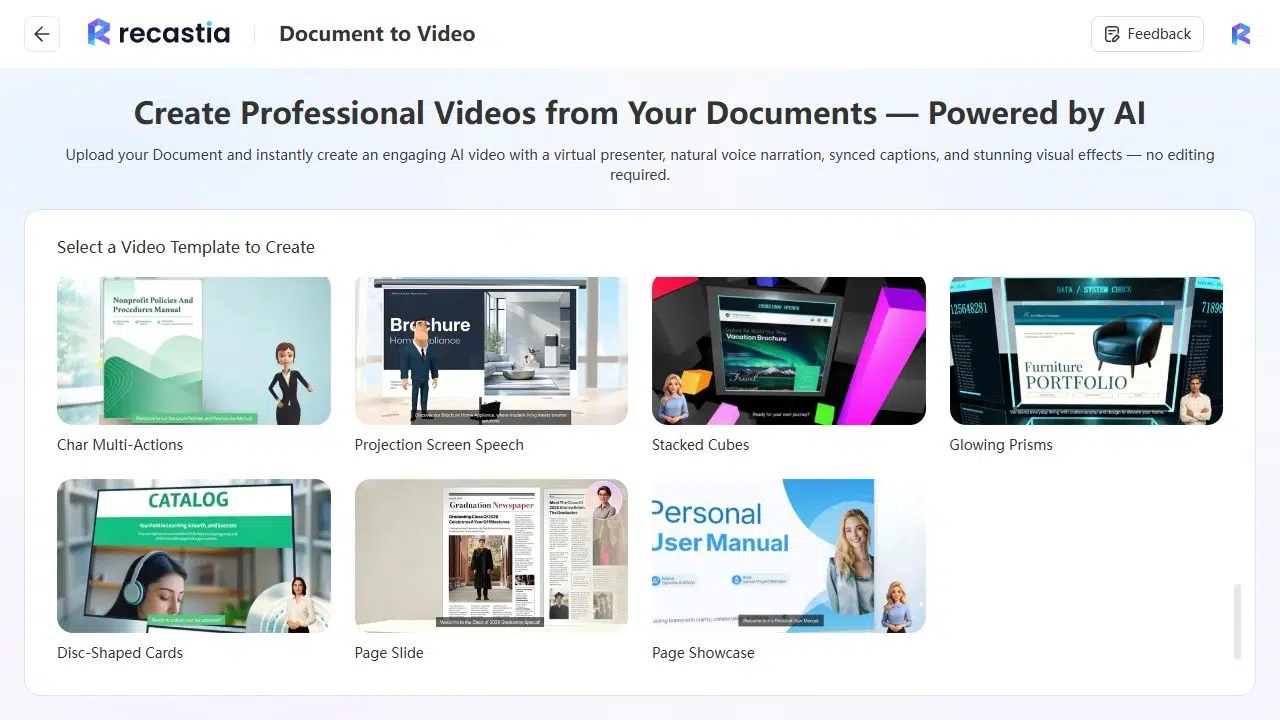
- Choose a Video Template
Choose a video template and select Create. Use View to preview the style first. Page Slide keeps the PDF pages as the main visual material.
- Upload Your PDF
Click the upload area or drag in your PDF. Use the version containing the pages, visuals, and current information you want to share.
- Choose a Mode and Select Your Pages
Choose Minimal, Easy, or Advanced Mode using the guide above. Select the pages you want to include. Leave out appendices or unrelated sections.

- Set the Timing or Add Narration
In Minimal Mode, set the page duration or total duration. In Easy Mode, enter one overall script. In Advanced Mode, write beside each page. For narrated modes, choose Manual Input or AI Copywriting and review the text.

- Set the Voice and Video Presentation
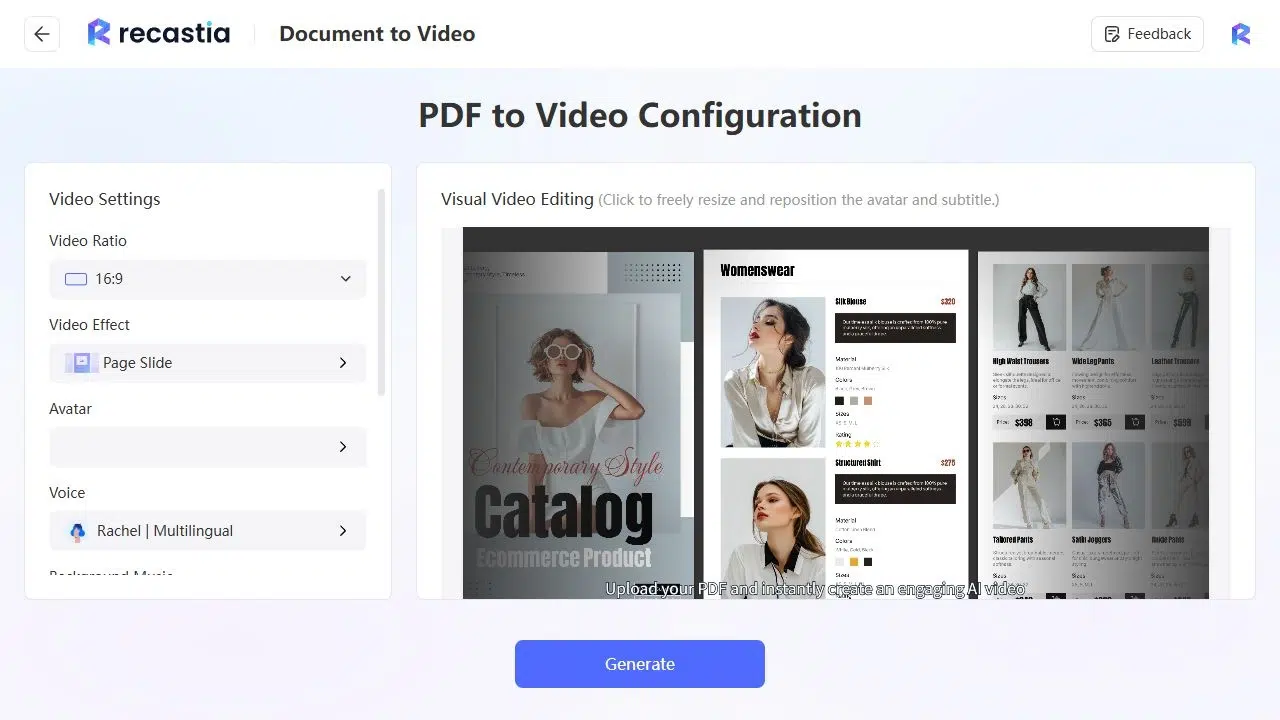
Set the video ratio, effect, background, and music. For landscape pages, start with 16:9. In narrated modes, also choose a voice, avatar, and subtitle settings. No Avatar keeps the focus on your document.
- Generate and Preview the Video
Select Generate, then play the completed video through to the end. Check page timing and readability. If you added narration, check that it matches the displayed pages.
- Download, Share, or Embed It
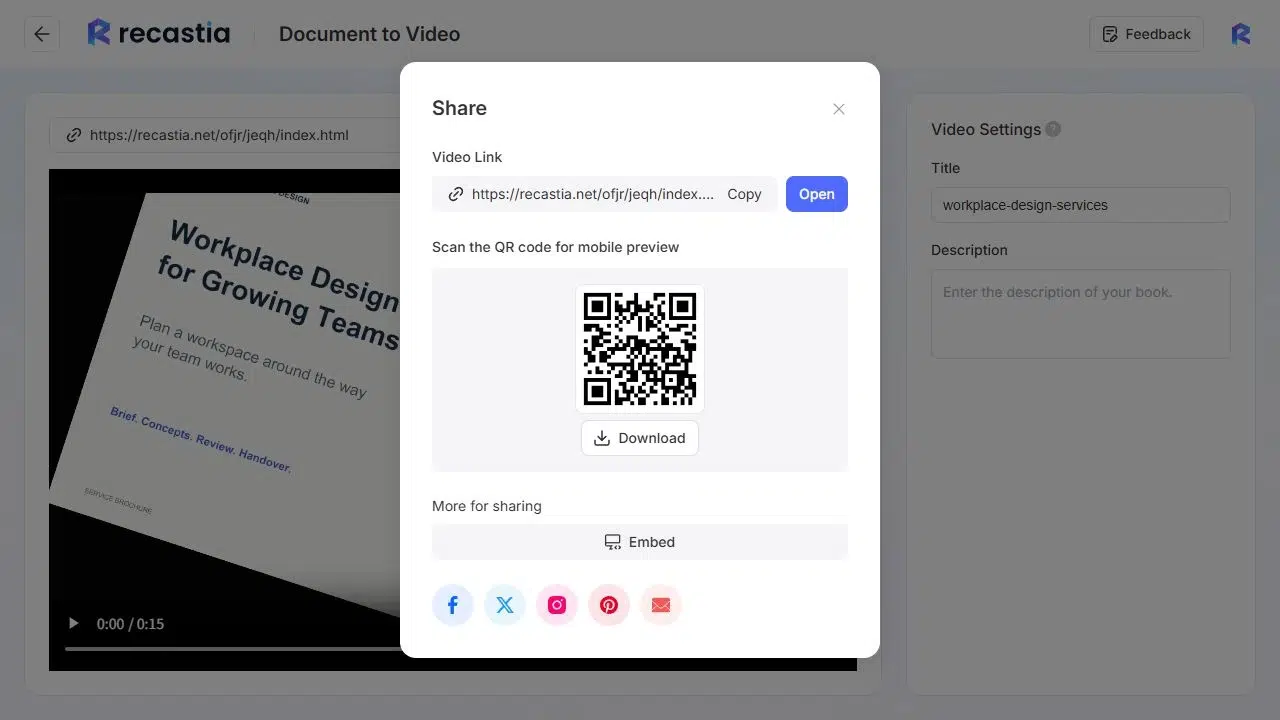
Download the video to use the file. For online sharing, log in and open Projects, then Share. Copy the Video Link, or choose Embed and paste the responsive code into your website’s HTML embed area.
Check the Details Before Sharing
Listen closely to names, acronyms, and figures. A familiar company name may need different wording in the script if the voice doesn’t pronounce it as intended. Check the subtitles against the spoken words too.
For a customer-facing video, make sure the final scene gives an accurate contact route. Include that clickable link alongside the video so customers don’t need to copy an address from the frame.
If you’re preparing an announcement, include its deadline or effective date in the message accompanying the video. The guide to internal communication videos covers how to plan those messages.
Frequently Asked Questions
Spell out an unfamiliar acronym the first time you use it. For a name pronounced letter by letter, listen to the generated voice before sharing. If the pronunciation is unclear, use the full name in the script.
Choose the comparison the viewer needs, then name the relevant rows, columns, and units. For example, explain which service package includes a layout review rather than reading every package feature aloud. Keep the table visible while discussing those details.
Translate the explanation, not just individual words. Check service names, units, and instructions, and update any on-page wording needed to understand the narration. Have a fluent speaker review the script before generating the video.
Use the same currency, price, and conditions in the page and narration. If the price depends on scope, explain that condition instead of presenting a fixed amount. Keep the current offer link alongside the video so customers can check the details before making an inquiry.
Create and Share Your First PDF Video
Making a video from PDF content in Recastia starts with your existing pages. Choose a slideshow, a continuous voiceover, or page-by-page narration, then preview the result before sharing it.
For your first video from PDF pages, choose a short document with a specific purpose, such as introducing a service or explaining a process. Then use the viewing link, download, or embed to put the finished video where you need it.
Bring Your PDF to Life With Recastia
Create, customize, and share your content in a more engaging way.