
Convert PDF to video when you want viewers to watch a document with timed page changes, music, or a spoken explanation. Recastia uses the PDF pages as the visuals and offers three creation modes: a slideshow without narration, one overall narration script, or a separate script for each page.
This guide shows you how to convert PDF to video with Recastia, from choosing a template to reviewing the result and accessing download or sharing options. It also explains the free-use boundaries and introduces three alternatives for projects that need redesigned scenes or detailed timeline editing.
Create a Video From Your PDF With Recastia
Recastia converts document pages into a video without requiring you to rebuild their layouts. Your photographs, headings, charts, and page text become the visual material. A template determines how those pages appear and move; narration can explain the content while viewers follow the relevant page.
That makes the tool suitable for a product catalog, presentation, training handout, or report that already has a page design. You can keep a visual collection free of narration, explain the whole document in one script, or give each page its own commentary. The mode you choose determines which editing work comes next.
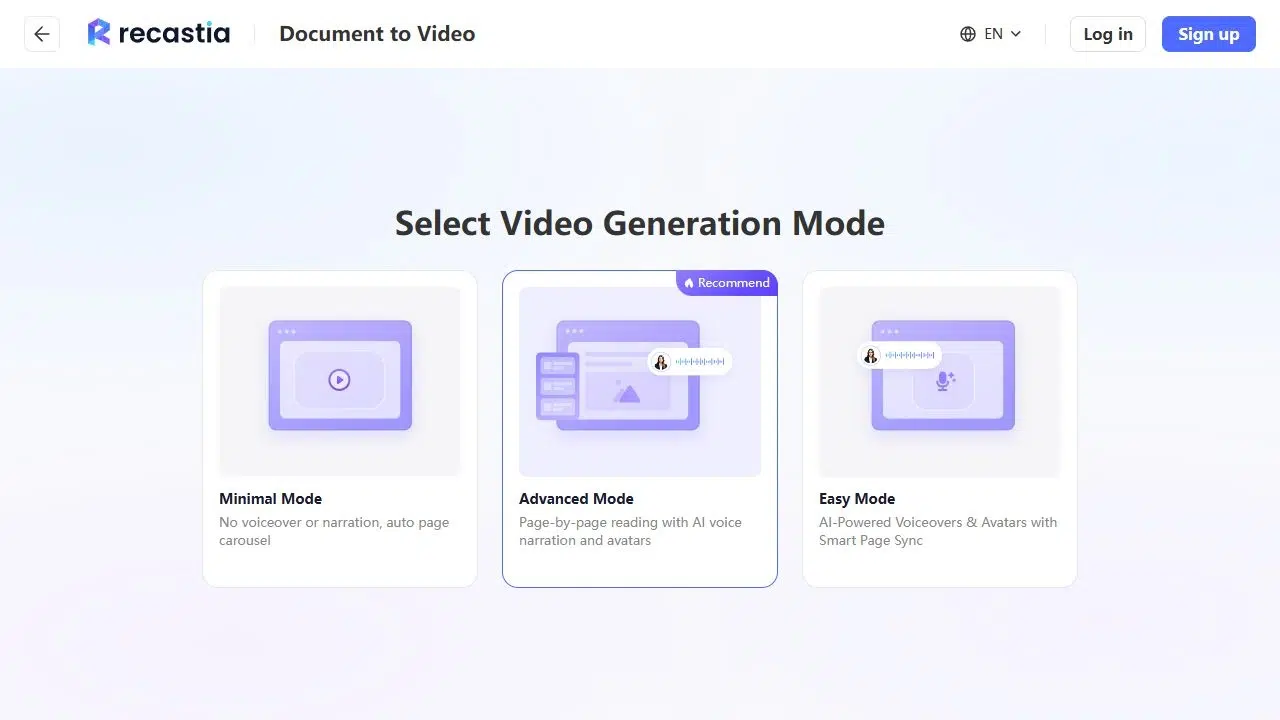
Choose Between Minimal, Easy, and Advanced Mode
Choose the mode according to how the video should sound. A catalog with short product labels may work as a visual sequence with music. A training handout usually needs an explanation, and a chart may need a few sentences tied to its specific page.
| Mode | How It Uses Your Content | Choose It When |
| Minimal | Plays selected pages without voiceover or narration | The pages communicate through images and short text |
| Easy | Uses one overall narration script with synchronized pages | You want a continuous explanation of the document |
| Advanced | Provides separate narration text for individual pages | Each page needs its own explanation or emphasis |
Minimal Mode lets you set a fixed page interval or divide a total time allocation equally among the selected pages. Easy and Advanced modes add narration workflows, with voice, avatar, and subtitle settings. Music is a separate choice: you can use a soundtrack without a narrator, or keep a narrated video free of background music.
How to Convert PDF to Video With Recastia
Open the PDF to Video tool with a PDF whose layout and wording are ready to appear on screen. The steps below cover the complete workflow, including the settings that differ between a silent slideshow and a narrated video.
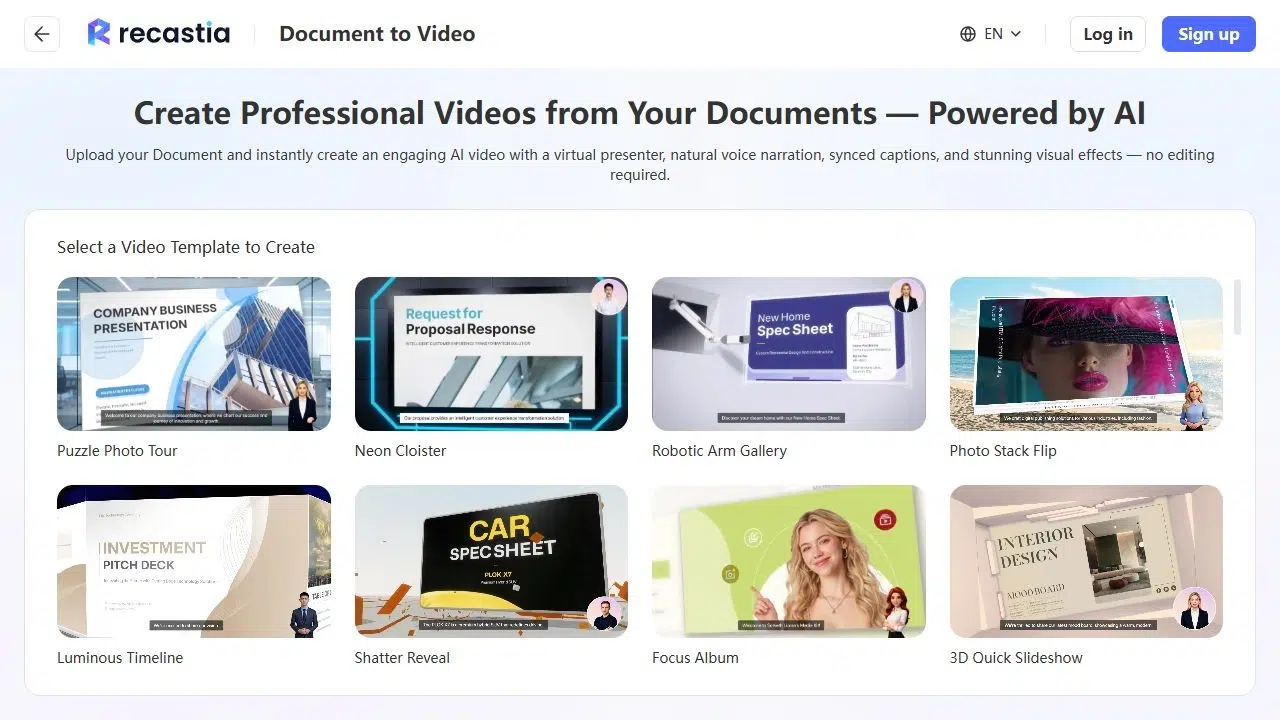
- Choose a Template and Upload Your PDF
Preview a video template before choosing Create. Horizontal Page Slide keeps the document pages central; other templates add different page movements or presenter layouts. Select an effect that leaves the important photographs and text visible long enough to understand.
Upload your PDF through the upload area or drag the file into it. Let the document finish processing before choosing a mode. If the video will use only a short section of a long document, keep the intended page sequence in mind for the selection stage.
- Select Your Creation Mode
Choose Minimal for automatic page playback without narration. Use Easy when you want to write one continuous script, or Advanced when the explanation needs to follow individual pages. For example, a lighting catalog can play as a visual collection in Minimal Mode; Advanced lets you discuss the materials on one page and installation considerations on another.
Choose based on the explanation you need, rather than how much text the PDF contains. A long paragraph printed on a page is not necessarily a suitable voiceover. Narration should tell viewers what to notice and connect the information they see. - Choose the Pages to Include
Keep the pages that support the video’s purpose and remove unrelated sections from the selection. A short product introduction might need the collection cover, a few product pages, and a closing overview. An appendix or detailed specification table can stay in the full document.
Check the selected page count before continuing. In Minimal Mode, that count and the common page interval determine the main playback allocation. If one page contains substantially more information, simplify it or allow enough time across the sequence for viewers to read it. - Set the Timing or Write the Narration
In Minimal Mode, choose a fixed duration per page or an equal split of a total duration. These controls apply a common interval, not an individually assigned time for every page. Template animation and transitions can extend the finished video’s running time beyond that allocation.
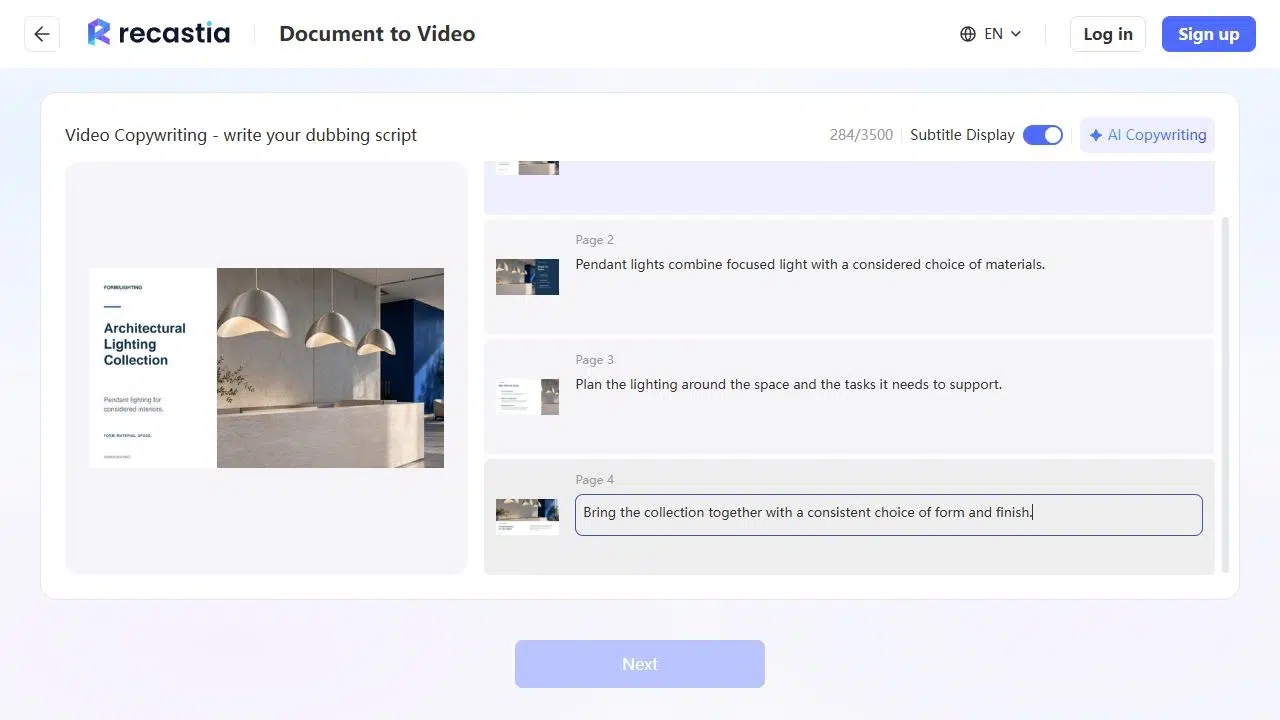
In Easy Mode, edit the overall script. In Advanced Mode, write the explanation beside each selected page. You can choose Manual Input or AI Copywriting, then review the wording before proceeding. For the planning page in the lighting collection below, the script reads: “Plan the lighting around the space and the tasks it needs to support.” This connects the page to a practical design decision instead of reading its heading aloud. Keep names, measurements, and product details consistent with the source. - Configure the Voice, Captions, and Presentation
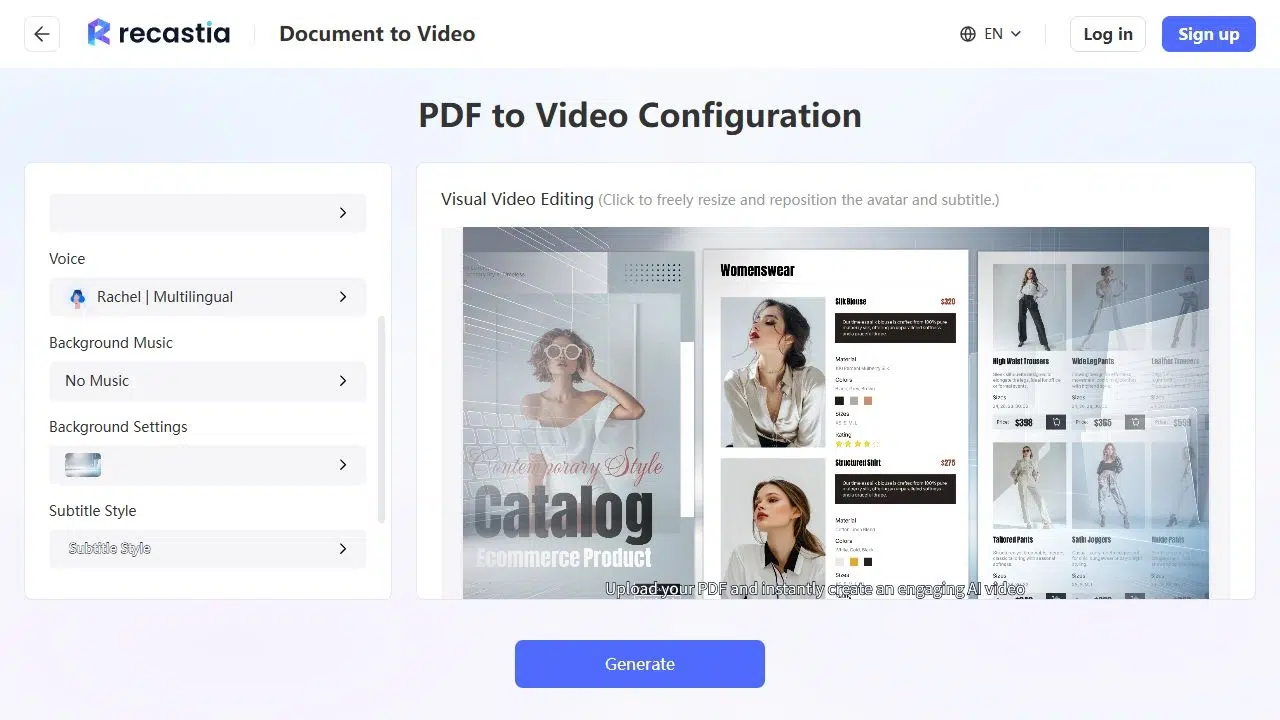
Choose a video ratio that suits your document and where the result will appear. A landscape PDF is a sensible starting point for a 16:9 video. Review the effect, background, and music choices; select No Music when a soundtrack would distract from the spoken explanation.
For narrated modes, choose the voice and decide whether to include an avatar. No Avatar keeps attention on the document. Set the subtitle display and available subtitle style, then check that captions and a presenter do not cover important page content. Review the pronunciation of product names in the finished video rather than assuming a selected voice will read every term as intended. - Generate and Preview the Video
Select Generate after the script and settings are ready. When the video is available, play it through to the end. Check that the narration matches the displayed page, the captions are readable, and page changes give viewers enough time to follow the content.
Pay particular attention to dense pages. A complete PDF page can contain more information than a video viewer can absorb while listening. Shorten the spoken explanation, simplify the source page, or select fewer pages when the sequence feels crowded. - Download or Share the Finished Video
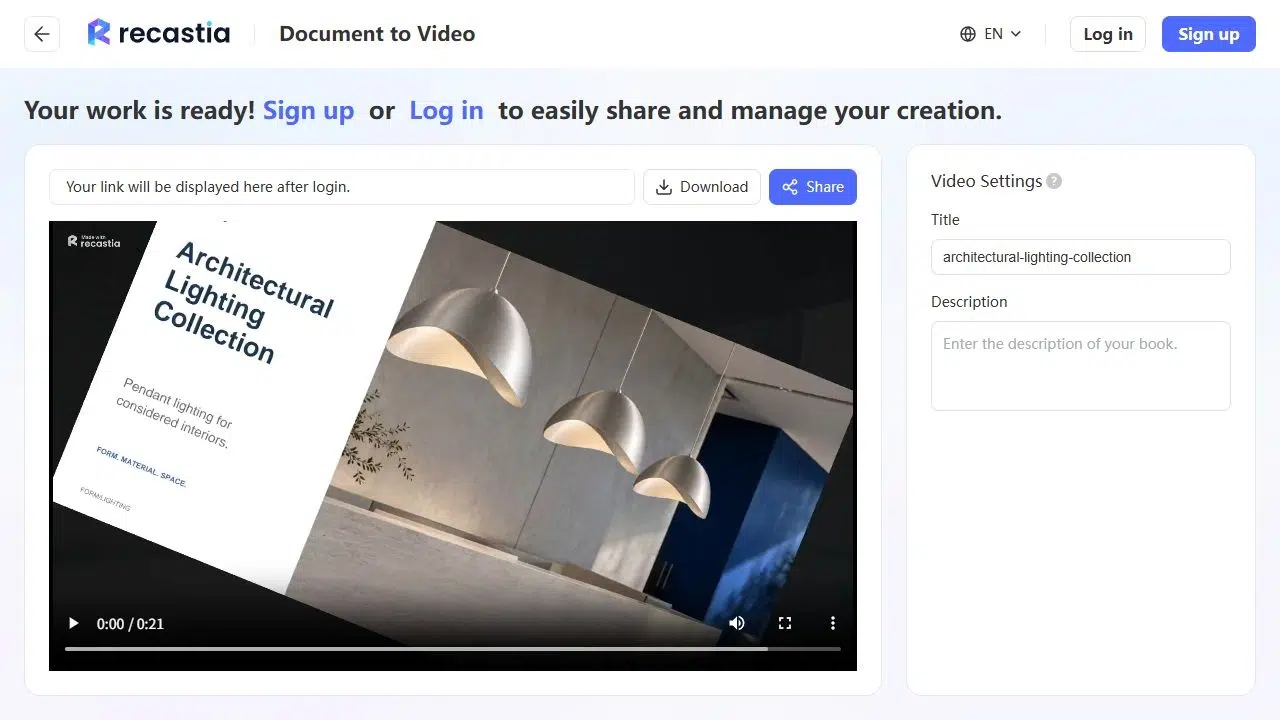
Sign in or create an account when prompted to download, share, or manage the finished work. A guest can begin the conversion and preview a generated video, but the guest download action can require an account. Finish that account step before relying on the video for a presentation or a scheduled upload.
Once the relevant account options are available, use Download for a video file or Share for an online viewing link. Website embedding and watermark removal depend on the plan. Check those requirements before preparing a version for your website or a client deliverable.
Alternatives for Different Editing Needs
Recastia keeps the document pages at the center of the video. These alternatives suit projects where you want to redesign those pages, edit a timeline, or generate a new scene sequence.
Canva
Canva combines slideshow design with music, animations, and MP4 export. Its PDF import tools let you work with supported document content, though fonts and layouts may need adjustment. Choose it when you want to move a product photograph, separate a heading from the page, or rebuild the content for a different screen shape.
- Best for: changing the design before producing a video.
- Limit to check: premium assets, audio, and AI features may require a paid plan; imported layouts need review.
Clipchamp
Clipchamp provides timeline editing, recorded narration, AI text-to-speech, and automatic captions. For a PDF-based project, export the required pages as images first, then arrange those images with the audio. This adds a preparation step but gives you control over how long each image stays on screen.
- Best for: matching individual images to a narration track.
- Limit to check: this is an image-based route, not a direct PDF import workflow; premium stock and higher-resolution export have separate requirements.
InVideo AI
InVideo AI generates scripts, visuals, voiceover, subtitles, and music from a prompt. It is an option when you want to turn the document’s ideas into a newly assembled explanation rather than retain the original page design. Review the generated claims and selected visuals against your source material.
- Best for: drafting a new narrated sequence from a topic or brief.
- Limit to check: do not assume exact PDF-page preservation or free finished-video export; generation and download access depend on the current plan.
What Can You Do for Free?
Recastia lets you start the document workflow and preview a generated video without signing in. Downloading, sharing, and managing the work can require an account. Its pricing page distinguishes branded free output from paid options such as watermark removal and website embedding. Check the current plan for your intended output rather than assuming the guest preview includes every delivery option.
For the alternatives, the clearest free-export distinction is Clipchamp’s personal free plan: it supports watermark-free export up to 1080p using the available free features and assets. Canva’s premium content can change what a project requires, while InVideo AI’s generation and export allowances need checking separately. Free editing, free preview, and a downloadable finished video are different benefits.
Frequently Asked Questions
An ordinary video export displays a link as part of the page image; it does not retain the PDF’s clickable area. Put the destination in the video description, accompanying email, or webpage. A short visible address can help viewers recognize it, but viewers still need a separate link to open the destination.
Check the generated preview before building a narrated version. A scan may provide a page image that viewers can see, but it does not guarantee readable text for automatic script generation. If the narration does not reflect the page accurately, write the script manually and use a clearer source document where possible.
Usually, the narration should explain the main point rather than read all page text. A chart needs its finding and relevant context; a product page may need the intended use or material choice. Keep the displayed information and spoken explanation consistent, and leave detailed reference material in the complete document.
You can choose a portrait presentation where supported, but changing the video ratio does not redesign the page. Small labels in a landscape layout may become hard to read. Prepare a portrait source layout or use fewer, larger elements when viewers will mainly watch the result on a phone.
Conclusion
Convert PDF to video with Recastia by choosing the mode that fits your material, selecting the pages, and setting either playback timing or narration. Review the voice, captions, and page changes before choosing the download or sharing option your account supports.
If you need to convert PDF to video with a different design or editing approach, Canva, Clipchamp, and InVideo AI offer alternatives. Decide whether to preserve the page layout, redesign the scenes, or generate a new narrative, then check the free-use and export requirements for that route.
Bring Your PDF to Life With Recastia
Create, customize, and share your content in a more engaging way.