
A knowledge transfer document should let someone run the next cycle without asking the outgoing owner to explain every line. Start with what the new owner has to deliver. Then add the decisions that change the plan, the exceptions they’re likely to face, and the work they’ll inherit on day one.
Take a monthly publishing handover. The notes may say a partner logo was dropped last time, but the incoming editor needs to know when to make that call and where to find the approved replacement. This example shows how to turn notes like that into a knowledge transfer document. Once the guide is ready, you can use Recastia to share it as a browsable flipbook with page numbers the team can refer to together.
Start With the Next Release
Write the first page for the person taking over the calendar. Give them a starting point and a way to tell when the work is ready to move on. In the sample guide, the incoming managing editor confirms the article list with the campaign lead five working days before release. The assigning editor then sends the copy and its sources to the product reviewer. Name who checks the destination links and the date against the calendar after scheduling. A reminder to “check before launch” is easy to miss when everyone thinks someone else owns it.
Put timing next to the action it affects. Keep the full editorial calendar where the team already maintains it. The handover only needs to point the incoming owner to the right place and tell them which dates matter.
Turn Past Fixes Into Rules Someone Can Use
Scan the notes for moments when the team changed course. Write down what triggered the change, what the team did, and why. If the old owner has moved on, a short explanation helps the new one tell which parts of the process can change safely.
| What the Notes Say | What the Incoming Editor Needs |
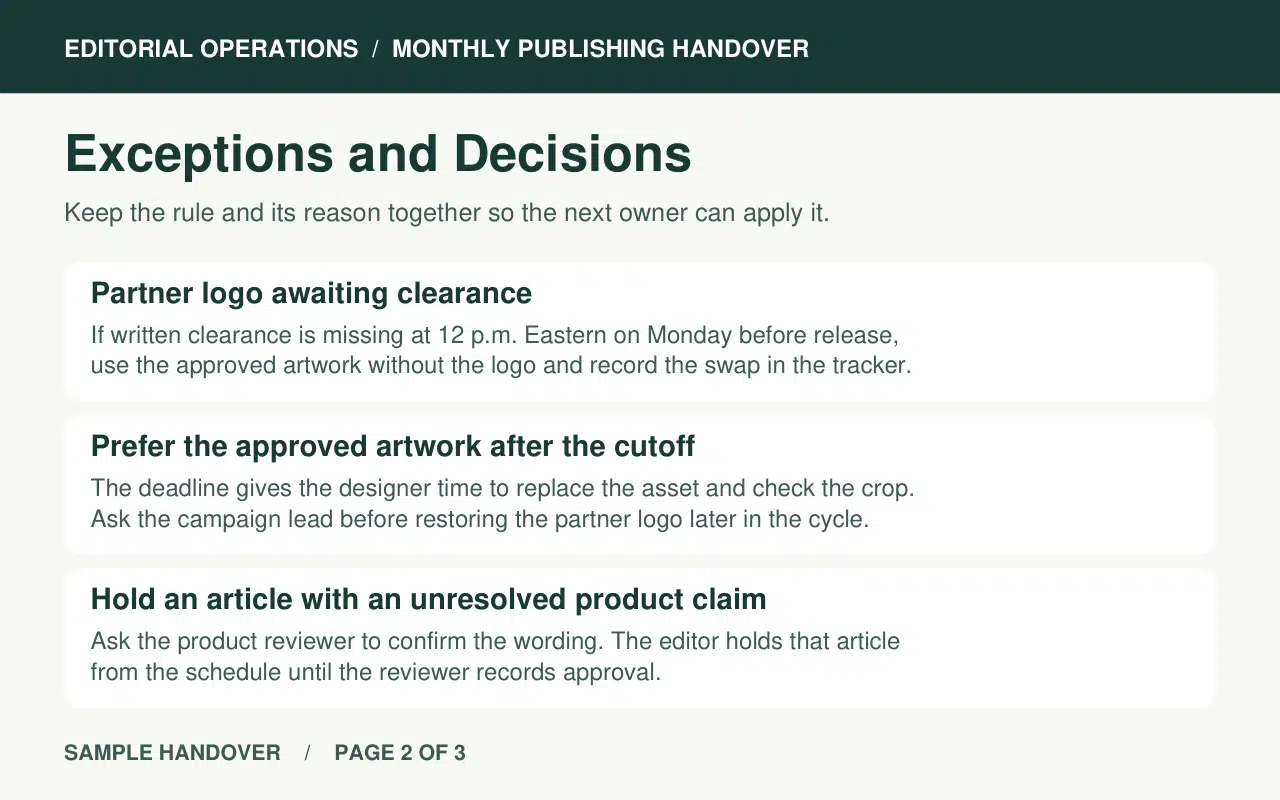
| “Dropped partner logo last time.” | If written clearance is missing at noon Eastern on the Monday before release, use the approved artwork without the logo. Record the swap in the release tracker. The cutoff gives the designer time to replace the asset and check the crop. |
| “Product claim held up scheduling.” | Hold the affected article until the product reviewer records approval. The assigning editor sends the reviewer the claim and its source so they can check the proposed wording. |
| “Still waiting on the partner team.” | The incoming managing editor checks for written clearance before Monday at noon Eastern. Until then, the release tracker should show the item as open. |
The first two entries are rules the next editor can reuse. The last one belongs in the handover because it’s still open. Keep its current status in the tracker so the team can update it when a reply comes in.
Share the Guide as a Flipbook With Recastia
The notes already contain the judgment your team needs. Once you’ve written it down, Recastia can make the finished PDF easier to browse. Keep sensitive approvals and unpublished material in the systems your team already uses. Use an approved version of the guide when you make the flipbook.
- Export the Handover Guide as a PDF
Put the next release on page one, the standing rules and exceptions on page two, and the open items on page three. Give each page a title and number. Someone who remembers the logo rule from the handover meeting should be able to find it again without reading the whole guide.
- Open the PDF in Flipbook Maker
Upload the finished PDF to Flipbook Maker. Sign in if Recastia prompts you to continue. Once the reader is ready, turn through to the last page. Use the page controls to go back to the exception page, then check that the deadline, replacement artwork, and decision owner are legible. If any detail is unclear, fix it in the source PDF before sharing.
- Share the Guide With a Place to Start
If a browser link fits your team’s sharing rules, open Share to copy the reading link. Point the new editor to page two and ask which artwork they’d use if the cutoff passes without written clearance. Have them open the guide on the device they’ll use for the release and find the rule.
Run One Handover Rehearsal
Give the incoming editor ten minutes with the guide and the tracker. Ask them to find the artwork, explain the fallback, and point to where they’ll record the decision. Then give them a second scenario. The logo is cleared, but one article still has an unapproved product claim. What stays on hold?
Listen for the distinction. The team can replace the logo under the standing rule, while the affected article stays out of the schedule until the claim is approved. If the editor can explain both decisions and find the records, they have enough context to run the next cycle. If they have to ask where something lives, add that location to the guide while you’re both there.
Frequently Asked Questions
Ask the current owner to draft the steps and decisions, then give the new owner a real task to try. They’ll spot missing access, unfamiliar names, and steps everyone else takes for granted. Have a third teammate review any approval or escalation rules they own.
Write down the rule the team is using for the next release and who can change it. Add a review date and a link to the discussion for anyone who needs the background. If there is no agreed rule, record the decision as open and name the person responsible for resolving it.
List the workspace or folder they need, the permission level, and the role that can grant it. Request access before the rehearsal. Keep login details and credentials out of the guide.
Refresh the PDF and its reading copy when a decision rule changes, a responsibility moves, or a link stops pointing to the right place. Use the tracker for daily status changes. Put a revision date in the guide so the incoming owner can tell which edition they’re reading.
Conclusion
Build the knowledge transfer document around the next release. Keep deadlines beside the decisions they govern, and give every unresolved item an owner and a next action.
Before you hand over the knowledge transfer document, ask the new owner to try one decision with the guide open. A browsable copy makes the right page easy to find. Their answer tells you what the page still needs.
Bring Your PDF to Life With Recastia
Create, customize, and share your content in a more engaging way.