
Give your product catalog or portfolio a video version without writing a narration script. Recastia’s PDF to slideshow video workflow uses your document pages as the visuals, with automatic page changes and optional background music.
This guide explains how to convert a PDF to slideshow video in Minimal Mode, choose the pages, set a pace that matches their content, and download or share the result.
What Is a PDF Slideshow Video?
A PDF slideshow video plays a sequence of document pages for a set amount of time. The pages supply the photographs, headings, diagrams, and other visual content. You can accompany them with music while keeping the video free of spoken narration.
This format suits product collections, design portfolios, event programs, and other PDFs that communicate through images and short labels. A document that needs a spoken explanation is a different task; the guide to making a video from a PDF covers narration.
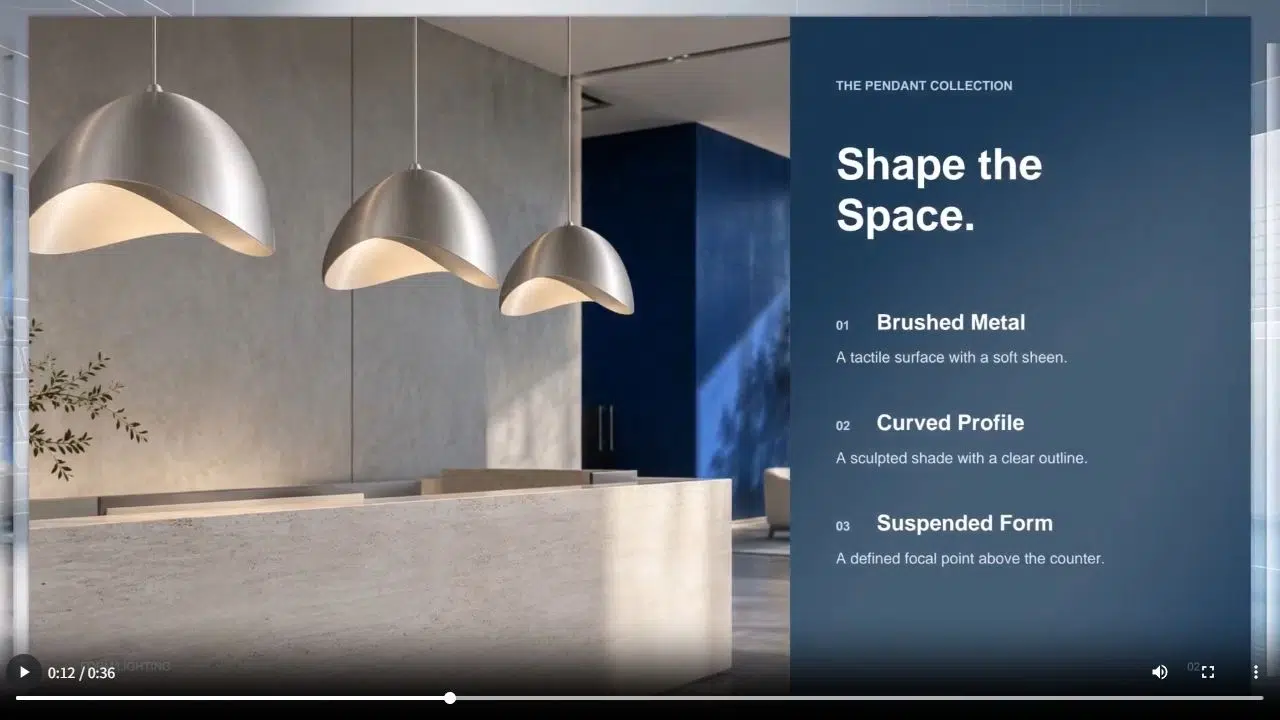
This Recastia architecture portfolio example shows document pages presented as a video. It includes an avatar and narration; the steps below use Minimal Mode for page playback without narration.
Create a PDF Slideshow Video With Recastia
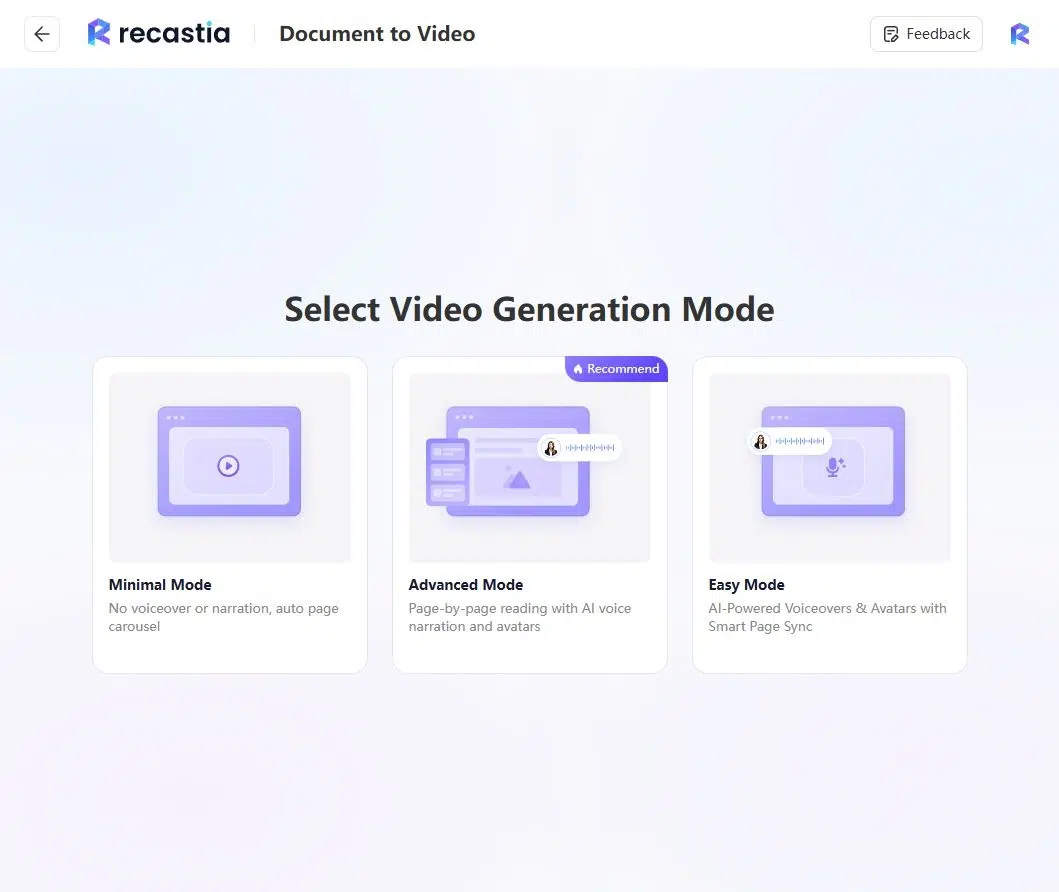
Recastia creates videos from document pages using a choice of visual templates. Minimal Mode is the route for page playback without voiceover. Easy and Advanced modes add narration workflows, so they serve a different purpose from the slideshow covered here.
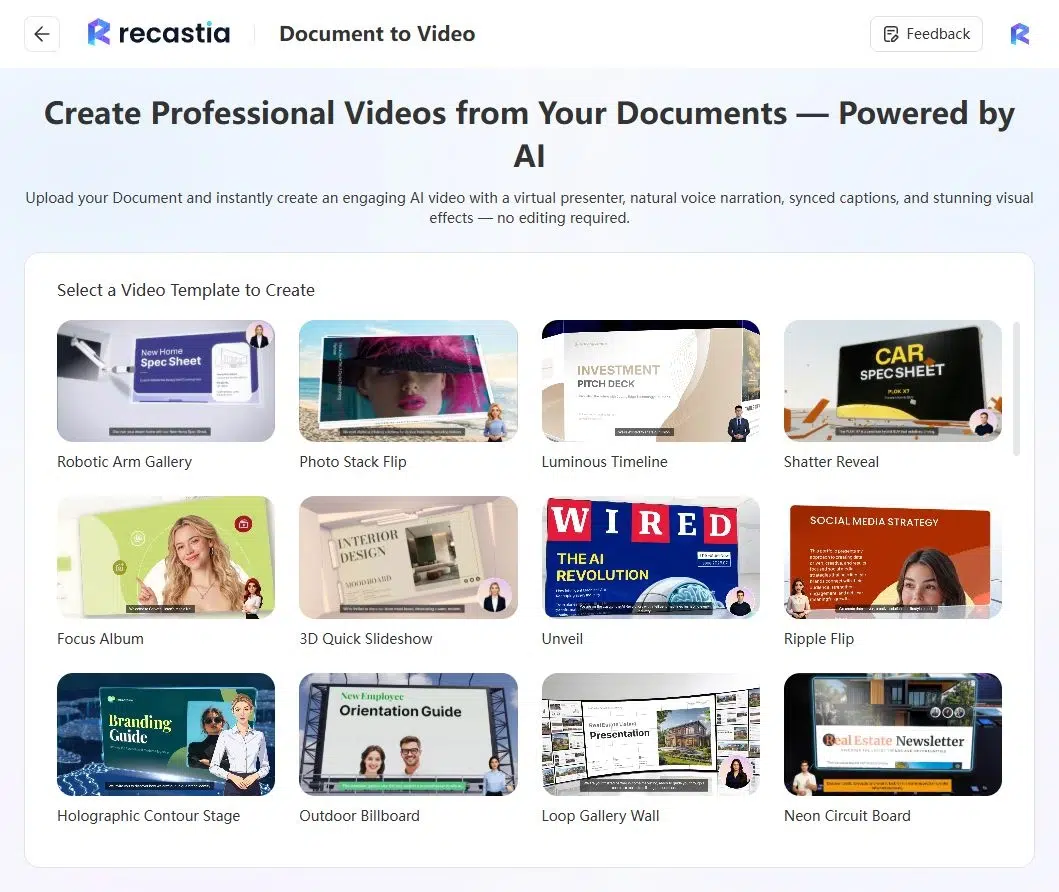
For a lighting collection, that means the product photographs and brief page headings remain the focus. Choose a simple page-slide effect when viewers need to read labels or compare designs. A template preview helps you decide whether the motion suits your document before you upload it.
How to Convert a PDF to Slideshow Video
Open the PDF to Video tool and follow these steps. Use the version of your PDF with the page design and wording you want to appear in the video.
- Choose a Video Template
Preview a template, then select Create. Horizontal Page Slide presents the document pages in sequence. For a product catalog, choose an effect that leaves photographs and labels visible long enough to compare designs.
- Upload Your PDF
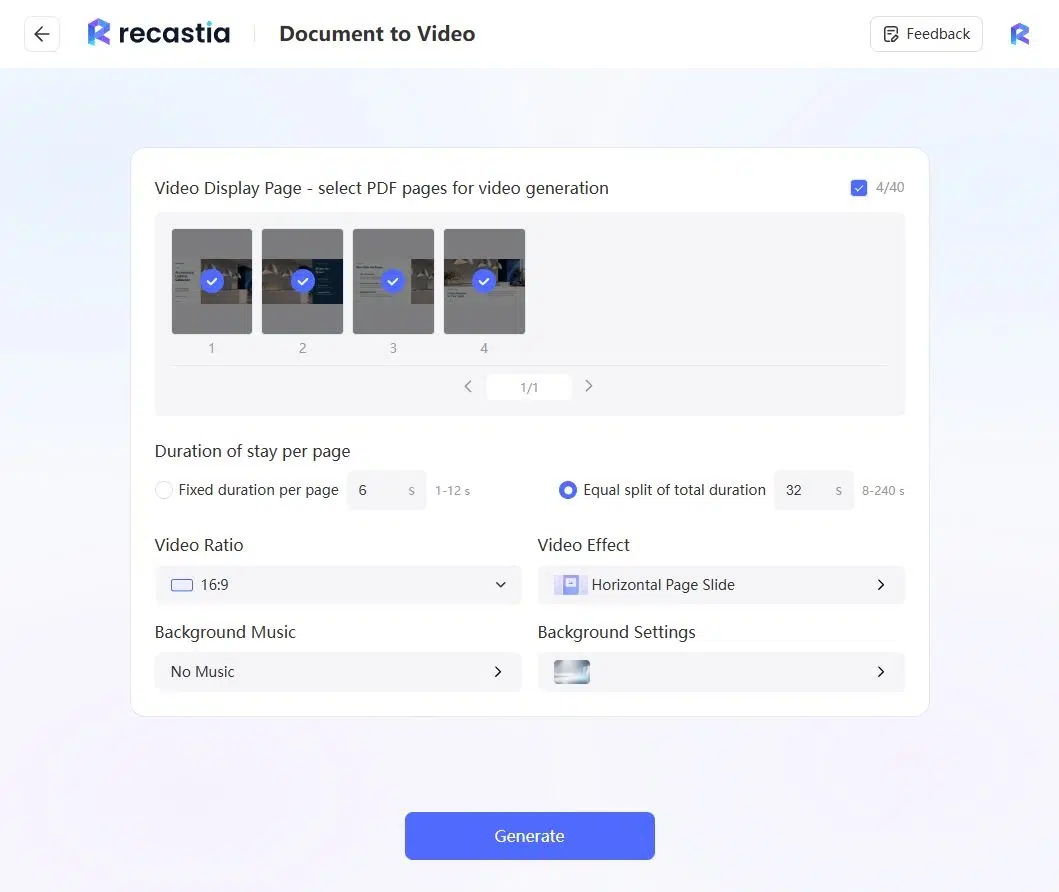
Click the upload area or drag your PDF into it. The four-page lighting collection here moves from a cover to a product page, planning notes, and a closing overview. For your own catalog, choose a similarly focused sequence rather than including every page in the full document.
- Select Minimal Mode and Your Pages
Choose Minimal Mode for a slideshow without voiceover or narration. Keep all the pages you need, or click individual page thumbnails to remove them from the selection. Leave out appendices, duplicate covers, and other pages that do not belong in the viewing sequence.

- Set the Page Timing
Choose Fixed duration per page when every selected page should have the same viewing interval. For example, six seconds per page allocates 24 seconds across four pages.
Choose Equal split of total duration to divide a time allocation across the selected pages. With four pages and 32 seconds entered, each page receives eight seconds. Both options apply a common duration rather than a different value for each page. The template’s opening and transitions can extend the final video beyond that allocation, so check its running time after generation. - Review the Video Presentation and Music
Keep a landscape ratio such as 16:9 for a landscape PDF, then review the Video Effect and Background Settings. Choose background music if it suits the content, or select No Music for playback without a soundtrack. For this lighting catalog, the page-slide effect lets viewers follow the collection without an elaborate transition between products.
- Generate and Preview the Slideshow
Select Generate, then play the finished video through to the end. Check that the headings and smaller labels remain readable before each page changes. If a page needs more time, increase the common page duration or simplify that page before creating the final version.

- Download, Share, or Embed the Video
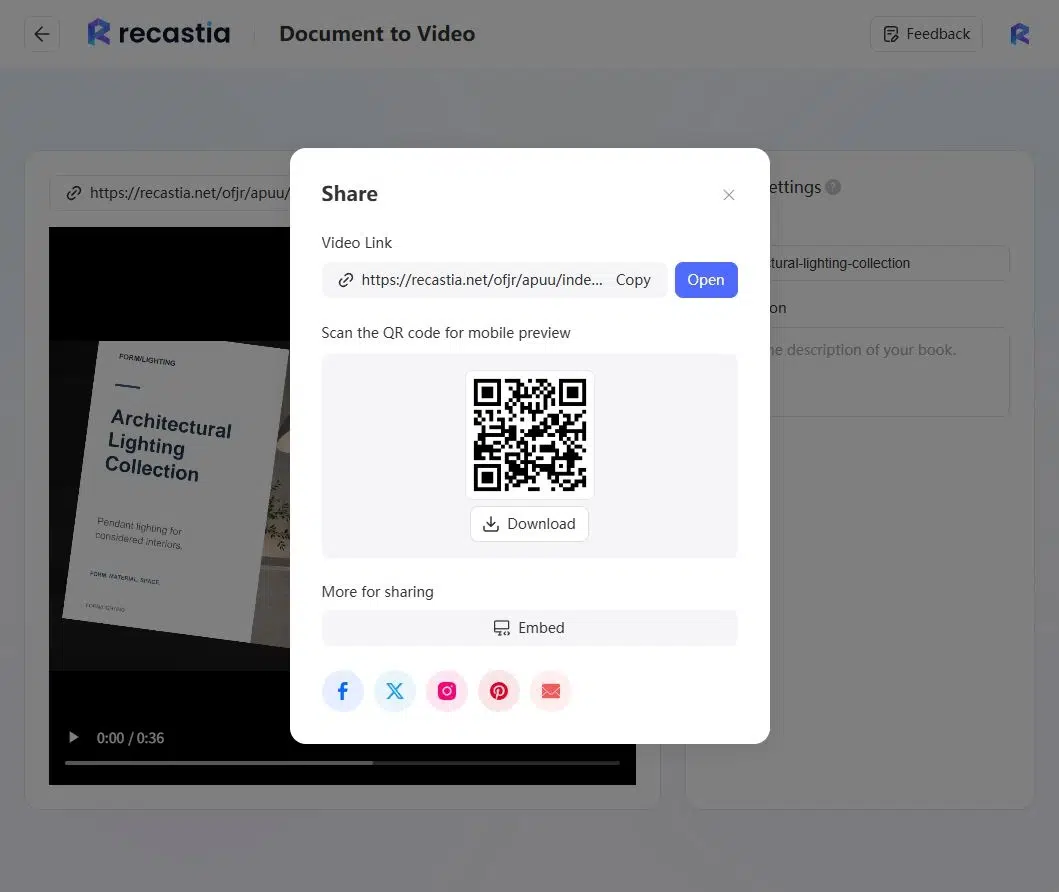
Use Download to save the MP4 for a video channel or presentation. For online viewing, open Share and copy the Video Link. To place the player on a website, choose Embed, keep Responsive selected, and copy the code into the site’s HTML embed area.
Make Your PDF Slideshow Easier to Watch
Keep the Pages Understandable Without Narration
Viewers need enough information on each page to understand the image. A product name and a short finish label can work beside a large photograph; a paragraph that assumes someone will explain a diagram needs more attention. Put the essential explanation on the page, or choose a narrated video instead.
For the lighting collection, a page headed Pendant Collection with short material labels can stand on its own. A planning page with several separate recommendations takes longer to read. If the whole slideshow uses one page duration, choose a pace that gives that denser page enough time, or simplify it before conversion.
Match the Page Shape to the Video
Landscape pages are a practical starting point for a landscape video. Keep important text away from the page edges and preview small labels at the size your audience will watch. A vertical video setting alone cannot turn a full landscape catalog page into readable phone content; prepare a portrait layout when that is the intended delivery.
Give Music a Supporting Role
An instrumental background can accompany a visual collection without competing with the page content. Preview the complete track and ending, especially when the video will be shown in a reception area or shared in a sales presentation. Choose No Music when the slideshow needs to play without audio.
Frequently Asked Questions
Yes. Download the MP4 and add it to a presentation app that supports video files. Play it through on the presentation computer beforehand, including any external display or speakers you plan to use. A downloaded file is useful when you cannot rely on internet access at the venue.
The two timing choices in this Minimal Mode workflow apply one common page duration: either a fixed interval or an equal share of the total allocation. For mixed page densities, simplify the longest page or choose a common interval that gives it enough reading time. These controls do not assign a separate duration to each page.
A link printed on a PDF page becomes part of the video image. An ordinary MP4 does not make that area a clickable web link. Put the destination in the accompanying email, social post, or webpage, and include a short visible address when viewers need to recognize it.
Looping depends on the video player or embed settings where you publish it. A finished video file does not force every player to repeat. Choose a player with a loop option when continuous playback is required, and check its autoplay and audio behavior on the devices you will use.
Conclusion
A PDF to slideshow video conversion works best when the pages can explain themselves: clear photographs, short labels, and enough reading time. In Recastia, Minimal Mode keeps the workflow focused on page selection, playback timing, visual presentation, and optional music.
Use the PDF to slideshow video workflow for the visual edition of a catalog or portfolio, then preview it at its intended viewing size before sharing.
Bring Your PDF to Life With Recastia
Create, customize, and share your content in a more engaging way.