
Product photos, charts, and detailed diagrams often carry the most important information in a PDF. When you turn that document into a video, those details need to remain clear enough for viewers to follow. A page that is easy to read on a large screen may need a few adjustments before it works in a smaller video player.
So how do you convert PDF to MP4 without losing quality? This guide covers source images, page layout, video settings, and common problems such as blurry text or cropped pages. You will learn what to adjust before and after generation to convert PDF to MP4 without losing quality in the details that matter.
Key Takeaways
- Use the clearest available PDF. Replace low-resolution scans and compressed screenshots before conversion.
- Choose the aspect ratio for the page layout and publishing destination; 16:9 does not automatically make a video sharper.
- Select only the pages viewers can read at video size, and shorten scripts that move through dense pages too quickly.
- Check the downloaded MP4 outside the editor for cropping, page order, subtitles, pronunciation, audio level, and branding.
Prepare the PDF Before Conversion
Check Text and Images at Normal Zoom
Open the PDF and inspect the smallest text, labels, and charts. If a scanned page is blurry in the PDF, it will remain blurry in the video. Replace weak scans or export a cleaner copy from the original document when possible.
Use a Consistent Page Orientation
A document that mixes portrait and landscape pages can leave empty space or force one set of pages into a smaller frame. Separate the pages into different videos when the layouts cannot share one readable ratio.
Remove Pages That Do Not Need Screen Time
Appendices, detailed tables, and legal pages can make the video longer without helping the explanation. Keep the full PDF as a reference and convert only the pages the viewer must see.
Convert PDF to MP4 With Quality in Mind
For the complete button-by-button workflow, use the PDF-to-MP4 conversion guide. The steps below cover the decisions that affect readability and presentation quality.
These steps focus on preserving readable pages, accurate narration, and a usable frame while creating an MP4 in Recastia.
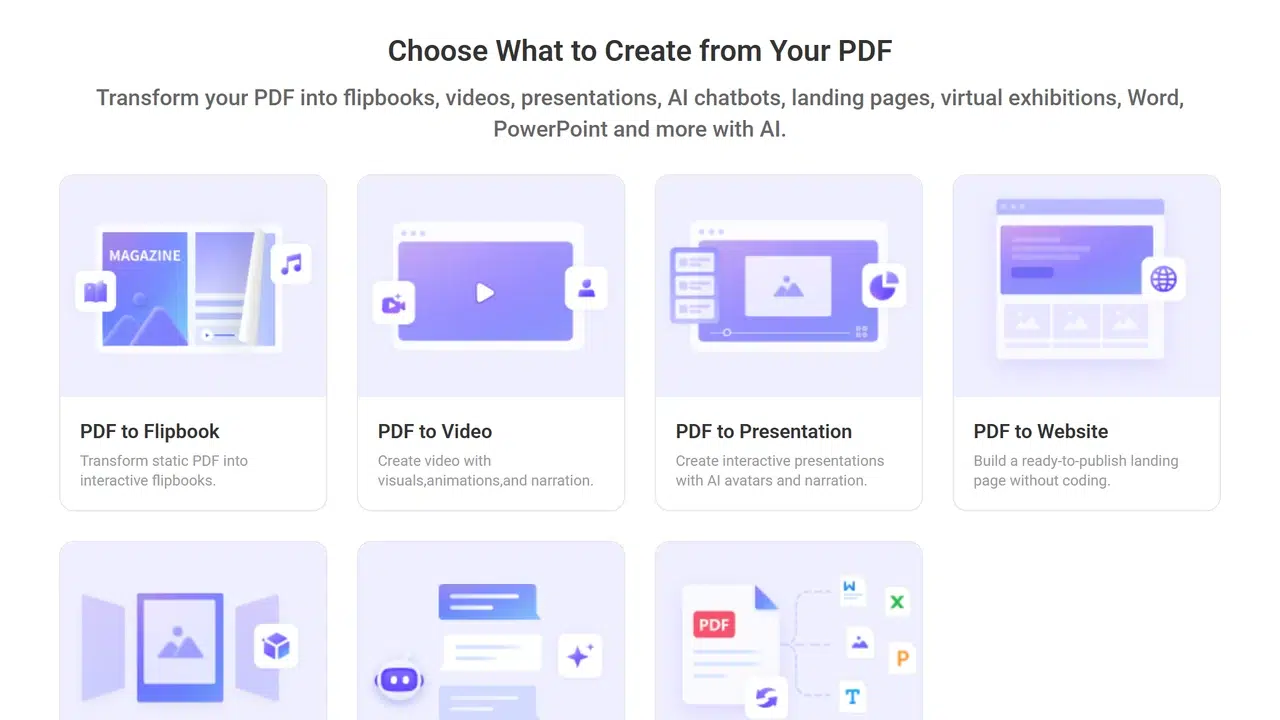
- Choose PDF to Video
Open Recastia and select PDF to Video. Decide where the finished MP4 will be viewed before choosing its format.
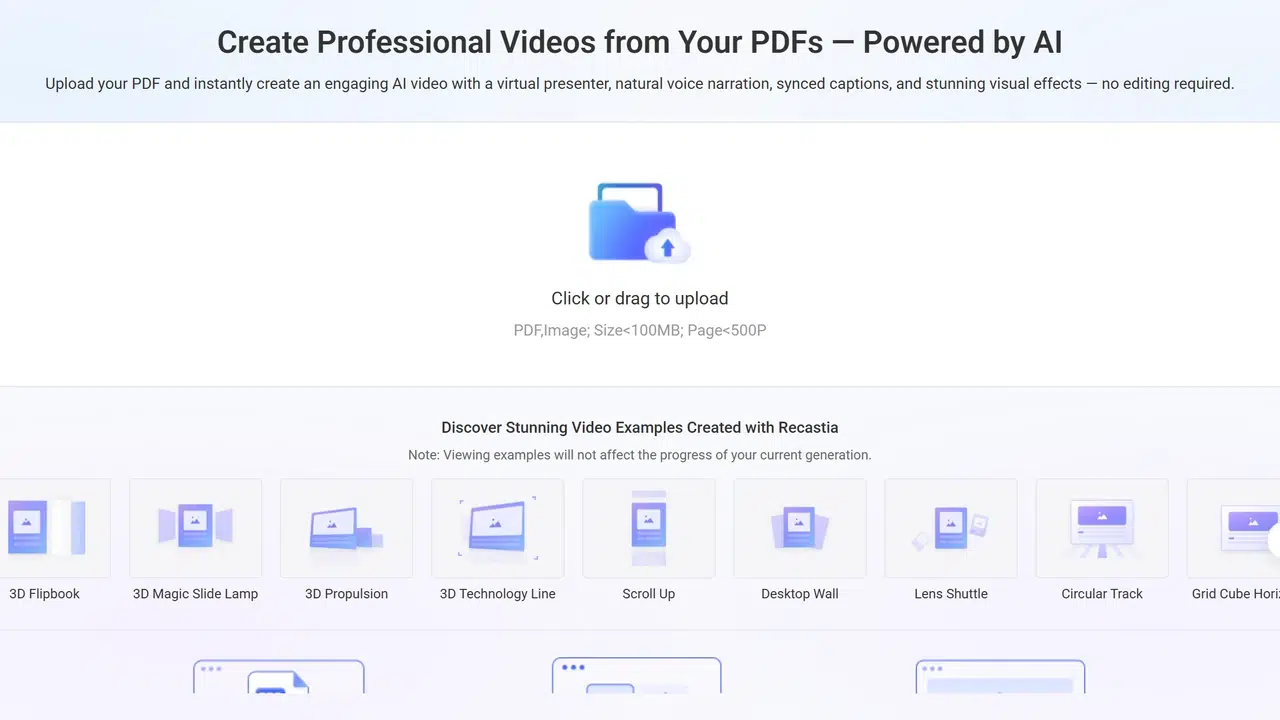
- Upload the Cleanest PDF
Upload the prepared copy. Confirm the page order and orientation, and remove any page that contains private information or cannot be read at video size.

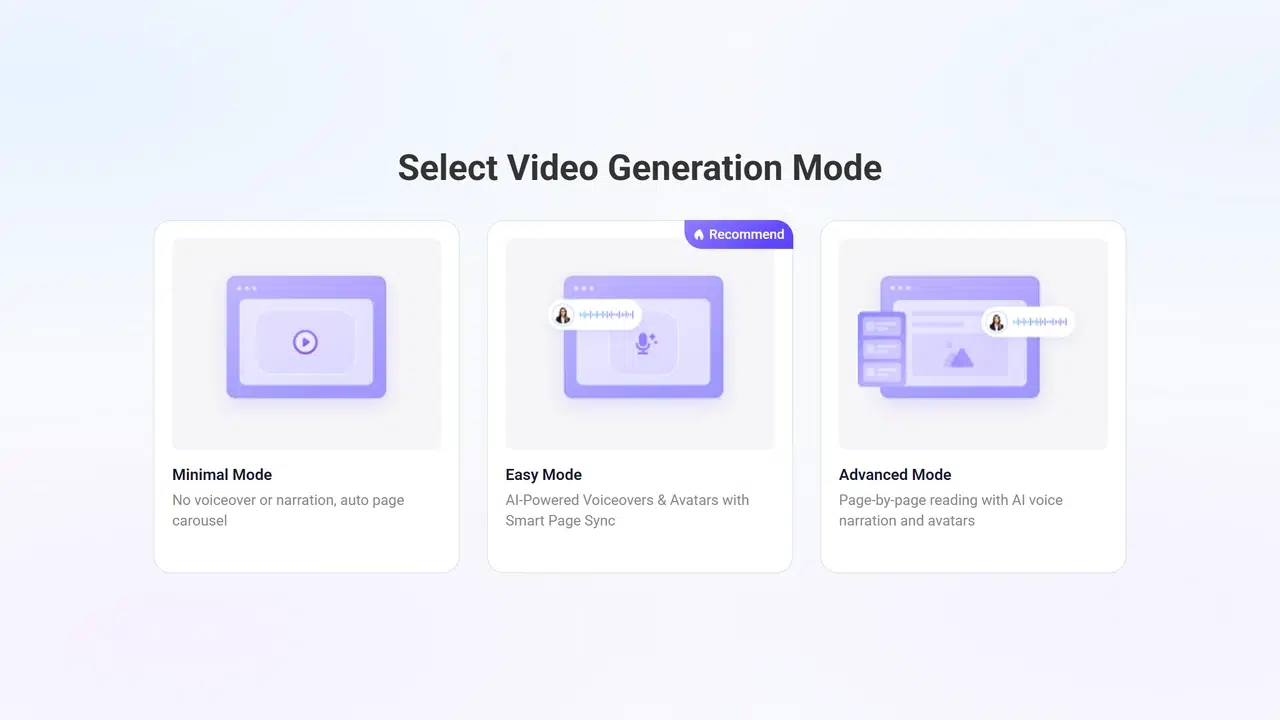
- Choose the Video Approach
Select a mode according to how closely the result should follow the pages. A page-led result keeps the document visible; narrated modes require closer review of the script, timing, and pronunciation.
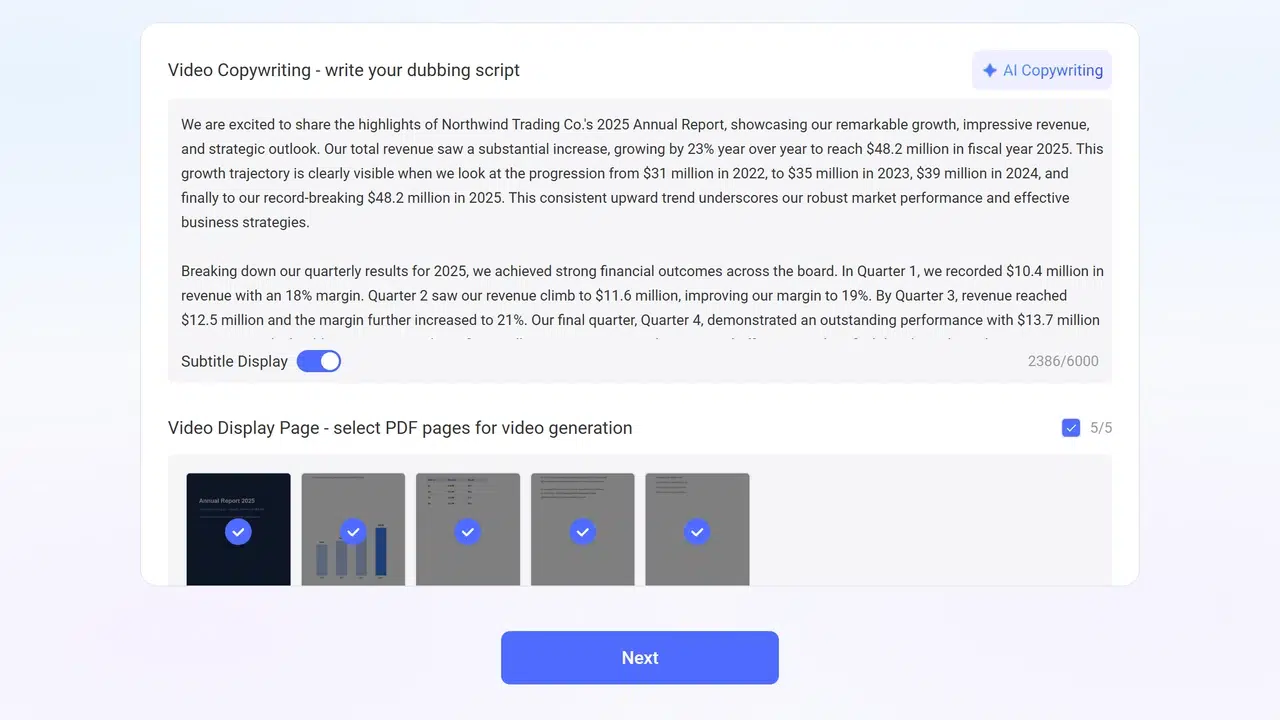
- Review the Script and Page Selection
Keep the narration focused on what viewers can see. Correct names, figures, and dates, and remove pages that would pass too quickly to read.
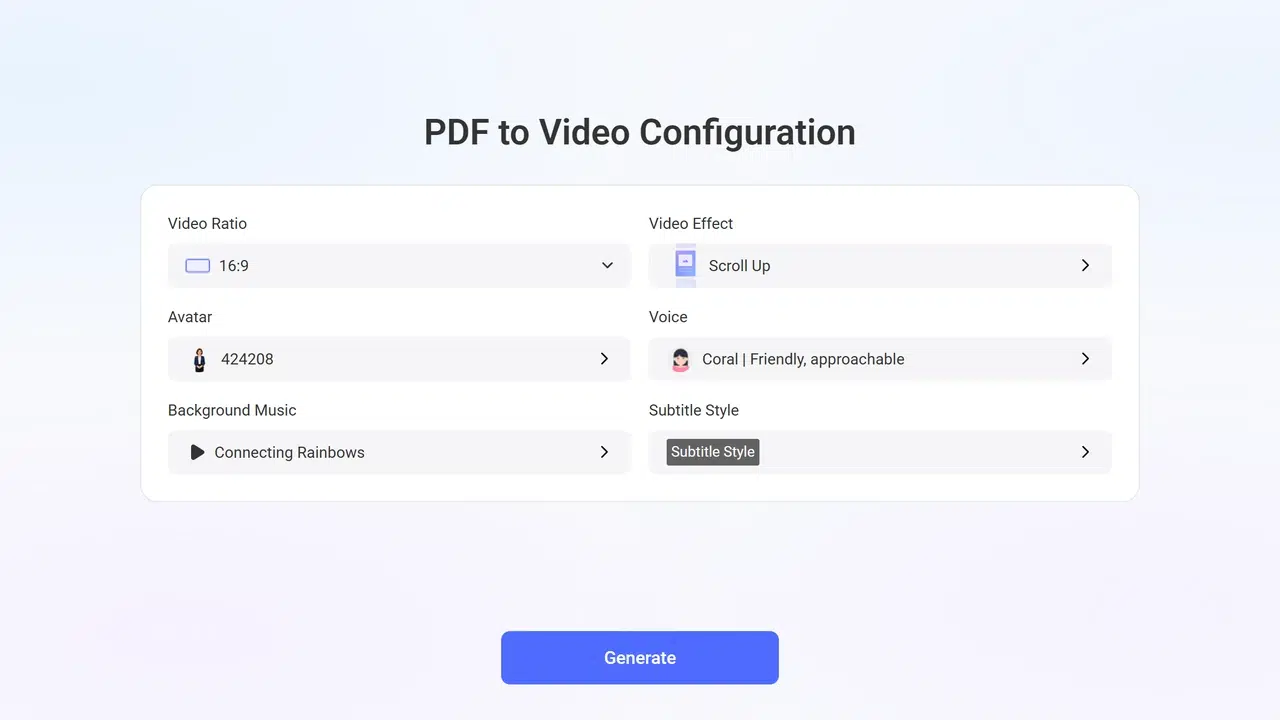
- Set the Ratio, Voice, and Captions
Choose the ratio that fits the source pages and destination. Select a readable visual effect, then review the voice and subtitle settings. A busy effect or long script can make a clear page difficult to follow.
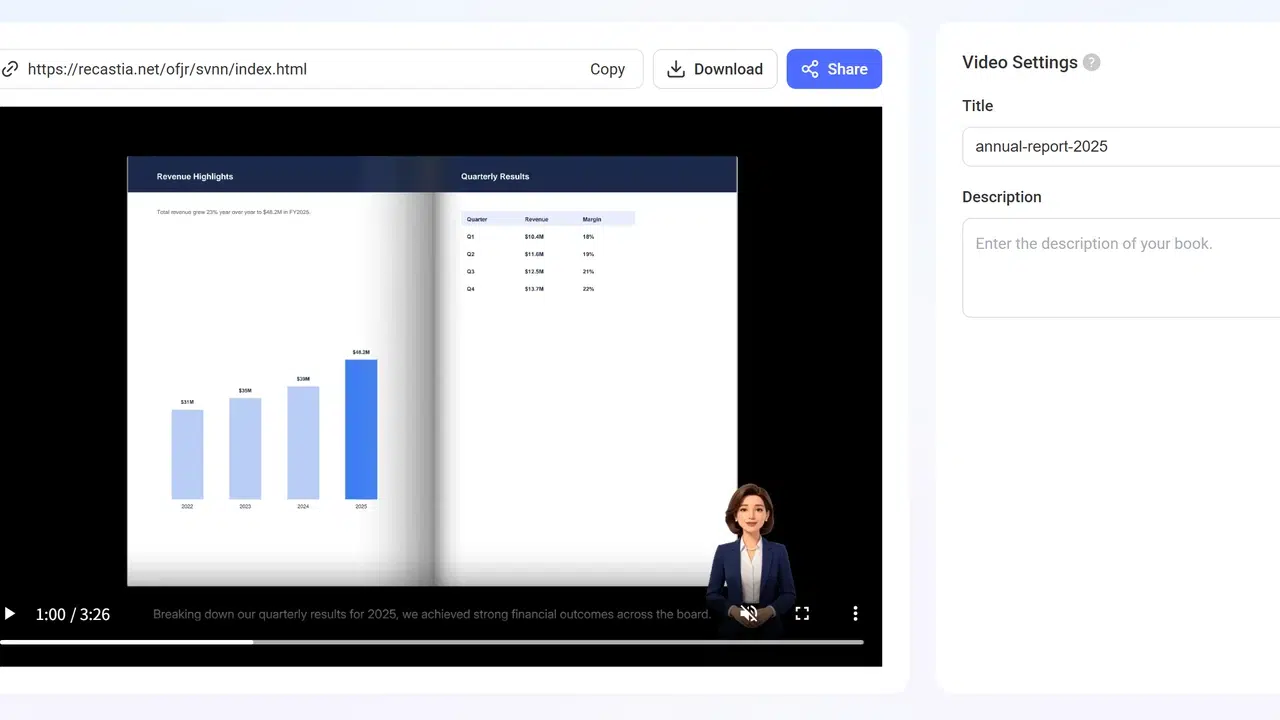
- Generate and Inspect the MP4
Generate the video and watch the downloaded MP4 at normal size. Check sharpness, cropping, page order, subtitle timing, pronunciation, volume, and any plan branding.
Check the MP4 Before Sharing
- Text: headings, labels, and footnotes are readable at the expected player size.
- Frame: no page edge, chart label, avatar, or subtitle is cut off.
- Sequence: pages appear in the correct order and remain on screen long enough to understand.
- Audio: names, numbers, and abbreviations are pronounced correctly and the volume remains steady.
- Captions: subtitle wording matches the narration and does not cover important page content.
- File: the downloaded MP4 opens and plays normally outside the editor.
When the source is a slide deck, also review the guidance for a PDF video presentation. Presentation pages often need different pacing from reports and brochures.
Fix Common PDF-to-MP4 Quality Problems
| Problem | Likely Cause | What to Change |
|---|---|---|
| Small text is difficult to read | The page contains too much detail for the video frame | Use fewer pages, crop the source layout before conversion, or keep the detailed page in the PDF only |
| Page edges are cropped | The video ratio does not fit the page orientation | Choose a ratio closer to the source layout and preview every page |
| The video moves too quickly | The script or page count is too long for the scene timing | Shorten the script, reduce the page selection, or split the PDF into two videos |
| Narration contains mistakes | Names, acronyms, dates, or numbers were interpreted incorrectly | Edit the script and listen to those terms again before sharing |
| Captions cover the document | Subtitle placement conflicts with important page content | Change the subtitle style or adjust the source layout |
| The source already looks blurry | The PDF contains low-resolution scans or images | Replace the scan or re-export the PDF from the original file |
If the selected service cannot provide the export or controls you need, compare other PDF to video converters. For zero-cost plans and their current restrictions, see the free converter comparison.
Frequently Asked Questions
The result depends on the source PDF, video frame, page layout, and export process. Small text and low-resolution scans are the first details to suffer. Inspect the finished MP4 at its expected viewing size.
Choose the ratio closest to the page orientation and publishing destination. Horizontal slide decks usually fit 16:9 better, while portrait documents may need a different layout or selected-page approach. Preview every page for cropping.
The PDF may contain low-resolution scans, the page may be scaled too small, or the player may be showing a lower-quality preview. Check the source first, then inspect the downloaded MP4 at normal size.
Use a clean source file, remove overly dense pages, choose a suitable frame, and keep each page visible long enough to read. Put detailed tables and references in the accompanying PDF instead of forcing them into the video.
No converter can reliably recreate detail that is missing from the scan. Replace the page with a clearer scan or export a new PDF from the original document before creating the video.
Conclusion
To convert PDF to MP4 without losing quality, protect what the viewer must read and hear: use a clean source, fit the pages to the frame, keep the narration accurate, and inspect the downloaded file.
You can convert PDF to MP4 without losing quality in practical terms when text stays readable, pages are not cropped, captions match the narration, and the MP4 plays correctly on its destination platform.