
Training slides, product introductions, and course materials are often shared as PDFs. They are convenient to send, but the notes and explanations that accompany a live presentation are usually left out. Adding narration turns those slides into a video people can watch whenever they need the information.
You can convert PDF to video presentation format using the slides you already have. This guide shows you how to convert PDF to video presentation format with Recastia, covering slide selection, narration, subtitles, and MP4 export, along with alternative options in PowerPoint and Canva.
Key Takeaways
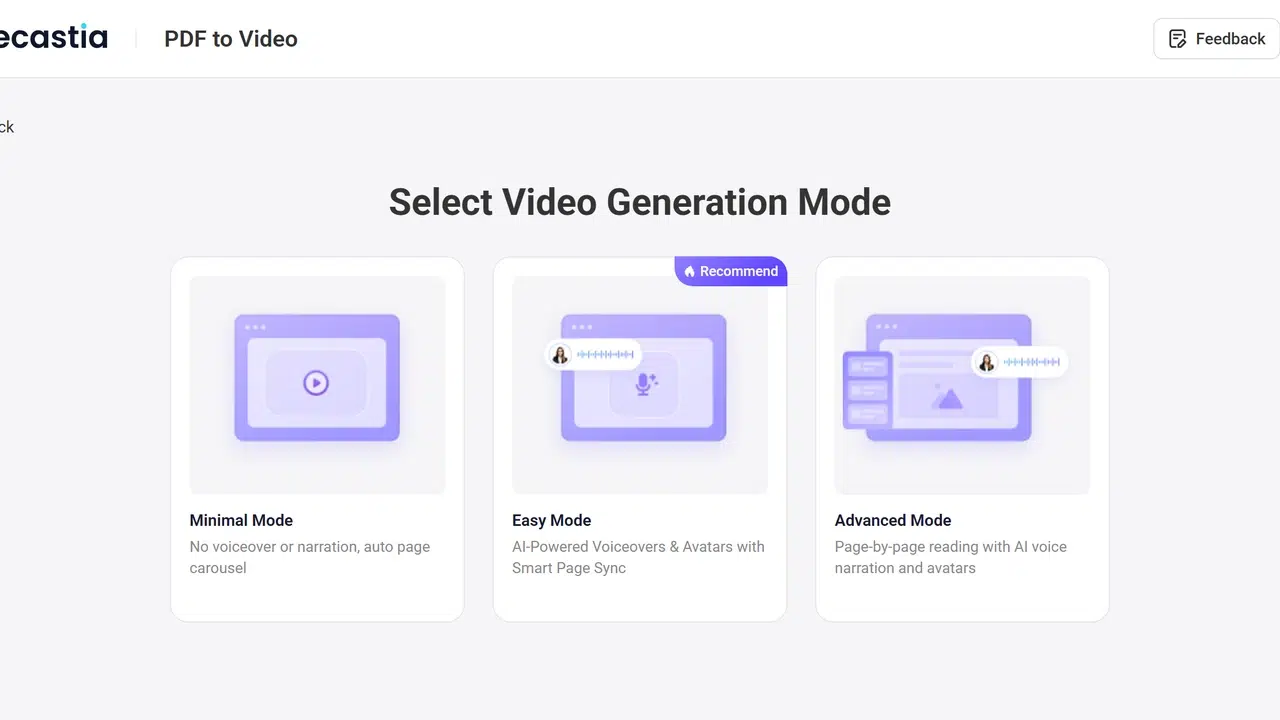
- Minimal Mode suits a page-led presentation; Easy Mode adds an AI-generated script; Advanced Mode follows selected pages more closely.
- Remove agenda, appendix, and reference slides when they do not support the spoken presentation.
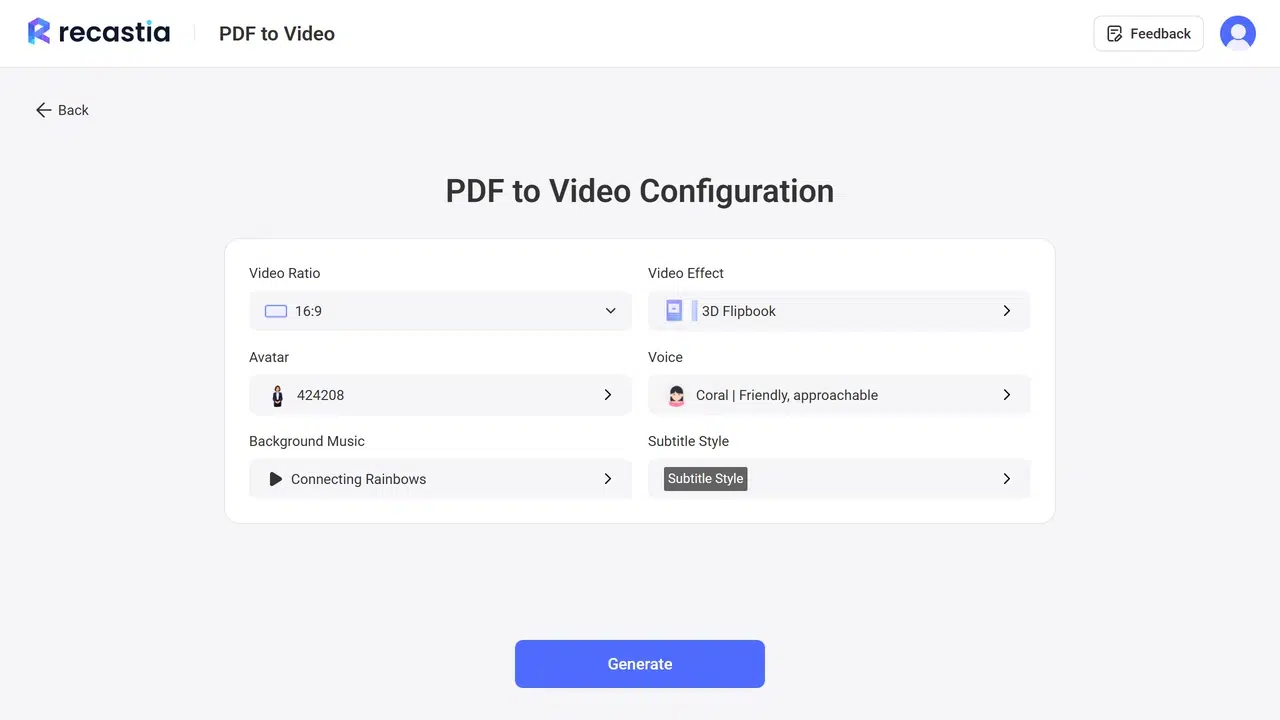
- Use 16:9 for most slide decks and website players. Use 9:16 only when the slides remain readable in a vertical frame.
- Review each slide with its narration. A sentence that works on paper may be too dense when spoken over a short scene.
Choose the Right Video Style for Your Presentation
| Presentation Goal | Recommended Approach | Why |
|---|---|---|
| Show the original slides in order | Minimal Mode | Keeps the pages central and does not require narration |
| Explain the main ideas | Easy Mode | Builds a script and narration around the selected content |
| Read selected pages more closely | Advanced Mode | Supports a page-by-page narrated structure |
| Control every transition and timing | PowerPoint or Canva | Provides manual editing when automatic scene choices are not suitable |
For a general explanation of Recastia’s video modes, see the PDF-to-video workflow. The steps below focus specifically on presentation files.
How to Convert a PDF to a Video Presentation
Use these steps to turn a PDF slide deck into a video presentation. Review the current account options before generation because plan limits can change.
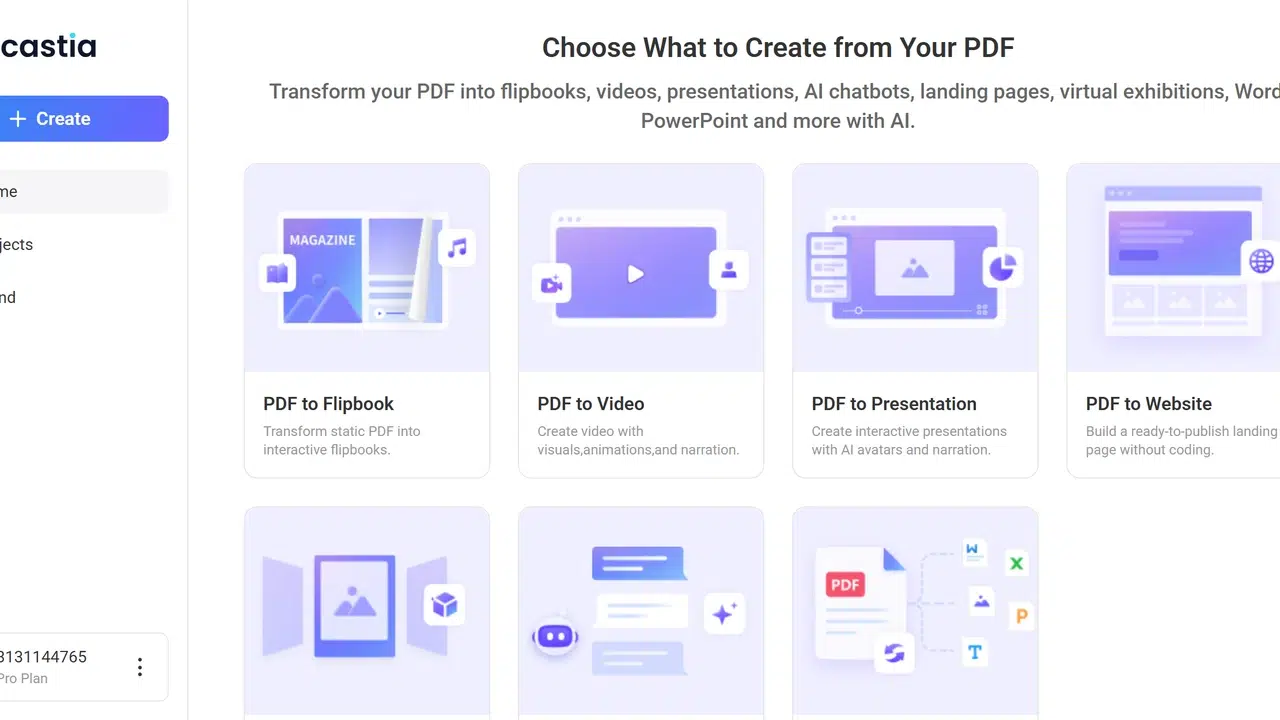
- Choose PDF to Video
Open Recastia and select PDF to Video. Use a copy of the presentation that does not contain private speaker notes or slides that should remain internal.
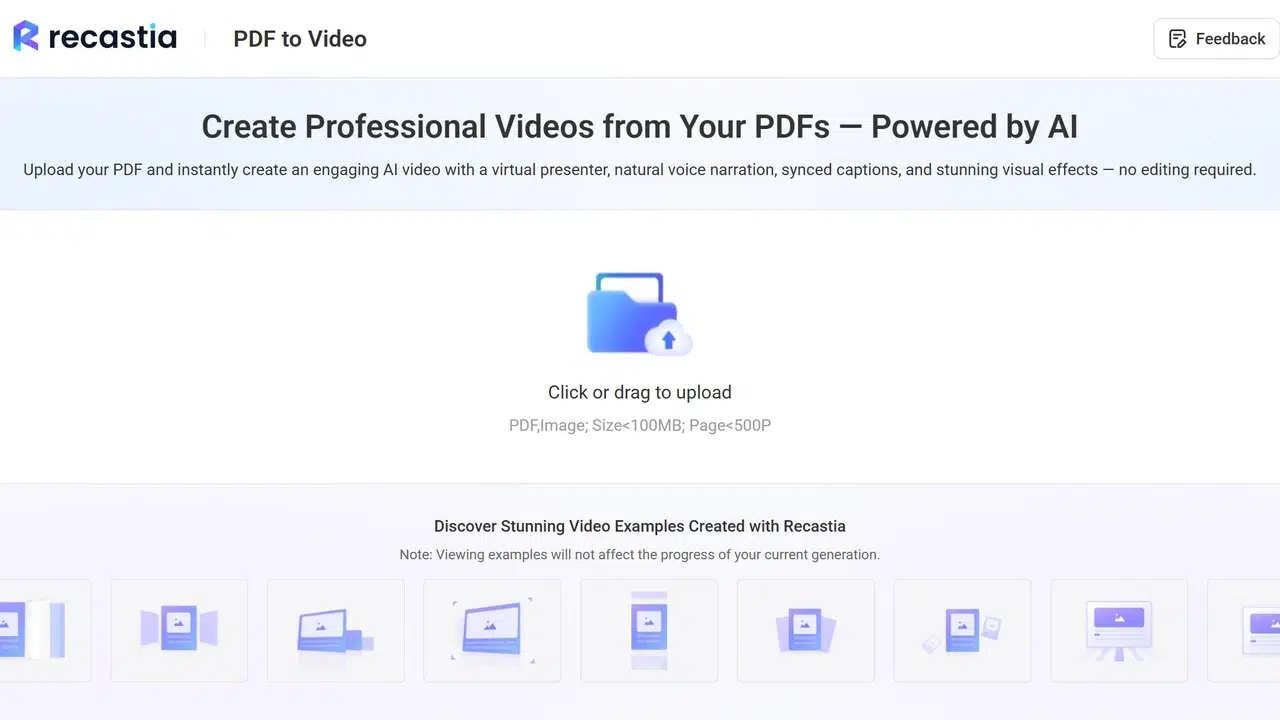
- Upload the Presentation
Upload the PDF slide deck. Before moving on, confirm that the pages are upright, use one consistent orientation, and appear in the correct order.

- Select a Generation Mode
Choose Minimal, Easy, or Advanced according to the presentation style you need. A visual deck may need no narration, while a training deck usually benefits from a script and subtitles.
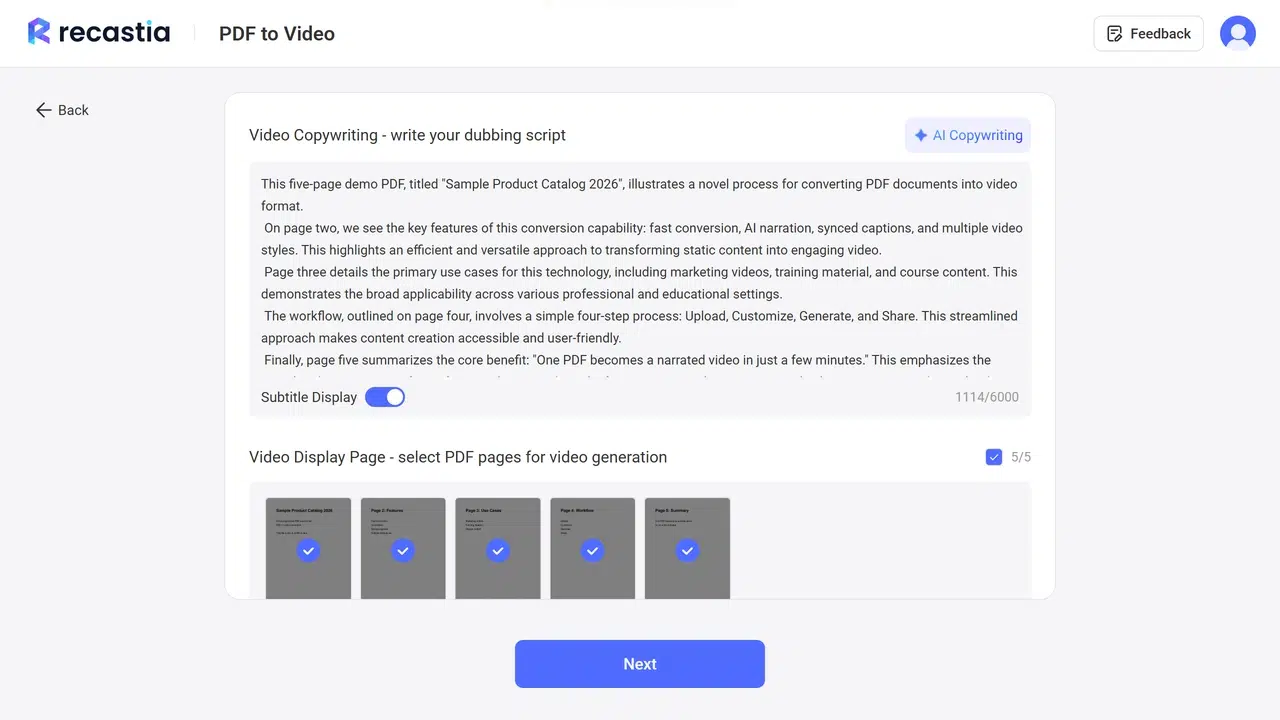
- Review the Script and Slides
Generate or enter the narration, then select the slides that should appear. Give each slide one clear spoken point. Remove repeated title slides, detailed references, and pages that cannot be read at video size.
- Set the Video Format
Choose the ratio, visual effect, voice, avatar, music, and subtitle style. Start with 16:9 for a horizontal slide deck. Preview the slides before using 9:16 because a vertical frame can crop wide layouts.
- Generate and Export
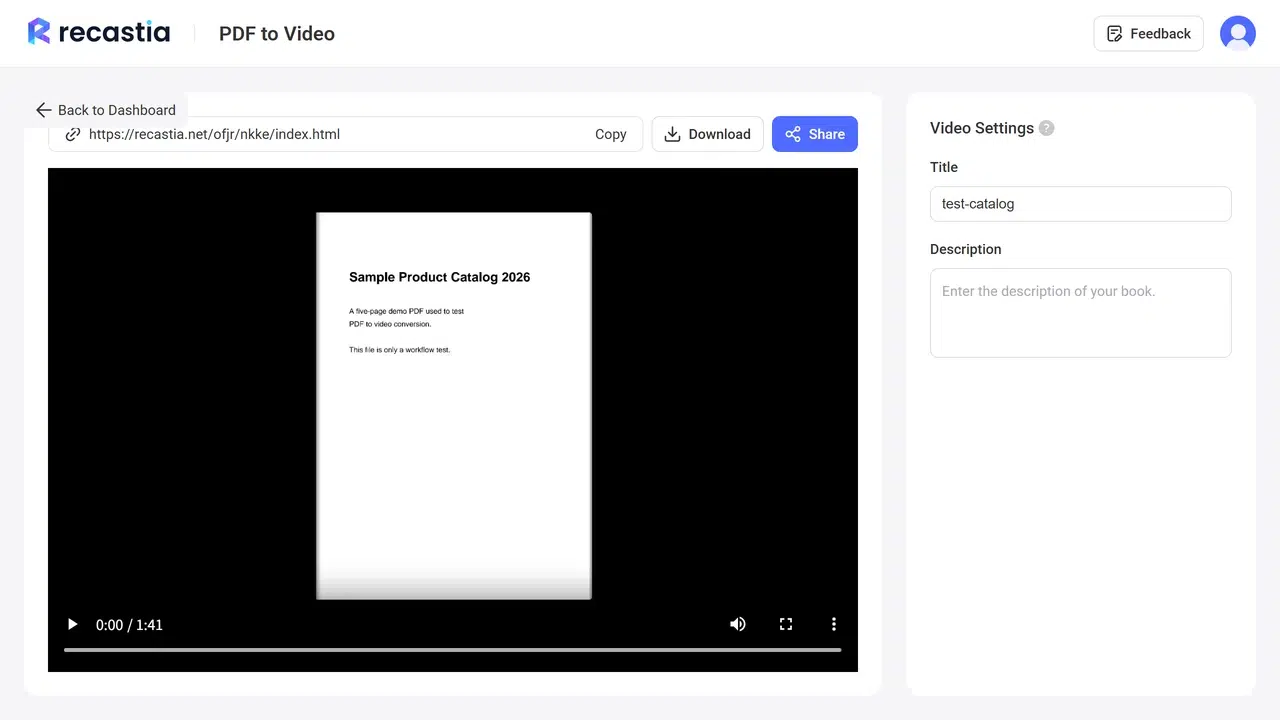
Generate the presentation and watch it from beginning to end. Check slide order, pacing, pronunciation, captions, and small text. Download the MP4 when the presentation is ready to use.
Make the Video Presentation Easy to Follow
Keep One Spoken Point per Slide
A slide can contain more detail than the narration should repeat. Use the voice track to explain the main point, then let the viewer read labels, charts, or supporting text. If the script describes several unrelated ideas, split the material or shorten the narration.
Remove Slides That Interrupt the Story
A table of contents, appendix, bibliography, or legal page may be necessary in the PDF but unnecessary in the video. Keep those pages in the source document and share the PDF alongside the presentation when viewers need the complete reference.
Match the Ratio to the Slide Layout
Most presentation PDFs use a horizontal layout, so 16:9 usually gives the pages more room. A vertical video can work for simple slides with large text. Check every page after changing the ratio; the ratio alone does not guarantee readable text.
Check Names, Numbers, and Captions
Read the script against the slides before generation, then listen again in the finished video. Correct names, dates, measurements, acronyms, and product terms. Captions should match the spoken words and remain visible over each background.
For a focused review of text clarity, cropping, and audio, follow the PDF-to-MP4 quality guide.
When to Use PowerPoint or Canva Instead
Use PowerPoint when you need exact slide timings, recorded narration, or detailed control over transitions. Microsoft’s official video export guide explains that workflow. Use Canva when you plan to redesign the imported pages, animate individual elements, or assemble the presentation manually; see Canva’s current video download instructions.
If you mainly need a downloadable file, the PDF-to-MP4 tutorial covers the complete export workflow. To compare different services before choosing one, use the PDF to video converter comparison.
Frequently Asked Questions
Yes. Upload the PDF to a compatible video tool, choose the pages and presentation style, add narration or subtitles if needed, then generate and export the video. Review the slide order before sharing.
Include only the slides required for the viewer to follow the message. Keep detailed references, appendices, legal pages, and supporting tables in the original PDF unless they need to appear in sequence.
Use 16:9 for most horizontal slide decks, website players, and presentation screens. Use 9:16 for a vertical mobile video only after confirming that headings, diagrams, and charts remain readable.
Yes. Recastia can generate a script and narration in supported modes. Review the wording and pronunciation of names, dates, numbers, and abbreviations before you publish the result.
Share both when viewers need links, citations, detailed tables, or printable instructions. The video can present the main explanation, while the PDF provides the complete reference material.
Conclusion
The best way to convert PDF to video presentation content is to edit for the viewing experience: choose the right slides, write one clear spoken point per slide, and match the ratio to the original layout.
After you convert PDF to video presentation files, watch the finished MP4 at normal viewing size. Check the slide order, narration, subtitles, and small text before sending it to an audience.