
Converting a PDF into an MP4 lets you present its pages as a video with narration, subtitles, and visual effects. You can convert PDF to MP4 to create a lesson from course materials, explain a report, or turn a product brochure into a video for your website.
This guide shows you how to convert PDF to MP4 with Recastia, from uploading your document to downloading the finished video. It covers page selection, narration, and video settings, along with alternative workflows in PowerPoint and Canva.
Key Takeaways
- Choose the video mode according to the result you need: a page-led video, AI narration, or page-by-page reading.
- Select only the pages that support the video. Appendices, legal pages, and dense tables often work better in the original PDF.
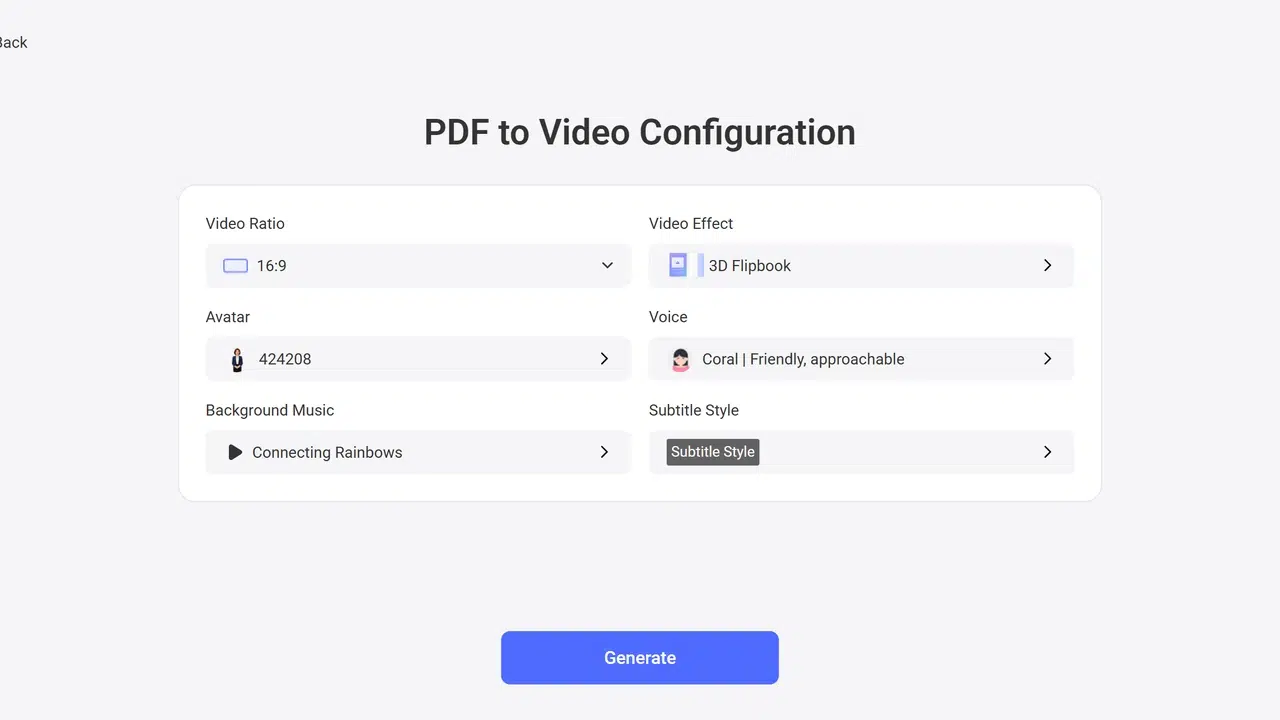
- Use 16:9 for most website and presentation players, or 9:16 for a vertical social video.
- Play the finished MP4 before sharing it and check page order, pronunciation, subtitles, cropping, and branding.
How to Convert PDF to MP4
Follow these steps to create an MP4 from a PDF in Recastia. The available settings can vary by generation mode and account.
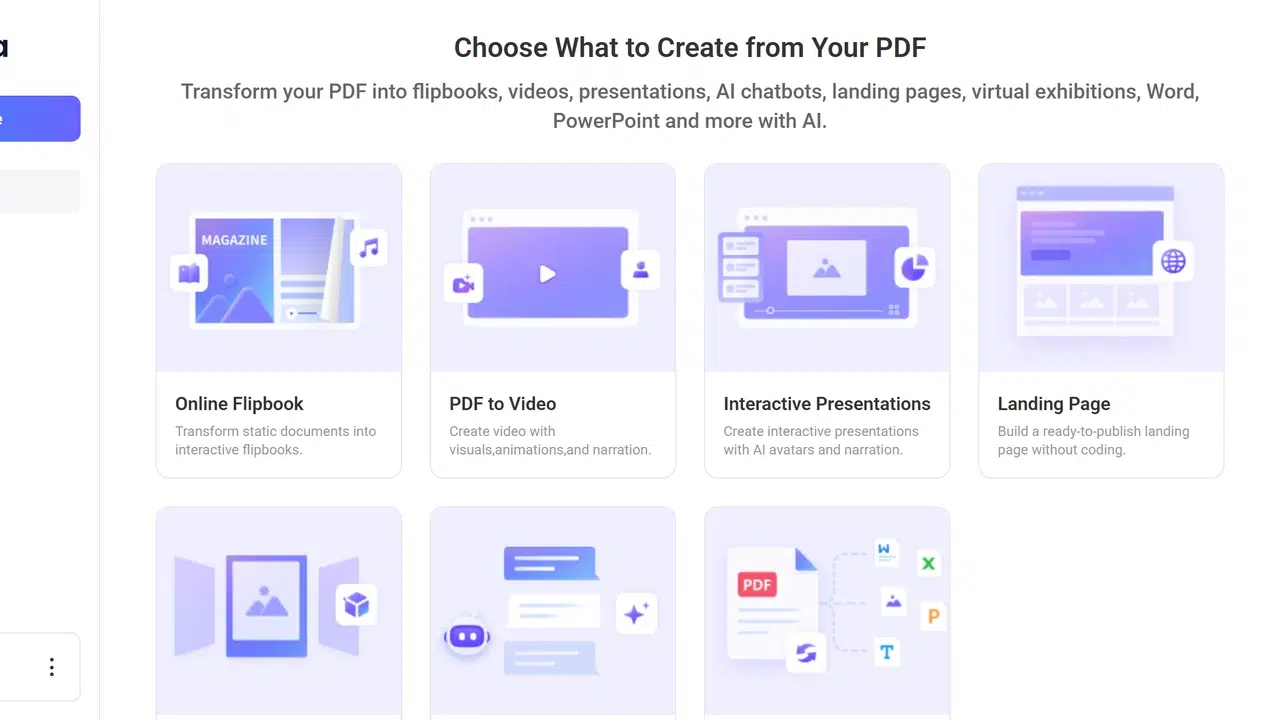
- Open PDF to Video
Sign in to Recastia and choose PDF to Video. If you are still deciding between formats, the general PDF-to-video guide explains what each Recastia mode creates.
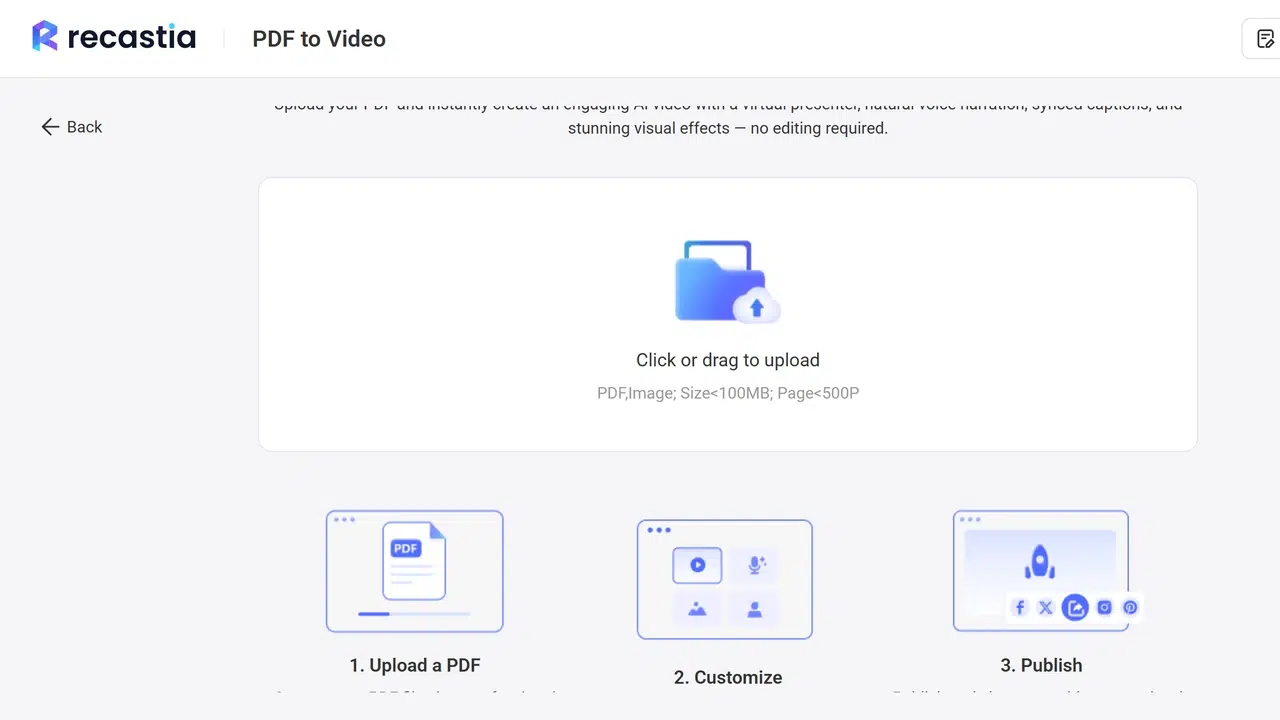
- Upload the PDF
Upload the document you want to use. Remove confidential pages first, and use a copy that contains only the pages the video needs.
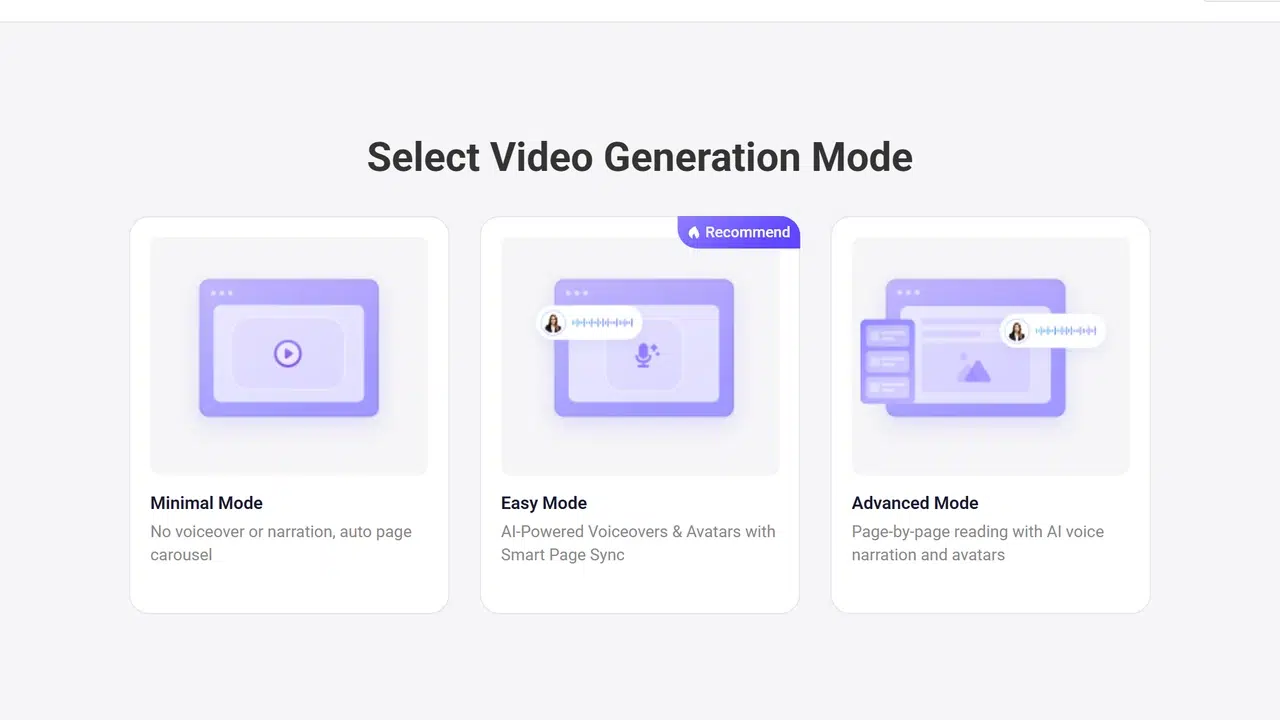
- Choose a Generation Mode
Choose Minimal for a page carousel without narration, Easy for an AI-generated script and narration, or Advanced when the video should read selected pages in sequence. Pick the mode that matches the document instead of adding narration by default.

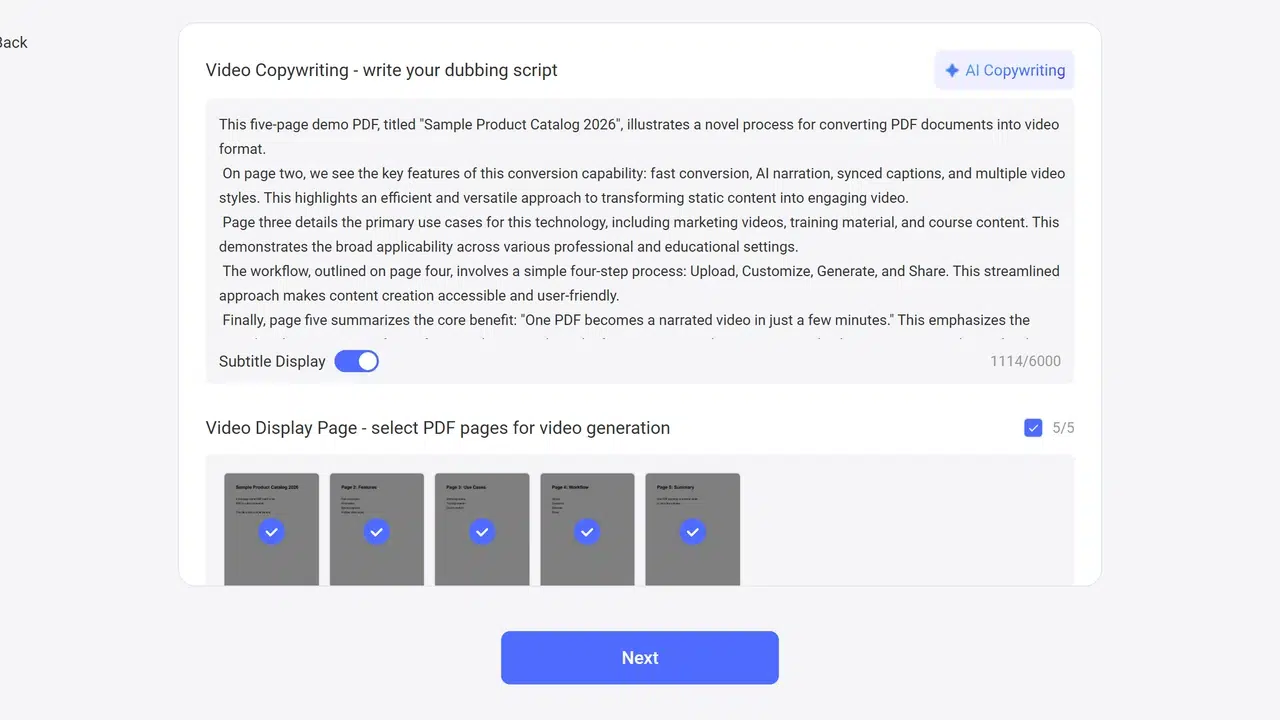
- Review the Script and Pages
Generate a script or enter your own, then select the pages that should appear. Read names, figures, and dates carefully. A correct page selection keeps the MP4 focused and prevents an appendix from appearing at the end.
- Set the Video Format
Choose the aspect ratio, effect, voice, avatar, music, and subtitle style that fit the destination. Keep the page text readable and avoid an effect that moves faster than the viewer can follow.
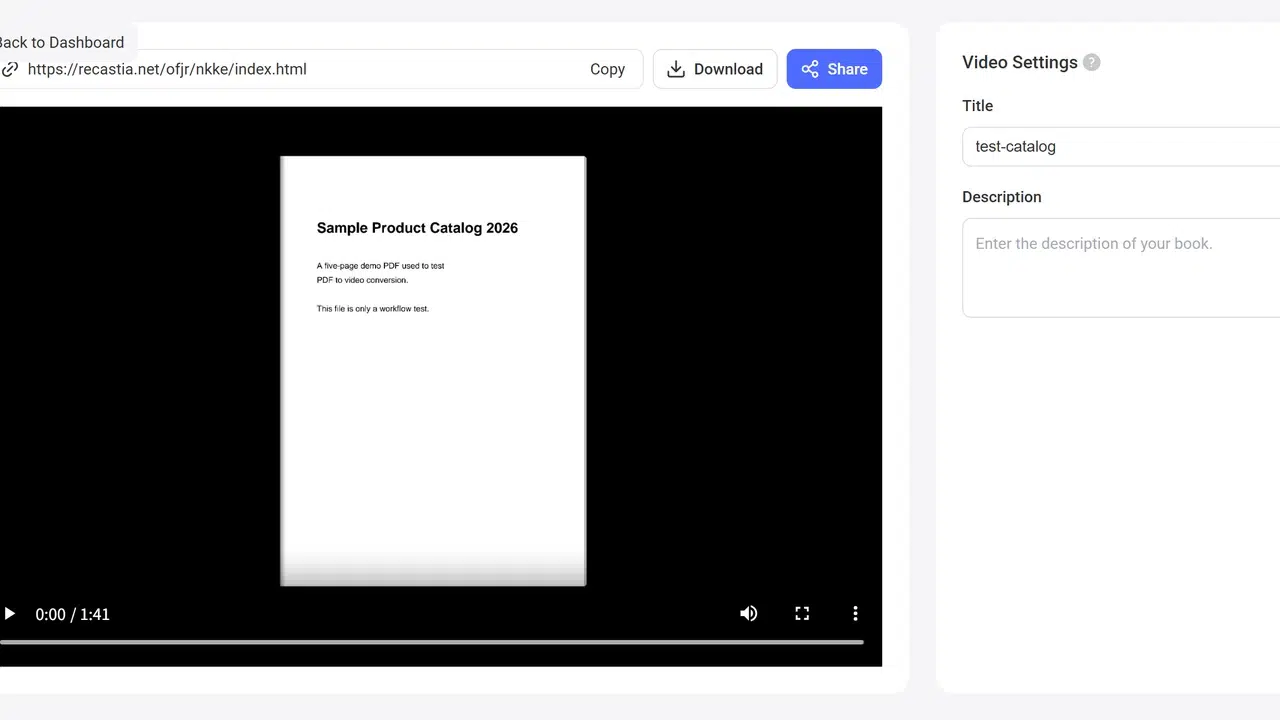
- Generate and Download the MP4
Generate the video, play the complete result, and use Download when it is ready. Check the downloaded file outside the editor before uploading it to another platform.
Choose Settings for the MP4 You Need
| Setting | Choose This | Use It For |
|---|---|---|
| 16:9 ratio | A horizontal video | Website players, presentations, YouTube, and training portals |
| 9:16 ratio | A vertical video | Short-form mobile feeds |
| No narration | A page-led result | Visual documents that already explain themselves |
| Narration and subtitles | A guided result | Training, lessons, explainers, and product information |
| Selected pages | A shorter result | Reports or manuals with sections the viewer does not need |
A PDF presentation needs slightly different decisions about slide order and speaking notes. See how to create a PDF video presentation when the source is a slide deck.
Other Ways to Export a PDF as MP4
PowerPoint is useful when you want to control slide timings and record the narration yourself. Microsoft documents the process in its presentation-to-video guide. Canva can import many PDFs and export an edited design as video; its video download instructions explain the current export workflow.
Use a manual editor when individual animation timing matters. Use a PDF-to-video workflow when the pages, narration, and subtitles can be prepared from the document. For a wider tool comparison, review these PDF to video converters.
Check the MP4 Before Sharing
- Confirm that the pages appear in the intended order and no private or unnecessary page is included.
- Listen for incorrect pronunciation of names, abbreviations, dates, and numbers.
- Check subtitles against the audio and correct any wording that changes the meaning.
- Watch at the size your audience will use and check whether text or charts are cropped.
- Confirm that the exported file opens normally and note any branding included by the current plan.
If the main concern is fuzzy text, cropping, or audio consistency, use the PDF-to-MP4 quality checklist. If cost and free export limits matter more, compare the current free PDF to video options.
Frequently Asked Questions
Yes. A PDF-to-video tool can accept the PDF, create a video from selected pages, and provide an MP4 download. The available narration, effects, export, and branding depend on the tool and account.
No. Include the pages needed to understand the message. Keep detailed references, long tables, legal text, and appendices in the original PDF unless viewers must see them in sequence.
Use 16:9 for most website players, presentations, training systems, and YouTube. Use 9:16 when the finished MP4 is intended for a vertical mobile feed. Always preview the pages for cropping.
Yes. Recastia can generate a script and use an AI voice in supported modes. Review the script and pronunciation before sharing because names, abbreviations, and numbers may need correction.
A scanned PDF can be used, but the source pages must already be readable. Straighten rotated pages and replace low-resolution scans before conversion because the video cannot restore missing visual detail.
Conclusion
The practical way to convert PDF to MP4 is to control the pages, narration, ratio, and subtitles before generation. A short review of the finished file catches mistakes that are difficult to notice while configuring the video.
When you convert PDF to MP4, keep the original PDF available for readers who need detailed tables, links, or references. The MP4 can explain the main points while the document remains the complete source.