
Free AI PDF to video tools can add spoken explanations to your pages, build an avatar-led presentation, or turn the document into a shorter explainer. The right choice depends on how much of the original layout you need to keep and what you want to edit before generating.
This guide compares five free AI PDF to video tools by their document workflow, editing options, and free-access conditions. Some let you begin without an account; others provide a limited video allowance. Free access does not always include unlimited downloads or watermark removal.
Compare the Five Free AI PDF to Video Tools
Choose the output first. A page-based video keeps a chart, diagram, or approved layout in view while narration explains it. A scene-based video gives you more freedom to condense the document and change its order.
| Tool | Main Editing Approach | Free Access | Important Export Condition |
| Recastia | PDF pages with editable narration and presentation settings | Start the document workflow without signing up | Guest download requires an account; check account entitlements |
| NoteGPT | PDF-to-explainer workflow with voice, theme, and duration settings | Free entry without an account | Check the selected watermark and download options |
| PDFToVideo.ai | Focused PDF explainer setup with voice, theme, and speed settings | Advertises free conversion without registration | Watermark and export conditions need checking in the output workflow |
| AI Studios | Editable scenes, scripts, avatars, and voices | Up to three videos, each up to one minute | Free plan lists 720p; branding may apply |
| X-Pilot | Editable outline and scenes with natural-language revisions | One free video generation | Watermark-free HD is a paid-plan benefit |
Free-plan terms can change. The figures here follow the providers’ current published offers; a short trial and a recurring free allowance are different things. Do not assume an allowance renews unless the plan explicitly says so.
1. Recastia
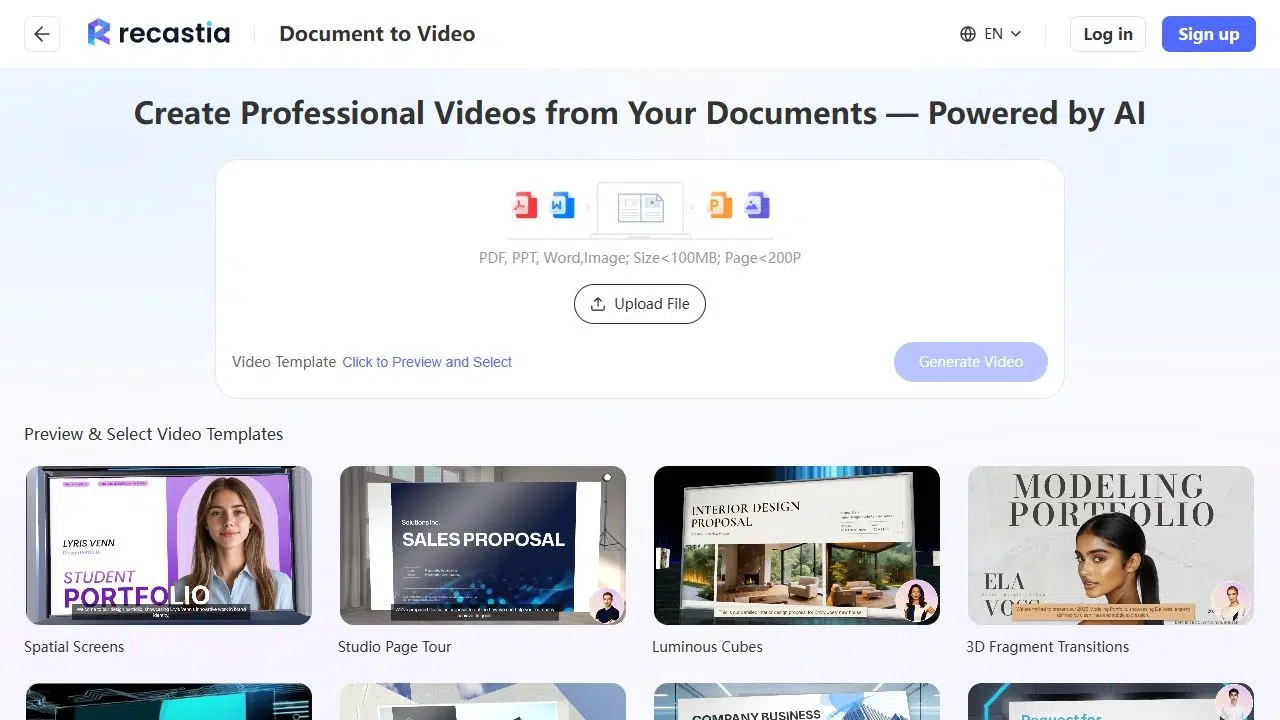
Recastia turns document pages into videos with page timing, AI narration, subtitles, and optional avatars. Use it when the PDF already has the charts, product photographs, or page design you want viewers to see.
Its PDF to Video tool offers three approaches. Minimal Mode creates an automatic page sequence without narration. Easy Mode uses an overall script with page synchronization. Advanced Mode gives each selected page its own narration, so you can explain a diagram differently from a summary page.
Key Features
- AI Copywriting generates narration that you can revise before rendering; manual script input is also available.
- Advanced Mode separates the script by page instead of putting the whole explanation into one text box.
- Voice, video ratio, template, subtitle, and avatar settings shape the presentation. No Avatar is an option when you want a document-led video.
For a product brief, use the first page to introduce the product, the second to explain the specifications, and the last to give the next step. Page-specific narration lets you add that explanation without placing more text on the PDF itself.
Pros
- Keeps the document pages connected to their spoken explanation.
- Offers a choice between a timed page sequence and narrated formats.
- Lets you correct AI wording before committing to the video render.
Cons
- Editing the narration does not rewrite the words printed inside the PDF pages.
- Downloading requires an account, even if you started the project as a guest.
- Horizontal Page Slide requires at least three selected pages.
Best For
- Brochures, reports, and presentation PDFs whose existing pages should remain part of the video.
- Creators who need to control what is said beside each page.
For the complete document workflow, see the guide to turning a document into a video.
2. NoteGPT
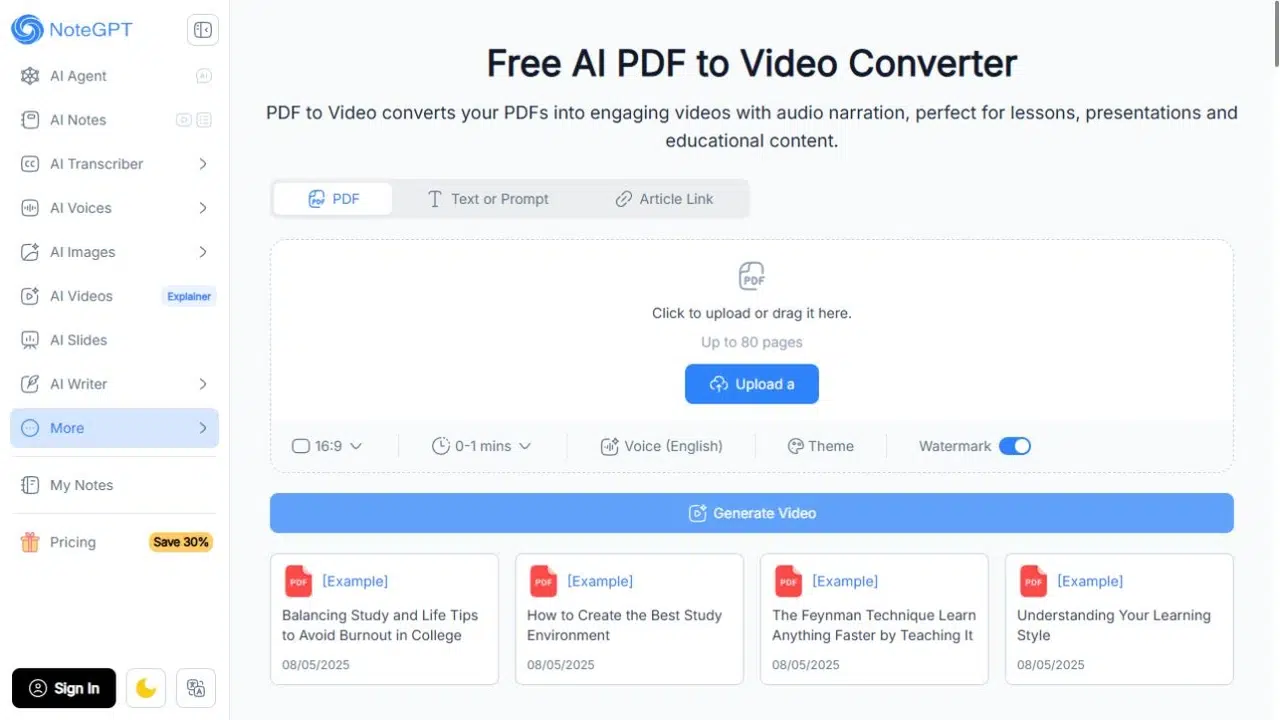
NoteGPT turns a PDF into a narrated explainer. Upload your file and choose settings such as voice and duration; the upload area accepts PDFs up to 80 pages.
Key Features
- Direct PDF upload, with text and article-link options available separately.
- Voice, theme, aspect ratio, duration, and watermark controls before generation.
- A script-review stage before continuing to voiceover and video synthesis.
Pros
- Provides a direct PDF starting point without requiring a slide-design project first.
- Groups the main video choices into one compact setup area.
Cons
- The upload limit and video length are separate: an accepted PDF may contain more material than the selected duration can cover.
- A watermark setting is available, but free entry does not guarantee watermark-free output.
Best For
- Study materials and reading notes that need a narrated overview.
- Users who prefer a compact setup to a detailed scene editor.
3. PDFToVideo.ai
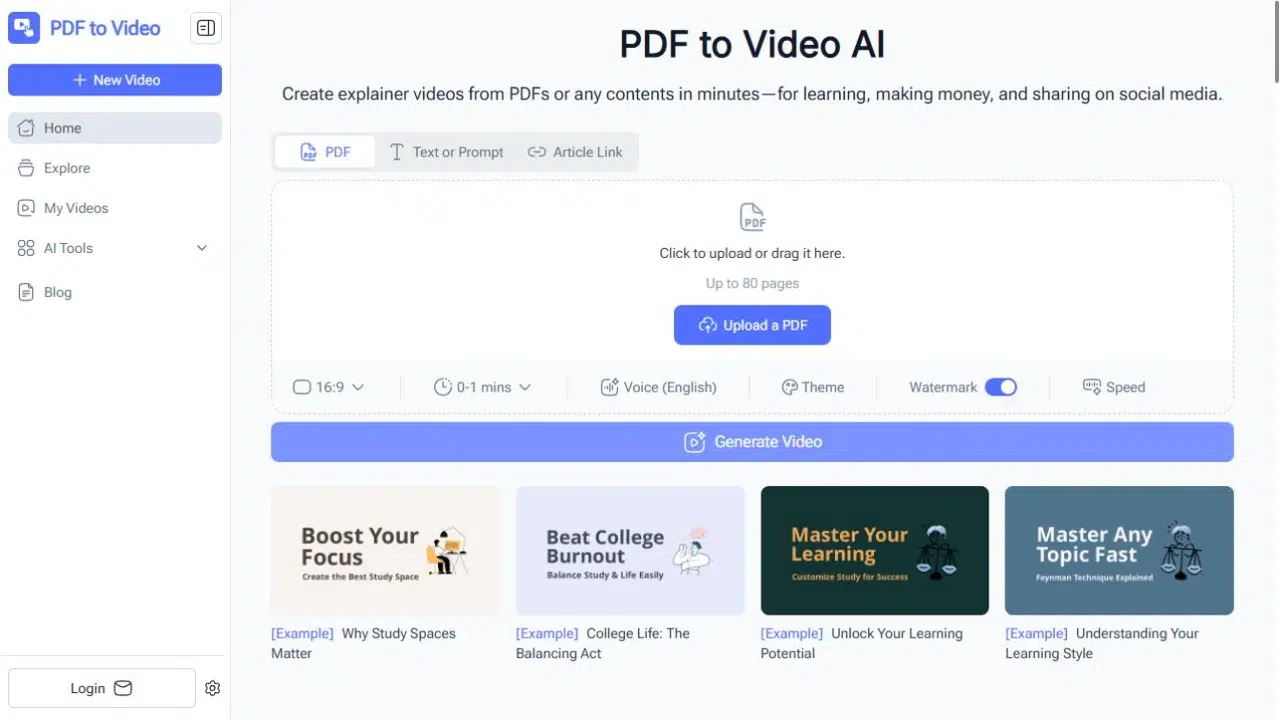
PDFToVideo.ai focuses on PDF explainers. Its upload form brings duration, voice, theme, watermark, and speed choices into one place.
The site advertises free conversion without registration, but does not specify a recurring export allowance. Confirm the download and watermark conditions before relying on it for regular production.
Key Features
- Direct PDF upload with an 80-page limit shown in the upload area.
- Voice and theme choices for the explanation’s sound and appearance.
- Duration and speed settings, plus a visible watermark control.
Pros
- Keeps the PDF-to-video task separate from a larger design or avatar workspace.
- Lets you set the voice, theme, and duration before generation.
Cons
- A watermark control alone does not establish whether removal is free.
- The free offer does not specify how many videos you can export regularly.
Best For
- Occasional PDF explainers where you want to begin from a straightforward upload form.
- Users comparing voice and duration choices before considering a larger video suite.
4. AI Studios
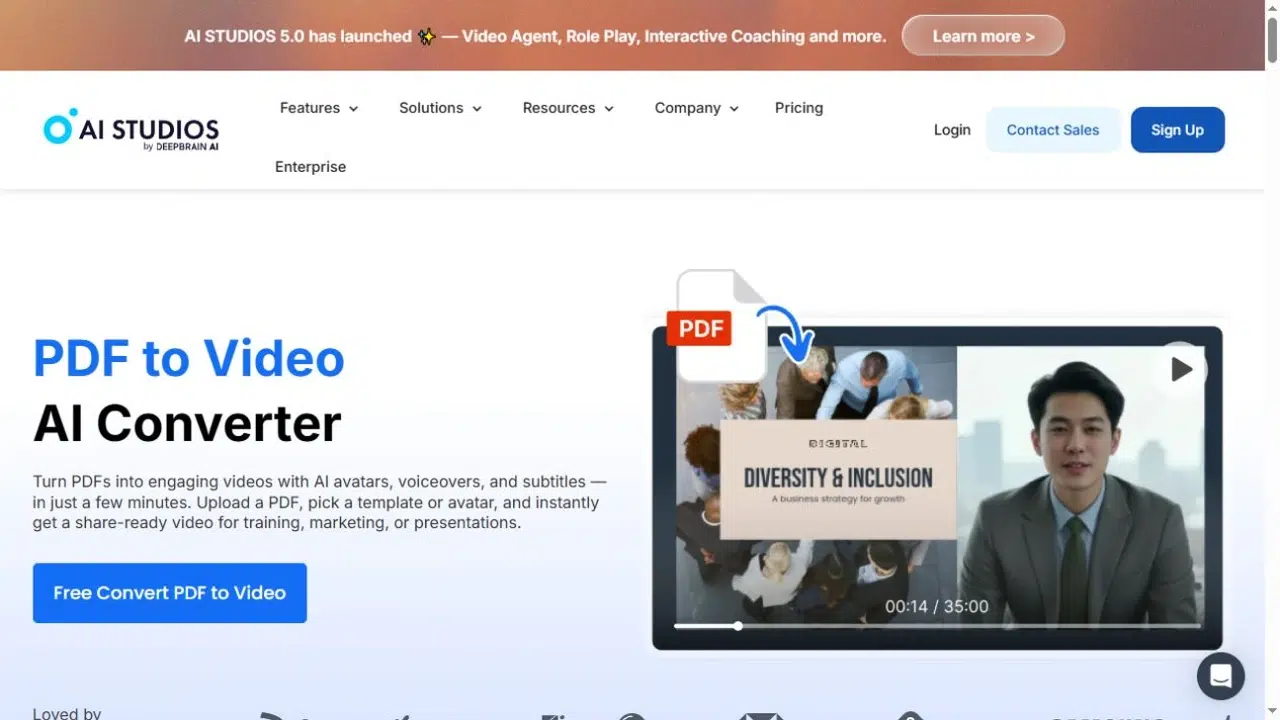
AI Studios lets you restructure a PDF as editable video scenes, with script, layout, AI voice, and presenter choices. You can split pages into scenes or chapters, then reorder, merge, or hide them.
For a report summary, you might put the conclusion first, follow it with one supporting chart, and leave out the appendix. Reordering scenes lets you make that change without following the PDF page by page.
Key Features
- PDF import with scene organization and editable text.
- AI narration, uploaded audio, or recorded voice for the spoken track.
- Avatar-led scenes or a voice-and-slides presentation without a presenter.
Pros
- Offers control over scene order and the material included in the final explanation.
- Supports different narration methods within a video-editing workflow.
Cons
- The free plan lists up to three videos, up to one minute each, and 720p export.
- Free output may include branding; the published three-video allowance has no stated renewal schedule.
Best For
- A short PDF-based introduction that needs changes to scene order, script, and presenter layout.
- Creators who want to compare recorded narration with AI speech.
5. X-Pilot
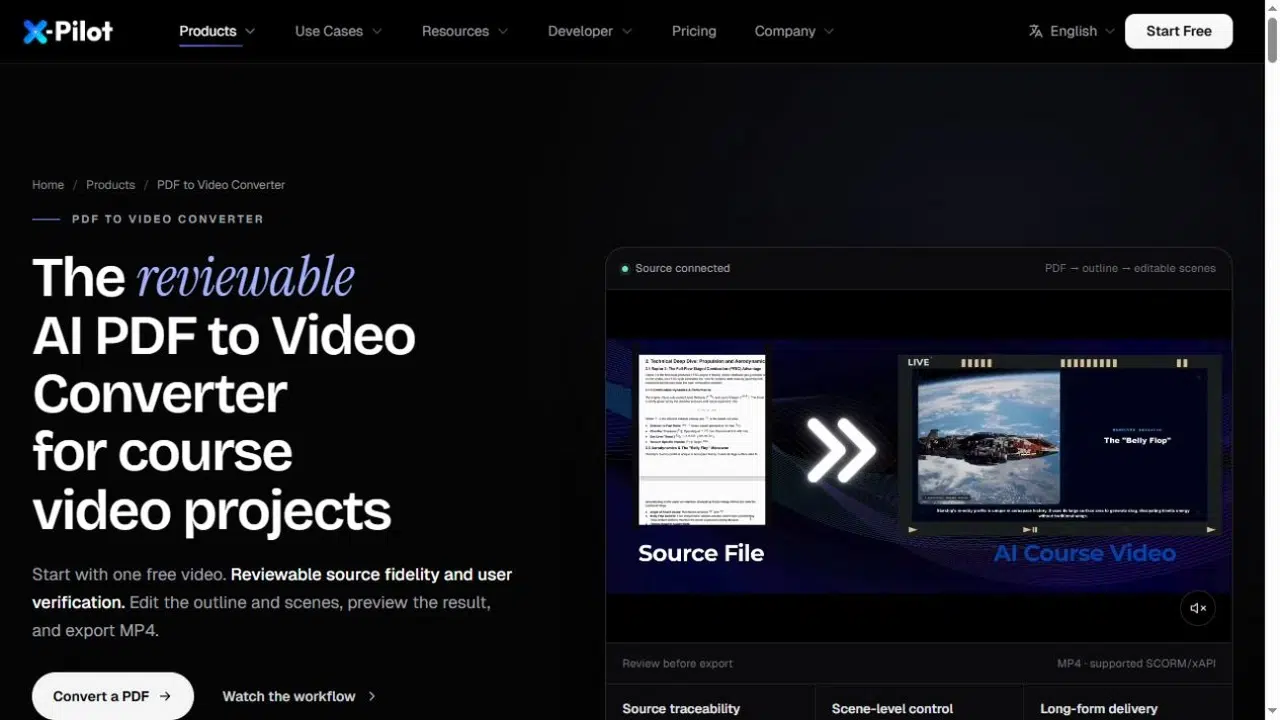
X-Pilot proposes an outline and editable scenes from a PDF. You can review the structure and request revisions in natural language before continuing toward MP4 output.
For a lesson, review the outline for missing prerequisites or sections that belong later. Make those changes before using the free generation on the full video.
Key Features
- PDF-based outline and scene creation.
- Natural-language changes to the explanation and visuals.
- Scene preview and an MP4 export workflow.
Pros
- Puts the outline and scene structure into the review process.
- Accepts revision instructions in natural language.
Cons
- The free offer is one video generation, not an ongoing production allowance.
- Watermark-free HD export is listed as a paid benefit; confirm the conditions for the free project’s output.
Best For
- A lesson or manual that needs an editable video outline.
- Creators exploring a scene-based explanation before choosing a paid workflow.
Choose for Your PDF and Your Next Revision
Start with Recastia when the original pages carry the explanation. Use its page-specific narration for commentary that belongs beside a particular chart or illustration. Consider AI Studios when you need more control over scene order and text, or X-Pilot when reviewing an outline is the first job.
NoteGPT and PDFToVideo.ai are options for a compact PDF-to-explainer setup. Check the available duration and voice before uploading a long document, then inspect the output terms before relying on it for delivery.
Leave room for corrections. Check whether changing a voice or rendering again uses another generation or more credits, and finish factual corrections and pronunciation changes before rendering. With a single free generation, you may have little room to redo the result.
Frequently Asked Questions
It depends on the workflow. A page-based sequence can use selected PDF pages, while an AI explainer may condense the material into a shorter script and scenes. If exact charts or diagrams matter, choose a page-based route and check that the selected pages appear in the finished video.
Changing narration and changing the printed page are separate tasks. In a page-based video, revise the source PDF if its visible wording needs changing. A scene editor may provide editable scene text, but that does not mean every element of the imported PDF becomes an editable object.
A free account does not establish commercial rights. Check the provider’s terms for exported video, music, avatars, and other included assets. Permission to use your own document also does not grant permission to reuse someone else’s photographs or illustrations. Confirm the relevant rights before using the result in an advertisement.
Use a document with clear headings, readable charts, and a manageable amount of text per page. For a brief introduction, select the sections that explain one topic. Text extraction from scans and complex diagrams varies by tool, so inspect the proposed script before generating speech.
Conclusion
Free AI PDF to video tools use your document in different ways. Choose Recastia to explain the existing pages with editable narration, or a scene-based tool when you need to reorganize the material.
Compare free AI PDF to video tools by the result you need to deliver and the room you have for corrections. Confirm both the free allowance and export conditions before committing the full document.
Bring Your PDF to Life With Recastia
Create, customize, and share your content in a more engaging way.