
To turn a written brief into a video, keep the main instructions on screen and use narration to explain the actions between them. A document to video workflow in Recastia lets you upload a Word file and write a separate spoken explanation for each page.
This document to video guide shows how to upload a Word file to Recastia, turn its pages into a narrated video, and edit the explanation for each page. A project handover brief provides the working example, from its written instructions to the final spoken message.
Create Document Videos With Recastia
Recastia converts existing documents into several online formats, including videos, presentations, and flipbooks. Its PDF to Video tool also accepts Word files, so you can start with a DOCX brief instead of making a separate PDF first.
For a narrated document video, Recastia combines the document pages with a voice, subtitles, and a video template. Advanced Mode gives each page its own script. Easy Mode uses one overall script with page synchronization. The modes and presenter options available depend on the template you choose.
Page-specific narration suits a document whose sections do different jobs. In a project handover, the opening explains the purpose, the next page assigns responsibilities, and the last page names the decisions for the meeting. You can write a different explanation beside each page while keeping the original document visible.
Prepare a Document That Works on Screen
Start with a document that has a clear purpose: a handover brief, a service overview, a policy explanation, or a short lesson. Decide which question the video will answer before choosing pages. For the handover example, that question is: what must the receiving team own and agree before the project closes?
Keep one subject on each page. The three-page brief separates the project purpose, responsibilities after handover, and meeting decisions. This gives each section a place in the video and a separate narration field to edit.
If a page contains a long passage, shorten the visible wording to the points viewers need to read. Put the explanation in the narration. For a responsibility page, keep the role names and main duties visible; use the spoken script to explain how work passes between them.
Review the document’s page breaks before uploading. A heading left at the bottom of a page or a paragraph split across two pages will also interrupt the explanation when the video changes pages. Make those layout changes in Word, then upload the revised document.
Rewrite Written Instructions as Spoken Explanations
A written brief often lists information in a form readers can revisit. Narration has to make the relationship clear as the page appears. Keep the responsible person, the action, and any condition that changes the action.
Consider this instruction from the handover brief:
Source wording: The support lead accepts the handover after confirming that the required answers are published and the remaining questions have named owners.
Spoken version: The support lead checks that the required answers are published and every open question has an owner. Once both conditions are met, the support lead accepts the handover.
The spoken version puts the checks before the decision and keeps the support lead responsible for acceptance. Viewers hear what must be ready before the handover can close.
Use the same approach for the responsibilities page. Instead of reading three role descriptions in isolation, explain the sequence: the editor updates an answer, the product specialist confirms uncertain facts, and the support lead approves what goes live. Check that the script still agrees with the document’s responsibilities.
Recastia’s AI Copywriting can supply an editable starting draft. Review it for missing conditions, unclear ownership, and promotional language that your document does not need. You can also choose Manual Input and write the narration yourself.
How to Turn a Document Into a Video With Recastia
The following workflow uses a DOCX handover brief and Horizontal Page Slide in Advanced Mode. It gives each of the three document pages a separate narration script.
- Upload Your Word Document and Choose a Template
Open the PDF to Video tool and upload your DOCX file. Choose a video template, then select Generate Video to enter the document workflow. Horizontal Page Slide keeps the document pages as the main visual material in this example. Use a template preview to judge the visual style before continuing.
- Select Advanced Mode and the Pages You Need
Choose Advanced Mode for a separate explanation beside each page. Select the pages that answer the video’s central question, then continue. For the handover brief, include the purpose, responsibilities, and meeting decisions so the explanation leads to a clear decision at the end.
- Write and Edit the Page Narration
Choose Manual Input to write the script, or use AI Copywriting and select the language for an initial draft. Revise each page’s text so it explains the action viewers should understand while that page is visible. On the responsibilities page, name who edits the answer, who checks the facts, and who approves publication. Keep Subtitle Display on if you want captions.
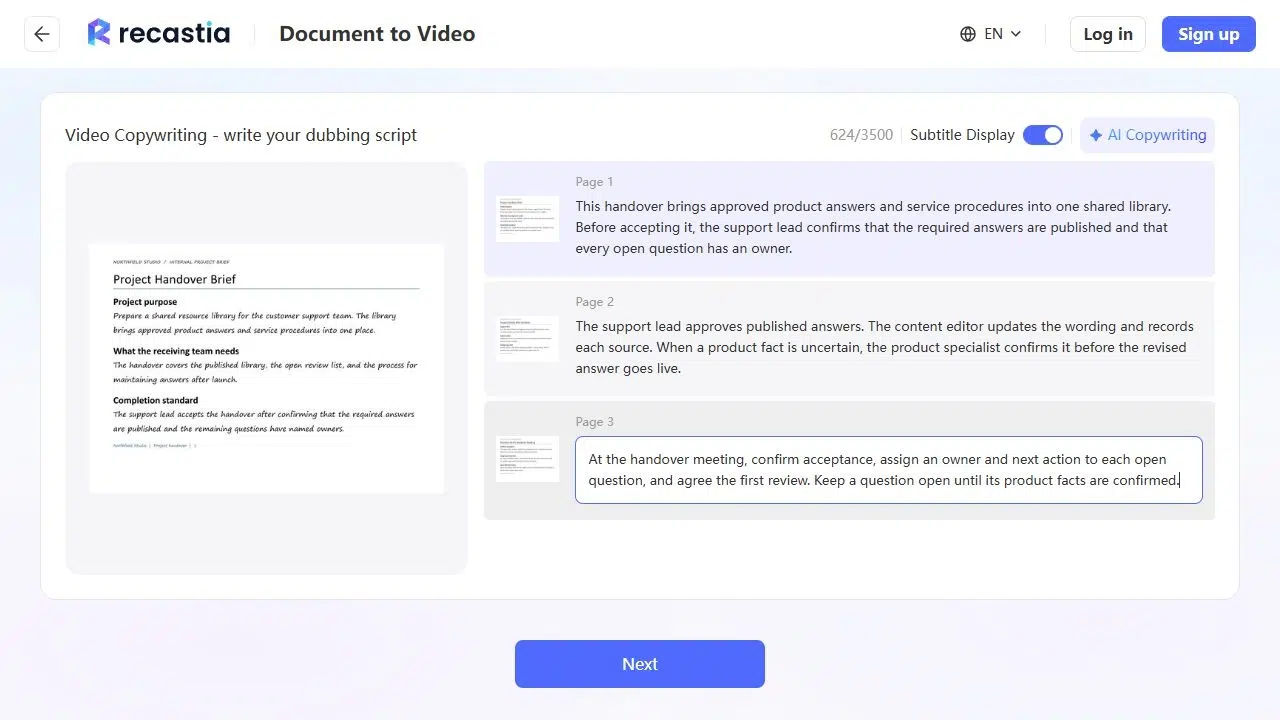
- Set the Voice and Video Presentation
Choose the narration voice, video ratio, and the presentation options offered by your template. The handover video uses a 16:9 frame with an English voice and subtitles. Background music is a separate choice; No Music leaves the spoken explanation as the audio focus. Choose No Avatar if you want the document without a presenter, then review the subtitle options before generating.
- Generate and Review the Complete Video
Generate the video and play it through. Listen for the acceptance condition and the different responsibilities, then check that each explanation appears beside the matching document page. Make sure captions leave the important page content visible. If the explanation is unclear, revise the relevant script rather than adding another general introduction.
- Choose How to Deliver the Video
Use the download option if you need a video file, or use the project’s sharing controls for online delivery. Account access is required for downloading. For a hosted link or website embed, sign in and open the saved project to check the available sharing options before distributing it.
Match the Video to the Document’s Purpose
A handover video should finish with what the receiving team needs to confirm. In this example, the closing narration names three meeting decisions: accept the handover, assign open questions, and agree the first review. Each comes from the brief, so the video remains a useful explanation of the document.
Different documents need different endings. A service overview can explain how to request the service. A policy video can name the person responsible for the next action. A lesson can end with a question that asks viewers to apply the idea. Choose the ending that completes the document’s purpose.
For a process that changes frequently, keep the role names and conditions consistent across the page and narration. Updating the spoken explanation alone will not correct a different instruction printed on screen. Revise both when the underlying process changes.
Frequently Asked Questions
Place the relevant links in the message or webpage that accompanies the video. Tell viewers which link to use and why, such as opening the handover checklist before the meeting. A long web address is difficult to follow when a narrator reads it aloud.
The narration fields edit what the voice says. They do not rewrite the words printed on the document page. To change an on-screen instruction, edit the source document and upload the revised file. You can then write a script that agrees with the new page.
Use a job title when the responsibility belongs to the role, as with the support lead in the handover brief. Use a person’s name when viewers need to contact that individual. Keep the same wording on the page and in the script so the instruction identifies one clear owner.
Choose one question and include only the pages needed to answer it. A large handover pack might supply a short video about responsibilities and a separate video about maintenance. Avoid compressing unrelated sections into a fast narration that viewers cannot follow.
Conclusion
A document to video workflow in Recastia starts with your existing Word pages and gives you room to explain them in a separate narration script. Organize the document around one purpose, then use each page’s script to make the important actions and decisions clear.
For your next document to video project, choose a short brief with a defined result. Turn its written instructions into spoken explanations, preview the complete video, and deliver the version that helps viewers understand what to do next.
Bring Your PDF to Life With Recastia
Create, customize, and share your content in a more engaging way.