
Need to put a PDF page into a slide, blog post, or image upload form? Convert PDF pages to JPG so you can insert the page as a picture, including its headings, graphics, and layout.
To convert PDF pages to JPG with Recastia, upload the PDF, choose Image, and download the converted files. This guide walks through the process and explains how to use the images without squeezing small text into an unreadable space.
Key Takeaways
- Choose Image in the PDF Converter to create JPG page images.
- Sign in to download the ZIP, then extract the JPGs from its large folder.
- Page conversion captures text and graphics together; it does not extract only the photographs inside the PDF.
- Use a complete page for a cover or poster, and a focused crop for a chart or paragraph.
How to Convert PDF Pages to JPG With Recastia
Recastia accepts PDFs smaller than 100 MB with fewer than 200 pages. Start with a clear PDF exported from your design or document app, and use material you have permission to upload. For a wide slide or spread, check that the downloaded images contain the whole page; some wide-page output may be divided across separate JPGs.
Open the PDF Converter to get started.
- Upload Your PDF
Upload your PDF as one file, including multiple pages if needed. For example, a workshop agenda and its preparation checklist can be converted together rather than uploaded separately.
- Select Image
Choose Image and click Convert. This converts the page content into JPG images, including the text and graphics. You do not need to capture each page with a screenshot tool.
- Download Your JPGs
Sign in to your Recastia account to download the converted file. Extract the ZIP and open the large folder to find the JPGs. Open the images you need before inserting them into your slide or webpage.
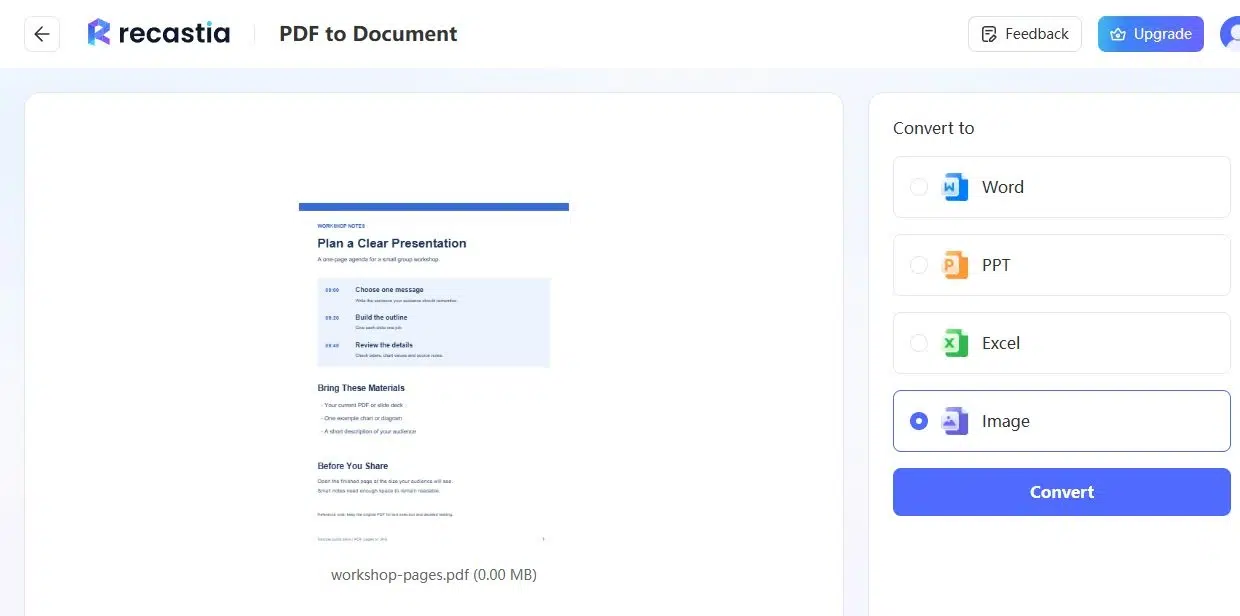
Choose a Full Page or a Focused Crop
A workshop agenda can go into a presentation as a single picture. Its timetable, headings, and notes stay together, so you can introduce the session without recreating the page in your slide editor.
Use the sample PDF or full-size agenda JPG to try the layout yourself.
- Use the whole page when you want to show its design, such as a cover, poster, or short agenda. Leave enough space for the smallest important text.
- Crop to a section when you are discussing one chart, table, or paragraph. Keep its heading and any labels needed to understand it.
- Include the key information as normal text in a blog post. Readers should not have to zoom into an image to find a date or instruction.
JPG images do not retain selectable text or clickable PDF links. Add a separate website link when the image needs to lead somewhere, such as a registration form.
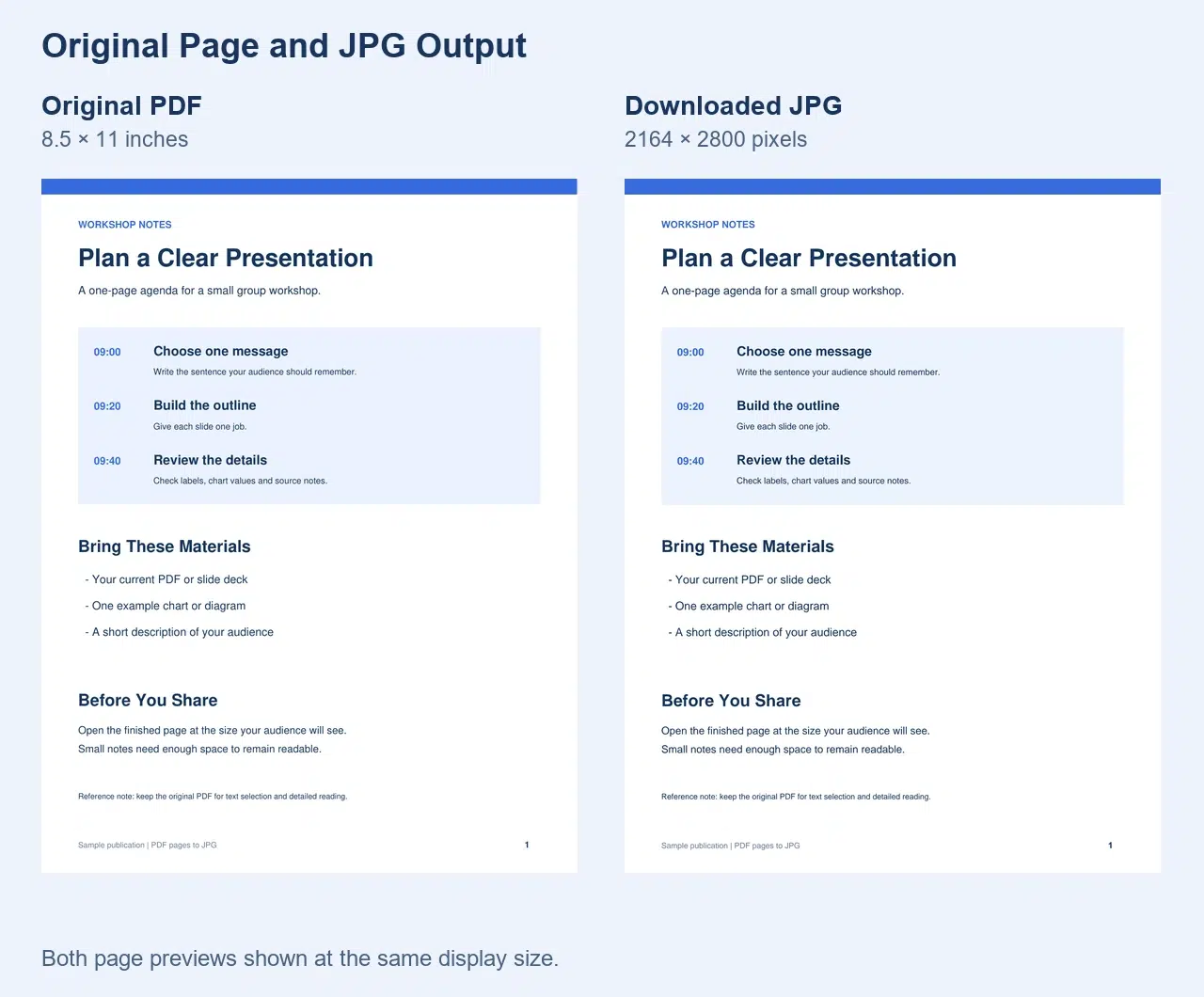
Keep Text Clear When You Resize a JPG
If the image is readable at full size but difficult to read in your slide or blog column, the text may simply be too small. A closer crop can show the relevant content without filling the screen with the rest of the page.
For blur rather than small text, compare the downloaded image with the PDF:
- Both are blurry: return to the source document or use a clearer scan. Changing the format does not recover missing detail.
- Only the JPG is blurry: try an export method with a higher-resolution setting if you need fine text or print output. Do not assume every converter offers that control.
- Only the uploaded version is blurry: check whether your website resized or compressed it. Uploading the same file again may produce the same result.
Keep the page’s proportions when resizing. If an upload form has a size limit, compress a copy rather than overwriting your full-size download. Enlarging a small image adds pixels but does not restore detail; Adobe explains this distinction in its guide to resizing and resampling.
Use the Pages That Fit Your Layout
Convert PDF pages to JPG when you need a document page as a picture in a slide, webpage, or image-only form. Recastia handles the conversion, and you can choose the downloaded page or crop that fits your layout.
Before you convert PDF pages to JPG for a text-heavy document, decide which section you want to show. A readable chart or agenda is more useful than an entire report page reduced to tiny text.
Bring Your PDF to Life With Recastia
Create, customize, and share your content in a more engaging way.
Frequently Asked Questions
Yes. JPG and JPEG are filename extensions for the same image format. Neither extension guarantees higher quality. If an upload form rejects your image, check its accepted extensions and file-size limit before converting the PDF again.
The words in a JPG are part of the image, not editable document text. Make changes in the original document before conversion. If you need to edit the wording, use PDF to Word instead of a page-image workflow.
Yes. Upload the multipage PDF, download and extract the converted images, then choose the JPG you need. Check the content rather than relying only on its filename, especially if a wide page has produced more than one image.
No. Renaming changes the filename, not the file format. The file still contains PDF data, so an image viewer or upload form may reject it. Convert the PDF first, then give the resulting JPG a descriptive name.