
You only need to change a price or rewrite a paragraph, but the file is a PDF. Copying everything into Word can leave you rebuilding tables and fixing line breaks. Converting PDF to Word gives you an editable starting point.
This guide shows you how to convert PDF to Word with Recastia and fix common formatting issues afterward.
Key Takeaways
- Recastia converts a PDF into a Word document you can download and edit.
- Keep the original PDF beside the Word document when adjusting the layout, especially around tables and columns.
- Set fonts and page dimensions before fixing individual line breaks. Those choices affect how much text fits on each page.
- Use Word’s table and picture settings to position content instead of aligning it with repeated spaces or blank lines.
What Is Recastia?
Recastia’s PDF to Document tool turns a PDF into a Word file that you can continue editing. The same tool also supports PowerPoint, Excel, and image output. You can explore all four choices in this guide to Recastia’s PDF to Document feature.
How to Convert PDF to Word With Recastia
Open the Recastia PDF to Word converter with the PDF you want to edit. If you still have its original Word file, make your changes there to avoid an unnecessary conversion.
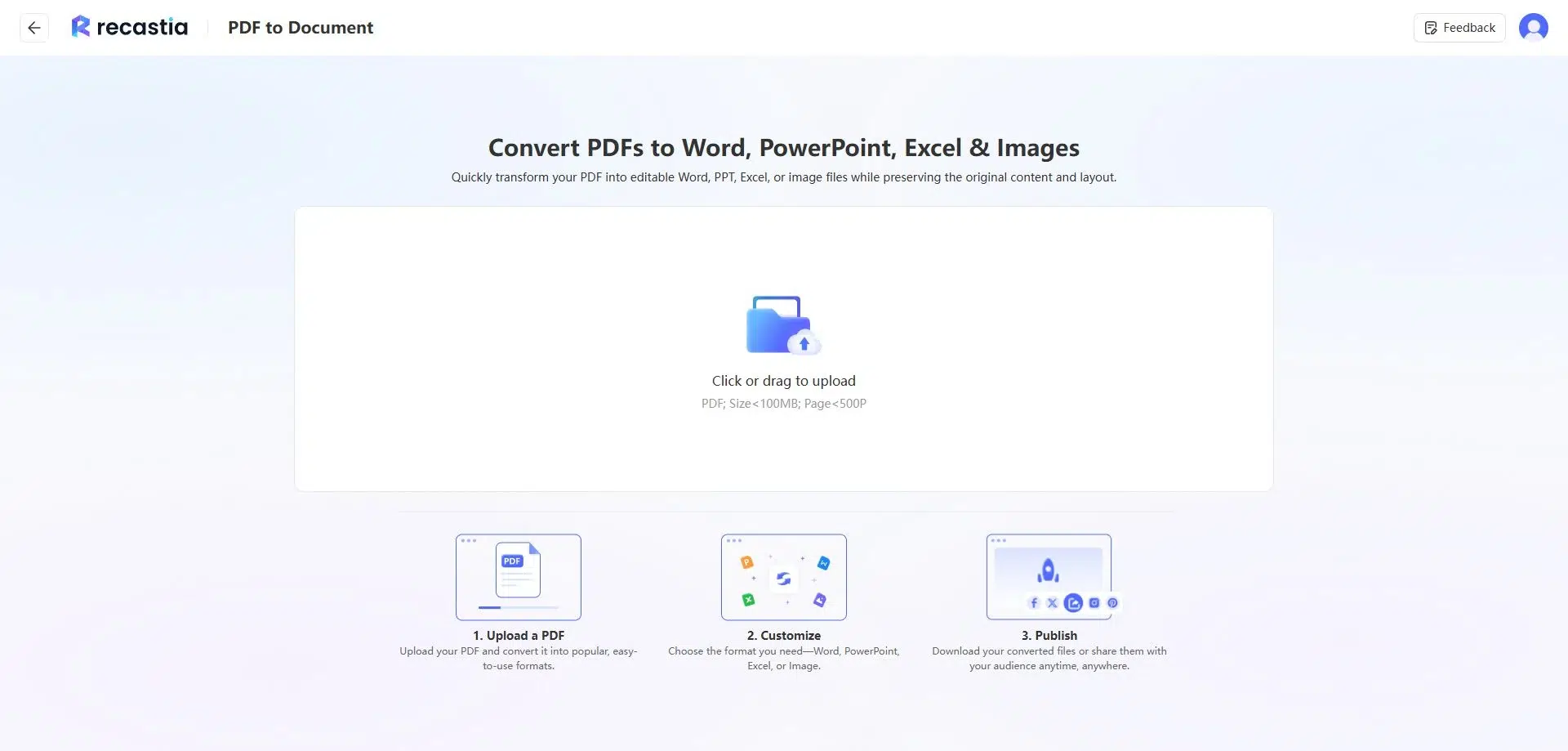
- Upload the PDF
Choose a PDF from your computer or drag it into the upload area. Use the original digital file when you have it, rather than a screenshot of its pages.
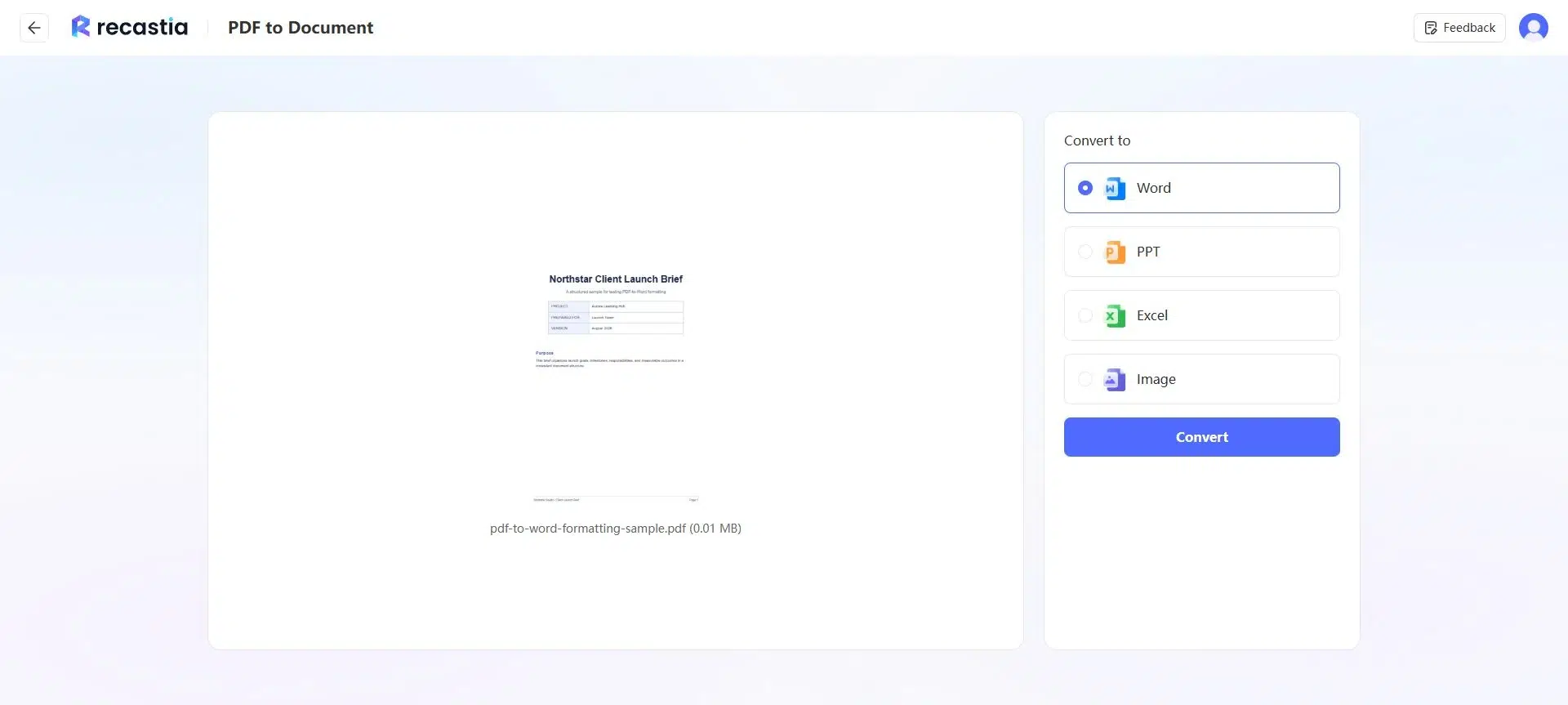
- Generate the Word File
Select Word as the output format and click Convert. This creates the document you will use for rewriting paragraphs, adding comments, or updating the content in Word.

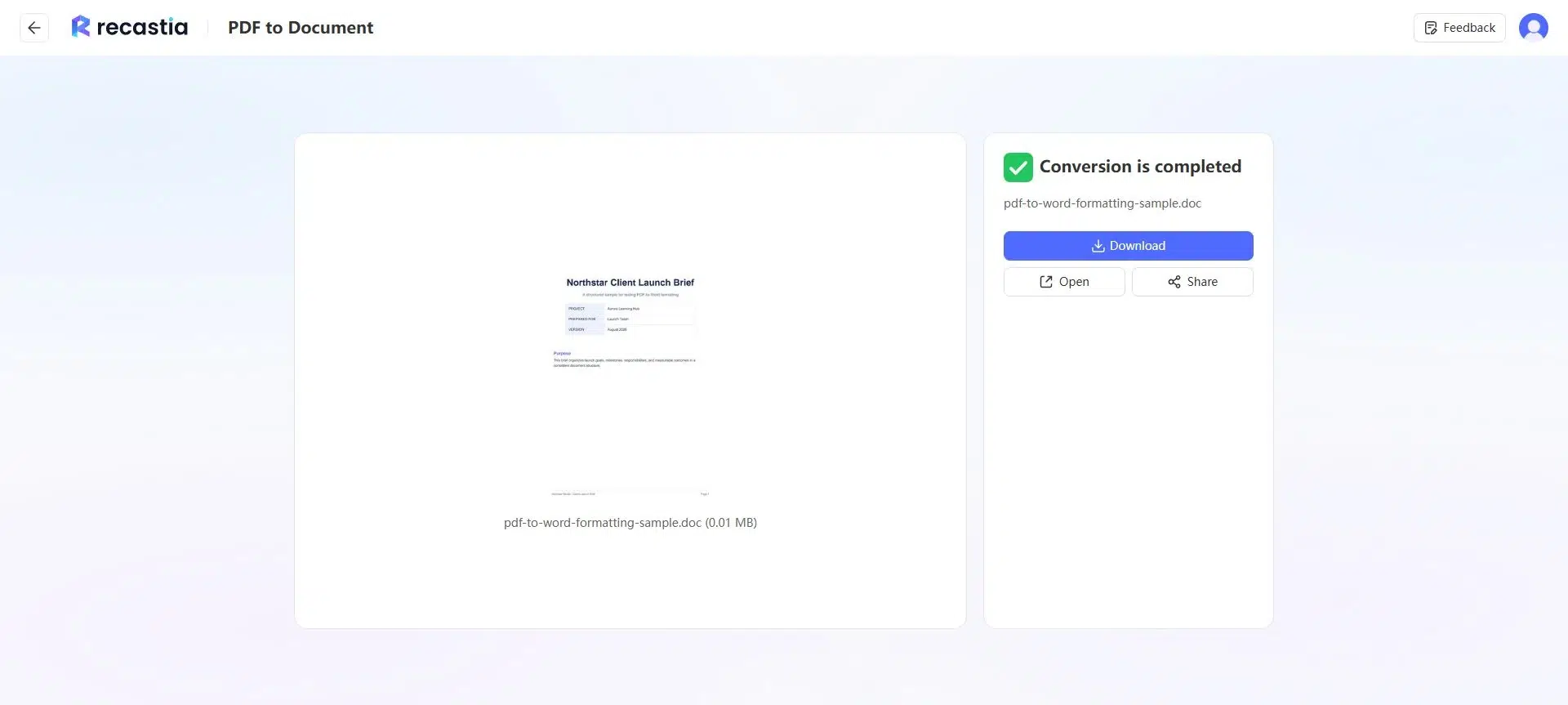
- Download and Share
Download the converted document and open it in Word to make your changes. You can also use Open to view it in your browser.
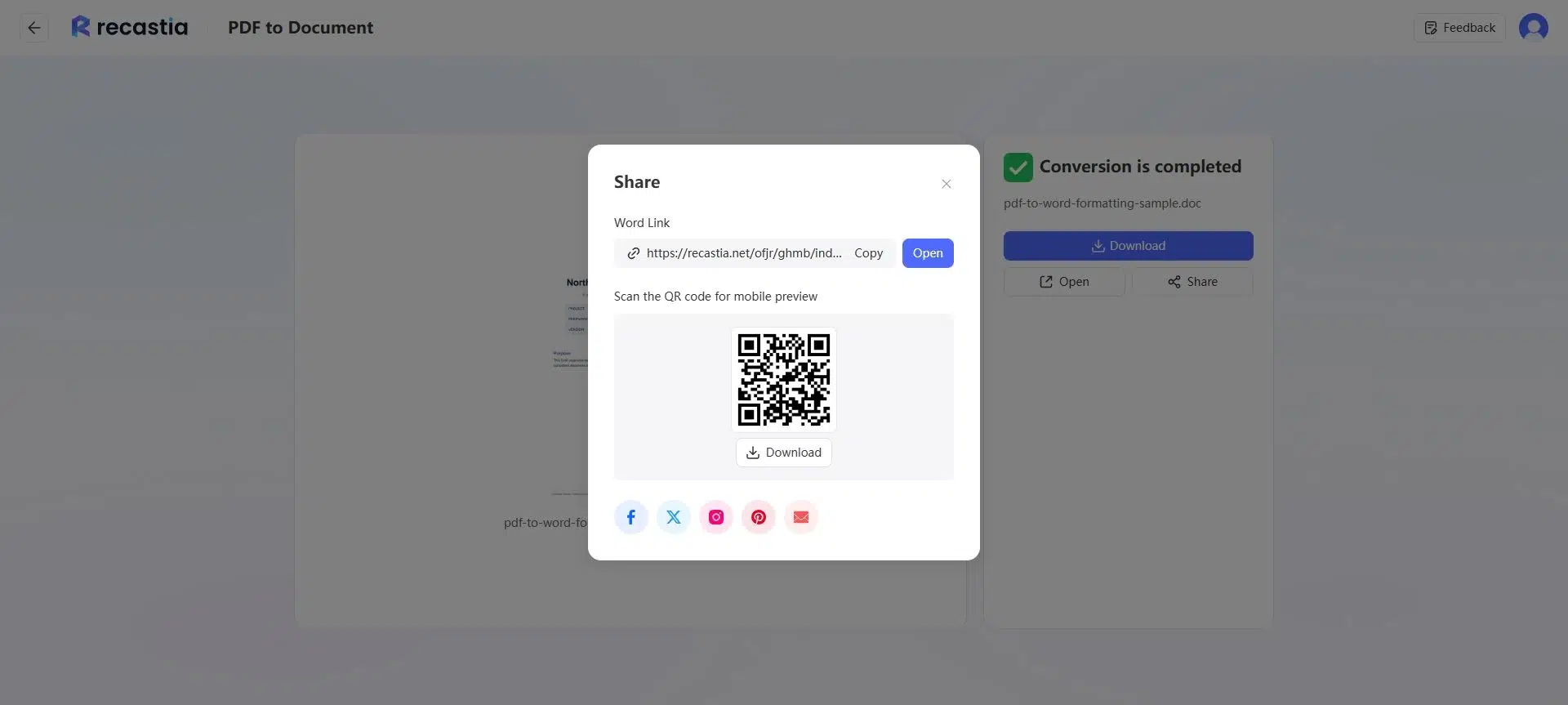
To share the converted file, choose Share and copy its link or download the QR code. If you edit a downloaded copy afterward, send that revised file separately; the hosted conversion link is not a link to your local Word document.
How to Keep the Word Layout Close to the PDF
A PDF records where content appears on a page. Word also needs paragraphs, tables, and other editable structures, which may not be stored the same way in the PDF. That is why a document can look correct as a PDF but need some layout work after conversion. Microsoft explains this distinction in its guide to opening PDFs in Word.
Keep the original PDF open alongside the Word document. Start with changes that affect the whole document, then adjust individual tables or images.
Fonts and Page Breaks
Match the page size, orientation, and margins to the PDF before moving content between pages. Then choose the original font if you have it installed and licensed, or use a consistent replacement throughout the document. A different font can make a paragraph longer or shorter even at the same point size.
For example, if a heading moves onto the next page, check the font and paragraph spacing before deleting text to make it fit. Avoid inserting blank lines to force a new page; use a page break when a section needs to start on its own page.
Tables and Cell Alignment
If the converted table has editable cells, adjust column widths and cell margins so long entries fit. Make sure each value stays with its row label. A wrapped product description is a layout issue; a price placed beside the wrong product changes the meaning.
If the table arrives as separate text fragments, rebuild the affected section as a Word table instead of lining up values with spaces. For data you need to calculate, filter, or sort, converting the PDF to Excel may suit the task better.
Columns and Reading Order
Read a page with two columns from the bottom of the first column to the top of the second. If the sentences have become mixed, place the paragraphs back in reading order before changing their appearance. You can then restore the column layout or use a single column if the document is mainly for editing.
Watch for repeated headers and footers appearing between paragraphs. Move those out of the main text so they do not interrupt a sentence when you add or remove content.
Images and Captions
For an image that belongs between two paragraphs, Word’s In Line with Text setting keeps it within the text flow. Use a wrapping option when you want text beside the image, and position its caption close enough to identify what it describes. Microsoft provides the controls in its picture wrapping guide.
Resize an image from a corner to keep its proportions. If the converted image is blurry and you have the original picture, replace it with that source file instead of enlarging the blurry copy.
FAQ
An exact match is not guaranteed for every PDF. Dense tables, overlapping objects, and unusual fonts can need manual adjustment. If the appearance must stay fixed and you do not need to edit the content, keep using the PDF.
Different fonts, margins, line spacing, or image positions can make the same content occupy more space. Match those settings to the original before removing page breaks or shrinking all the text.
A scan may contain a picture of the text rather than editable characters. Extracting those characters requires optical character recognition, or OCR. Check whether your chosen converter supports OCR for that file; changing the file format alone does not guarantee editable text.
Yes. Recastia provides an Open option for viewing the converted document in a browser. Download it when you are ready to work on it in Word.
Choose Word when you want to turn the content into a written document. If you plan to continue working with slides, follow the PDF to PowerPoint guide.
Conclusion
Recastia lets you convert PDF to Word so you can update the text, add comments, and continue working on a document. For layouts with tables, columns, or pictures, the adjustments above help keep the content organized while you edit.
When you convert PDF to Word, keep the original PDF as your layout reference and save the revised Word file separately. You will have both the source document and the editable version ready for the next round of changes.
Bring Your PDF to Life With Recastia
Create, customize, and share your content in a more engaging way.