
You need to update a presentation, but the only copy you can find is a PDF. Rebuilding every slide means copying text, replacing images, and starting the layout again. PDF to PowerPoint conversion gives you a deck to work from. This guide covers PDF to PowerPoint conversion in Recastia and the changes that help turn the downloaded file into slides you can present.
Key Takeaways
- Choose PPT in Recastia’s PDF converter to generate a downloadable PPTX.
- Use the original presentation file when you have it; a PDF does not retain every feature of the source deck.
- Review the downloaded slides in PowerPoint before changing the whole deck’s theme or size.
- A dense report page may need to become several slides. Conversion and presentation editing are separate jobs.
What Is Recastia?
Recastia turns PDF content into editable document formats and online content such as flipbooks, videos, and presentations. Its PDF converter supports Word, Excel, PowerPoint, and image output.
For this task, choose PPT to get a downloadable presentation file. The PDF to Document guide compares those four formats if you also need to reuse the source as a document or spreadsheet.
Before Converting Your PDF
If the original PowerPoint file is still available, use it. A PDF of the slides can show their final appearance, but it does not preserve the full presentation project, including its animation sequence and speaker notes.
When the PDF is your only copy, look through it before uploading. A slide deck exported to PDF already has a presentation sequence. A portrait report or handbook needs more decisions: which pages belong in the meeting, which details can go into notes, and which charts need a slide of their own.
How to Convert PDF to PowerPoint Online
Recastia handles the conversion in your browser. You can then download the PPTX and prepare the deck in PowerPoint or a compatible presentation app.
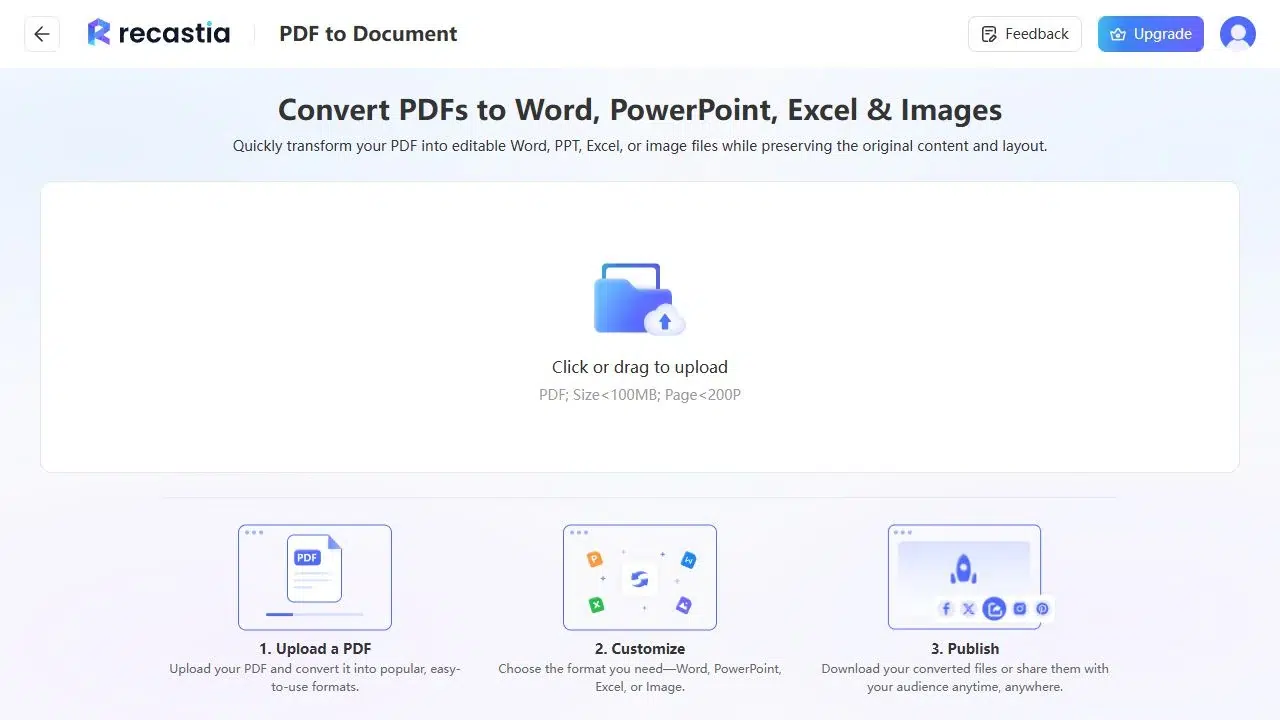
- Upload the PDF
Open the Recastia PDF converter and upload your PDF. For a large file, check the upload limits shown for your account.
- Generate the PowerPoint File
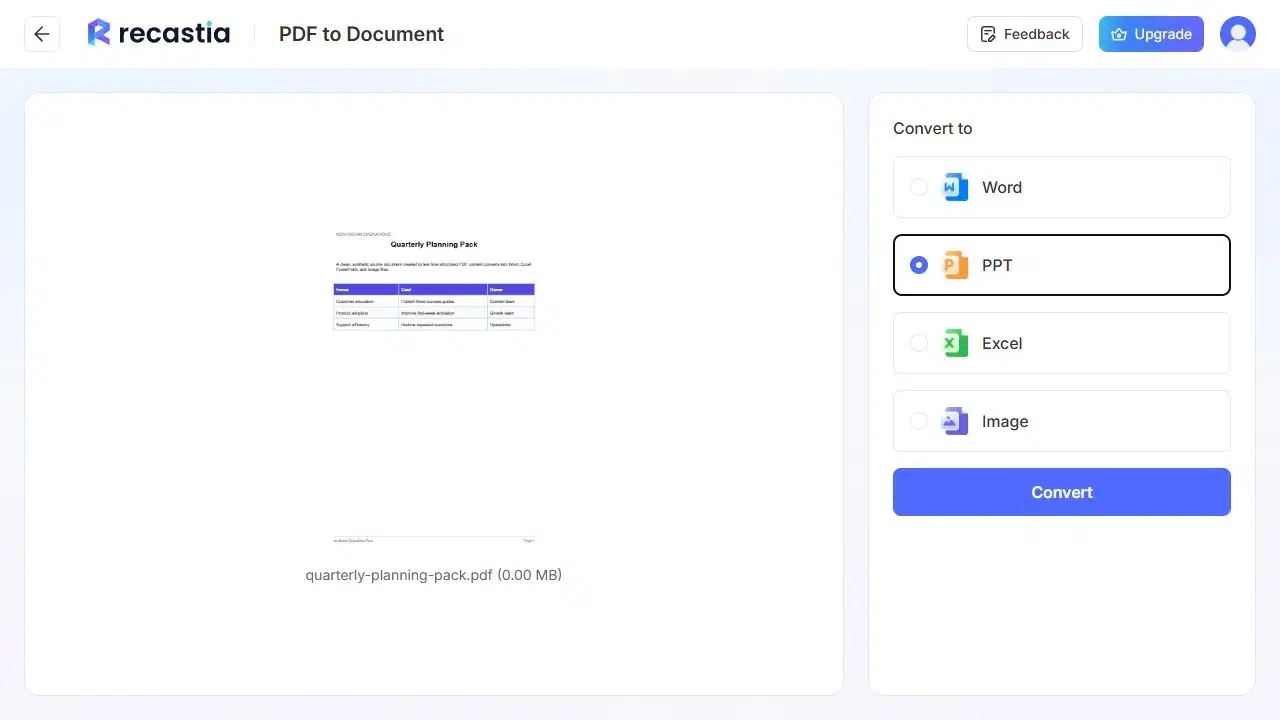
Select PPT from the output formats, then click Convert. This creates a PowerPoint file from your PDF. Choose this route when you need a downloadable deck; Recastia’s hosted presentation tool is a separate workflow.

- Download the PPTX
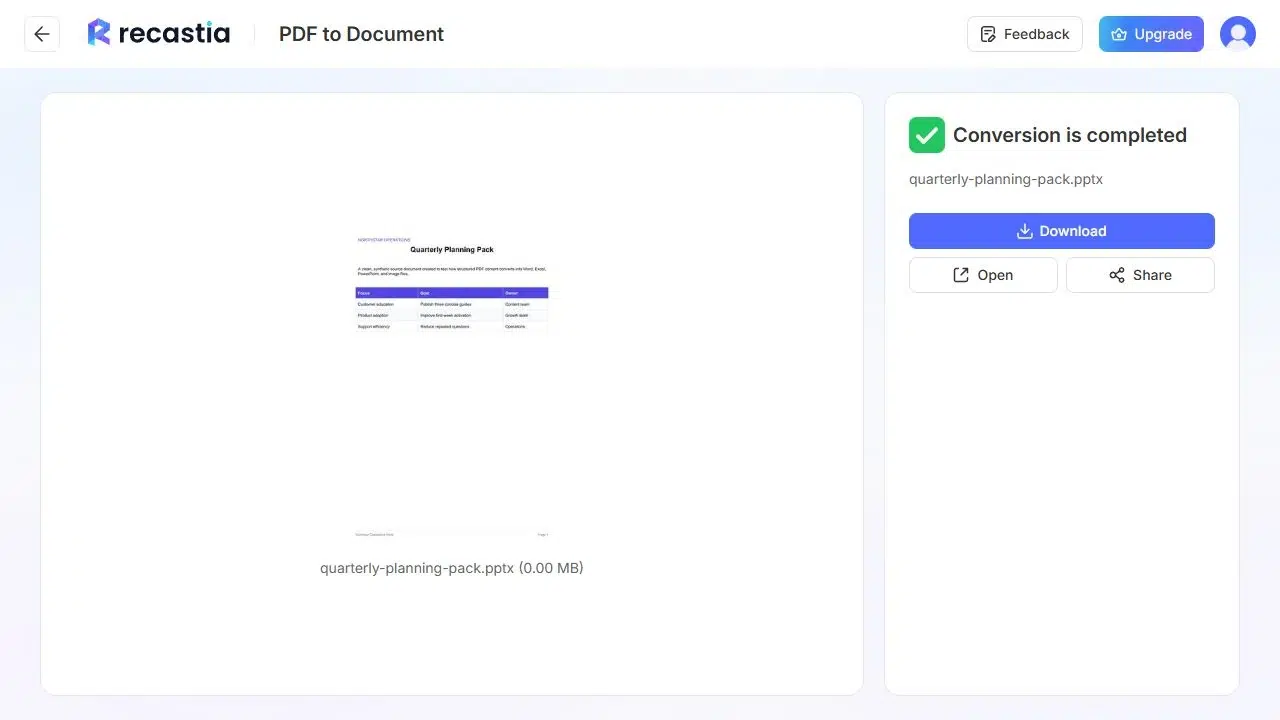
Download the generated PPTX and open it in your presentation app. Save a working copy before making broad design changes. Start with a few representative slides: one with ordinary text, one with a chart or image, and one with a dense layout.
Prepare the Converted Slides for Your Meeting
A page that reads well on a laptop may be difficult to follow on a shared screen. Work through the deck at presentation size, beginning with the slides that carry your main points.
Keep One Main Point on Each Slide
A report page may combine a summary, a table, and several footnotes. Give the summary its own slide if it introduces your main finding. Keep only the table rows you will discuss, and put supporting details in notes or an appendix.
For example, a monthly sales page might become a headline result, a regional comparison, and a next-actions slide. You do not need to display all three ideas at once simply because they shared a page in the PDF.
Check What You Can Edit
Select a text area in PowerPoint before planning extensive changes. If it is editable text, revise it directly. If the area is a picture, you will need to replace it or add new text rather than edit the words inside the image.
The same distinction matters for charts. A visible chart in a PPTX does not necessarily contain editable chart data. If you need to change the figures, use the source data to rebuild the chart instead of placing new numbers over an old image.
Set the Slide Size Before Fine-Tuning the Layout
Decide where you will present before adjusting individual objects. A portrait PDF may need substantial rearrangement for a widescreen deck. PowerPoint supports standard, widescreen, and custom dimensions through its slide size settings.
Changing the slide size can resize or displace content. Inspect the affected slides before continuing, especially text near the edges and full-page images. Adjusting the size early avoids repeating that work after you have polished every slide.
Add the Explanation the PDF Cannot Provide
Use speaker notes for the details you will say aloud: the reason behind a result, a definition, or an example. This lets the slide stay readable while you keep the explanation available during the presentation.
Check names, dates, and figures against the PDF as you edit. If you remove a table column or shorten a quotation, make sure the remaining content still conveys the original meaning.
Choose a File, an Online Presentation, or a Video
Keep the PPTX when you need to revise the deck in PowerPoint or pass it to a colleague who will edit it. If you want to present and share PDF pages through a browser, follow the online PDF presentation guide.
For a version people can watch with narration, use the separate presentation-to-video workflow. Downloading a PPTX does not automatically create a narrated video.
FAQ
No. Recastia converts the PDF in a browser. You need PowerPoint or another compatible presentation app when you want to work on the downloaded PPTX.
Do not expect to recover those from a PDF. Use the original presentation file when you need its animation sequence or speaker notes. Add new notes and animations to the converted deck as needed.
Check the individual objects after opening the PPTX. Text, pictures, and charts do not necessarily have the same editing options. A picture of a chart, for example, does not provide the underlying spreadsheet data.
You can use it as source material, but plan to shorten it for the presentation. Start with the findings you need to discuss and move background information into notes or an appendix. A page-by-page report is rarely the right length for a meeting.
A theme may not change every imported object in the same way. Try it on a working copy and inspect text, backgrounds, and pictures before applying further changes. You may need to adjust individual elements or rebuild a crowded slide.
Conclusion
PDF to PowerPoint conversion gives you a downloadable deck when the original presentation is missing. Recastia handles the file conversion; you can then shorten the content, adjust the layout, and add the explanations you will use in the meeting.
Start your PDF to PowerPoint workflow with the correct source file, then finish in your presentation app. The result should fit the talk you plan to give, with readable slides and the important details checked against the PDF.
Bring Your PDF to Life With Recastia
Create, customize, and share your content in a more engaging way.