
Sending your slides as a PDF leaves out the explanation you would give in person. A PDF presentation online lets you add that context and share the result through a browser link. This guide shows you how to create a PDF presentation online with Recastia, choose narration that fits your material, and share the finished deck without asking viewers to open PowerPoint.
Key Takeaways
- Recastia turns existing PDF pages into a hosted presentation with transitions and optional narration.
- Use Minimal Mode without narration, Easy Mode for a single script, or Advanced Mode for page-specific narration.
- Keep only the pages you want to present. Add spoken context where a chart or short bullet point needs explanation.
- Share the presentation by link or QR code. Website embedding is a paid-plan feature.
What You Can Create With Recastia
Recastia’s PDF to Presentation tool uses your existing pages as the slides. You can add transitions, a voice-over, subtitles, and a virtual presenter, then publish a presentation that opens in a browser.
This suits a deck whose layout is already finished. For a live briefing, you can move through the pages while you speak. For viewers watching later, narration can explain the material without requiring you to record the talk again.
The result is a hosted presentation, not an editable PowerPoint file. If you need to rewrite text or rearrange slide elements, use the PDF to PowerPoint workflow. If you need an MP4 for a video platform, follow the presentation to video guide.
How to Create a PDF Presentation Online
Start with the PDF you want viewers to see. Correct dates, chart labels, and other page content in the source document first, then export a fresh PDF so those edits appear in the presentation.
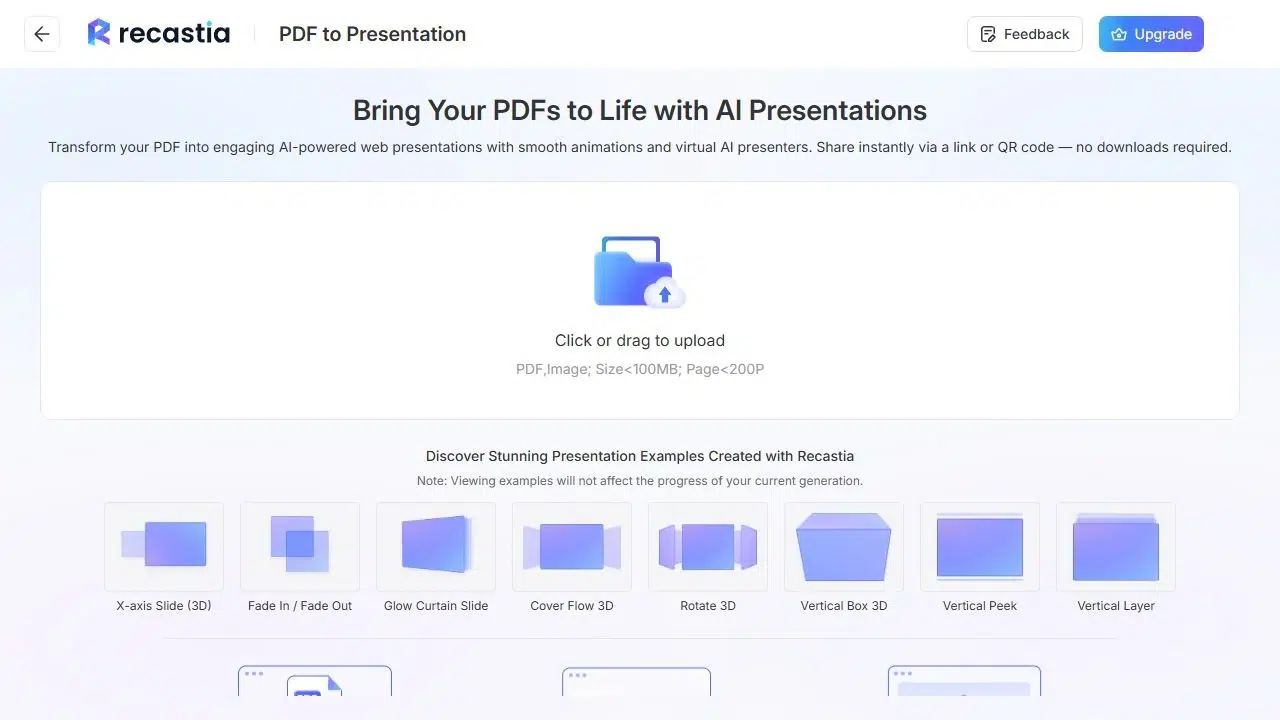
- Upload Your PDF
Open the PDF to Presentation tool and upload the document. Use a PDF with readable slide text and a clear page order. You can leave out an appendix or reference section when selecting the pages to present.
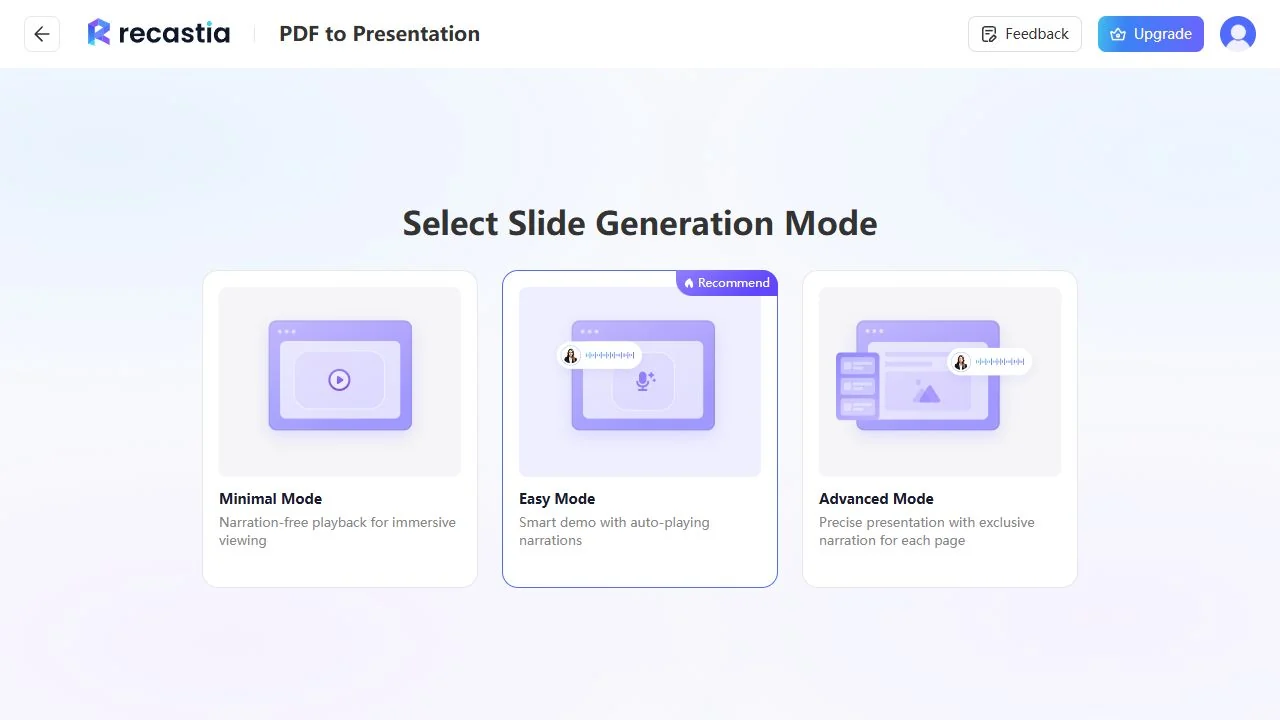
- Choose a Narration Mode
Choose Minimal, Easy, or Advanced Mode according to how much explanation the pages need.
Minimal Mode works without narration. Use it when you will speak during a meeting or when the slides already explain themselves.
Easy Mode uses one narration script for the presentation. It suits a short overview where you want to explain the overall message.
Advanced Mode gives each page its own narration. Use it when the explanation needs to match a specific chart, instruction, or slide.
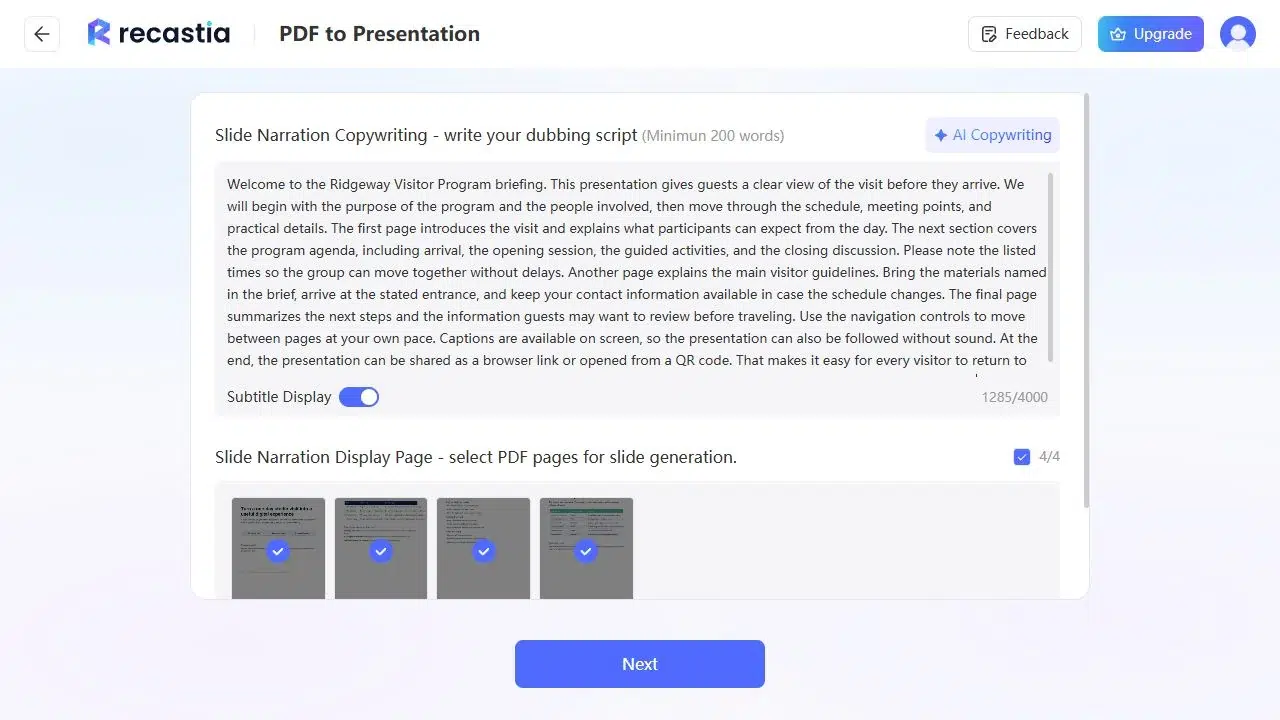
- Select Pages and Write the Explanation
Keep the pages that belong in the presentation and leave out material viewers do not need. A long report may include reference tables that work better in the original document than in a spoken briefing.
If you choose narration, write the explanation you would give aloud. For a sales chart, explain which change matters and what it means. Avoid reading out every axis label or repeating a paragraph viewers can already see.
You can use AI Copywriting to draft narration and then edit it. Check that names, numbers, and the conclusion match your document. Turn on subtitles if you want viewers to read the narration as they watch. - Set the Presentation Style
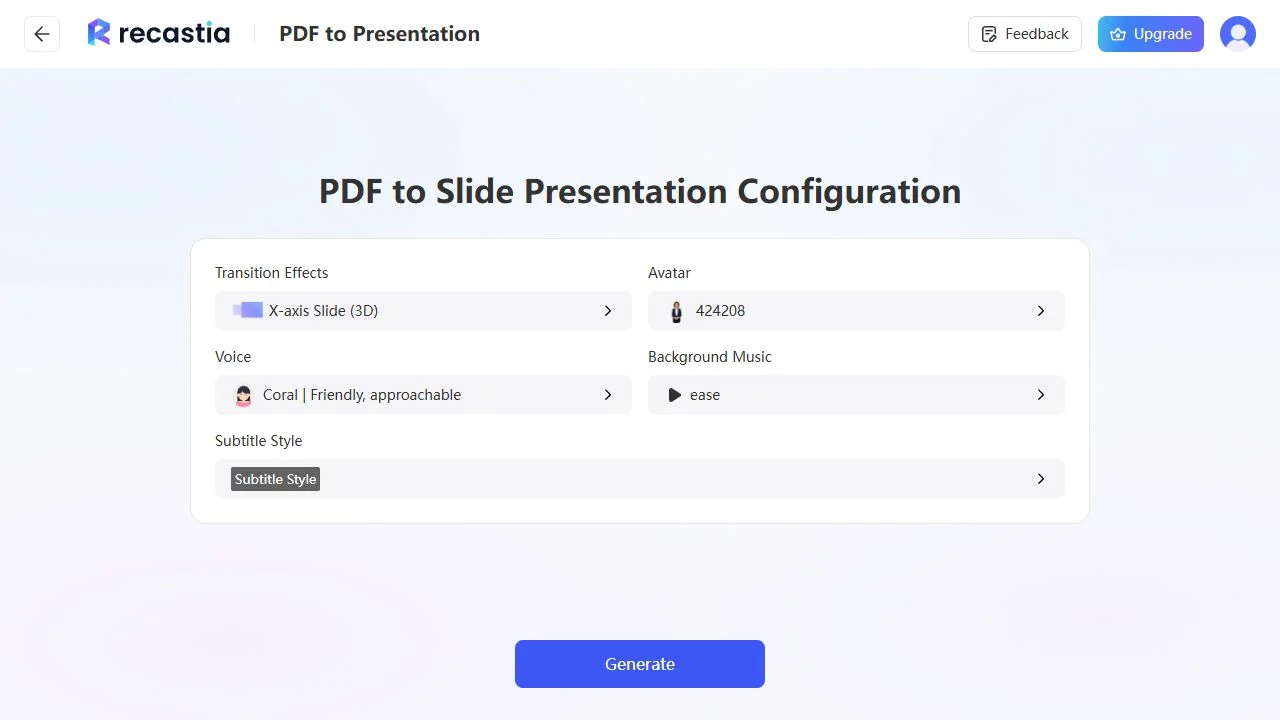
Choose a transition that suits the pages. A subtle transition suits dense reports; a more visible movement can separate visual portfolio pages. Keep the effect consistent so it does not compete with the material.
For a narrated presentation, choose the available voice, avatar, music, and subtitle settings that fit your topic. Music is optional. If the narration contains detailed instructions, keep the voice easy to hear. - Generate and Open the Presentation
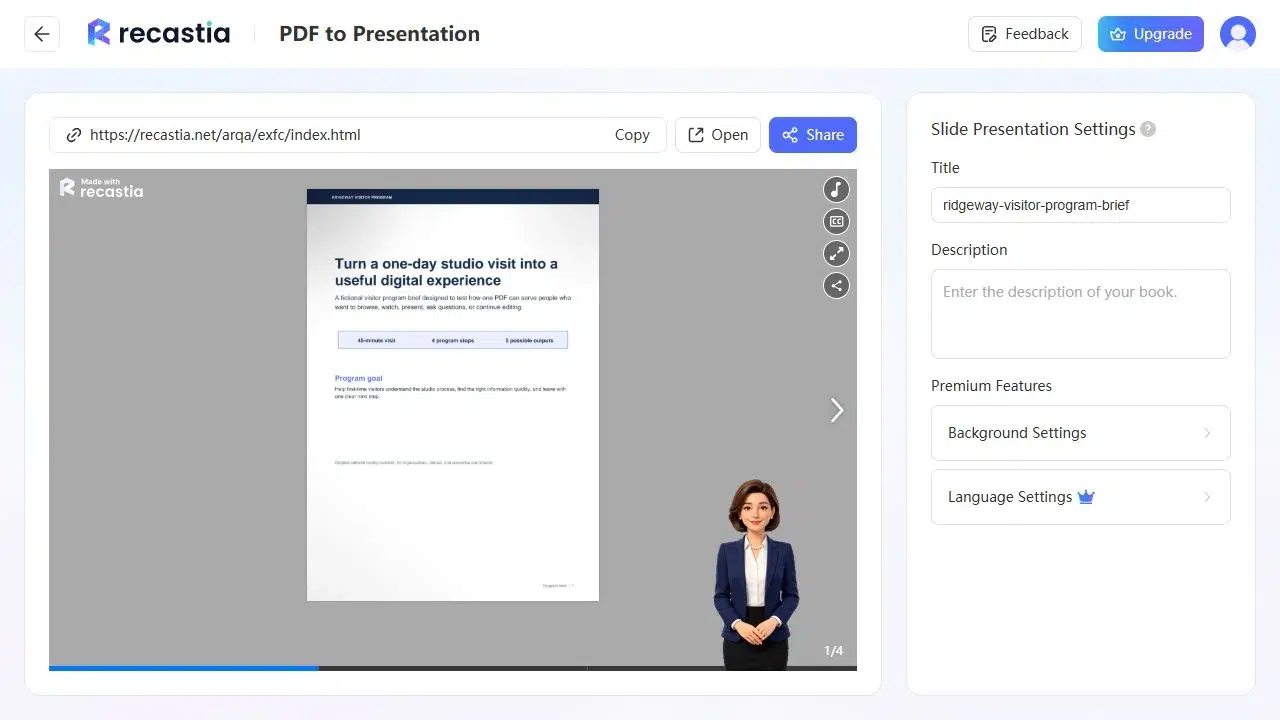
Generate the presentation, then open it before sharing. Use the page controls or thumbnails to move through the selected pages, and open full screen when presenting to a group. For a narrated deck, play the explanation alongside the slides.
Check the pages with the smallest text and the longest narration. Subtitles should remain readable without obscuring a chart, and viewers should have enough context to understand a page without you beside them.
Share the Presentation by Link or QR Code
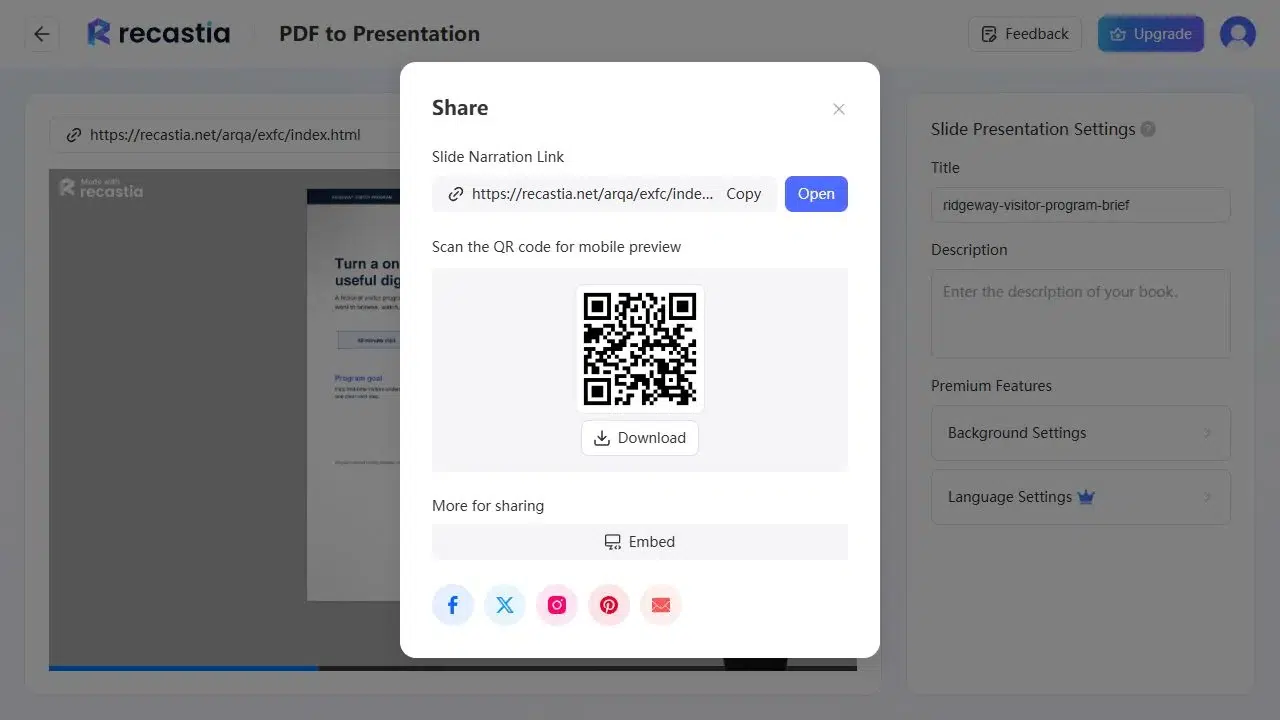
Copy the hosted presentation link into your email, team message, or resource page. Use a descriptive label such as “Quarterly planning presentation” so viewers know what they are opening.
A QR code is useful when the link needs to appear on printed material or a screen during an event. Scan it on your phone before distributing it, and check that the presentation opens at a readable size.
Recastia also provides website embedding on a paid plan. If your plan includes it, copy the embed code into your website’s HTML or embed area. Use a responsive size for a page that readers may open on different screens.
The example below lets you try a hosted presentation inside a web page. Open it in full screen when you want a closer look at the pages.
Make PDF Slides Readable on Smaller Screens
A hosted viewer does not redesign the PDF for a phone. A page with five columns of small text will still be difficult to read when scaled down. Increase the source text size or divide a dense page into several slides before uploading it.
Give charts short, descriptive headings. “Renewals Increased in June” tells viewers what to look for; “Chart 4” does not. Use narration to explain the cause or implication, rather than repeating every value on the page.
For a presentation people will watch independently, include enough context in the opening pages to explain the subject and purpose. End with the next action you want them to take, such as reviewing a proposal or attending a follow-up meeting.
If you need clickable activities rather than narrated pages, compare the interactive presentation websites before choosing a format.
Frequently Asked Questions
This presentation workflow uses the PDF pages as the visual content. Make text and layout changes in the source document before uploading. Editing the narration changes the spoken explanation, not the wording printed on the PDF page.
No. Exporting slides as a PDF does not preserve their animation timeline. You can add Recastia’s presentation transitions, but these are separate from the effects in the original PowerPoint deck.
No. Use Minimal Mode for a presentation without narration. That works when you plan to speak live or when viewers can understand the pages on their own.
Yes. The hosted presentation opens in a web browser, so viewers do not need PowerPoint to open it. Share the presentation URL rather than the editor address from your account.
A link alone does not guarantee restricted access because someone can forward it. Check the available privacy controls before uploading confidential material, and use your organization’s approved sharing method when access restrictions are required.
Conclusion
A PDF presentation online gives viewers your finished slides with the explanation they need. Choose narration only where it adds context, keep the page selection focused, and make sure detailed slides are readable on the screens people will use.
With Recastia, you can create a PDF presentation online and share it through a browser link or QR code. Use website embedding when your plan includes it and the presentation belongs directly on your site.
Bring Your PDF to Life With Recastia
Create, customize, and share your content in a more engaging way.