
An image to flipbook converter combines separate picture files into a book readers can browse page by page. In Recastia, you can upload JPG and PNG pages together, sort numbered files into sequence before merging, and share the finished book through a link or embed it on your website.
This image to flipbook guide covers the part that makes the biggest difference to the result: preparing complete pages, putting them in the right sequence, and keeping them readable once they are online. It suits exported design pages, illustrated booklets, and short photo collections.
Key Takeaways
- Upload multiple JPG or PNG files to combine them into one flipbook without first making a PDF.
- Number your filenames and check the upload order before merging the pages.
- Finish the layout, captions, and small print inside each source image before upload.
- Share the reading link, or use a responsive embed to place the book within a web page.
Prepare Images That Work as Book Pages
Each image becomes a page. If you want a heading, photograph, and caption on the same page, arrange them together in your design app and export that complete layout as one image. Uploading a photograph and its caption as separate pictures would create separate pages.
Decide on the page shape before exporting. A portrait layout works well for a booklet; a landscape page gives a wide photograph or drawing more room. Use a common canvas size across the set when you want consistent margins and a steady visual rhythm. This is a layout choice, not an upload requirement.
A short studio booklet might use this sequence:
- Cover: project name and one lead photograph.
- Overview: a short brief and the main design priorities.
- Details: a plan, close-up photographs, or a labelled illustration.
- Closing page: project credits and a clear next step.
Build captions into the pages where they belong. A reader should not need to leave a photograph to find out which room, product, or project it shows. For a longer collection, add a contents page as another image in the sequence.
Use filenames such as 01-cover.jpg, 02-overview.png, and 03-details.jpg. Leading zeros keep a numbered set easy to scan, especially when the book grows beyond nine pages. Keep a working copy of the page designs so you can revise the text without rebuilding the layout from a flattened export.
The Image to Flipbook Workflow in Recastia
Start with the finished page images. The Flipbook Maker combines them into one project.
Upload the pages together, confirm the sequence, then customize and share the combined book.
- Upload the Images and Set Their Order
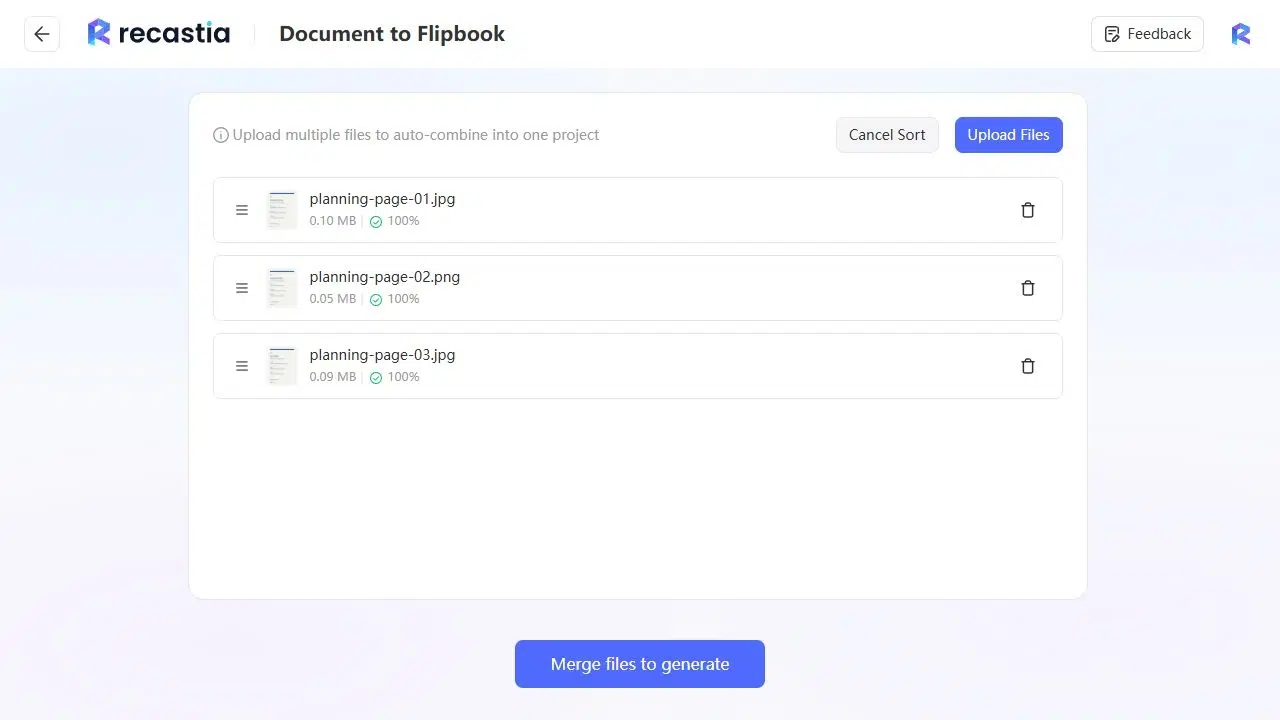
Open the Flipbook Maker and select your JPG or PNG pages together. The upload list lets you see the files before they become a book. Wait for the uploads to finish, then check that the cover comes first and the remaining pages follow your intended sequence.
Use Auto Sort for numbered filenames, and inspect the result before merging. A set named 01-cover, 02-overview, and 03-details makes the intended order much easier to recognize than camera filenames. You can include JPG and PNG pages in the same batch. - Merge the Pages and Customize the Flipbook
Choose Merge files to generate to combine the images into one flipbook. Open the book and turn through the pages, including the final page, to check that the full sequence is present. Replace the default filename-based title with the name you want readers to see.
Customize the Flipbook to suit the publication. The settings group the template, theme, background, and page-display options in the editor. Some customization options are premium features, so check your plan before building a design around a particular setting. - Share the Link or Embed the Book
Copy the finished reading link for email or messages. For a website, open Share, choose Embed, and use the Responsive option to get code that fits its containing area. Paste the code into a Custom HTML block or the equivalent embed area in your website editor.
Check the published web page, not just the code preview. The book should fit the content column and leave the surrounding page usable on a phone.
Keep the Pages Readable on Screen
Export from the original design or photograph rather than saving a small preview from a messaging app. Enlarging a low-resolution image also enlarges its blur. Check captions, labels, and thin lines at normal reading size before you upload the set.
Separate dense diagrams from their supporting detail. A floor plan with a long key may be easier to read across two pages: one for the plan, another for enlarged details and explanations. Give each label enough space to read without covering the drawing.
Check the book on a phone as well as a desktop. Can you read the main message without zooming? Is the caption still useful at that size? If every page needs repeated zooming, enlarge the type or divide the content before exporting again. Keep important labels away from page edges and the centre of a two-page spread.
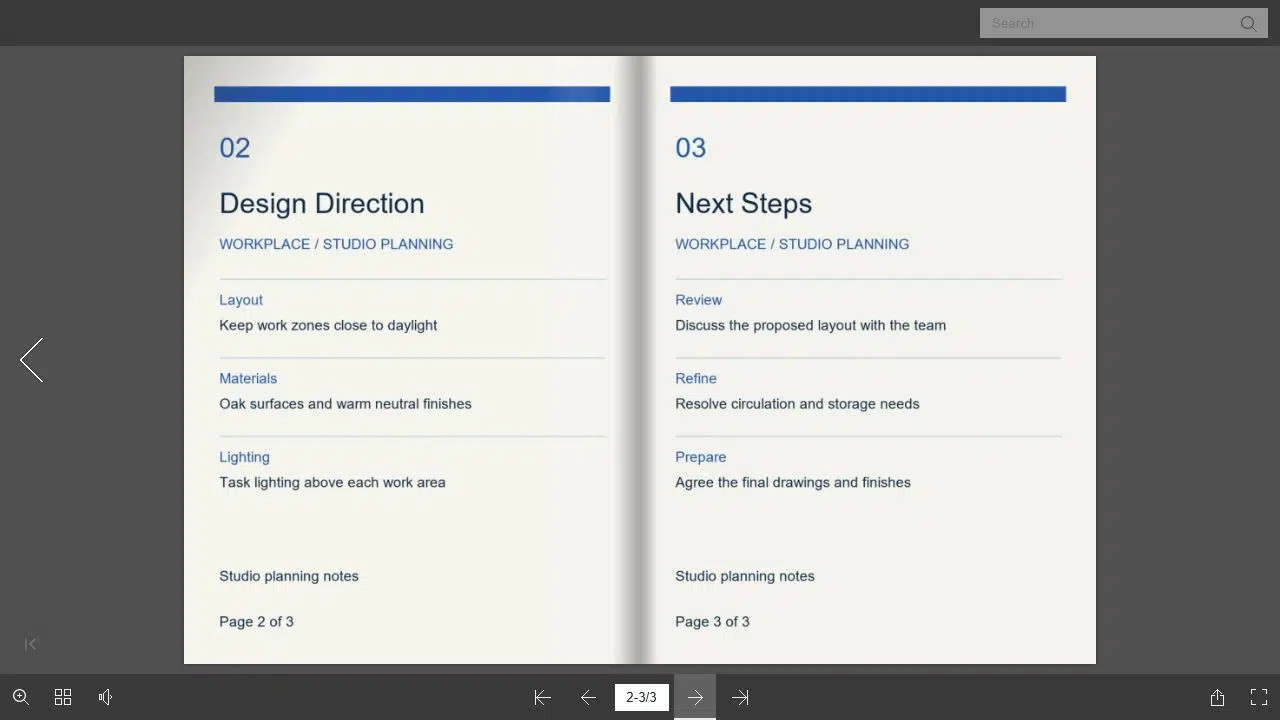
The reading controls include page navigation, thumbnails, zoom, and fullscreen. Thumbnails help someone jump back to a particular page; zoom is useful for an occasional detail. Design the main content to read comfortably without relying on either control for every paragraph.
Give the Book a Clear Place to Live
Use the reading link when you want to send the book in an email, a client follow-up, or a team message. Give it a specific introduction: “Here is the workplace concept booklet. The layout options begin on page 2.” That tells readers what to open and where to start.
Use an embed when the book belongs within an existing project or resource page. Place a short description above it so visitors understand what they are about to read. Keep the embed within the page’s content column; a fixed-width frame that extends beyond the phone screen makes the surrounding page harder to use.
If you are still choosing between a simple image book and a dedicated photo-album platform, the digital photo album maker comparison covers that broader choice. For an existing set of finished page images, this direct workflow avoids adding a PDF export step.
Turn Your Image Pages Into One Shareable Book
The image to flipbook workflow starts with complete pages: choose a consistent layout, number the files, and confirm their sequence before merging. Recastia turns that set into one online book with a reading link and an embed option.
For your next image to flipbook project, start with a short set you can review page by page. Open the finished book on both a phone and a desktop, check the captions and page order, then share it where readers already expect to find your work.
Bring Your PDF to Life With Recastia
Create, customize, and share your content in a more engaging way.
Frequently Asked Questions
No. An online flipbook lets readers turn through book pages at their own pace. An animated GIF plays a repeating sequence of frames. Choose the online-book format for a collection readers need to browse, revisit, or read in detail; choose animation when the sequence itself needs to show movement.
No. You can upload multiple JPG and PNG files directly and merge them into one project. A PDF is useful when you already have a complete document in that format, but you do not need to create one just to combine existing image pages.
JPG is a practical choice for photographs when you want to keep file sizes manageable. PNG can suit pages with sharp graphics or small labels. Compare the actual exports at reading size: choose the file that keeps the page clear without carrying unnecessary size. Both formats can appear in the same book.
Correct it in the source design and export the revised page. A caption baked into a JPG or PNG is part of the picture, not a separate text field. Keeping the editable design is especially useful for names, prices, credits, and other details you may need to change later.