
A PDF can explain an entire service, yet leave you doing the same work again for a website, a video, and a sales meeting. PDF reuse gives that material a role in each channel without making you start every asset from an empty page.
The planning matters as much as the conversion. This guide uses a four-page service brochure to build a practical PDF reuse campaign: a browsable reference, a campaign page, an introductory video, and a meeting presentation. You’ll see which content belongs in each format, when to release it, and what to update when the original changes.
Give Your PDF Reuse Campaign One Clear Goal
Before choosing formats, decide what someone should be ready to do after reading or watching. “Get more content out of this PDF” doesn’t tell you which pages to use or where a visitor should go next.
For the example here, imagine a workplace-design business promoting its services to office managers. Its four-page brochure introduces the service, describes what clients receive, explains the project stages, and lists the information needed to start a conversation.
The campaign brief is specific:
- Audience: office managers planning a workspace for a growing team.
- Question to answer: what does the service include, and how do we begin?
- Desired action: send a floor plan, approximate team size, and priorities or constraints through the business’s existing contact page.
- Source: the approved four-page service brochure.
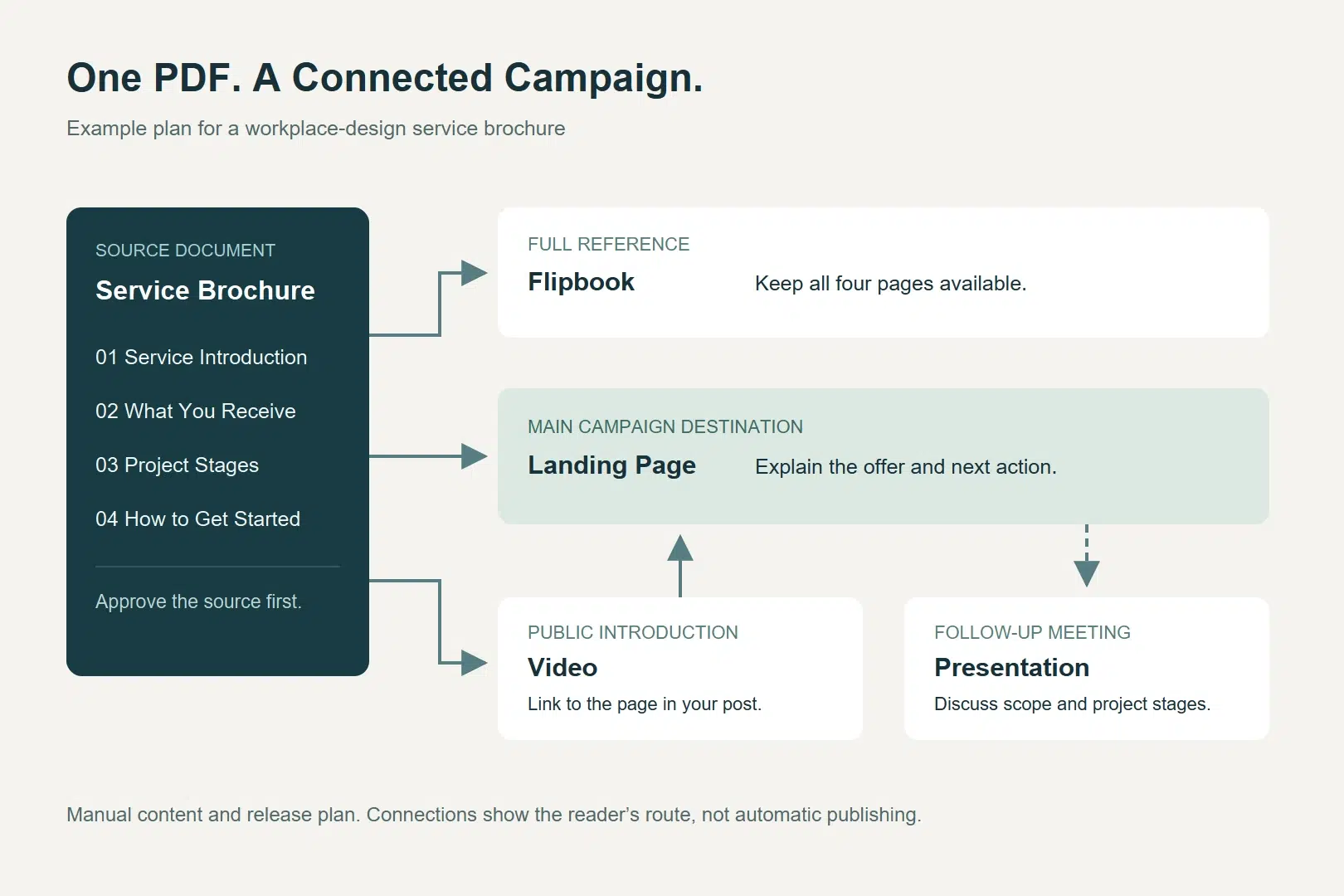
- Main destination: a campaign page explaining the offer, with links to the full brochure and contact page.
This brief makes several decisions easier. A short video should introduce the service, not read every brochure page aloud. The full publication should remain available for someone who wants the details. The meeting presentation should help discuss a project rather than repeat the introductory pitch.
When the campaign needs versions for different groups, use the PDF reuse guide for different audiences to adapt the opening and supporting details while preserving the source facts.
Map the PDF Content Before Choosing Formats
Read the document by topic as well as by page. A page may contain a service description, a process, and an instruction that belong in different assets. Keep important qualifications with the claim they explain.
The content map below uses the brochure’s actual sections. The campaign is an example, not a real client’s published campaign.
| Source Content | Where It Goes | What the Asset Should Explain |
| Page 1: workplace design for growing teams | Campaign-page opening and video introduction | Who the service is for and what kind of project it supports |
| Page 2: workspace brief, layout concepts, and materials direction | Campaign-page service section and meeting presentation | What the client receives, rather than a vague promise of better offices |
| Page 3: brief, concepts, review, and handover | Video explanation and meeting presentation | How a project progresses and when layout questions should be raised |
| Page 4: floor plan, team size, priorities, and constraints | Campaign-page action section and video’s accompanying post | What someone should prepare before contacting the business |
| Complete pages 1–4 | Online flipbook | The complete service description for readers who want the original context |
Notice that the same process appears in both the video and the presentation. The purpose changes: the video introduces how the service works, while the presentation gives the business a way to discuss those stages during a meeting.
Choose formats that serve those jobs. If nobody needs a meeting deck, leave it out. A campaign with one useful page and a clear follow-up can be more practical than producing every available output.
Build the Campaign Assets in Recastia
Recastia offers separate PDF workflows for flipbooks, landing pages, videos, and browser presentations. For this campaign, use each workflow for a defined part of the plan. Prepare and review the outputs individually; creating one does not automatically create or distribute the others.
Keep the Full Brochure Available as a Flipbook
Use the PDF to Flipbook workflow for the complete four-page document. Readers can browse the service description and project stages without relying on the shorter campaign assets to carry every detail.
Choose a reading appearance that suits the brochure, then use the publication’s reading link or responsive embed. On the campaign page, label that link clearly, such as “Read the Full Service Brochure.” Someone should know whether they are opening a detailed publication or starting an inquiry.
The PDF page design remains the foundation of the flipbook. Use this asset to preserve the complete brochure, while putting a shorter explanation on the campaign page.
Make the Campaign Page the Main Destination
Use the PDF-to-landing-page workflow to turn the brochure material into a webpage. Recastia’s page editor provides direct editing for supported text, colors, and links, so the page can have its own reading order.
For this example, arrange the page around four questions:
- Is this service for a team like ours?
- What will we receive?
- How does the project move from brief to handover?
- What should we send to get started?
Put the project-start information beside a link to the existing contact page. Add the flipbook link near the service details for readers who want the full publication. This makes the campaign page the place that connects the explanation, supporting material, and next action.
Give the Introductory Video One Message
Use PDF to Video to introduce the service and explain the four project stages. Page-specific narration is useful when each brochure page needs a different explanation. For example, narration beside the process page can explain that the review stage is when the client raises questions about meeting rooms, quiet work, and shared space.
Avoid squeezing the complete service description into a short introduction. The video’s accompanying social post or email can link to the campaign page, where viewers can read the details and find the contact instructions. Keep that destination in the publishing copy rather than assuming a sentence inside the video is a clickable link.
Use the Presentation for Follow-Up Conversations
The PDF to Presentation workflow gives you a browser presentation based on the document. Use the service and process pages to explain the deliverables, discuss layout priorities, and agree on what the prospective client needs next.
Keep the brochure’s distinction between services and stages: page 2 describes what the client receives; page 3 describes how the project progresses. That distinction helps the meeting cover both scope and process without mixing them into one general sales pitch.
The presentation can stay ready for inquiries. It does not need a separate public release just because you created it.
Publish in an Order That Keeps the Links Useful
Finish the destination before sending people to it. In this example, that means preparing the flipbook and campaign page before releasing the introductory video.
The schedule below is a starting plan, not a recommended posting frequency for every business. Adjust the gaps to your existing publishing calendar and the time needed to review each asset.
| Timing | Release or Use | Check Before It Goes Out |
| Before launch | Prepare the flipbook and campaign page | The page links to the correct publication and contact destination |
| Day 1 | Publish the campaign page and introduce it through an existing channel | The opening message and project-start instructions agree with the brochure |
| Day 3 | Share the introductory video with a link to the campaign page | The narration matches the displayed pages and the accompanying link works |
| Day 6 | Send a focused follow-up about what to prepare before an inquiry | The message gives a useful detail, rather than repeating the launch announcement |
| When an inquiry arrives | Use the presentation in the follow-up conversation | The service scope and stages still match the current offer |
You manage this schedule in your publishing calendar and channel tools. The plan does not depend on Recastia scheduling social posts or sending campaign emails.
Keep a small campaign record with the source edition, asset link, person responsible, planned release, and actual release date. If an asset is still awaiting approval, leave its actual release date empty. This gives the team one place to check what is ready and what has really gone out.
Update the Assets Affected by a Source Change
Reusing content creates a maintenance task: one correction may belong in several places. The content map tells you where to look.
Suppose the business changes its inquiry instructions from “approximate team size” to “current team size and planned hires.” Update the approved brochure first, then review the affected campaign assets:
- Flipbook: create an updated publication from the revised brochure, then check the reading link used by the campaign page.
- Campaign page: edit the project-start section and check its contact link.
- Video: revise the narration and regenerate the output if it includes the old instruction; update any accompanying post that repeats it.
- Presentation: change it only if it includes that instruction. A deck covering service deliverables and project stages may not need a wording change.
Check the resulting links before reusing them in another release. Do not assume that editing the source PDF updates every existing output or preserves every published URL.
For a content review, record the changed wording and the assets you checked. “Inquiry instructions updated on campaign page; video narration still awaiting revision” is more useful than marking the whole campaign complete while an old version is still circulating.
Frequently Asked Questions
Yes, if its content still represents the offer. Review dates, service descriptions, examples, and contact information before adapting it. Remove or revise expired material in the source so it does not spread into several new assets.
Check the permissions for the new uses before publishing. Permission to include an image in a brochure may not cover video, a public webpage, or another channel. Replace material when the permitted scope is unclear, and get approval before showing confidential client information.
No. Launch when the main destination, essential reference material, and next action are ready. A later video can introduce the same offer through another channel. Hold back an unfinished asset rather than linking to an empty page or promising a resource that readers cannot open.
Choose one service for the campaign and map its supporting sections. A document covering workplace design, recruitment, and payroll would make a confusing single offer. Keep the complete document available where useful, but give each campaign a clear scope and destination.
Conclusion
PDF reuse works best when you know what each output needs to explain and where the reader should go next. A full publication, a focused webpage, an introductory video, and a meeting presentation can support the same offer without repeating the same message everywhere.
Start your PDF reuse plan with one approved document and one campaign goal. Map the content, prepare the destinations before promotion, and keep a record of which assets need attention when the source changes.
Bring Your PDF to Life With Recastia
Create, customize, and share your content in a more engaging way.