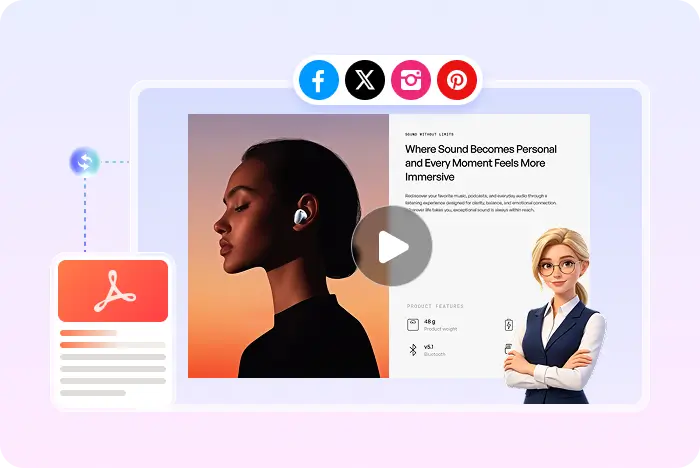
From Google Slides to MP4

Google Slides to Video Converter

This page is for exporting a Google Slides deck as a video people can watch, not for inserting a YouTube clip onto a slide. Download the file as PDF, then let Recastia add AI voiceover and captions.

  • Keep the slides you designed in Google Slides
  • Add AI voiceover without a screen recording
  • Download an MP4 for email, LMS, or social

Start with a free Recastia account.

AI voiceover MP4 download
Export the deck. Do not embed a clip.

Why turn Google Slides into a video?

A Google Slides link needs an account and a click path. A narrated MP4 can travel in email, a course, or a follow-up without asking people to open the editor.

01

Use the slides you already laid out

Recastia does not rebuild Google Slides inside a new canvas. It uses the exported PDF pages as the video frames, so charts, layouts, and speaker-ready visuals stay on screen.

  • File, Download, PDF Document in Google Slides
  • Keep existing slide design
  • No timeline editor required
Slide pages used as frames in a Recastia video
02

Add narration the Google Slides file cannot carry alone

Google Slides can hold speaker notes, but viewers still have to click. Recastia can turn a script into AI voiceover and synced captions so the same deck plays as a video.

  • Easy Mode: 200+ word script and at least three pages
  • Optional talking-head avatar
  • MP4 download or Recastia share link
AI Video Narrate the pages
Voiceover Captions Music Visual effects Optional avatar
Google Slides, then Recastia

How to turn Google Slides into a video

Recastia's video creator currently accepts PDF and images. This is not a guide for Insert, Video inside Google Slides. Working in PowerPoint instead? Use the PPT to video converter.

  1. Download Google Slides as PDF and upload to Recastia
    Step 1

    Download the deck as a PDF

    In Google Slides, use File, Download, PDF Document so each slide becomes a page Recastia can upload.

  2. Add a voiceover script for the Google Slides video
    Step 2

    Upload and add the voiceover script

    Upload the PDF, choose Minimal, Easy, or Advanced, then add a 200+ word script and at least three pages in Easy Mode.

  3. Generate a Google Slides video as MP4
    Step 3

    Generate the MP4

    Choose ratio, effect, voice, captions, music, and optional avatar. Generate, preview, download, or share.

Questions, answered

Google Slides to video FAQ

Need to compare account options? View Recastia pricing.

What does Google Slides to video mean on this page?

It means exporting the presentation as a watchable video. It does not mean inserting a YouTube or Drive video onto a slide inside Google Slides.

How do I turn Google Slides into a video with Recastia?

Download the file as PDF, upload it, choose a mode, add a script in Easy or Advanced, then generate an MP4. Easy Mode needs 200+ words and at least three pages.

Can Recastia open a Google Slides URL directly?

Not in the current video creator. Download a PDF first. Recastia accepts PDF and images as the upload source.

Is a google slide video the same as a silent slideshow?

A silent slideshow only flips pages. Recastia Easy and Advanced modes add AI voiceover and captions. Minimal mode is the silent carousel option.

What format can I download?

Recastia downloads MP4. MOV, MPEG, and WMV are not promised here.

Is the converter free?

You can start with a free Recastia account. Plan limits apply.

Keep the Google Slides design

Turn Google Slides into a Narrated MP4

Download as PDF, add AI voiceover, then share a video instead of a editor link.

Slide Deck Video Example