
Free PPT-to-video tool

Free Online PPT to Video Converter with AI Voiceover

Turn PowerPoint, PPT, and PPTX slides into an MP4 with AI voiceover, synced captions, visual effects, and an optional talking-head avatar. Keep the deck you already designed; skip the timeline editor.

  • Start from the presentation you already have
  • Add a voice over without recording yourself
  • Download an MP4, publish, or share

Start with a free Recastia account.

AI voiceover MP4 download
Keep the slides. Change the format.

Why convert a PowerPoint presentation into a video?

A deck is easy to build and hard to send. Recastia turns those slides into a presentation video people can watch, download as MP4, or share without installing PowerPoint.

01

Use the slides you already designed

Training decks, pitch decks, and lesson slides already hold the visuals. Recastia uses those pages as the video frames, so you are not rebuilding the story in a timeline editor.

  • Reuse PowerPoint layouts and slide visuals
  • Turn slides into video without a recording setup
  • Send an MP4 instead of a bulky PPTX attachment
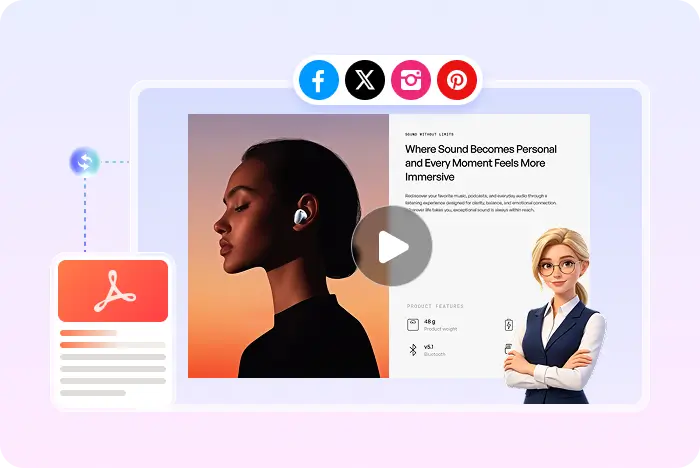
Presentation slides shown as a narrated Recastia video
02

Add a voice over to PowerPoint slides

A silent slideshow leaves viewers to read every bullet. Recastia can add AI voiceover and synced captions so the same deck works as a narrated video, with an optional talking-head avatar if you want a presenter on screen.

  • Natural AI voiceover and synced captions
  • Background music and visual effects
  • Optional AI avatar for a talking-head presentation
AI Video Narrate the slides
Voiceover Captions Music Visual effects Talking head
A simple workflow

How to convert PowerPoint to video with AI voiceover

Recastia's video creator currently accepts PDF and images. Export the PPT or PPTX as a PDF, then generate the narrated MP4. Already have a PDF? Use the PDF to video converter. Want the tutorial? How to convert a PowerPoint presentation into a video. Working in Google Slides? Use the Google Slides to video converter.

  1. Upload an exported PowerPoint PDF and choose a Recastia video generation mode
    Step 1

    Export the deck and choose a mode

    Save the PowerPoint, PPT, or PPTX file as a PDF, upload it, then pick Minimal, Easy, or Advanced mode.

  2. Add a voiceover script and select slides for the video
    Step 2

    Add the voiceover and choose slides

    In Easy Mode, add a 200+ word script and select at least three slides to show in the video.

  3. Generate, download, and share a PowerPoint video
    Step 3

    Choose a style and generate the MP4

    Set the ratio, visual effect, voice, captions, music, and optional talking-head avatar. Then generate, preview, download, or share.

Questions, answered

PPT to video converter FAQ

Need to compare account options? View Recastia pricing.

What is a PPT to video converter?

A PPT to video converter turns PowerPoint slides into a watchable video instead of a file people have to click through. Recastia uses the exported slide pages as the source, then can add an AI-generated script, voiceover, synced captions, background music, visual effects, and an optional avatar presenter before you download, publish, or share the result.

How do I convert a PowerPoint presentation into a video?

Export the PowerPoint as a PDF, upload it to Recastia, and choose Minimal, Easy, or Advanced mode. Easy Mode needs at least 200 words of narration and at least three slides. Then choose the video ratio, visual effect, avatar, voice, background music, and subtitle style before generating.

Can I convert PPT or PPTX to MP4?

Yes. Recastia downloads the finished project as an MP4, whether the original deck was a PPT, PPTX, or PowerPoint file exported as PDF. MOV, MPEG, and WMV downloads are not currently promised by this page.

Can Recastia add a voice over to PowerPoint slides?

Yes, in Easy and Advanced modes. Recastia supports an AI-generated script and a natural voiceover, with synced captions so viewers can follow the narration. Minimal mode is a silent page carousel and does not add voiceover.

Is this the same as a silent slideshow?

A silent slideshow only flips slides. A slideshow with voice over, or a presentation-to-video export, adds narration so people can watch without reading every bullet. Recastia is built for that narrated result, not for a timed slide show with no audio.

Can I add a talking head presenter?

An AI avatar presenter is optional. Use it when you want a talking-head presentation on screen; leave it off when the slides and voiceover are enough.

Do I need to record my own voice or install PowerPoint?

You do not need to record yourself for Easy or Advanced mode. Recastia adds the AI voiceover after you provide the script. You also do not need PowerPoint installed on the computer that generates the video, as long as you can export the deck as a PDF first.

Is the PPT to video converter free?

You can start with a free Recastia account. Creation limits and premium features depend on your plan, so review the pricing page if you need more capacity or advanced options.

What if my file is already a PDF?

Use the PDF to video converter instead. Recastia can turn PDF pages into the same kind of narrated MP4, with voiceover, captions, effects, and an optional avatar.

Does this convert Google Slides too?

This page is for PowerPoint, PPT, and PPTX decks. If you work in Google Slides, export the file as a PDF first, then follow the same Recastia workflow. This page is not a guide for inserting a YouTube video into a slide.

Your slides are ready for a new format

Turn Your PowerPoint into a Video

Add AI voiceover, captions, and an optional presenter, then download an MP4 or share the result online.

Pitch Deck Video Example