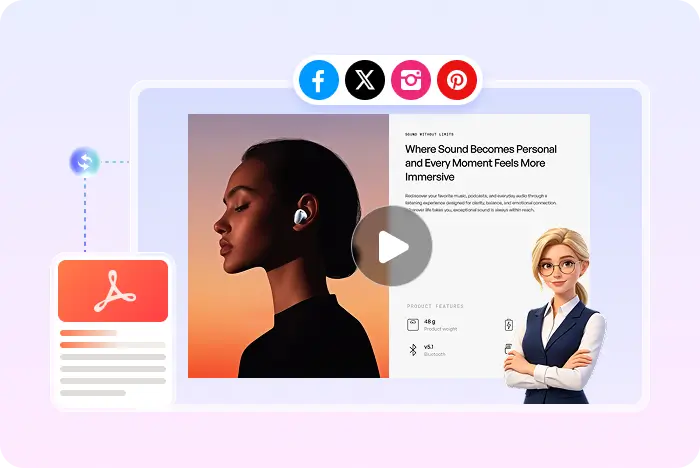
Lesson file to training video

How to Create a Training Video from a PDF or Lecture

Handouts, lecture PDFs, and PowerPoint training decks already hold the lesson. Recastia turns selected pages into a narrated MP4 so people can watch the material instead of flipping slides alone.

  • Reuse the lesson PDF or exported slides
  • Add AI voiceover instead of a live recording
  • Send an MP4 into an LMS, email, or share link

Start with a free Recastia account.

AI voiceover MP4 download
Teach from the file you already use

Why make a training video from a PDF or lecture deck?

Live walkthroughs expire when the calendar moves on. A narrated page video can repeat the same lesson with captions, without booking another session.

01

Keep the lesson visuals

Diagrams, agendas, and slide titles are already in the file. Recastia uses those pages as the video frames so you are not redrawing the course in an editor.

  • Lecture PDF uploaded directly
  • PowerPoint training decks exported as PDF
  • At least three pages in Easy Mode
Training slides used as Recastia video frames
02

Narrate the lesson once

Paste or generate a script of at least 200 words in Easy Mode. Recastia can add AI voiceover, synced captions, and an optional presenter for people who learn by watching.

  • Captions for quiet viewing
  • Optional talking-head avatar
  • MP4 for LMS upload
AI Video Narrate the pages
Voiceover Captions Music Visual effects Optional avatar
Courseware to clip

How to create a training video from a PDF or lecture

PowerPoint-heavy training decks can follow the slide export path. See the PPT to video converter.

  1. Upload a lecture PDF or exported training deck
    Step 1

    Gather the lesson PDF or export the deck

    Upload a lecture or lesson PDF, or export a PowerPoint training file as PDF, then upload it to Recastia.

  2. Write a teaching script for the selected pages
    Step 2

    Select pages and write the teaching script

    Choose at least three pages in Easy Mode and add 200+ words that teach those pages, not a full transcript of a live hour.

  3. Download a training video as MP4
    Step 3

    Generate the MP4 for the course

    Set captions, voice, effects, and optional avatar. Download the MP4 or share the Recastia result with learners.

Questions, answered

Training video from PDF FAQ

Need to compare account options? View Recastia pricing.

Can I make PowerPoint training videos with Recastia?

Yes. Export the PPT or PPTX as PDF, upload it, add a teaching script in Easy or Advanced, then generate an MP4.

Can I convert a lesson PDF or lecture PDF to video?

Yes. Upload the PDF, select pages, add at least 200 words in Easy Mode, then generate the video.

Does Recastia replace an LMS?

No. Recastia produces a watchable MP4 or shareable video. You still host assignments, quizzes, and grades wherever you already teach.

Do I need to record my lecture again?

Not for this workflow. Easy and Advanced modes use AI voiceover from the script you provide.

What format can learners download or play?

Recastia exports MP4. You can also preview and share from Recastia.

Is it free?

You can start with a free Recastia account. Training volume may need a paid plan.

Teach from the existing file

Turn the Lecture PDF into a Repeatable Training Video

Select the lesson pages, add a script, then send an MP4 instead of another live walkthrough.

Training Video Example