
Steve AI product overview

Steve AI: Text, Audio, and Prompt to Video

Steve AI is a broad AI video creation platform for turning text, audio, prompts, blogs, and ideas into generative, live-action, or animated videos. This page compares that flexible input model with Recastia's focused workflow for narrated videos from PDFs and PowerPoint files.

  • See what the official Steve AI product page describes
  • Compare its workflow with document-first video creation
  • Create a narrated video from your own PDF or PowerPoint

Independent overview. Recastia is not affiliated with Steve AI.

AI narration MP4 export
Brand overview

What content can Steve AI turn into video?

Steve AI accepts several text and audio-based starting points and supports multiple visual video styles, including generative, live-action, and animation.

01

Built for flexible text and audio inputs

The public Steve AI homepage emphasizes breadth: users can begin with blogs, ideas, audio, text, or prompts and select different video styles. The content is developed into new scenes rather than necessarily preserving a document page layout.

  • Start from text, audio, prompts, blogs, or ideas
  • Choose generative, live-action, or animated styles
  • Build video without a traditional production process

Source: Steve AI official website. Reviewed August 27, 2026.

AI Video Platform Multi-input workflow
Text Audio Prompt Video
02

Where Recastia takes a different path

Recastia begins with the PDF or PowerPoint you already created. It keeps document pages, visuals, and key information central while adding the guidance needed for a publishable video.

  • AI-generated script, natural voiceover, and synced captions
  • Background music, visual effects, and an optional avatar
  • Preview, MP4 download, online publishing, and sharing
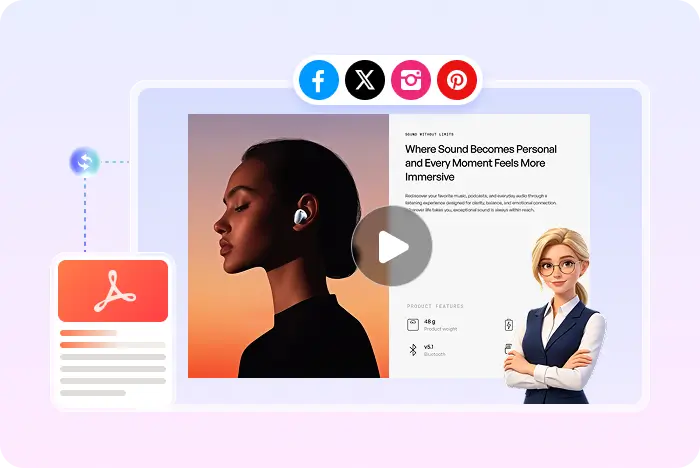
A PDF repurposed as a narrated Recastia video
Two different outcomes

Steve AI and Recastia: compare the workflows

Steve AI focuses on Create several styles of AI video from text, audio, and prompts. Recastia focuses on repurposing an existing document into a video that can be downloaded, published, and shared.

Decision point
Steve AI
Recastia
Primary purpose
Steve AICreate several styles of AI video from text, audio, and prompts
RecastiaRepurpose PDFs and presentations into publishable videos
Starting point
Steve AIText, audio, a prompt, blog, or idea
RecastiaAn existing PDF or PowerPoint
Typical audience
Steve AIMarketers, educators, creators, and business teams
RecastiaMarketing, training, sales, education, and content teams
Document treatment
Steve AIRebuilds source ideas into generated video scenes
RecastiaKeeps document pages, visuals, and key information central
Publicly described controls
Steve AIThe public site highlights multiple input and visual style choices
RecastiaNatural AI voiceover, synced captions, optional avatar, music, and effects
Output and sharing
Steve AIGenerative, live-action, or animated AI videos
RecastiaMP4 download, preview, online publishing, and sharing

This comparison uses the public Steve AI page linked above. Features not described there may still exist, so verify current product details before making a final decision.

Choose Steve AI for

Creating video from text, audio, or prompts

Choose Steve AI when you need flexible source inputs and want to select between generative, live-action, and animated video styles.

Choose Recastia for

Document-based video publishing

Use Recastia when you want to turn a PDF or presentation into a narrated video for training, marketing, sales, lessons, reports, and sharing.

Explore the PDF to video workflow
A document-first workflow

How to turn a PDF into a video with Recastia

Use your existing document, add the presentation details you need, and generate a video you can preview, download, publish, or share.

  1. Upload a PDF or PowerPoint to Recastia
    Step 1

    Upload your document

    Start with a PDF or PowerPoint and choose Minimal, Easy, or Advanced video generation mode.

  2. Choose document pages and prepare the video narration
    Step 2

    Prepare the story

    Choose the pages to show and add or refine the narration. Easy Mode requires a script of at least 200 words.

  3. Generate, preview, download, and share a Recastia video
    Step 3

    Style, generate, and share

    Choose the ratio, effects, voice, captions, music, and optional avatar, then generate, preview, download, or share the video.

Questions, answered

Steve AI PDF to video FAQ

Want to check Recastia account options? View Recastia pricing.

What is Steve AI?

Steve AI accepts several text and audio-based starting points and supports multiple visual video styles, including generative, live-action, and animation. The public Steve AI homepage emphasizes breadth: users can begin with blogs, ideas, audio, text, or prompts and select different video styles. The content is developed into new scenes rather than necessarily preserving a document page layout.

Is Steve AI a PDF-to-video generator?

Steve AI publicly highlights text, audio, prompts, blogs, and ideas rather than a dedicated PDF-to-video converter. Check current import options if you need direct PDF handling and original-page preservation.

What is the main difference between Steve AI and Recastia?

Steve AI focuses on Create several styles of AI video from text, audio, and prompts. Recastia focuses on keeping an existing PDF or PowerPoint central to a narrated video with synced captions, effects, an optional presenter, and MP4 export.

When should I choose Steve AI?

Choose Steve AI when you need flexible source inputs and want to select between generative, live-action, and animated video styles.

Does Recastia keep the original PDF content?

Recastia uses the uploaded PDF as the source for the video, keeping its pages, visuals, and key information at the center of the video flow. This helps you repurpose material you already created instead of rebuilding each scene in a traditional video editor.

Can Recastia add voiceover and captions?

Yes. Recastia supports an AI-generated script, natural voiceover, synced captions, background music, visual effects, and an optional AI avatar presenter. You can configure the presentation before generating and previewing the finished PDF or PowerPoint video.

Can I download the finished Recastia video?

Yes. Recastia can export the finished project as an MP4 file. You can also preview the result, publish it online, share it with a link, or embed it. This page does not promise MOV, MPEG, WMV, or other unverified download formats.

Is Recastia affiliated with Steve AI?

No. Recastia is an independent product and is not affiliated with, endorsed by, or sponsored by Steve AI. Product details on this page are based on publicly available information from the official Steve AI website.

Keep your document at the center

Turn Your PDF into a Shareable Video

Add narration, captions, effects, and an optional presenter, then download an MP4 or share the result online.

Recastia PDF to Marketing Video Example