
Choose a PDF to video converter based on how you want to explain your document. Recastia pairs narration with your existing pages. AI Studios and Synthesia build presenter-led scenes. Fliki turns document text into a shorter sequence with new visuals.
This PDF to video converter comparison covers six tools with direct PDF input. It focuses on script control, editing, and delivery, so you can choose an option for a brochure walkthrough, a training lesson, or a report summary.
Key Takeaways
- Recastia offers page slideshows, a continuous script, or separate narration for each selected page.
- AI Studios and Synthesia suit editable presenter-led videos; check the download requirements before choosing a plan.
- Fliki suits a condensed video with new visuals. Its PDF workflow needs selectable text, not just scanned page images.
- VEED adds a broader editing stage after generation. NoteGPT describes a simpler voice-and-MP4 workflow, with fewer detailed editing controls documented.
Compare the PDF to Video Converter Controls
Start with the part of production you need to control. A presenter, an editable script, and a downloadable file are separate requirements; access to one doesn’t guarantee the others.
| Tool | Narration and Editing Control | Delivery or Input Check |
| Recastia | No narration, one overall script, or page-specific scripts | Download, viewing link, or website embed |
| AI Studios | Edit scripts, scene order, timing, voice, and presenter | MP4, sharing, and embedding; review plan limits |
| Synthesia | Revise the generated script and presenter-led scenes | Downloads require an eligible paid plan |
| Fliki | Choose target length; revise scene narration and visuals | Text-based PDF required; free output has a watermark |
| VEED | Revise the script, then trim and add media in the editor | PDF-generation access and export quality are separate checks |
| NoteGPT | Voice or uploaded audio, layout, and timing options | MP4; confirm editing depth and account limits before committing |
1. Recastia
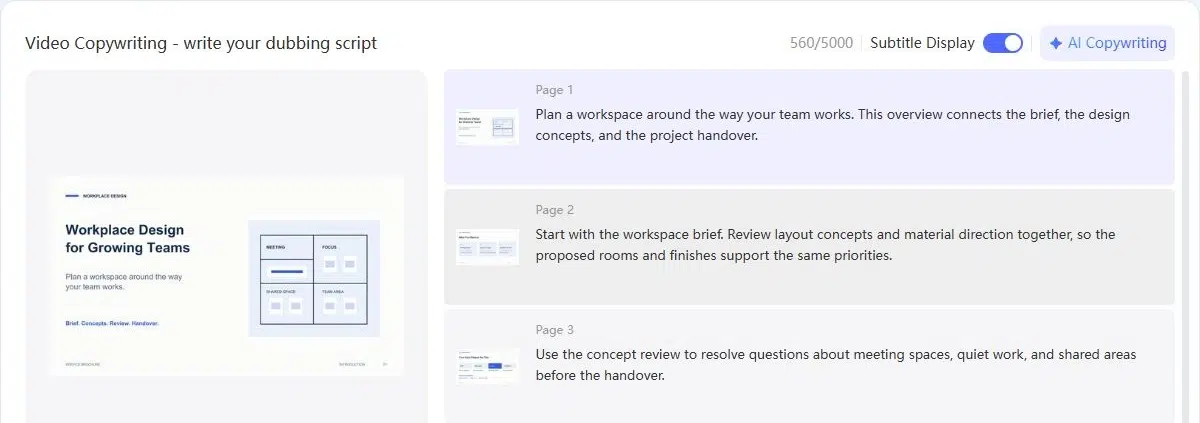
Recastia is a strong fit when the PDF pages should remain part of the explanation. A chart, service diagram, or training page can stay visible while the narration explains what matters on that page.
The PDF to Video tool has three modes. Minimal Mode creates a page slideshow without narration and lets you set page duration. Easy Mode uses one script with Smart Page Sync. Advanced Mode gives you a narration field beside each selected page.
Key Features
- Select the pages to include and choose a visual video style.
- Write page-specific explanations in Advanced Mode, or use an overall script in Easy Mode.
- Add voice narration, subtitles, music, and an optional avatar in the narrated modes.
- Download the result, share a viewing link, or embed it on a website.
Pros
- You can choose the narration method to match the document rather than use one workflow for every PDF.
- Page-specific scripts let you explain a figure or process without reading every label aloud.
Cons
- If you want to replace the PDF’s page layouts with a new sequence of scenes, compare the scene-editing workflows below.
Best For: Brochures, training documents, and presentations that need an explanation alongside the existing pages.
For a complete walkthrough of the modes and controls, see how to make a video from a PDF.
2. AI Studios
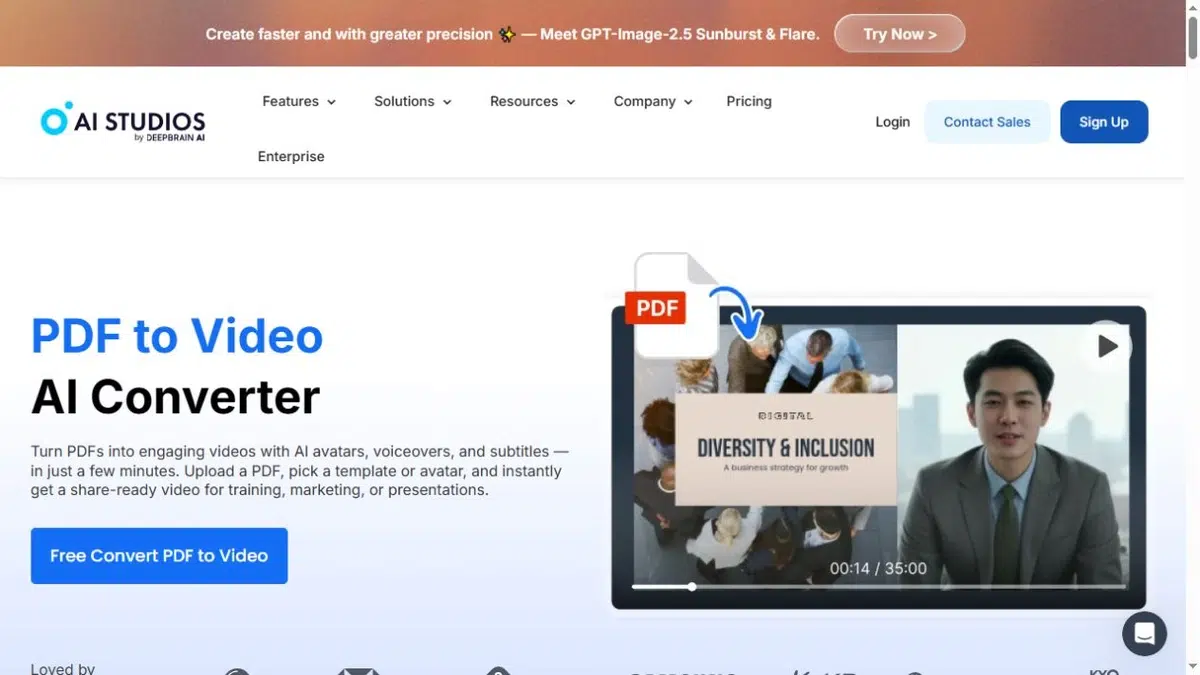
AI Studios converts a PDF into an editable video project with a drafted script, scenes, and optional AI presenters. It suits a document that needs a new presentation structure, especially when some sections should be merged, reordered, or left out.
Its scene controls matter for revision. You can change the text and timing, switch the voice or avatar, and continue editing before export. A presenter is optional; the workflow also supports voiceover with slides.
Key Features
- Draft scripts and scenes from an uploaded PDF.
- Split, merge, reorder, or hide document sections and revise scene text.
- Use AI narration, record your voice, or upload audio.
- Export MP4, share online, or use an embed.
Pros
- Scene restructuring helps when the document’s reading order isn’t the order you want to present.
- Uploaded audio gives you an alternative to synthetic narration.
Cons
- The generated script and scene selection need review against the original document.
- Watermark and export entitlements depend on the plan; don’t assume a free project includes your intended final delivery.
Best For: Presenter-led training or sales videos that need scene-level revisions and flexible narration.
3. Synthesia
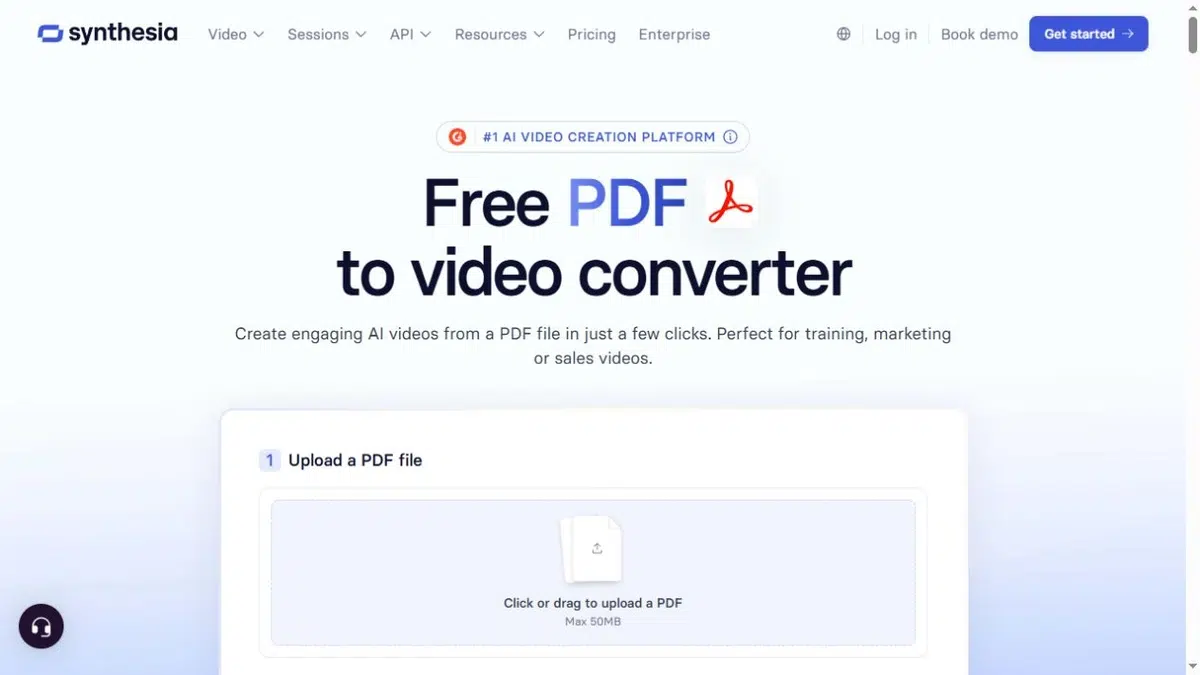
Synthesia extracts key text from a PDF, drafts a script, and maps the content into scenes with avatars, voiceovers, and on-screen text. You can review those scenes and adjust the script, layout, and media before generating the video.
Its delivery options are worth checking early. Teams handing work to another editor may need caption files or an audio track as well as the finished MP4.
Key Features
- Turn PDF text into a script and editable presenter-led scenes.
- Choose a template and revise the scene layout, voice, media, and branding.
- On eligible paid plans, download MP4 video, WAV audio, and SRT or VTT caption files.
Pros
- Script and scene revisions support training content that needs an editorial review before release.
- Separate caption files support a handoff to platforms with their own subtitle controls.
Cons
- Basic and trial users cannot download videos. The download help page lists Starter, Creator, and Enterprise as eligible plans.
- Extracted key points need checking when an exact figure, qualification, or instruction must survive the rewrite.
Best For: Presenter-led training with a defined review process and a need for separate caption or audio files.
4. Fliki
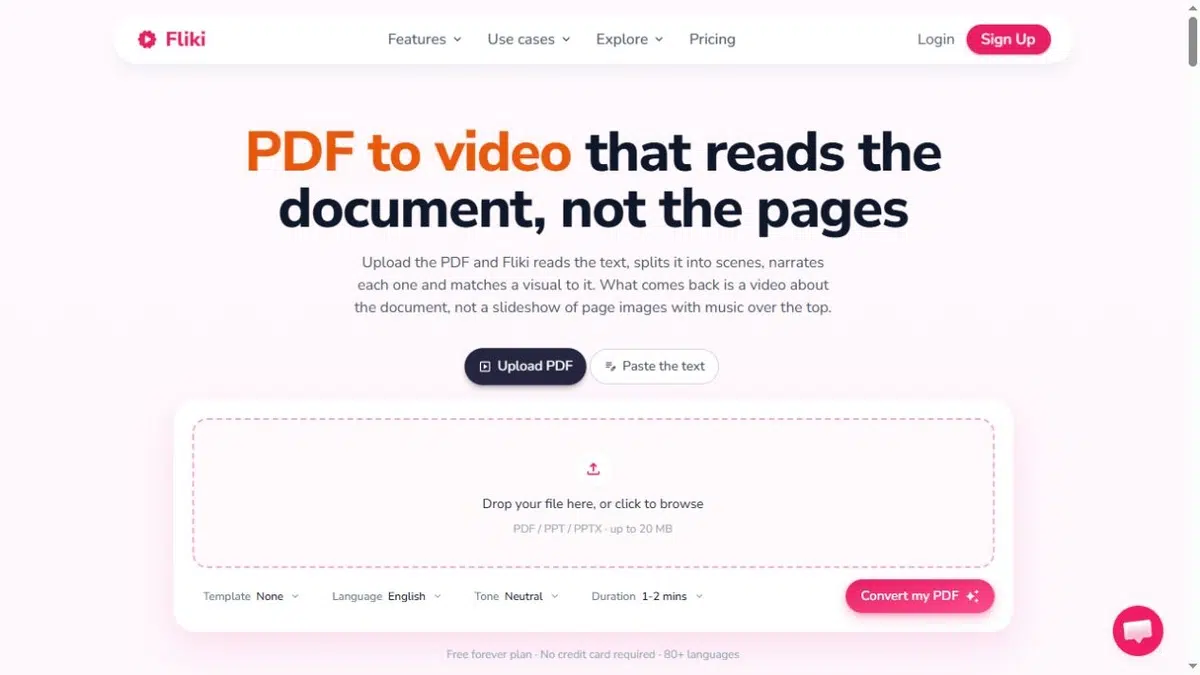
Fliki suits a PDF that should become a shorter video with new scenes. You choose a target length, and it uses the document’s text to construct narration and visuals. The result is a new video sequence rather than a slideshow of the original page images.
That makes scene review important. You can revise the narration and replace visuals when a stock image or generated scene doesn’t explain the point you intended.
Key Features
- Use target runtime to guide how much document content becomes narration.
- Edit narration and visuals scene by scene.
- Create videos in landscape, square, or vertical formats.
- Add narration-linked captions and export video.
Pros
- A target length helps when a long report needs to become a brief overview.
- You can replace scene visuals without rebuilding the document’s layout first.
Cons
- The PDF needs a text layer. Scanned or image-only pages need OCR before this workflow can extract their text.
- Original page layouts aren’t preserved as the video scenes. Free output is watermarked and limited to 720p under the published plan terms.
Best For: Short summaries and marketing explainers where new visuals are more useful than keeping every PDF page on screen.
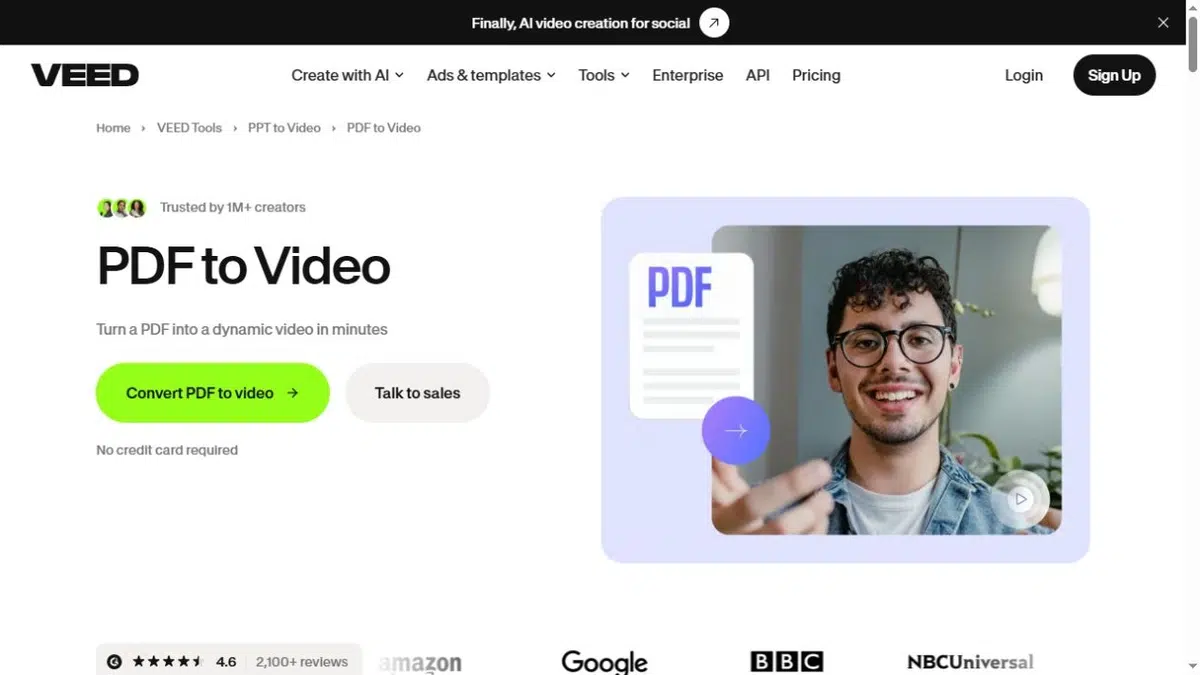
5. VEED
VEED combines a PDF-to-script starting point with a broader video editor. The converter asks for settings such as language, length, content focus, and template. After generation, you can continue editing the video rather than treat the first result as the finished piece.
This is useful when the document is only one part of the video. You might need stock footage between explanations, a trimmed introduction, or music and on-screen text added around the generated material.
Key Features
- Draft a video script from a directly uploaded PDF.
- Choose presenter or voice settings and adjust branding.
- Revise the script, trim clips, and add stock footage, text, or music.
- Download the finished video as MP4.
Pros
- You can continue into manual editing when the generated scenes need more work.
- The same workflow can combine document-derived explanations with other video material.
Cons
- Check access to the PDF generator separately from the general editor’s free tier.
- Free editor exports have a watermark and a 720p limit; higher-resolution output depends on the export plan.
Best For: Document-based videos that also need clip editing, additional footage, and a manual finishing stage.
6. NoteGPT
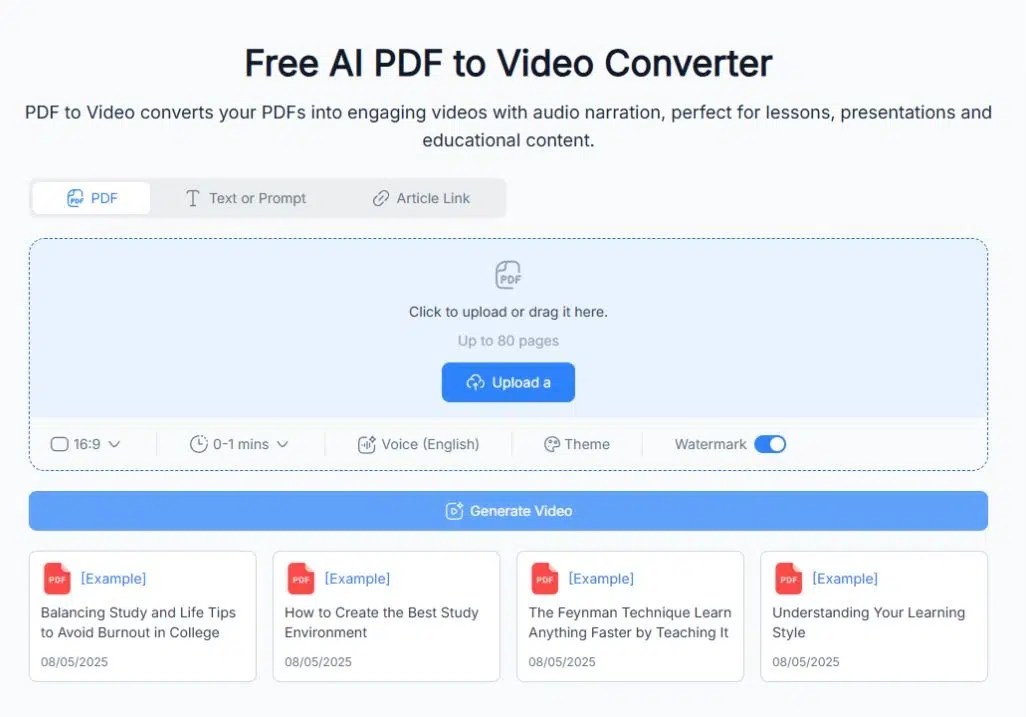
NoteGPT offers direct PDF upload with AI voice selection or uploaded audio. You can adjust layout and timing, preview the result, and download an MP4. Automatic transitions connect the pages or scenes.
Start with a short document if you need to revise individual scenes. Check that you can make the specific script and visual changes your project needs before converting a longer file.
Key Features
- Upload a PDF directly rather than copy its text into a separate script tool.
- Choose an AI voice or upload audio.
- Adjust layout and timing, then preview and download MP4.
Pros
- PDF upload, voice selection, preview, and MP4 download follow one document-to-video workflow.
- Audio upload gives you a route for narration recorded elsewhere.
Cons
- Detailed per-scene scripting and editing controls aren’t clearly documented on the product page.
- Confirm account requirements, generation limits, and export terms before relying on it for a production schedule.
Best For: Turning a PDF into a narrated MP4 when detailed scene-by-scene editing is not a core requirement.
Match the Converter to Your Document
Use the document’s hardest requirement to narrow the list. These examples show which control to look for, not a performance ranking.
A brochure whose page design must stay visible: Start with Recastia. Keep the designed pages as visual material and add explanations where the brochure’s short copy needs context. Choose Minimal Mode if the pages can carry the message without narration.
A training document with charts that need separate explanations: Recastia’s Advanced Mode lets you write beside each page. Choose AI Studios instead if you want to restructure the material into editable presenter-led scenes. The deciding question is whether you want to explain the existing page or build a new scene around the lesson.
A long report that needs a short summary: Fliki’s target-length and scene-editing controls suit a condensed version with replacement visuals. For an avatar-led summary with separate caption-file delivery, consider Synthesia and budget for a download-enabled plan. Use VEED when you also need to trim and combine additional footage.
Frequently Asked Questions
Review the specific tool’s data-processing terms and your organization’s rules before uploading confidential material. Check retention, deletion, access, and whether uploaded content can be used for model training. A PDF upload button or a password-protected viewing link alone doesn’t establish that a service meets your requirements.
A video doesn’t automatically make small PDF text larger. For a page-based video, simplify dense pages or split the material into closer views before conversion. For a rewritten video, use short on-screen text and let the narration carry the detail. Preview the result at the size your viewers will use.
An MP4 doesn’t carry clickable PDF links as document annotations. Put essential links in the webpage, message, or platform description accompanying the video. A hosted player may offer separate interactive features, but confirm that specific capability rather than assuming the original PDF links remain clickable after conversion.
Check how each plan counts generation, revisions, and exports. A draft that needs several regenerated scenes can consume more allowance than one finished video suggests. Include watermark removal, required resolution, caption downloads, and collaboration in the comparison. Use the same expected number and length of videos when comparing plans.
Choose a Converter You Can Finish With
Choose a PDF to video converter around the work you need to do after import. Page-specific explanations, editable presenter scenes, replacement visuals, and separate caption files solve different production needs.
Before committing to a PDF to video converter, confirm the controls and delivery format your project requires. Start with a short document, review one complete result, and check that the plan lets you deliver the file, link, or embed you need.
Bring Your PDF to Life With Recastia
Create, customize, and share your content in a more engaging way.