
You’ve finished a catalog, guide, or presentation, but sharing the PDF is only one way to use that work. These Recastia examples show how to reuse it as a flipbook, video, online presentation, landing page, exhibition, or chat assistant. Browse ten Recastia examples below for concrete ideas, with finished outputs you can open and suggestions for adapting your own content.
Key Takeaways
- Reuse a catalog or manual as a flipbook when the original page design needs to stay visible.
- Give a campaign or report a short video introduction; keep the full document for readers who need the details.
- Present a portfolio or announcement as slides, or turn a branding deck and manual into web pages.
- Use an exhibition for a visual collection and a chat assistant for questions about a document.
- The ten examples cover different uses of six formats. Click the example images to open the finished work; the two videos play within this article.
What Is Recastia?
Recastia turns PDFs into digital publications, videos, presentations, and other formats. You can reuse the same source for different purposes: a product catalog for browsing, a video for a launch, or a presentation for a sales meeting. The examples below focus on what you could make with an existing document.
1. Share a Product Catalog as a Flipbook
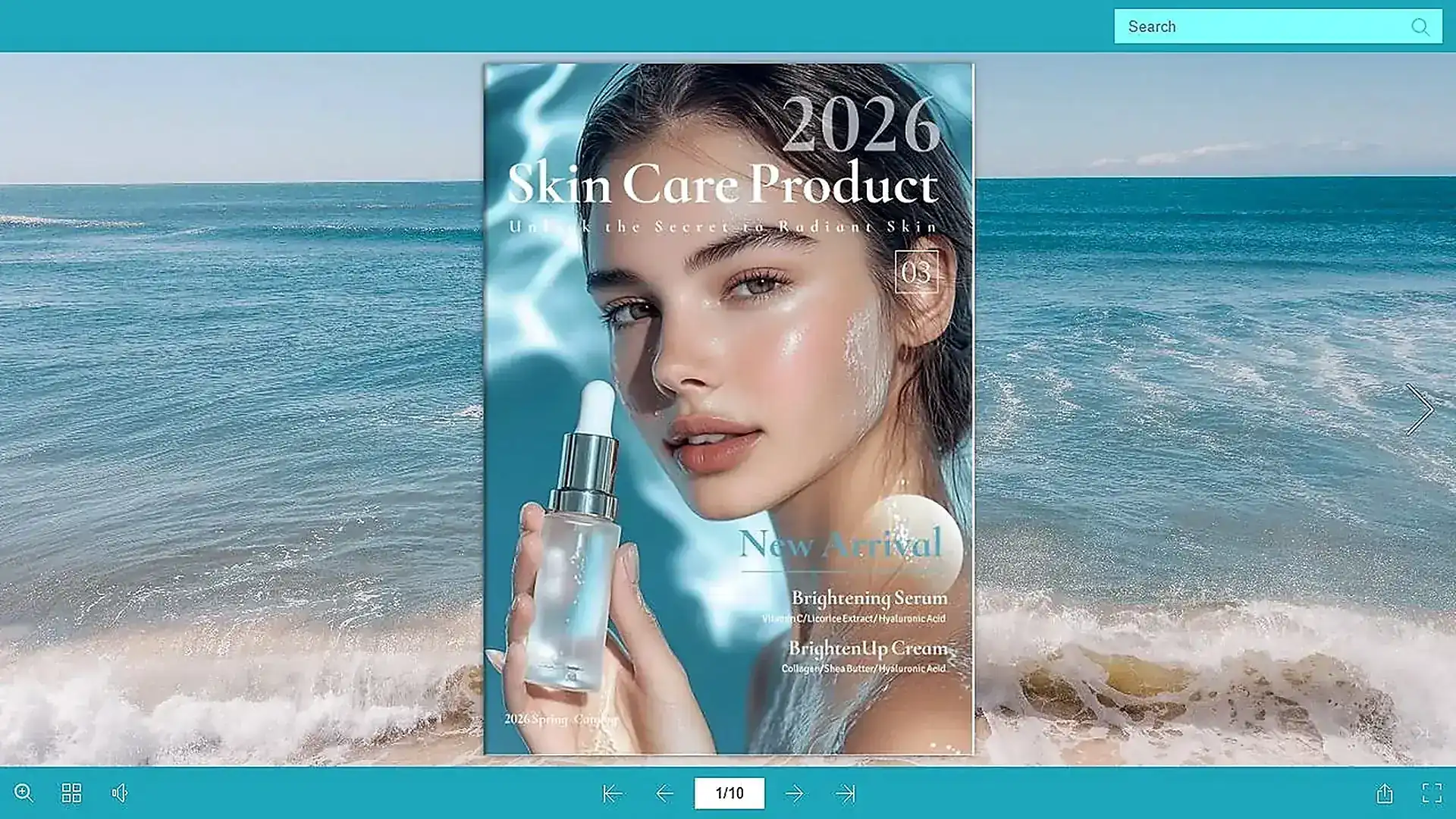
A skin care catalog needs room for product photos, descriptions, and comparisons. Recastia turns those designed PDF pages into a flipbook that readers can browse online. The Engaging Skin Care Product Catalog example shows this format in use.
For your own catalog, group related products together and keep names and sizes readable when someone zooms in. Share the flipbook link in a launch email or beside a collection on your website. The PDF flipbook viewer guide explains the reading and sharing options.
2. Give Customers an Online App Manual
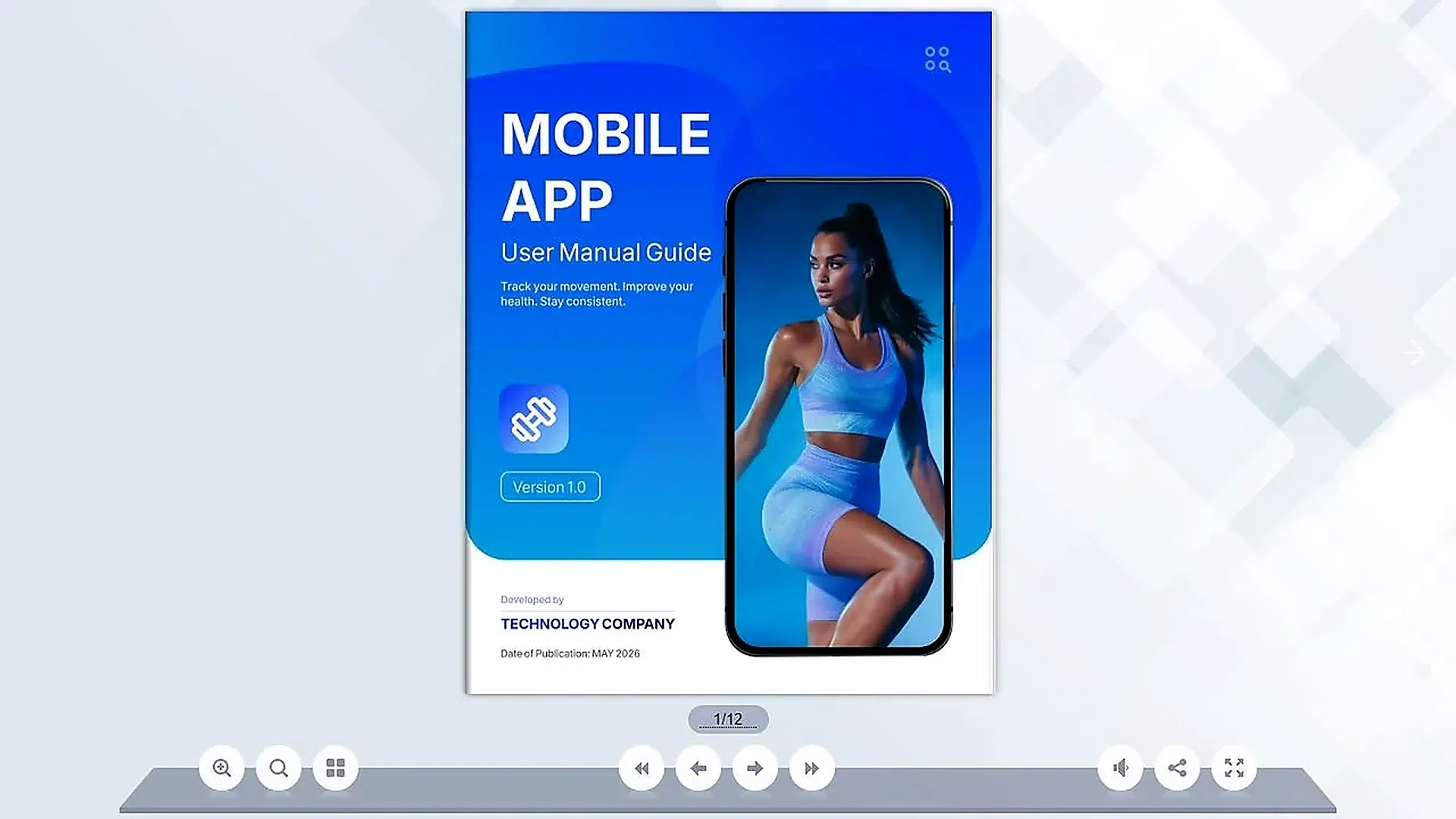
An app guide often pairs each instruction with a screenshot. The Mobile APP User Manual example keeps those pairs together as readers turn through the guide. Support staff can share a link to the complete manual when a customer needs help getting started.
Prepare the source around specific tasks, such as creating an account or changing a setting. Keep each screenshot close to its explanation, and show the app version in the document so customers know whether the instructions match their screen.
3. Make a Video for a Product Launch
A launch PDF may contain more information than someone needs on their first visit. With the PDF to Video tool, you can select pages for a shorter introduction and add narration to explain the product.
Start with the product, show the problem it solves, and finish with where to find the full details. Leave specifications that require close reading in the catalog. This official marketing video gives you a reference for presenting PDF pages in motion.
4. Introduce a Report With a Short Video
A report video can explain the headline finding before someone opens the full PDF. Choose the chart that supports it, add the context needed to understand it, and explain the next action. A voiceover can clarify what the numbers mean without crowding the page with more text.
Keep dates, units, and sources visible wherever you use figures. Treat the video below as a reference for visual presentation, then use the PDF to video guide to create a version from your own report.
5. Present a Portfolio During a Client Meeting
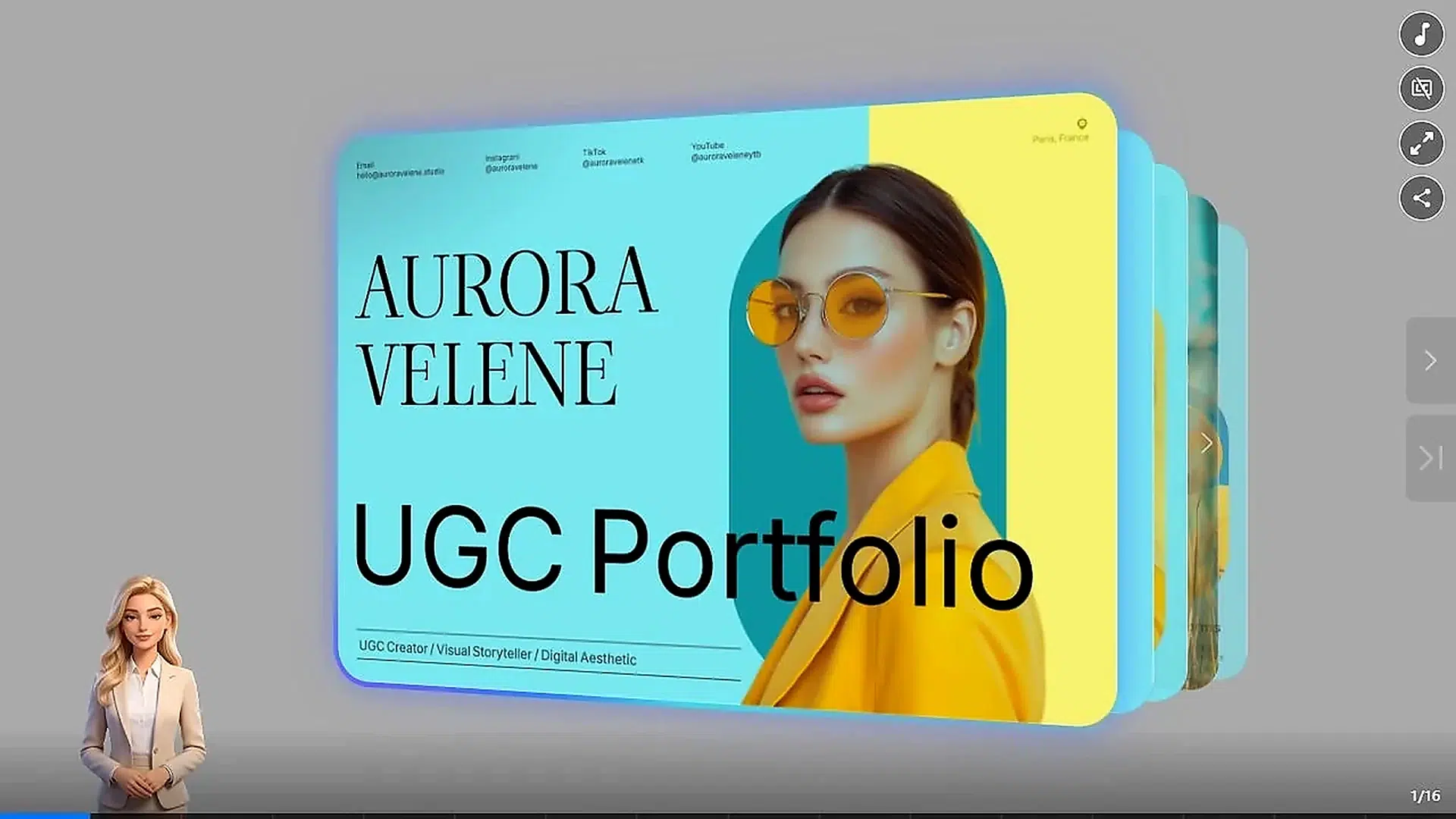
The UGC Portfolio example turns a collection of creative work into an online presentation. Use this approach when you want to discuss projects one at a time and pause on the work most relevant to a client.
Give each project enough context to explain your contribution: the brief, the work you produced, and any results you have permission to share. Put the most relevant project early. You can follow the online PDF presentation guide to prepare and share your slides.
6. Discuss an Announcement as a Presentation
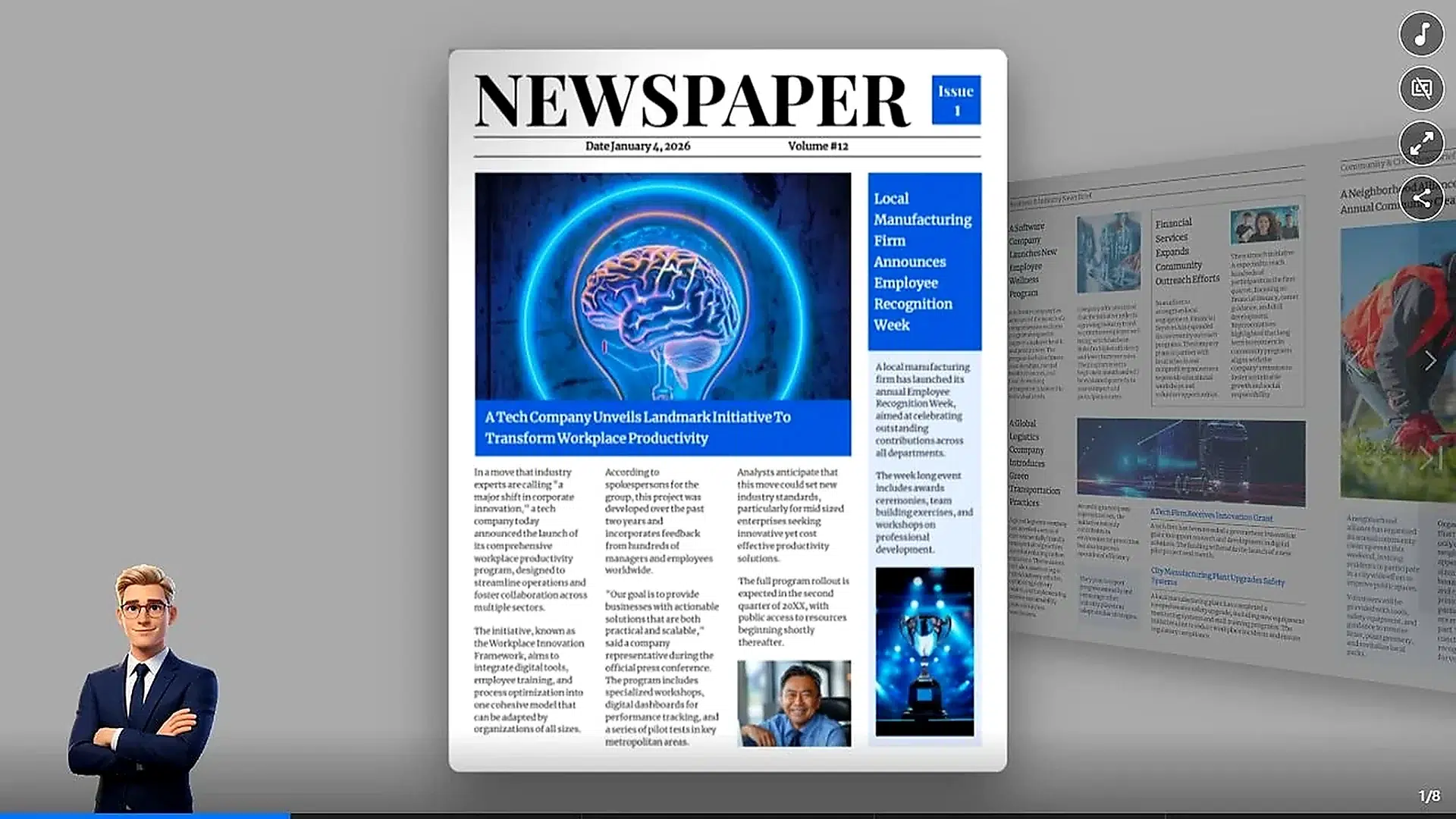
A newsletter or announcement often contains several separate updates. The Newspaper Announcement example presents publication-style pages as slides, so you can discuss one item before moving to the next.
For a team briefing, lead with the change people need to know about and then cover dates and responsibilities. If the PDF contains several small stories on one page, simplify that page before converting it. Text that works at reading distance may be difficult to read across a meeting room.
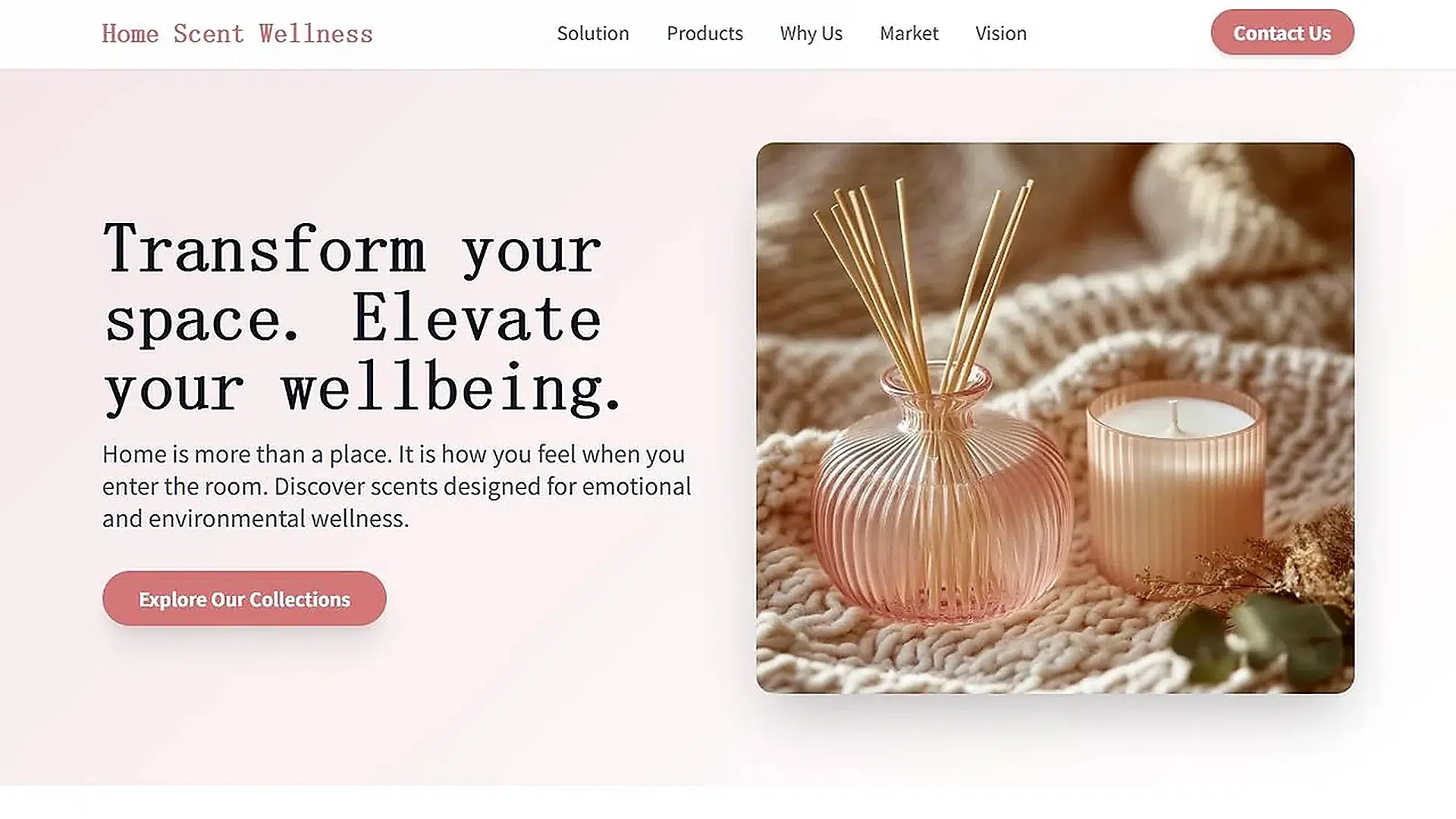
7. Turn a Branding Deck Into a Landing Page
The Branding Deck example uses a web page to introduce a brand. This suits a deck you want to share from a campaign email or profile, where visitors can scroll through the content in their browser.
Adapt the content for someone who has never heard your pitch. Explain what you offer near the top, follow it with relevant work or product details, and include a clear next step in the source. Remove notes that only make sense when a presenter explains them.
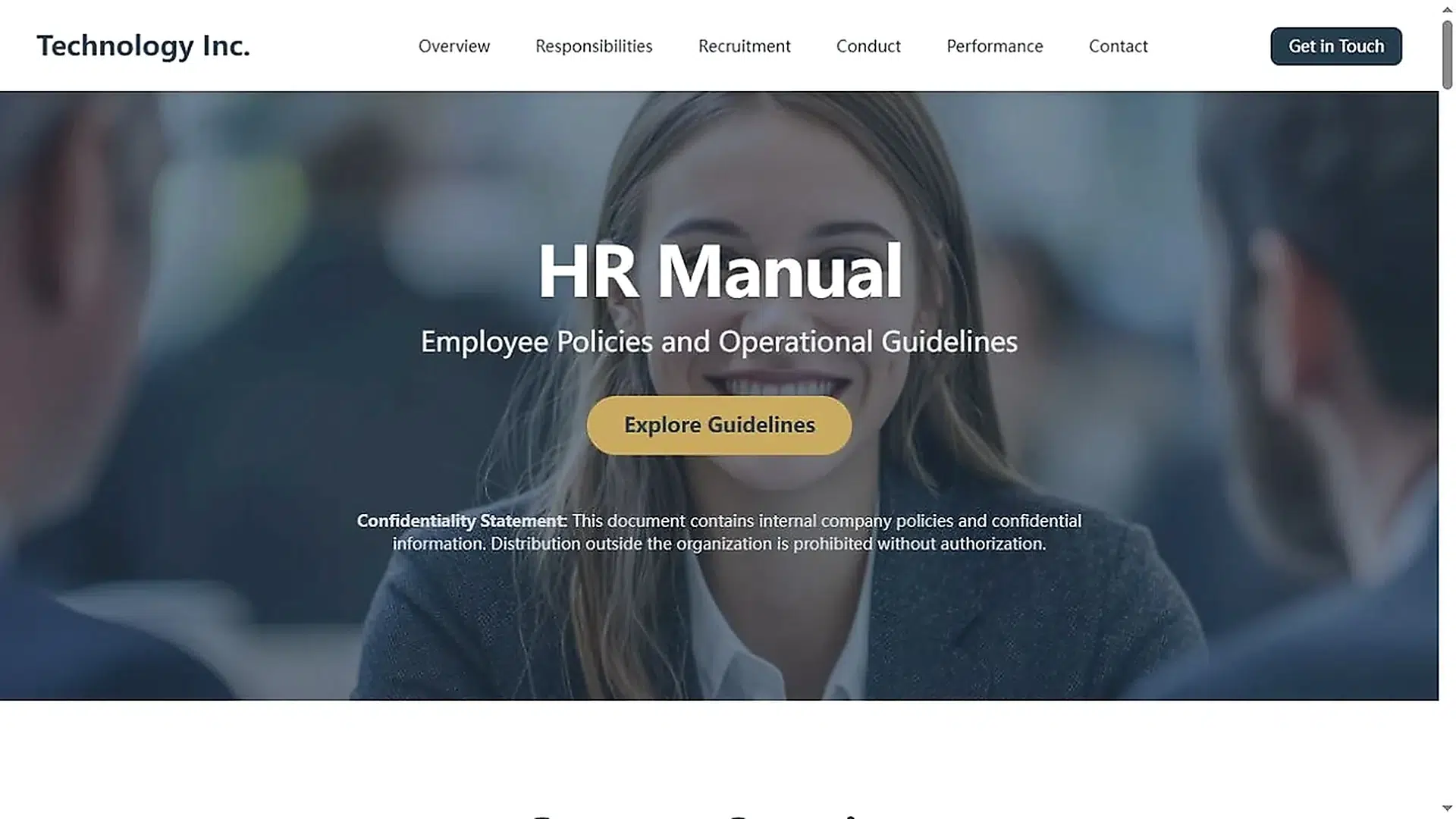
8. Publish a Staff Guide as a Web Page
The HR Manual example shows how a document can become a web page for reading online. You could use the format for a public onboarding overview, an event staff guide, or general workplace information.
Organize the source with descriptive headings such as working hours, equipment, and contact details. Include a review date so you can maintain the information. For internal policies, check your organization’s sharing requirements before creating a public link, and keep personal employee information out of public examples.
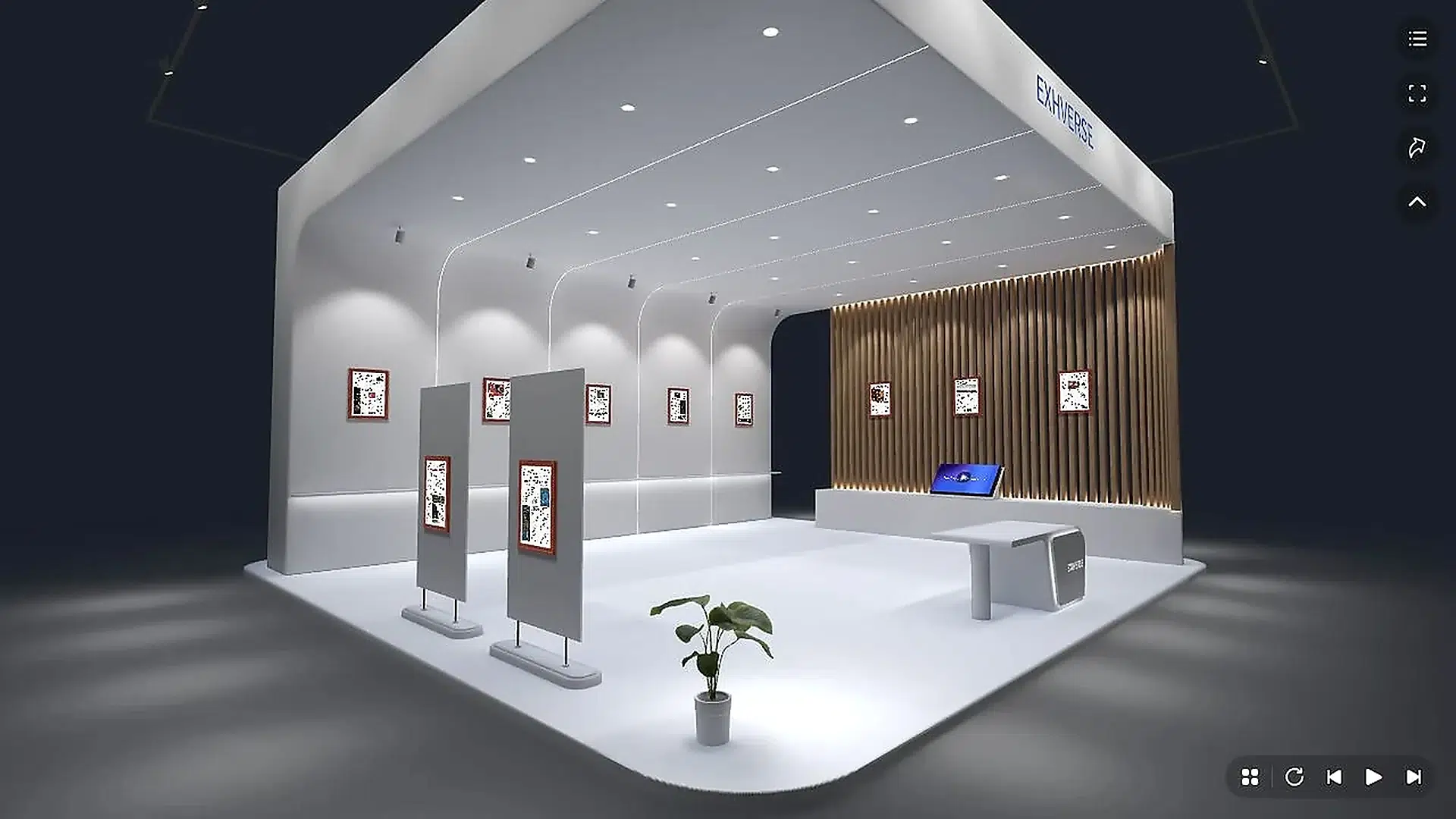
9. Display a Visual Collection in a 3D Exhibition
Recastia’s exhibition example places content in a virtual gallery that visitors can explore. An art booklet, photography collection, or student project PDF gives you material for this kind of display.
Choose images that remain clear at exhibition size and give each one a short caption. Use a consistent order, such as the stages of a project or a collection’s themes, so visitors can follow the work. Keep long essays in a companion document where readers can study them comfortably.
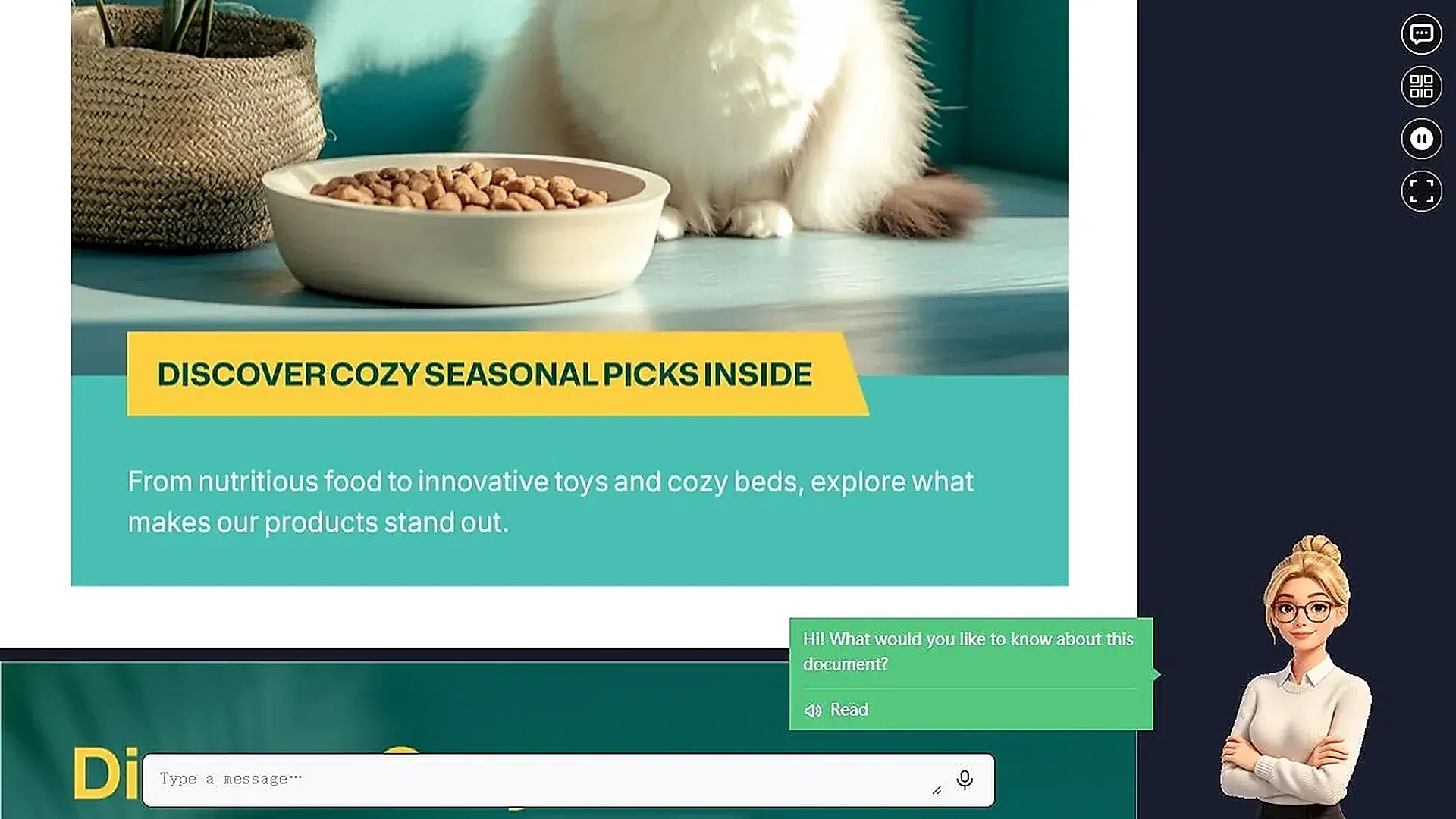
10. Answer Product Questions With a Chat Assistant
A product guide can contain the answer to a question without making it easy to locate. Recastia can use PDF content for a chat assistant, giving visitors a place to ask about the document. The linked example lets you try that interaction.
For a product guide, include clear model names, specifications, and usage instructions in the source. Try questions about similar products and information the guide does not contain before sharing. Keep the full guide available for anyone who needs the complete wording.
FAQ
They come from Recastia’s official Examples gallery. They demonstrate finished formats; this article does not present them as customer case studies or claim business results for the organizations shown.
Yes. Click a linked image to open that example, or play either embedded video. You can look through the finished output before uploading your own document.
No. You can reuse one document for several purposes. For example, a catalog can supply the full pages for a flipbook and selected pages for a launch video. Prepare the selection and explanation for each output.
Remove outdated information and any material you do not have permission to share. For video and presentations, simplify pages with small text. For a landing page, use headings and explanations that make sense without a live presenter.
Yes, if you have the original Word file, make your changes there and export a fresh PDF. If you only have the PDF, the PDF to Word guide explains how to convert it for editing and tidy the formatting afterward.
Conclusion
These Recastia examples give you ten practical uses for content you’ve already created. Choose one that fits your next project: a catalog to share, a report to explain, or a portfolio to present. Use the Recastia examples as references for your own layout and content, then open the finished result on the device you expect people to use.
Bring Your PDF to Life With Recastia
Create, customize, and share your content in a more engaging way.