
Finding one product in a long catalog shouldn’t mean scrolling past every page. A PDF flipbook viewer gives readers thumbnails, page controls, and zoom so they can browse the collection or go straight to a detail. This guide explains how a PDF flipbook viewer works, what readers can do in Recastia, and when to share a link or embed the book.
Key Takeaways
- A flipbook viewer displays your finished PDF online; it doesn’t edit the words or images inside the document.
- Page arrows support reading in order, while thumbnails help readers find a section by its layout.
- Zoom helps with specifications and captions, but readable text in the original PDF still matters.
- Share a direct reading link for email and messages. Website embedding requires a plan that includes it.
What Is a PDF Flipbook Viewer?
A PDF flipbook viewer is the browser interface around a digital publication. It displays the PDF pages with page turns and navigation controls. The flipbook maker handles uploading and publishing; the viewer is what your readers use afterward.
An ordinary browser can already display a PDF. Choose a flipbook when the page arrangement is part of the publication: a catalog spread with photographs beside specifications, a magazine with recurring sections, or a portfolio arranged by project. For a document that people mainly need to edit, send an editable file instead.
Read a Flipbook With Recastia
Recastia’s PDF to Flipbook tool turns your PDF into a hosted book. Readers open its link and browse the pages in their browser. If you haven’t created the publication yet, follow the PDF-to-flipbook upload guide.
Find a Page Without Reading the Whole Book
Next and previous arrows let readers move through the publication in order. Thumbnails serve a different purpose: readers can recognize a section from a small preview and jump to it. A distinctive chapter opener or product photograph is easier to spot than a page number they haven’t memorized.
For your own catalog, use clear section headings and a contents page. Navigation helps readers move around; those cues help them choose where to go.
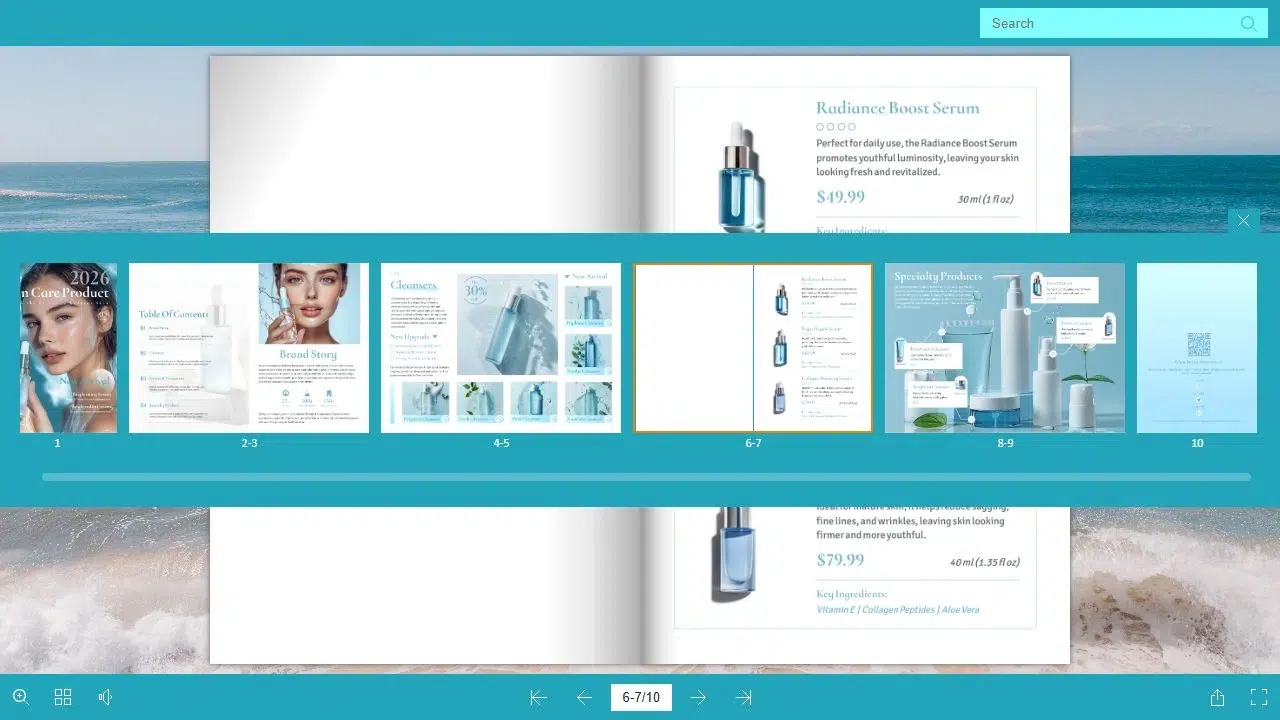
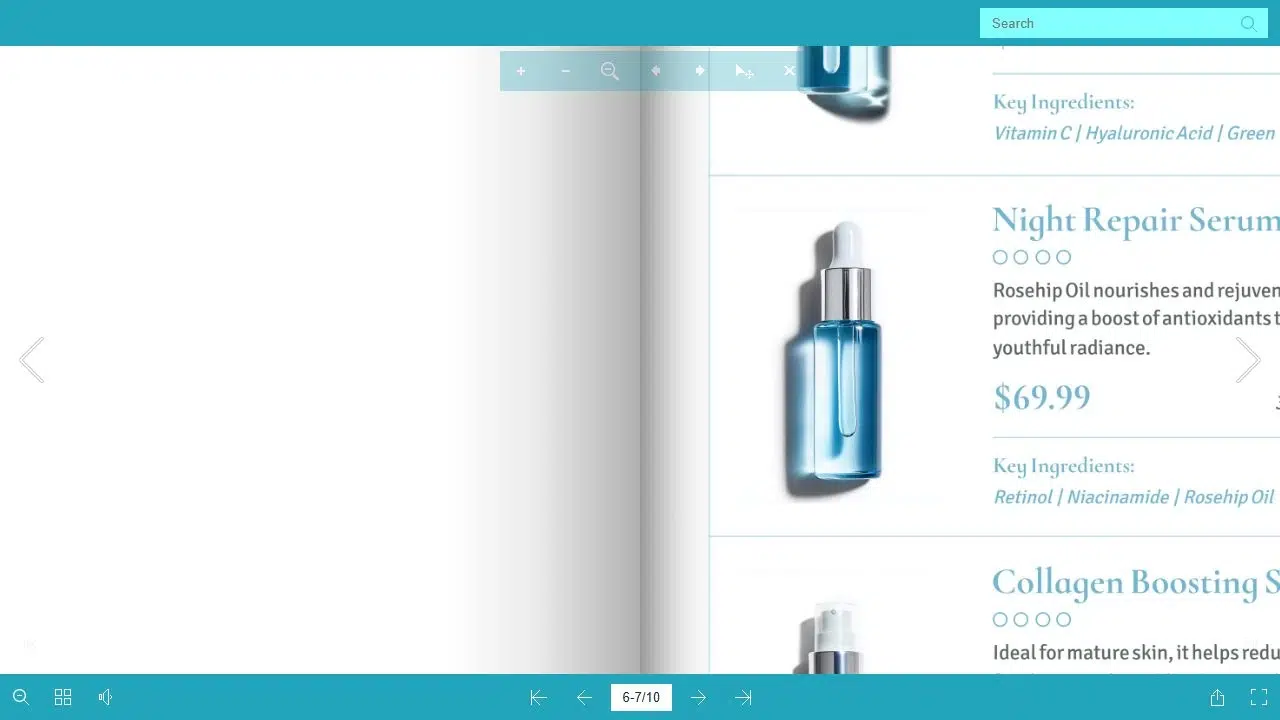
Enlarge Small Text and Product Details
Recastia’s zoom view brings a page closer so readers can examine captions, specifications, and illustrations. They can return to the normal view to continue browsing.
Zoom cannot restore detail missing from the source file. Export your PDF from the original document when possible, and avoid compressing photographs until labels become blurry. Keep prices, headings, and other essential text readable without repeated zooming.
Send a Reading Link or Use a QR Code
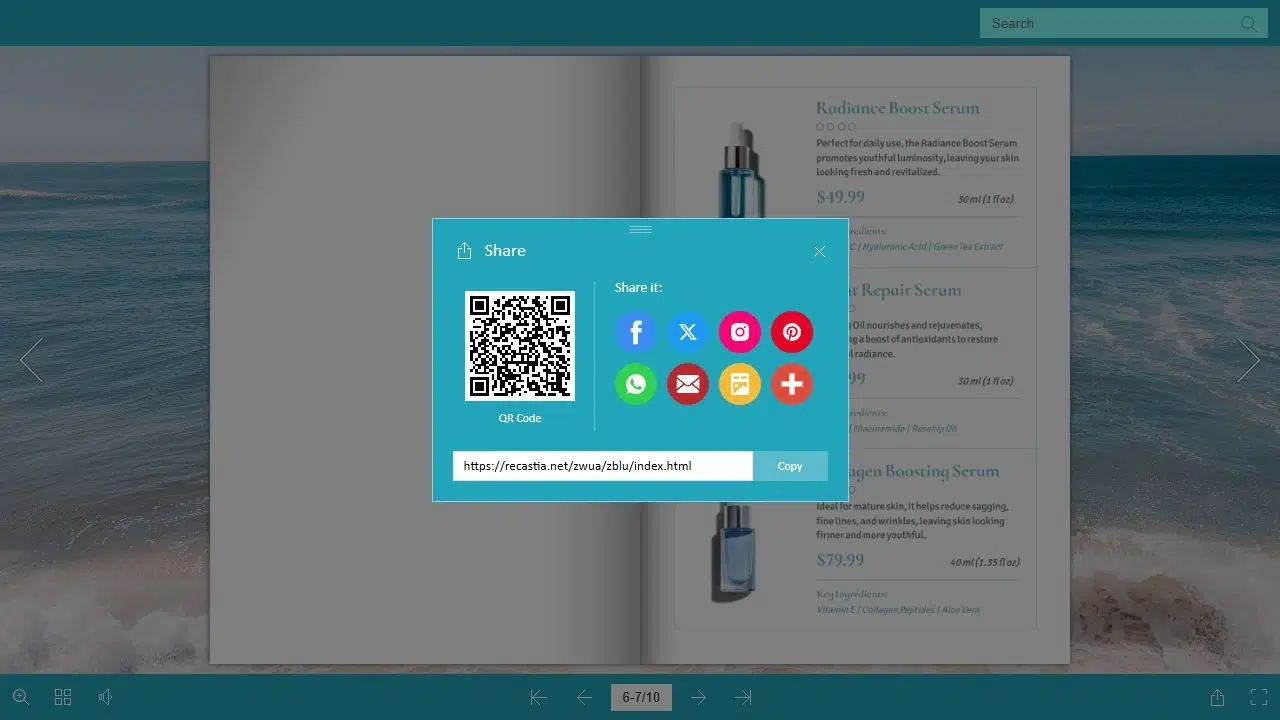
A direct link opens the book as its own page. Use it in an email, a newsletter, or a message when the publication is the main thing you want someone to read. Recastia’s Share panel provides the Flipbook Link and a QR code.
A QR code makes sense on a printed brochure, display, or handout. For an email, a descriptive link such as “Browse the Autumn Collection” is easier to use. Readers already on their phones shouldn’t have to scan another screen to reach the publication.
Embed a PDF Flipbook Viewer on Your Website
Embedding puts the book inside your own page. A catalog can sit beside a product introduction, or a guide can appear in a resource library. Recastia offers website embedding on paid plans that include the feature; a public reading link remains a separate sharing option. The free flipbook guide explains the plan distinctions.
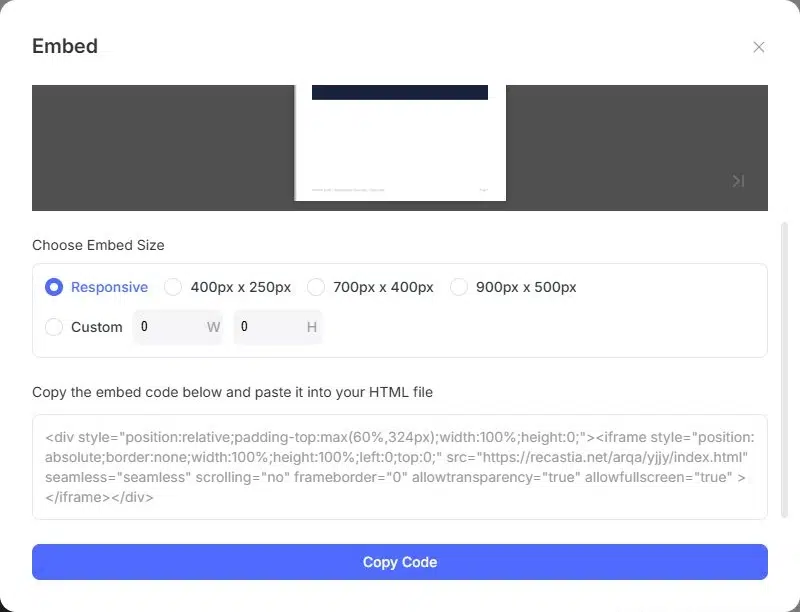
The Embed options include responsive sizing and fixed dimensions. Use responsive sizing when the viewer should follow your content column. A fixed size suits a defined area, provided it fits your website on smaller screens.
Avoid placing a detailed catalog in a narrow sidebar. Give the book the main content width and include a direct reading link nearby. Responsive sizing changes the viewer’s container; it doesn’t rearrange the PDF’s text into a mobile article.
The skin care catalog below lets you try page turns and navigation within this article.
Match the Page Display to Your Publication
A two-page magazine spread and a portrait product sheet need different amounts of space. Look at the book on the screen your readers are likely to use. If captions require constant zooming, a simpler page design may help more than a different visual effect.
Recastia groups templates, themes, and Page Flip Settings under premium customization. The page-turn settings guide covers those choices. For this reading workflow, concentrate on whether readers can recognize sections, reach the right page, and read its details.
Frequently Asked Questions
No. The viewer displays the publication and lets readers navigate it. To change a price, paragraph, or photograph printed on a page, edit the source document before creating the version you want to share. Publication settings and page content are separate.
No. A hosted Recastia flipbook opens through its web link in a browser. Readers can browse the online book without downloading the original PDF or installing a dedicated flipbook reader. They need an internet connection for the hosted reading page.
Recastia’s viewer can search text in a text-based PDF. If the pages are scans or contain lettering inside images, don’t assume those words will be searchable. Clear section headings and thumbnails still help readers find the relevant page.
Embedding displays the hosted publication inside another web page; it isn’t a privacy setting. Don’t use an embed as a way to restrict a confidential document. Check the publication’s access options before sharing material intended for a limited audience.
Yes. Recastia hosts the publication and provides its reading link. You can send that link directly or use the QR code. You only need your own website when you want to place the book inside one of your pages.
Conclusion
A PDF flipbook viewer helps readers browse designed pages, jump to a section, and enlarge the details they need. Choose a direct link for sharing the book on its own, or an embed when it belongs within your website.
Start with a finished catalog, magazine, or portfolio. Recastia’s PDF flipbook viewer provides the navigation; clear headings and legible pages make the publication worth reading.
Bring Your PDF to Life With Recastia
Create, customize, and share your content in a more engaging way.