
A product brochure can supply the visuals for a video, but its paragraphs rarely make a good voiceover. A sales presentation may already have a script in the speaker notes, yet need a shorter opening for a campaign. The right AI marketing video generator depends on how much of that material you want to keep and what you need to change.
This guide compares five tools by document input, script and scene editing, branding, and video delivery. Use it to choose an AI marketing video generator for a narrated brochure, a presenter-led pitch, or a shorter video built from a longer document.
Choose an AI Marketing Video Generator by Its Document Workflow
Decide whether the original pages should appear in the video. A designed catalog can work as page-led footage with narration. A dense whitepaper usually needs selected findings, fewer words, and new scenes. If the offer or headline needs changing on screen, an editable PowerPoint import gives you different controls from a PDF used as a page background.
| Tool | Useful Starting Material | Main Editing Choice |
| Recastia | PDF brochure or PowerPoint presentation | Keep pages as visuals; control narration page by page |
| HeyGen | PPT/PPTX deck or PDF | Use static slide backgrounds or editable PowerPoint elements with an avatar |
| Synthesia | Editable PPTX product presentation | Revise imported slide objects and scene narration |
| Colossyan | Deck that needs narration or restructuring | Choose Import or AI rebuild before rendering |
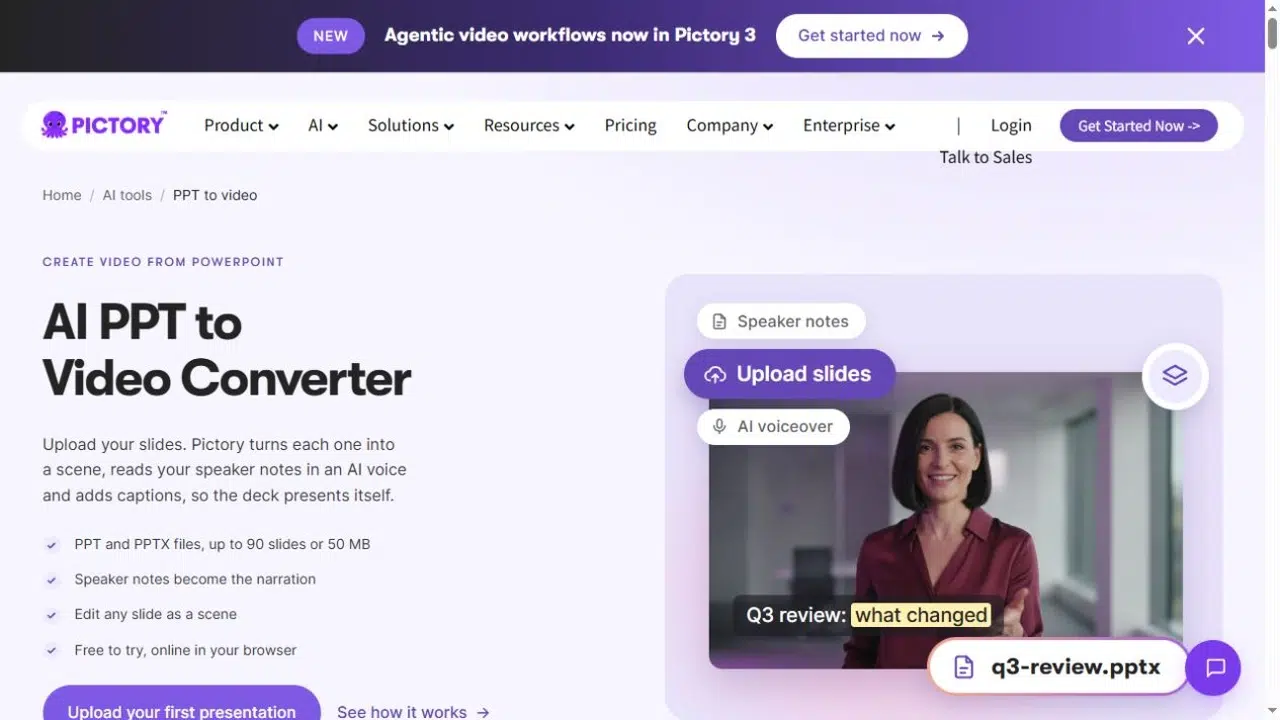
| Pictory | Whitepaper PDF or presentation | Summarize a PDF into scenes, or turn each slide into a scene |
These are different production approaches, rather than a speed ranking. Brand kits, export resolutions, and other account features can vary by plan; check the options you need before choosing a subscription.
1. Recastia
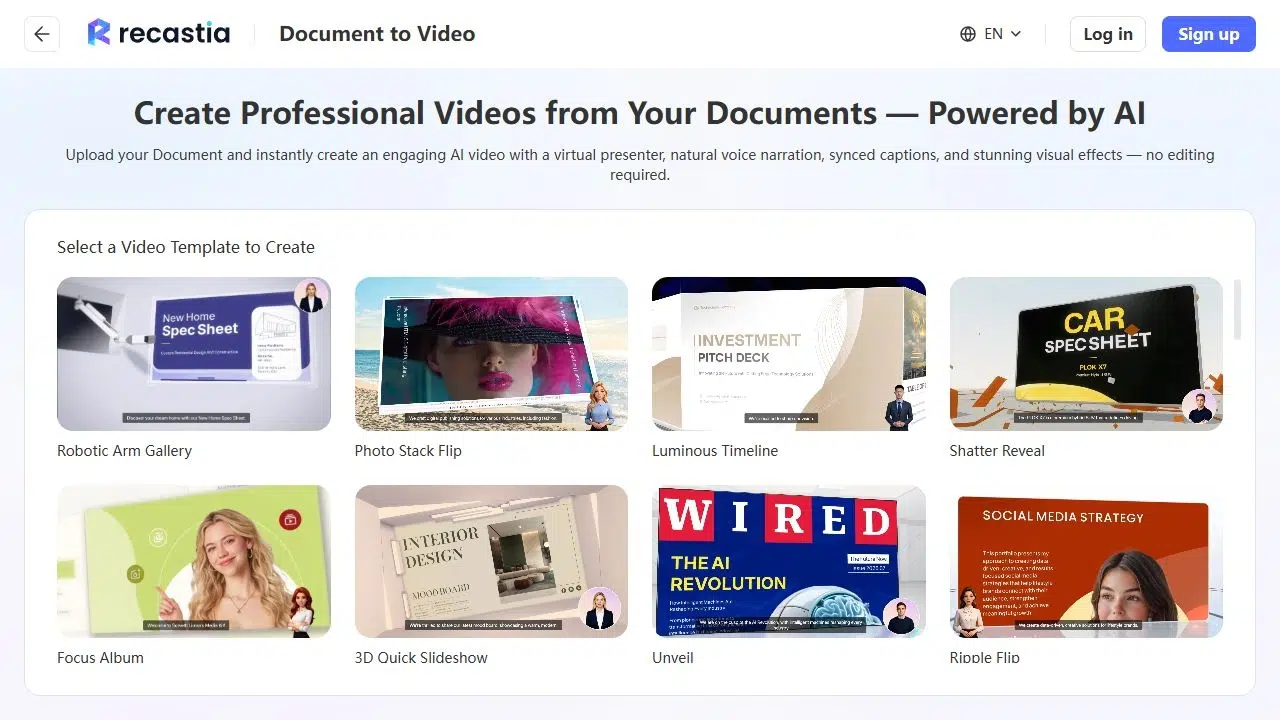
Recastia turns document pages into videos with narration, captions, visual effects, and an optional presenter. It fits a brochure or product deck whose design is already finished: the pages supply the visuals while your script explains the offer. With Advanced Mode, you can give each page its own narration, including a specific next step on the closing page.
For example, a service brochure can become a sales follow-up video: introduce the service on the cover, explain the process beside its diagram, and use the closing narration to invite a project brief. You can change the spoken message without redesigning those pages. For an existing PowerPoint presentation, upload the file directly. PDF is another supported starting format; exporting the deck to PDF first is optional.
Key Features
- Minimal Mode creates timed page playback without voiceover; Easy Mode uses an overall script with page synchronization; Advanced Mode provides separate narration for each page.
- Manual script input and AI Copywriting support narration preparation, with voice, subtitle, and optional avatar settings.
- Video ratio, template effects, background, and music controls shape the presentation; completed videos have download and online sharing options.
Pros
- Designed product pages, diagrams, and campaign visuals can remain the visual basis of the video.
- Page-specific narration lets you emphasize a benefit or offer at the point where the supporting visual appears.
Cons
- Editing narration does not change words printed inside a PDF page. Revise the source page when the on-screen price, headline, or product details need changing.
Best For
- Teams turning a finished PDF brochure or PowerPoint presentation into a narrated product explanation or sales follow-up.
For the full creation workflow, see the guide to making a video from a PDF. The PDF to Video tool provides the creation workspace.
2. HeyGen
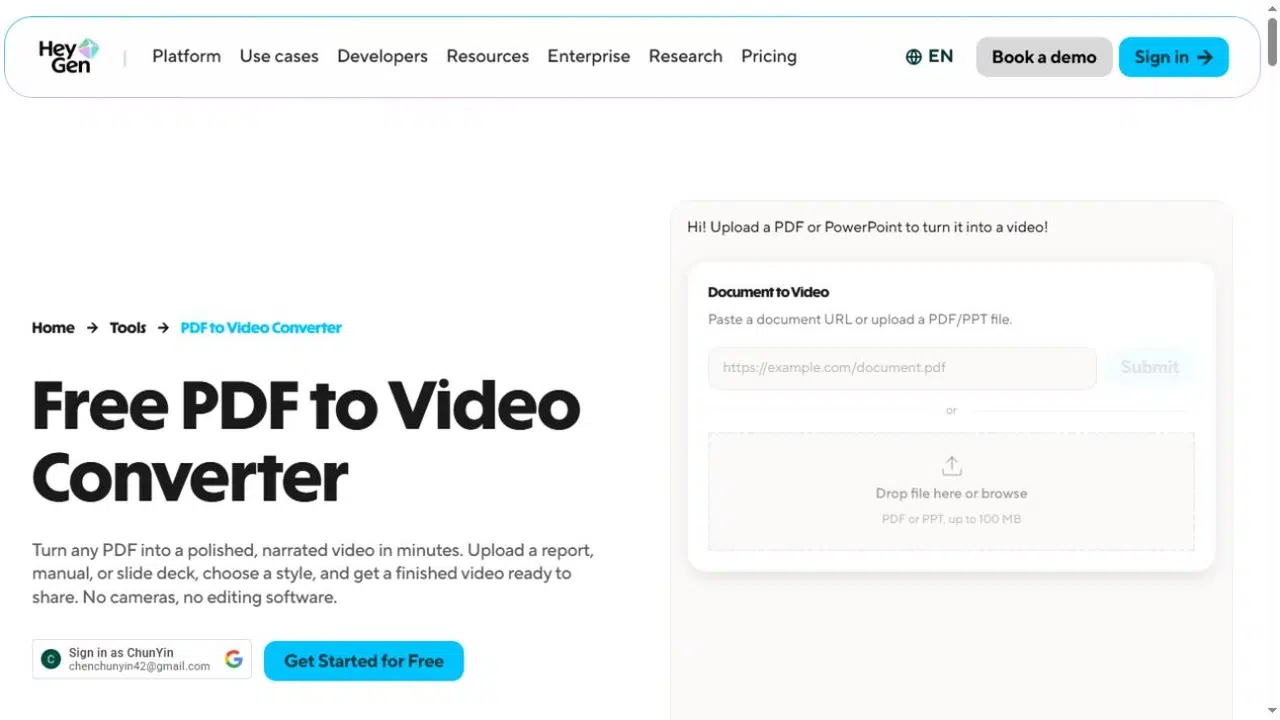
HeyGen suits a sales deck that needs a presenter explaining the offer. You can keep the slides as static backgrounds or import editable PowerPoint elements. The distinction matters when a campaign needs revised headlines, a different call to action, or narration aimed at a new customer group.
Key Features
- Upload PPT, PPTX, or PDF, then add an avatar and edit the narration for each slide.
- With PPT/PPTX, use speaker notes as the script and import slide elements for layout and text changes.
- Save detected PowerPoint colors and fonts to a Brand System, then export the finished video as MP4.
Pros
- Separate slide scripts let you shorten a pitch or explain a product benefit without rewriting the entire presentation.
- Editable PowerPoint elements let you adjust on-screen copy alongside the narration.
Cons
- The PPT/PDF import guide limits speaker-note import and editable slide elements to PPT/PPTX. A directly uploaded PDF does not get those options.
Best For
- Sales briefings and product explainers built from a presentation, particularly when you still have the editable PowerPoint source.
3. Synthesia
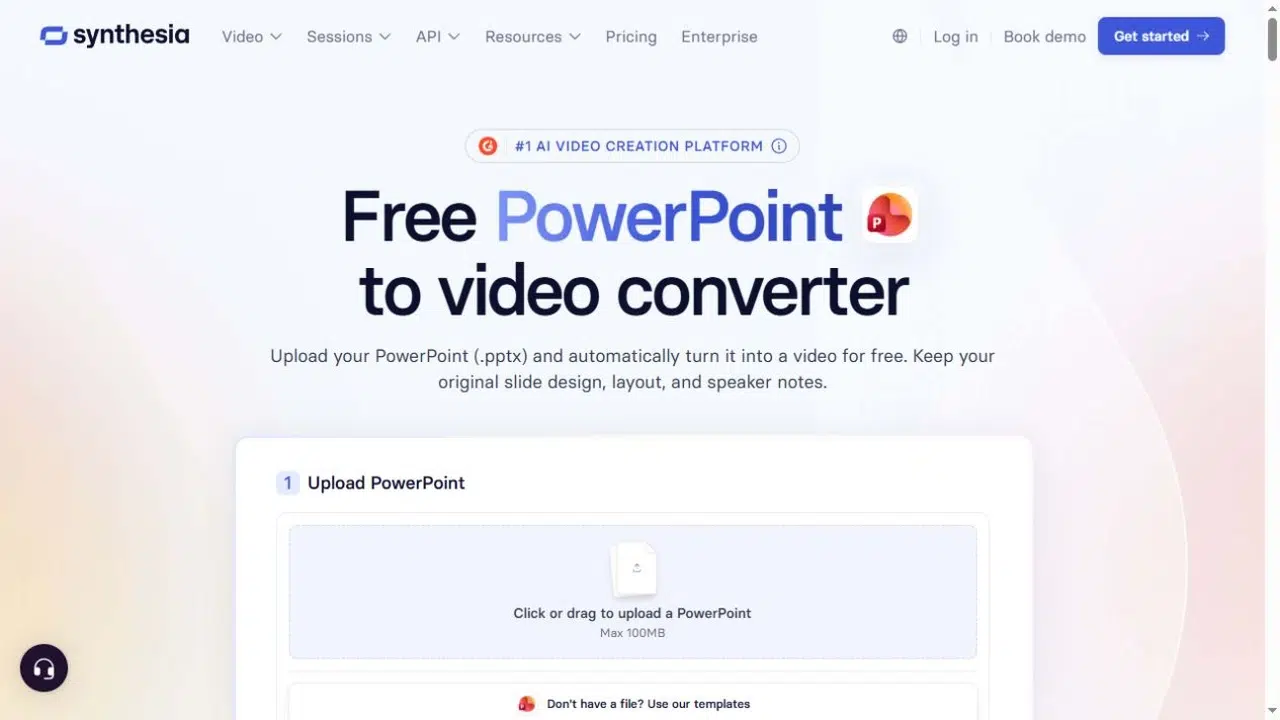
Synthesia is useful when a presentation’s visual content needs editing before it becomes a narrated marketing video. A chart label may need simplifying, or a product slide may need a shorter headline. Its standalone PowerPoint importer can bring slide objects into the editor instead of treating every slide as a single picture.
Key Features
- Import PPTX text, shapes, images, videos, and tables as editable elements through the PowerPoint import workflow.
- Populate scene scripts from speaker notes, or slide text when notes are absent, with editable-element import enabled.
- Add an avatar and apply brand colors, fonts, and a logo before generating the video.
Pros
- You can revise on-screen text and object placement when adapting a presentation for a product launch or sales follow-up.
- Narration and visuals can be adjusted within the same project, then exported as a standard MP4 video.
Cons
- Original PowerPoint animations are not imported. PDF and Assistant uploads also follow a separate route, so the editable-object benefits above should not be assumed for them.
Best For
- Marketing teams reworking a designed PowerPoint deck into an avatar-led product presentation.
4. Colossyan
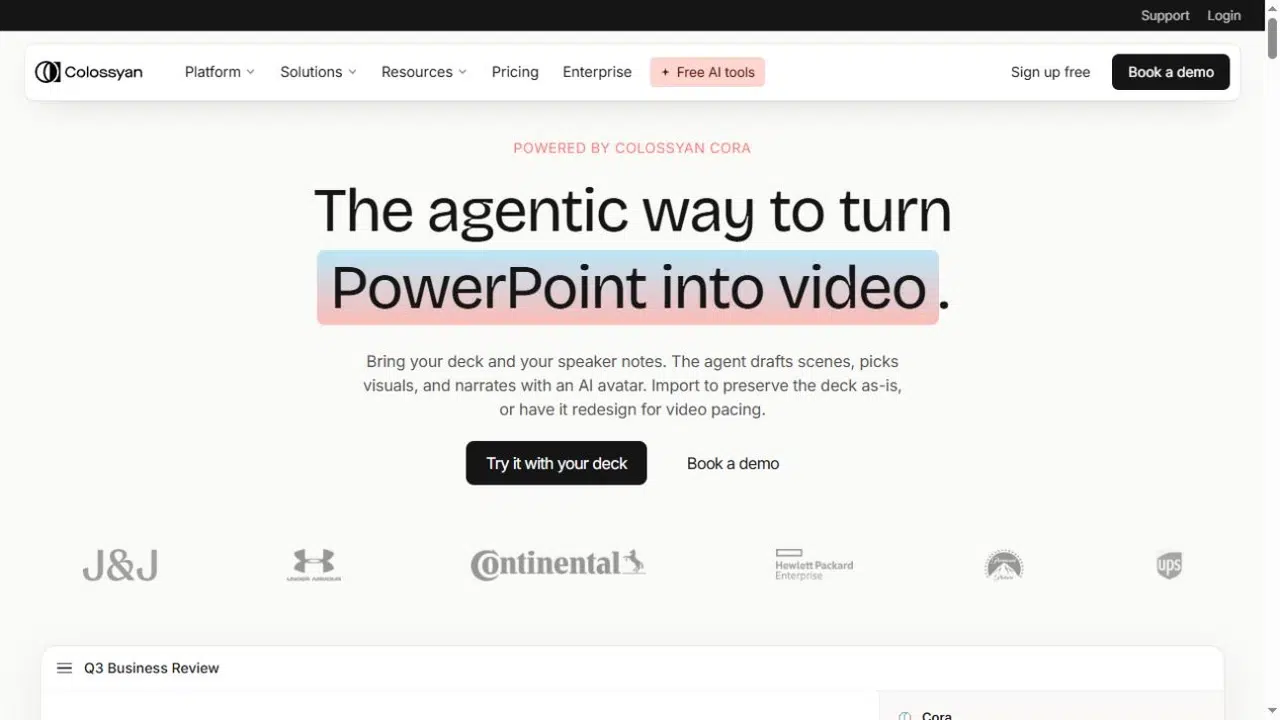
Colossyan gives you a choice when a sales presentation contains useful material but needs a different pace on video. Import keeps the deck’s structure, while AI rebuild creates a new video plan from it. That lets you decide how much of the original presentation belongs in the finished explanation.
Key Features
- Choose Import for editable PPTX slide elements and speaker-note narration, or AI rebuild for a video-first draft through its PowerPoint workflow.
- Edit the scene plan before rendering, with avatar, voiceover, and brand-kit settings.
- Use a separate document-to-video workflow to pull information from a PDF into a customizable draft with narration and images.
Pros
- The two PowerPoint routes suit different jobs: narrating an existing pitch or restructuring its material into a shorter explanation.
- Brand fonts, logos, and colors can be reused across videos before MP4 export.
Cons
- PowerPoint animations do not transfer directly. Recreate any required movement with Colossyan’s scene controls rather than relying on the deck’s animation sequence.
Best For
- Sales enablement and customer education videos where the team needs to choose between preserving a deck and rebuilding its story.
5. Pictory
Pictory suits a whitepaper or guide that needs a shorter video version. Its PDF workflow summarizes the document into a script and builds scenes around it. For a designed presentation, a separate PowerPoint workflow keeps a closer connection to the slide sequence, with each slide becoming a scene.
Key Features
- Turn a PDF into an editable script, visuals, voiceover, and captions through its PDF-to-video workflow.
- Upload PPT or PPTX and optionally use speaker notes as narration through its PowerPoint workflow.
- Edit scenes, apply a brand kit, and export MP4 in landscape, vertical, or square formats.
Pros
- A document summary can provide a starting point for a campaign video without requiring the entire whitepaper to appear on screen.
- Slide-based projects can reuse prepared speaker notes, while scene editing lets you revise the narration and visuals before export.
Cons
- PDF conversion summarizes and recomposes the source. Review selected claims and figures, and do not expect every original page or paragraph to appear in the video.
Best For
- Content marketers adapting reports and guides into narrated videos, with separate versions prepared for different publishing formats.
Match the Video to the Campaign
For a sales follow-up, preserve the product pages that answer the buyer’s immediate questions and write narration that explains their relevance. Recastia’s page-specific script controls fit that approach. An avatar-led version can suit a presenter-style pitch, with HeyGen or Synthesia providing a route from editable PowerPoint material.
For a campaign teaser, start with one claim and the evidence behind it. A long report may contain several possible stories; choose one before accepting an AI summary. Pictory’s PDF script and scene workflow is relevant here, while Colossyan’s AI rebuild route offers another way to reshape a deck for video pacing.
Before committing to a tool, answer four production questions:
- Must the original page layout remain visible, or can the video use newly arranged scenes?
- Do you need to edit the words on screen, the narration, or both?
- Is the delivery a landscape product explanation, a vertical social clip, or a video embedded on a campaign page?
- Will you distribute an MP4 file or use a hosted player embedded on a campaign page?
For a mobile campaign, shorten on-screen wording and check the actual video frame. Selecting a vertical ratio alone will not make a dense landscape slide readable. Keep product names, prices, claims, and the call to action consistent between the source and the edited script.
Frequently Asked Questions
Check each selected claim against the source, including its date, unit, audience, and qualifications. Keep wording such as “up to” and eligibility conditions when they change the meaning. If a result depends on a chart or footnote, carry that context into the script or show the supporting page.
Yes. Prepare a separate script and scene selection for each purpose: a short product introduction can lead with one benefit, while a sales follow-up can explain the supporting process or specification. Review each version separately, then upload it to the appropriate publishing channel.
Do not assume they will. Synthesia’s PowerPoint import does not import the original animations, and Colossyan also distinguishes imported scene elements from PowerPoint animation playback. Recreate the required movement in the video editor, or choose another production method if exact animation timing is essential.
An ordinary MP4 can display or speak a website address, but it does not contain a clickable web button. Put the link in the accompanying post, email, or landing page. Interactive hosted-video features depend on the platform and should be checked separately from file export.
Conclusion
Choose an AI marketing video generator around the material you have and the edits the campaign needs. Recastia fits narrated document pages; HeyGen and Synthesia offer presenter-led presentation workflows; Colossyan distinguishes deck import from rebuilding; Pictory provides a PDF-summary route alongside its slide workflow.
The best AI marketing video generator for your project should let you retain the right evidence, revise the message, and deliver the format your publishing channel needs. Decide those requirements before comparing subscription extras.
Bring Your PDF to Life With Recastia
Create, customize, and share your content in a more engaging way.