
A warehouse rollout brief can contain everything the night shift needs and still make a lousy script. The receiving map belongs on screen. The three paragraphs explaining what to do when a scan fails need to become a short instruction someone can follow mid-shift.
An AI PDF to video converter can help with either job. Some tools keep the original pages on screen and let you rewrite the narration. Others use the PDF to draft new scenes. When you choose an AI PDF to video converter, look at what you can edit after import and how you can download or share the result.
Key Takeaways
- Use a page-based workflow if viewers need to recognize a diagram or table their team already uses.
- Use a scene editor if you need to put an exception or decision ahead of the document’s original introduction.
- Check download access early. A video you can preview in an editor may still require a sign-in or a different plan before you can save a copy.
Compare Four AI PDF to Video Converters
Take a fictional four-page warehouse rollout brief. Page one gives the rollout date, page two maps the new receiving lanes, page three explains what to do if a pilot scan fails, and page four lists escalation contacts. The shift lead needs to recognize the right lane. A regional manager needs the rollout decision and the next step.
| Tool | Starting Point | What AI Drafts | Download or Share |
| Recastia | Selected PDF pages with narration | Draft editable narration for each page with AI Copywriting in Advanced Mode | Guest preview available. Sign in to check download and sharing options. |
| HeyGen | Import the PDF as a presentation or use it to draft new slides | Generate slides and optionally draft narration for them | Export the video after editing |
| Synthesia | Use the PDF as source material for a new video | Draft a storyboard, script, and on-screen text | Download an MP4 or share a link |
| AI Studios | Import the PDF and organize it into scenes | Draft a script you can edit scene by scene | Export an MP4 or share from the platform |
1. Recastia
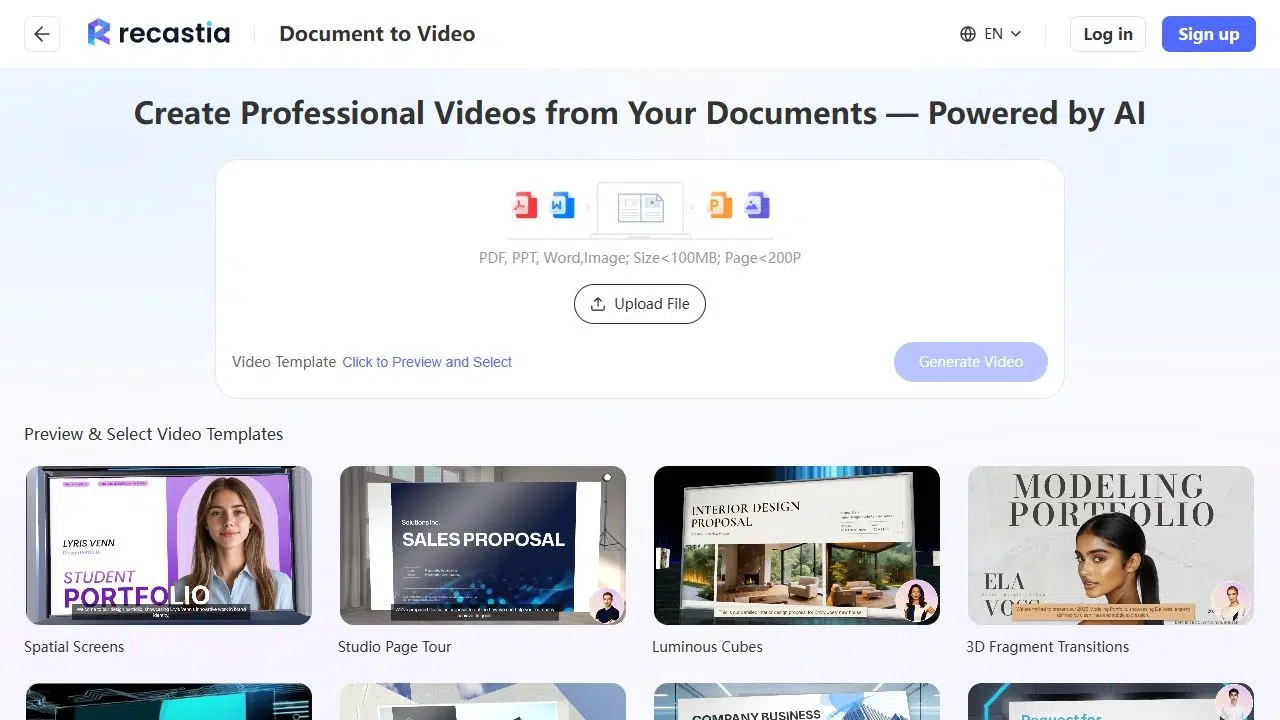
Recastia’s PDF to Video workflow suits a video that needs to show the approved document. Choose a page-based template, select the relevant pages, and use Advanced Mode to write narration for each one. Keep the receiving map visible while the voice explains which lane to use for pilot shipments. On the next page, explain when staff should stop and call the shift lead.
Key Features
- Select the PDF pages to include.
- Use Easy Mode for one script across the selected pages or Advanced Mode for a script tied to each page.
- Draft the narration with AI Copywriting or enter your own script.
- Set the voice and subtitles and choose whether to include an avatar.
Pros
- Review a page and its narration together against the approved brief.
- You can skip the appendix at import and keep the receiving map in the video without making a shorter PDF first.
- With a separate script for each page, you can revise the failed-scan instruction without rewriting the narration for the rest of the brief.
Cons
- If the diagram labels are too small at video size, enlarge or simplify them in the source PDF first.
- Guest preview and download can have different requirements. Check your account’s download access before you plan a file handoff.
Best For
- Walkthroughs where viewers need to recognize a source diagram, schedule, or numbered procedure.
2. HeyGen
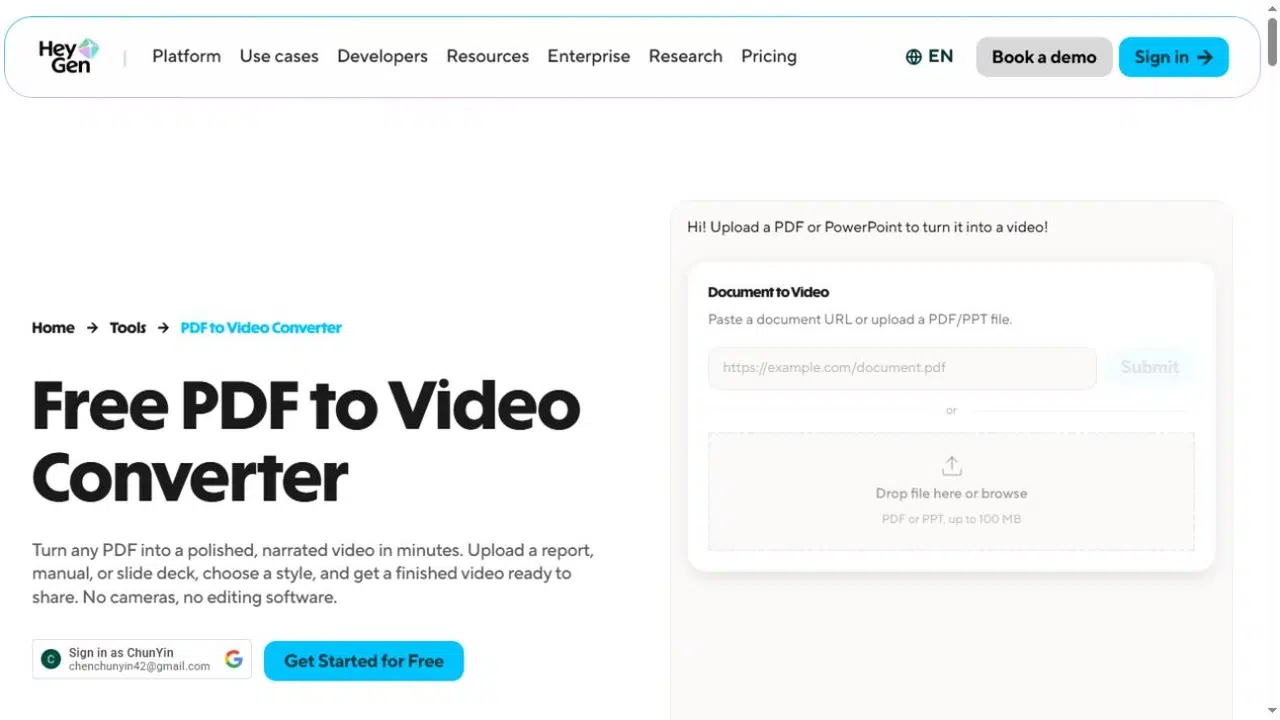
HeyGen’s Academy guide describes two paths. Upload an existing presentation to start from its pages. Choose Generate a Presentation to use the PDF as material for new slides. That second route fits a manager update that opens with the go-live decision and gives the routing map its own scene.
Key Features
- Import a PDF as an existing presentation or use it to generate a new presentation.
- Turn on Generate Script with AI when creating new slides, then edit each slide’s narration in AI Studio.
- Choose a presenter and adjust its placement in the editor.
Pros
- Use the same brief for a walkthrough of the existing pages or a shorter presenter-led update that opens with the rollout decision.
- Add a pause after the pilot-scan instruction so viewers have time to read the lane labels.
Cons
- HeyGen documents editable slide-element import and speaker notes as script for PowerPoint files. Its PDF presentation import lacks those options.
- A presenter overlay can cover a diagram label. Check where it sits in the frame.
Best For
- Teams choosing between presenting an existing deck and building a new presenter-led cut.
3. Synthesia
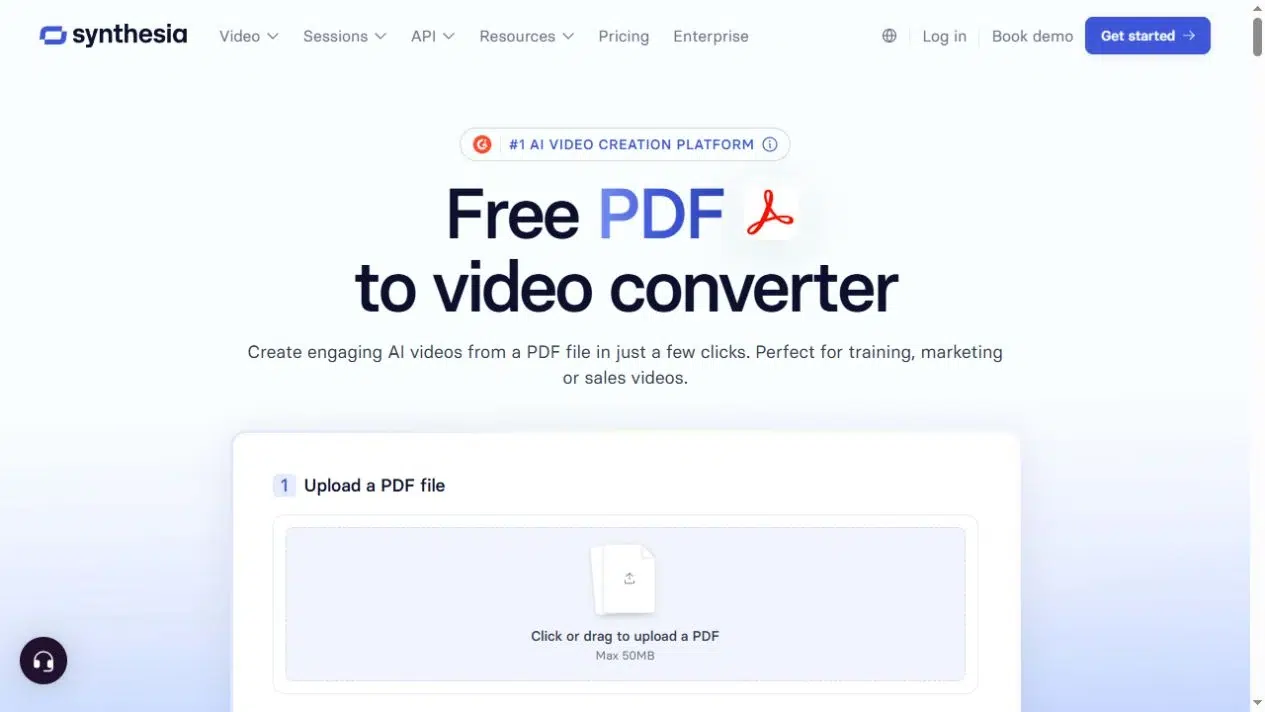
Synthesia uses the PDF as source material for a draft with scenes and scripts. For a regional briefing, bring the decision and date into the first scene. Then check whether the draft explains who owns the response if the pilot scan fails.
Key Features
- Use a PDF as source material for a scene-based draft.
- Review the storyboard and request changes to individual scenes or the script in chat.
- Download an MP4 or share a link.
Pros
- An editable storyboard gives you a starting point when several decisions are buried on the same PDF page.
- Request a change to one scene if the draft gets the escalation step wrong, without having to redraft the whole briefing.
Cons
- A generated summary can shorten an exception past the point where it’s useful. Compare the script with the original instructions.
- Keep a legible version of the original map available if the briefing needs to show precise routes.
Best For
- Turning a dense briefing into a short presentation with the decision up front.
4. AI Studios
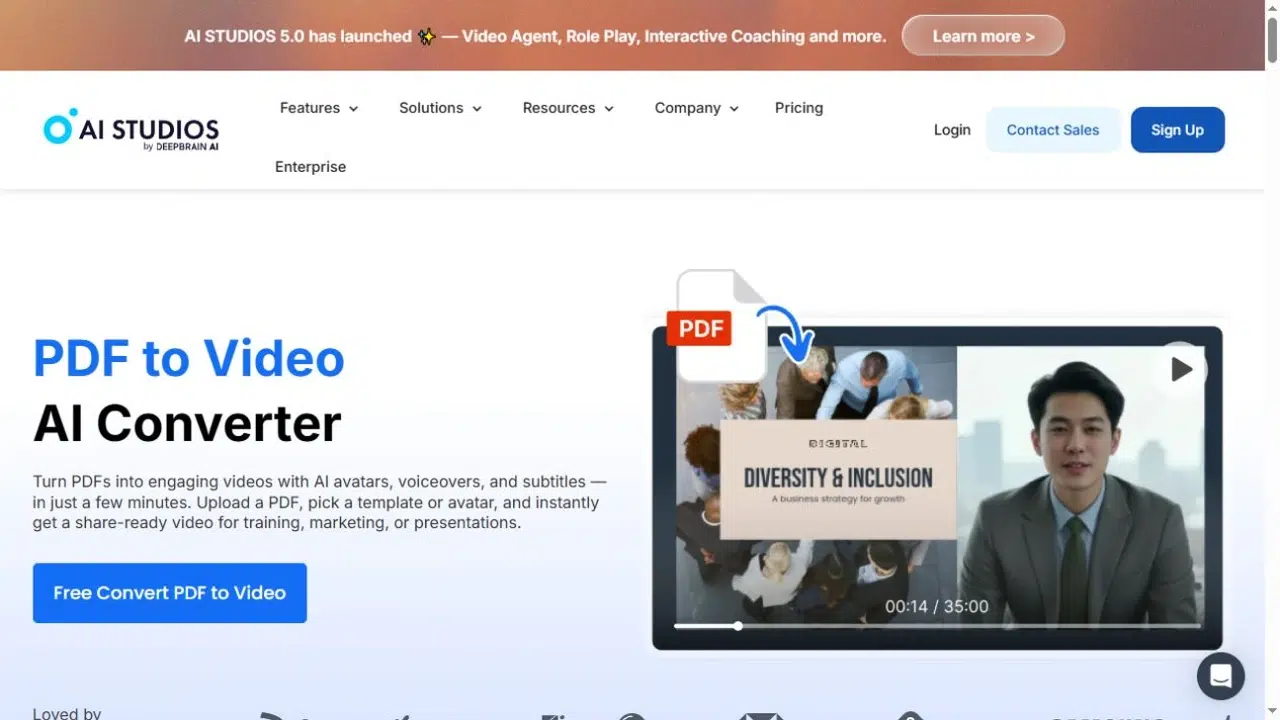
AI Studios documents a direct PDF import that can split the document into scenes. Its controls let you rearrange, combine, or hide pages and revise scene text. In a shift handover, you could bring the failed-scan instruction forward and leave the contact list in the written brief.
Key Features
- Import a multipage PDF and organize the resulting scenes.
- Edit the generated script and choose a voice or optional presenter.
- Export as MP4 or share through the platform.
Pros
- Make the failed-scan procedure the opening scene without changing the order of the written brief.
- Edit the narration for that scene so the shift lead hears who to call and when to stop.
Cons
- Check the plan’s export quality and watermark terms before preparing a client-facing file.
- If moving a page changes the order of the spoken instructions, edit the affected script as well.
Best For
- Teams that want to keep selected PDF material and edit the sequence and narration in one project.
What to Check Before You Commit to a Converter
Start with the page you would least want the tool to get wrong. Here, that’s the receiving map. View a sample at the size staff will actually see. Can someone on a phone read “Lane B” while the presenter speaks? If the label gets lost behind captions or an avatar, crop the map to the relevant area or give it a scene of its own.
Next, change one detail. Replace “the rollout begins Monday” with the exact date and see where you have to edit it. If the date appears on a slide, in the script, and in the closing caption, check all three. Fixing the spoken line alone can leave the viewer with two different dates.
Try sharing or downloading while the project is still small. A team chat can use a viewing link if viewers have access. A training library that asks for a video file needs an export. Open the link outside your account or download the file and play it before building the rest of the briefing.
Frequently Asked Questions
A page-based tool may be able to display a scan as an image. AI script generation depends on whether the tool can read the text. Try selecting a few words in the PDF. If the whole page behaves like an image, run optical character recognition or supply an approved script separately.
Use a shorter version if the document contains internal contacts, outdated instructions, or sections the viewer doesn’t need. Keep any required exception with the procedure it qualifies. Removing that context to save time can change the instruction.
You can prepare versions for different screen shapes if your editor supports them. Check each layout. A wide table that reads well in a landscape video may need a crop, a simplified graphic, or a close-up in the vertical cut.
Give the video and the source a shared revision date. When the PDF changes, check the affected page, scene, script, captions, and any published copy. If you replace a file in your training library, also check the links in older emails or handover notes.
Conclusion
Choose an AI PDF to video converter based on what the viewer needs to see and hear. Keep the approved pages on screen for a walkthrough. Give a management briefing its own scenes if the source document buries the decision.
Before you settle on an AI PDF to video converter, try the hardest page and see how the team will open the finished video. Check that the map stays legible and the exception survives in the script.
Bring Your PDF to Life With Recastia
Create, customize, and share your content in a more engaging way.