Category: PDF to Video
-

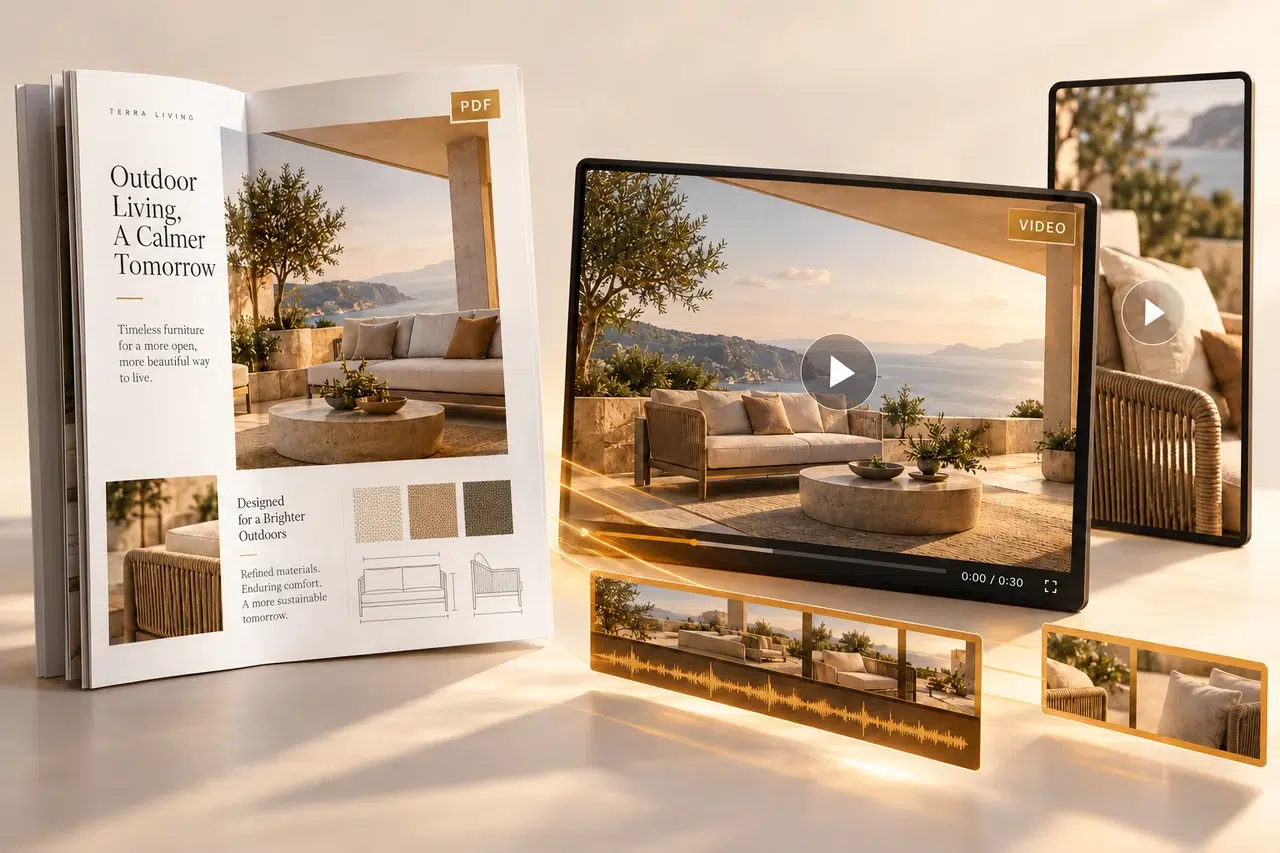
How to Convert a PDF Into a Slideshow Video
Convert a PDF to slideshow video in Recastia. Choose pages, set page timing, add optional background music, and download or share your finished video.
-

5 Best AI Marketing Video Generators for Repurposing PDFs and Presentations
Choose an AI marketing video generator for your PDFs and presentations. Compare five tools by script editing, slide controls, branding, and video delivery.
-
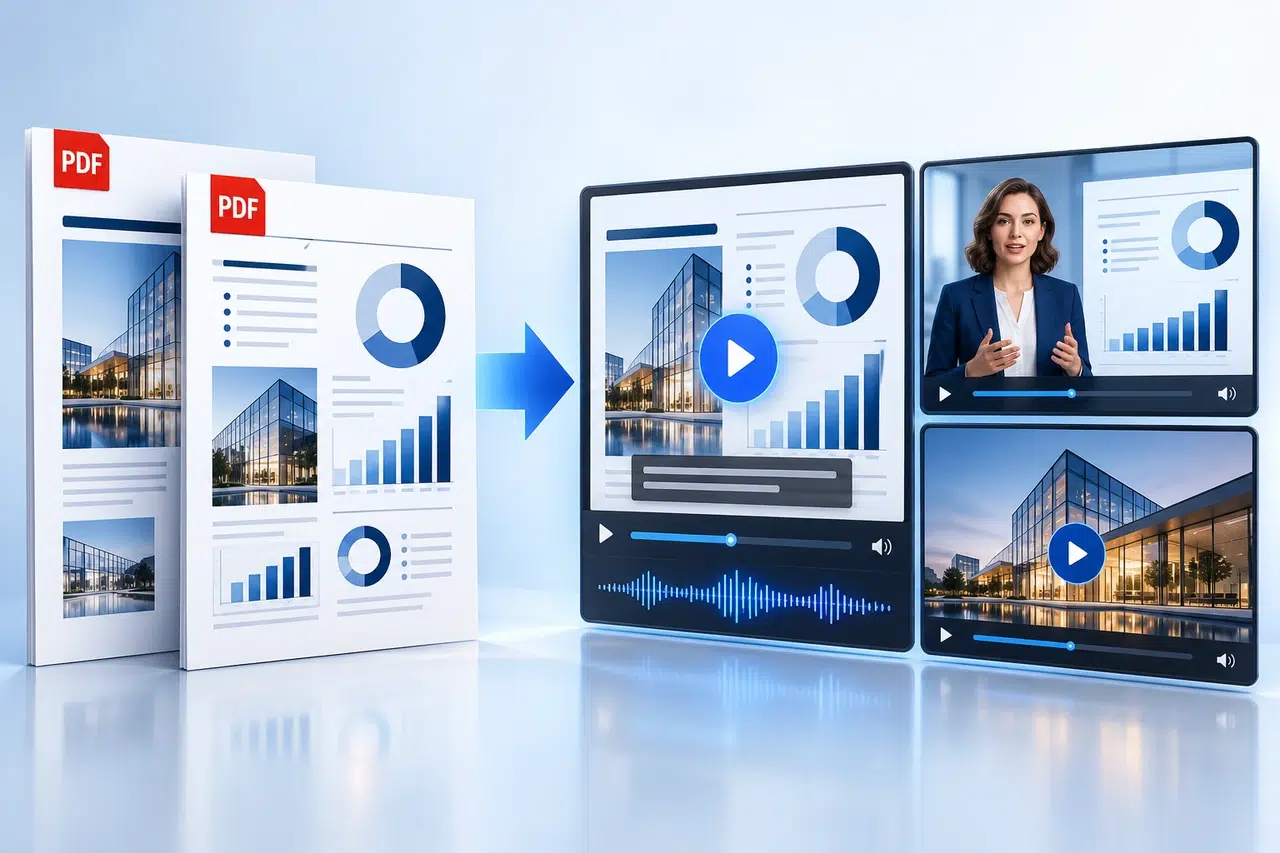
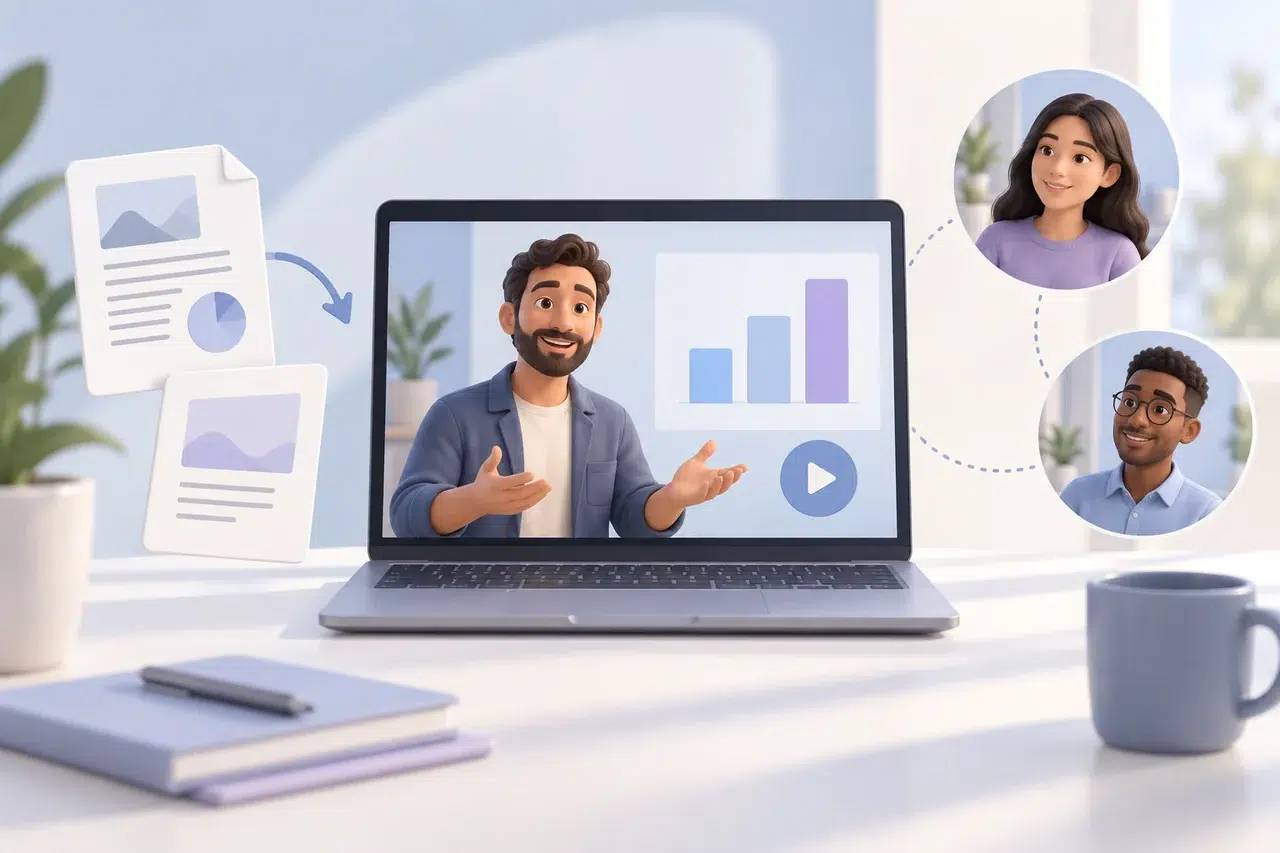
6 Best PDF to Video Converters in 2026
Compare six PDF to video converter options for page narration, AI presenters, scene editing, and MP4 delivery. Find the right fit for your document.
-
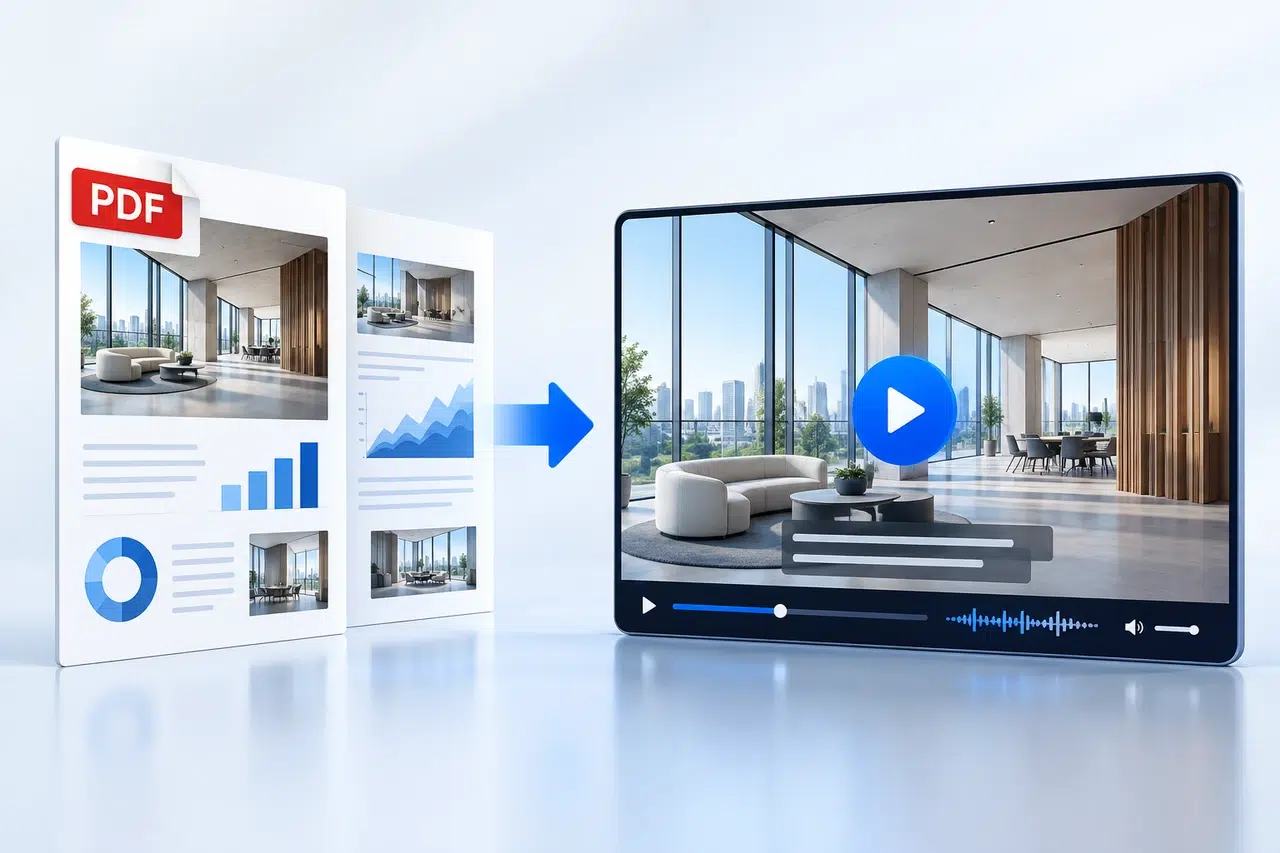
How to Make a Video from a PDF (Step-by-Step)
Learn to make a video from PDF pages in Recastia. Follow the steps to upload your file, add narration, adjust video settings, and share the result.
-
Employee Onboarding Videos: What to Include
Plan employee onboarding videos for the first day and week. Get a four-scene example with sample narration, then create your video from a PDF with Recastia.
-
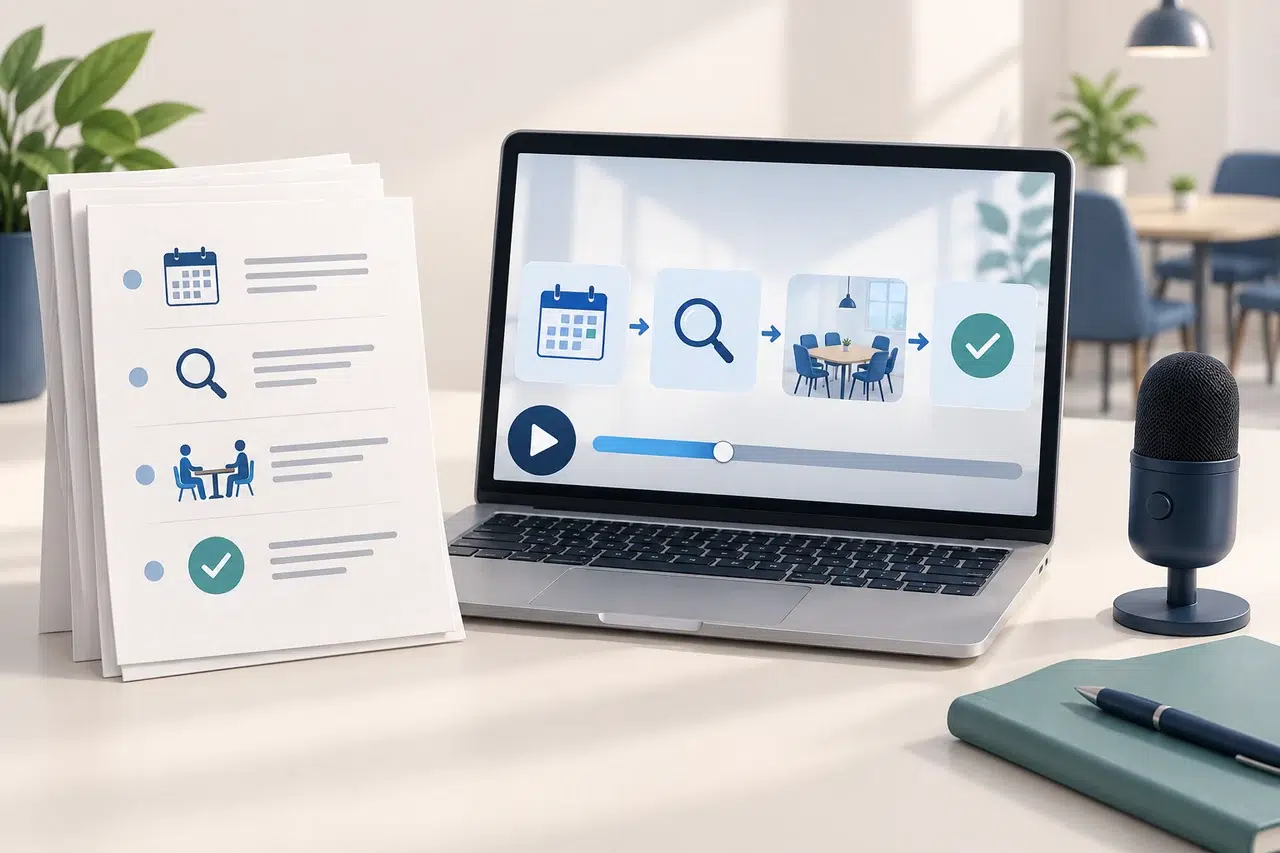
Create a Video Standard Operating Procedure From a Written SOP
Create a video standard operating procedure from a written SOP. Plan visuals and narration with a room-booking example, then make a video with Recastia.
-
Video Pitch Deck: What to Include and How to Structure It
Plan a video pitch deck with the right slides, clear narration, and a specific ask. See a sample storyboard and turn your PDF into a video with Recastia.
-
Internal Communication Videos: Types and Examples
Explore internal communication videos for company updates, project news, and change announcements, with script examples and a PDF-to-video workflow.
-
How to Turn a Presentation into a Video for Sharing & Training
Learn how to convert a presentation to video with AI in 5 steps. Turn PowerPoint or Google Slides into a narrated MP4 — no editing needed. Free guide.
-
How to Convert PDF to MP4 Without Losing Quality
Learn how to convert PDF to MP4 without losing quality by preparing clear pages, choosing the right frame, and checking text, captions, and audio.