
A video SOP shows employees how to complete a task, step by step. This guide explains how to turn a written procedure into a narrated video, using a meeting-room booking example.
Key Takeaways
- Cover one task, from its starting point to a clear result.
- Pair each action with a useful visual and a specific completion check.
- Explain what to do when the usual route is unavailable.
- Keep the video beside the current written procedure so employees can find both.
Choose a Task You Can Show Clearly
Start with a procedure such as booking a room, submitting a design for review, or logging a support request. Each has a recognizable starting point and a result you can show. Instead of covering everything in the company workspace, teach the one task employees came to learn.
Choose visuals that explain the action:
- For a form: show the fields someone must complete and an example of a finished entry.
- For a choice: show the options and the rule for choosing between them.
- For a physical task: use close-up photos or a recorded demonstration when movement matters.
For the PDF-based approach below, use screenshots, photos, and short instructions that work as still pages. If someone needs to see a continuous movement, such as threading a machine, record that demonstration separately and include it in the training materials.
TechSmith’s guide to video SOPs also recommends choosing procedures that benefit from visual instruction and keeping each video focused on its task.
Turn Vague Instructions Into Specific Actions
A written SOP may skip details that an experienced colleague takes for granted. Add those details before turning it into a script.
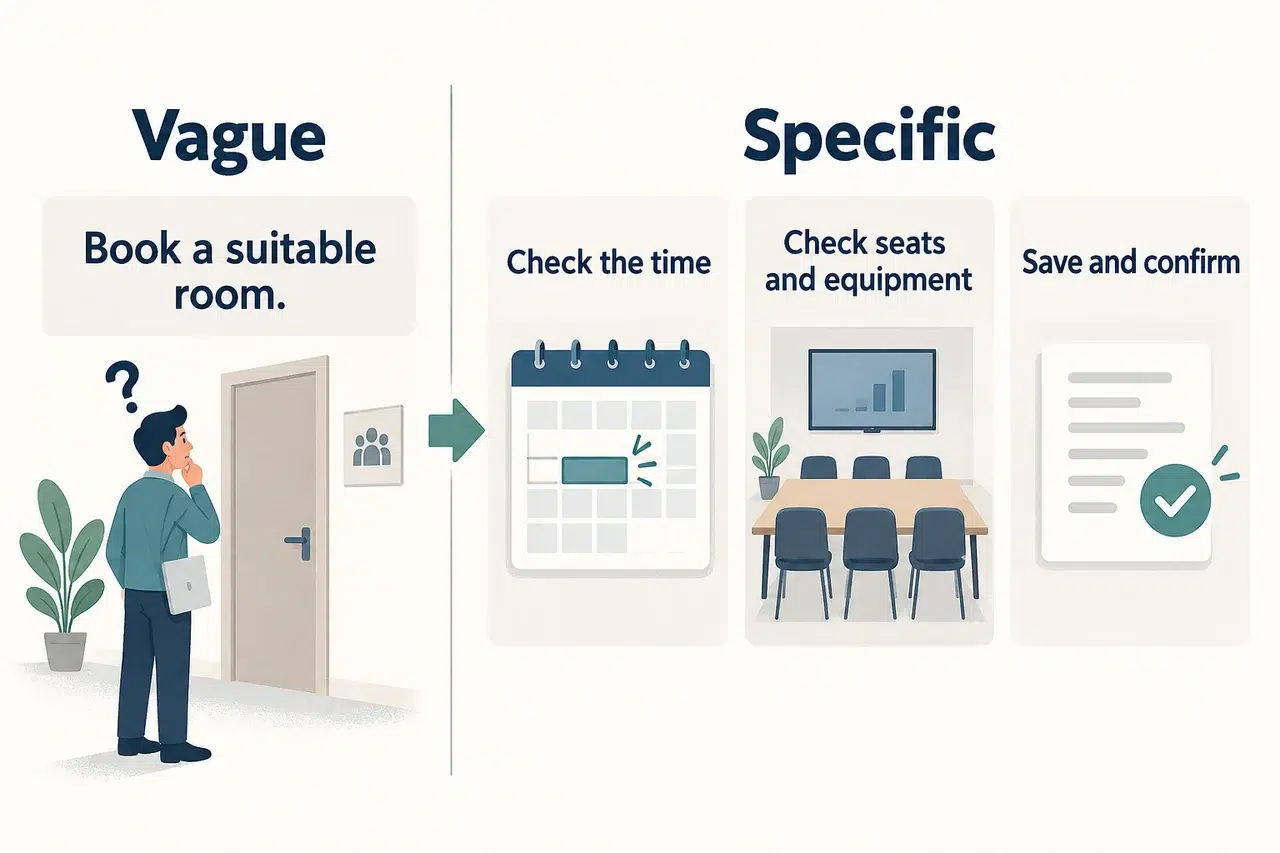
Written instruction: “Book a suitable room and confirm the details.”
Video narration: “Choose an available room for the full meeting time. Check that it has enough seats and the equipment you need. After saving, check the room, date, and time in your booking record.”
Now you have specific instructions and a list of visuals to prepare: availability, room details, and a saved booking.
For each scene, jot down these four things:
- Action: what the employee does.
- Visual: the screen, photo, or diagram that makes the action clear.
- Narration: the instruction they hear while that visual is visible.
- Completion check: what tells them the step worked.
Keep the full policy in the written SOP. Put the instructions needed for this particular task into the video, including any exception that changes the employee’s next action.
Example: A Meeting-Room Booking Video SOP
The sample below uses a simple room-booking workflow you can adapt to your own system. Before starting, the employee needs the meeting date, start and end times, number of attendees, and required equipment.
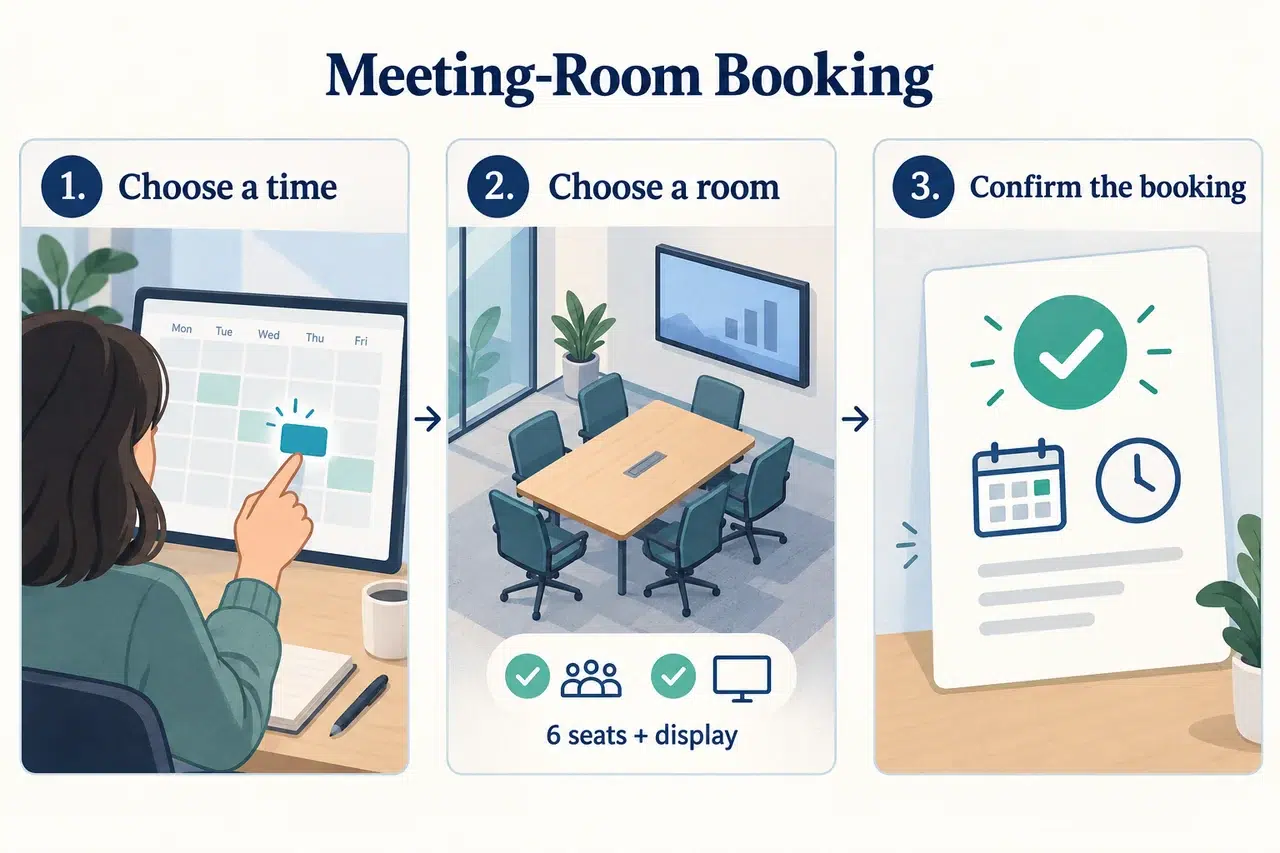
Scene One: Find an Available Time
Show: a calendar with the meeting’s start and end times selected.
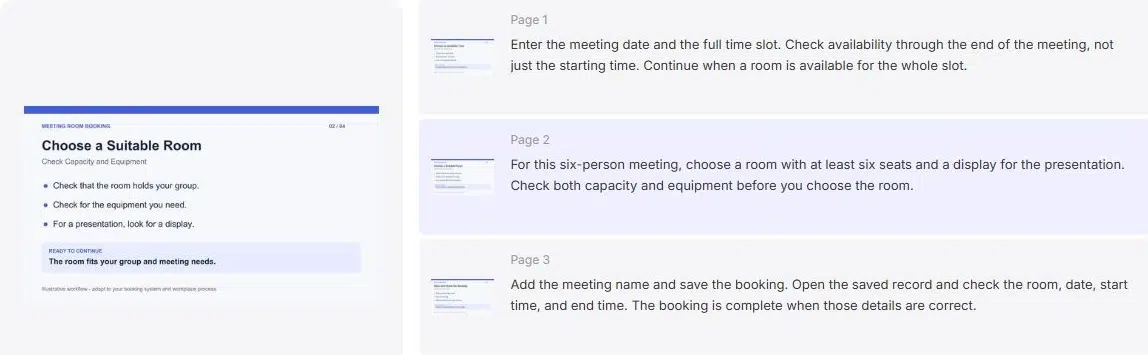
Say: “Enter the meeting date and the full time slot. Check availability through the end of the meeting, not just the starting time.”
Done when: the search covers the entire meeting and shows the available rooms.
Use a cropped calendar view with readable time labels. A full desktop screenshot would make the details harder to see on a phone.
Scene Two: Choose a Suitable Room
Show: room details with capacity and equipment clearly marked.
Say: “For this six-person meeting, choose a room with at least six seats and a display for the presentation.”
Done when: the selected room meets both needs and is available for the selected time.
This example gives the employee a reason for the choice. Replace the capacity and equipment with the requirements of your own procedure.
A Common Detour: The Room Is Unavailable
Place this explanation next to the room-selection scene, where someone would need it.
Show: a simple choice: another suitable room at the same time, or a different time for the original room.
Say: “If the room is unavailable, look for another room with enough seats and a display. If you change the meeting time, check with the attendees before saving the new booking.”
Whichever option the employee chooses, finish the explanation by showing them how to save and check the new booking.
Scene Three: Save and Confirm the Booking
Show: the completed booking form, followed by its saved record.
Say: “Add the meeting name and save the booking. Open the saved record and check the room, date, start time, and end time.”
Done when: the booking record contains the intended room and the correct time slot.
If your system requires approval, show its actual pending status and explain who approves it. Do not label a request as a confirmed reservation before that approval exists.
Create Your Video Standard Operating Procedure With Recastia
Use the PDF to Video tool to turn your prepared pages into a narrated walkthrough. Advanced Mode lets you enter a separate script for each selected page, so each instruction can accompany its matching visual.
- Prepare and Upload the PDF
Arrange the screenshots or diagrams in the order of the procedure, with a short action heading on each page. Add the unavailable-room explanation, including how to return to the booking step and confirm the new details.
Export the pages as a PDF. Choose a video template in Recastia, upload the file, and select Advanced Mode and the pages you want to include. - Match the Narration to Each Page
Enter the instruction beside its matching page. For the room-details page, explain the six-seat and display requirements while those details are visible. Put the confirmation instructions on the page showing the saved booking.
Use the names employees see in your system. “Select Save Booking” is clearer than “click the button on the right,” especially if the layout changes. - Set the Voice and Captions
Choose a narration voice and turn on Subtitle Display for captions. You can also choose the video ratio, avatar, visual effect, and background music to suit your walkthrough.
Keep form labels and confirmation details visible when choosing a layout. Describe important visual information in the narration as well: say “the room shows six seats,” rather than “check this number.” W3C’s accessible media guidance explains why captions and descriptions of visual information serve different needs. - Generate and Share the Walkthrough
Generate the video, then play it through. Check that each instruction accompanies the right visual and that employees can read the details they need to act on. Correct any mismatched page or script before sharing the video link or downloading the result.
Put the link to the full written procedure beside the video. Employees can watch the walkthrough and open the written steps when they need a quick reference.
For a broader introduction to the converter, see how to turn a PDF into a video.
Update the Video When the Procedure Changes
Record the SOP title, version, and content owner beside the video in your team’s documentation. When the procedure changes, use that record to find the video that also needs attention.
Update the part that changed:
- A field or button changed: replace the affected screenshot and its spoken name.
- A decision rule changed: revise the explanation and the example used to teach it.
- The completion check changed: show the new result employees should look for.
Generate the revised video and replace the old link wherever the procedure is shared. Updating the written document alone leaves the old instructions in the video.
Start With One Complete Task
Your first video standard operating procedure can cover a small task, such as booking a room. Give it a clear starting point, show each action, and finish with a result the employee can recognize.
Use the example above to prepare your PDF and narration. Before sharing your video standard operating procedure, have a colleague follow it and note any point where they need an extra explanation.
Bring Your PDF to Life With Recastia
Create, customize, and share your content in a more engaging way.
Frequently Asked Questions
Use enough time to demonstrate one complete task at a readable pace. If viewers need to skip through unrelated tasks to find their instructions, split the content into separate videos. Do not speed through a detailed form just to meet a short runtime target.
Use conversational instructions while preserving the procedure’s meaning. Keep exact field names, required values, and decision rules. Long background explanations can stay in the written document; the narration should help someone understand the action currently on screen.
Ask the person responsible for the procedure to confirm that the instructions are correct. Then ask a colleague unfamiliar with the task to follow the video. The first review catches process errors; the second reveals missing context, unreadable details, and unexplained terms.
Ask a colleague to complete the task with the video available, then compare the result with the SOP’s completion criteria. Record where they pause, make a wrong choice, or ask for help. Use those observations to improve the instructions rather than treating a video view as proof that someone learned the task.