
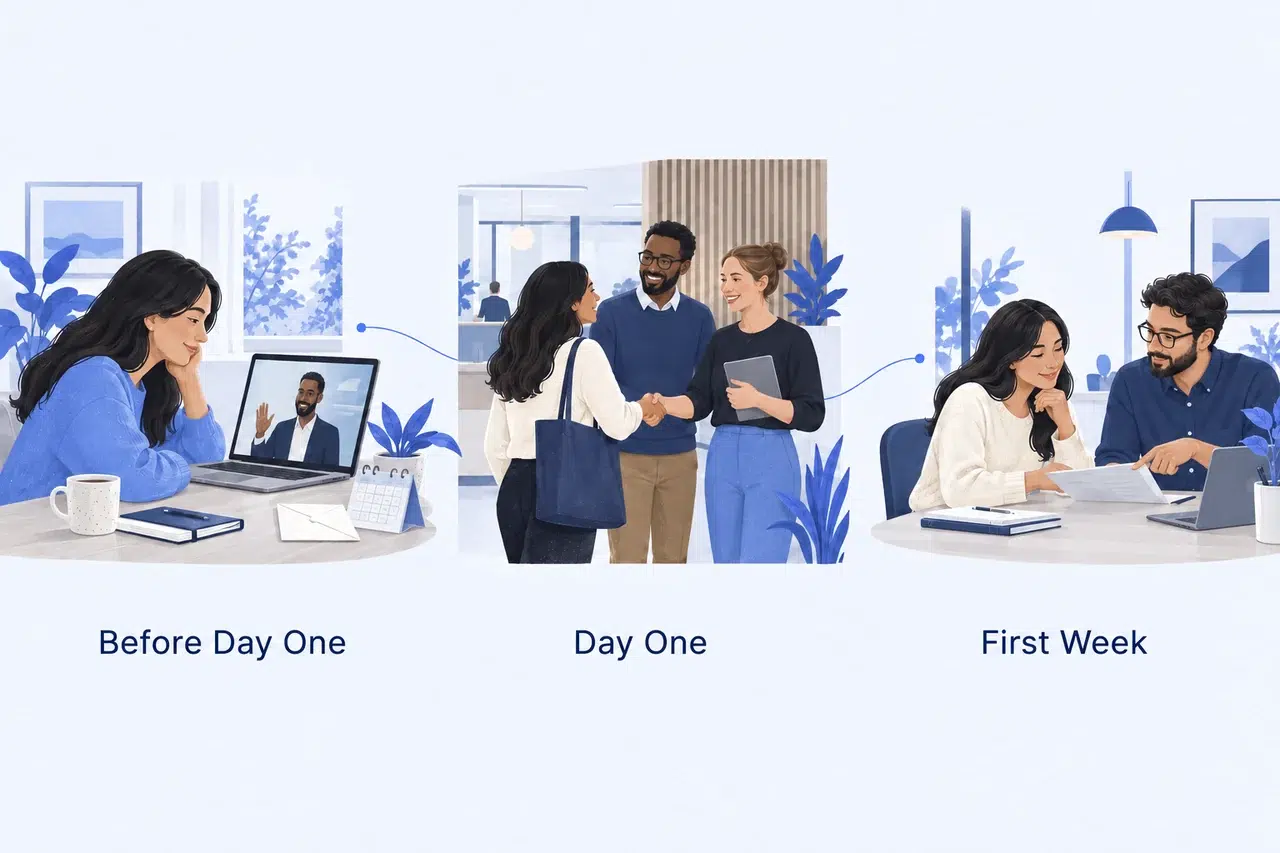
Employee onboarding videos introduce new hires to their team, explain what to expect, and show where to get help. This guide covers what to include in onboarding videos before the first day, on day one, and during the first week, with a sample you can adapt from existing PDF materials.
Key Takeaways
- Cover arrival details before day one, introduce people and the schedule on day one, then explain team-specific work during the first week.
- A first-day video can follow four scenes: a welcome, the morning schedule, help contacts, and the first-week checklist.
- Use existing welcome PDFs and team guides as source material. Add narration to explain the information on each page.
- Share meeting links, contact details, and the checklist alongside the video so new hires can open them without replaying it.
Plan Onboarding Videos Around the First Week
Give each video a clear place in the schedule. Someone preparing for their first morning needs arrival details; someone starting their first assignment needs instructions for that work. Send each video when the information becomes relevant.
Before the First Day: Explain What to Expect
Start with a welcome from the manager or team, followed by the practical details a new hire needs before arriving or logging in.
- Where to go: The office entrance and reception desk, or the link for the first remote meeting.
- When to arrive: The start time and time zone, plus the first appointment.
- What to prepare: Any equipment or documents the company has asked them to bring.
- Who to contact: A person who can help if travel, equipment, or access goes wrong.
Show the entrance if it is difficult to find. For remote employees, explain how they will receive the meeting invitation and where to ask for help before their work account is ready. Keep these details in the welcome email too, so nobody has to replay a video to find a time or address.
On Day One: Introduce the People and the Plan
A first-day video should help a new employee recognize the people they will meet and understand the day’s schedule.
Cover the company in a few concrete sentences: what it makes or does, whom it serves, and how the new employee’s team contributes. Then introduce the manager, onboarding buddy, and support contacts by name and role.
- Show: The day’s agenda, a simple team map, and the location of the onboarding checklist.
- Explain: Which meeting comes first, where account setup happens, and whom to ask about forms or equipment.
- End with: The next appointment or the checklist to open.
GitLab’s published onboarding buddy guidance gives a useful example: buddies introduce themselves before the start date and arrange an initial conversation. A video can introduce that person; the conversation gives the new hire time to ask questions.
During the First Week: Explain the Work
Once the new hire knows their way around, move to team-specific topics: the first assignment, regular meetings, shared files, and how to ask for feedback.
For example, a customer-support hire may need a video showing how a sample request moves between teams. A designer may need an introduction to the design library and review process. Keep customer names, credentials, and private employee details out of demonstration materials.
Separate introductions from detailed task training. A team overview explains what the team does and how colleagues work together. A video standard operating procedure shows how to complete one specific task.
Choose Material You Already Have
Your welcome pack, presentation slides, and digital employee handbook can supply much of the content. Select the parts that answer a new hire’s immediate questions instead of reading the whole document aloud.
- Welcome pack → arrival video: Use the schedule and location details. Add a spoken welcome and explain the first appointment.
- Team directory → team introduction: Show names and roles. Explain who handles common questions rather than narrating every job title.
- Handbook → finding-help video: Show where to find leave information, expenses guidance, and support contacts. Link to the full, current policies beside the video.
- Department guide → first-week introduction: Explain the team’s main responsibilities and the new hire’s first assignment. Save detailed procedures for separate videos.
Keep one shared company introduction and separate team-specific recordings. HR can maintain the common material while each manager keeps their team’s instructions current.
Example: A First-Day Orientation Video
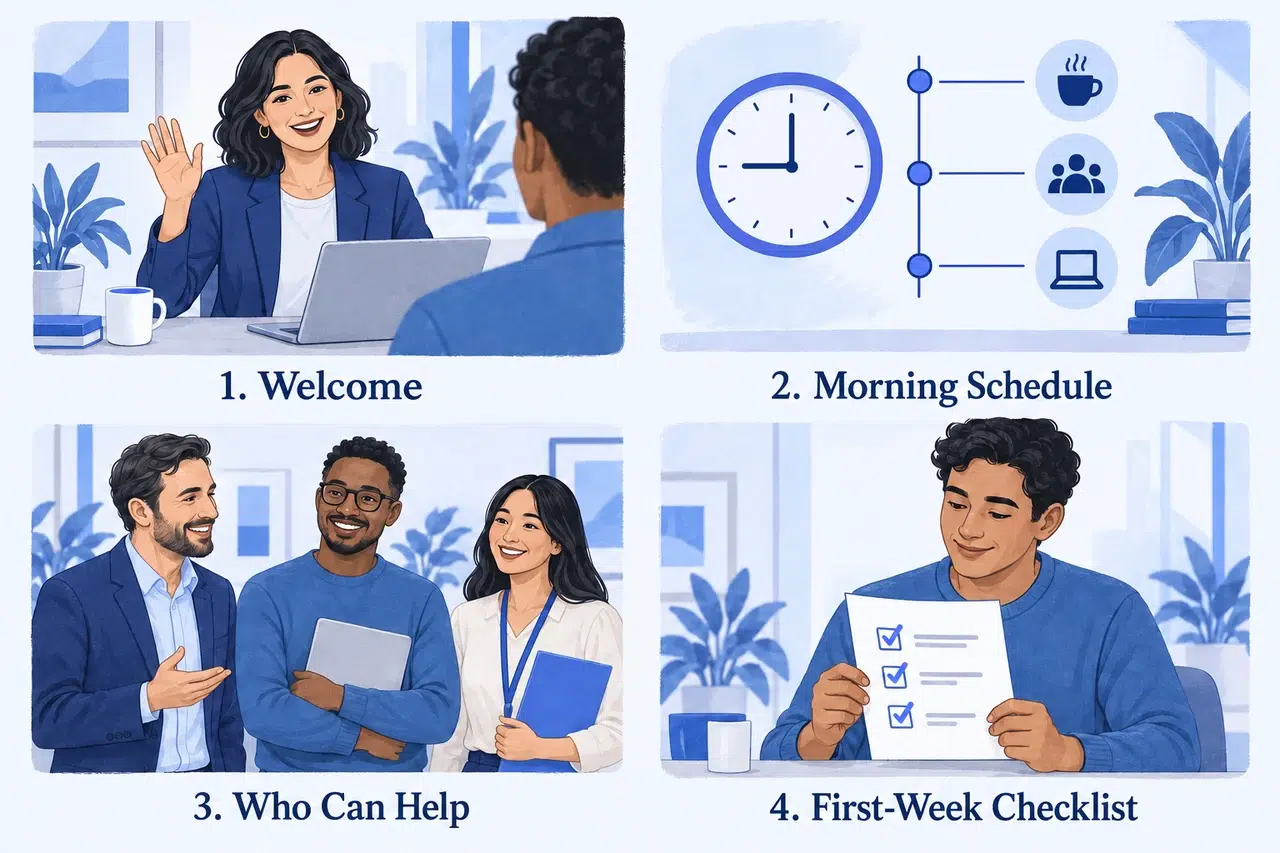
The following employee onboarding video example uses four PDF pages: a welcome, the morning schedule, help contacts, and a first-week checklist. The schedule and roles are illustrative; replace them with your company’s arrangements.
1. Welcome the New Hire
Use a welcome slide with the team name and a short agenda. If you want a personal greeting from a manager, record that person separately.
Sample narration:
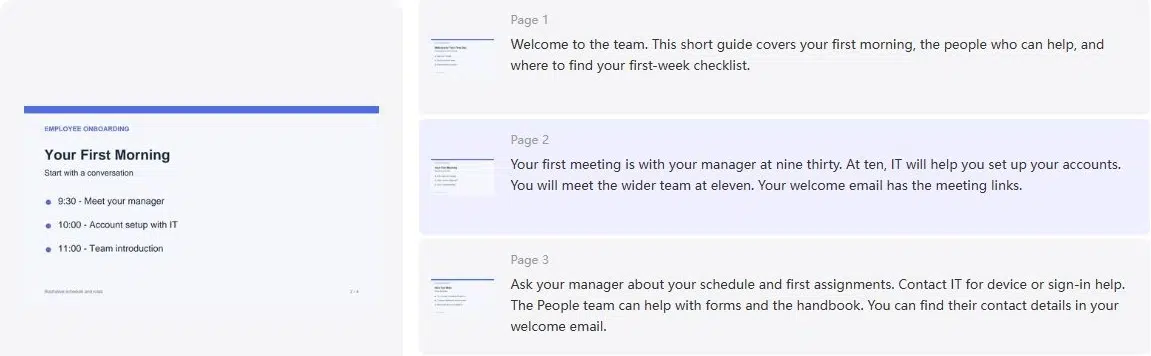
“Welcome to the team. This short guide covers your first morning, the people who can help, and where to find your first-week checklist.”
2. Walk Through the First Morning
Show the appointments in time order. Keep meeting links in the accompanying email so they are easy to open.
Sample narration:
“Your first meeting is with your manager at nine thirty. At ten, IT will help you set up your accounts. You will meet the wider team at eleven. Your welcome email has the meeting links.”
3. Show Where to Get Help
Put each contact’s name beside their role and the questions they can answer.
Sample narration:
“Ask your manager about your schedule and first assignments. Contact IT for device or sign-in help. The People team can help with forms and the handbook. You can find their contact details in your welcome email.”
4. Point to the First-Week Checklist
Finish by showing where to find the checklist and when to discuss questions with the manager.
Sample narration:
“After this video, open the first-week checklist in your welcome email. Add any questions you want to discuss with your manager at your first check-in.”
Send the video with links to the schedule, contacts, and checklist. Keep the full handbook and detailed training available as separate references.
Create Your Onboarding Video With Recastia
Use the PDF to Video tool to turn your prepared pages into a narrated video. For the four-page example above, Advanced Mode lets you write the spoken explanation beside each page.
Prepare a PDF containing the material your company has approved for uploading and sharing, then follow these steps.
- Choose a Template and Upload Your PDF
Choose a video template, such as Page Slide, and upload your orientation PDF. Select Advanced Mode, then choose the pages you want in the video. Keep each page focused on one part of the introduction, such as the morning schedule or help contacts.
- Add Narration and Customize the Video
Enter the relevant script beside each page. Enable Subtitle Display to show the narration as text, then continue to the video settings.
• Choose a voice for the narration.
• Explore the avatar and background music options to suit your welcome video.
• Choose a video ratio for the screen where employees will watch it.
For an introduction built around schedules and contact details, keep the text large and the narration clear. - Generate and Share the Video
Generate the video, then play it through. Listen for names and abbreviations, and confirm that the schedule matches the current welcome materials. Share the finished video’s link through your company’s approved onboarding channel, alongside the meeting links and checklist.
Make the Videos Easy to Find and Follow
Use descriptive titles such as “Your First Morning” or “Where to Get IT Help.” List them in viewing order on the onboarding page or in the welcome email.
Before sending, check these details:
- Access: New hires can open the video and linked resources at the stage when you send them. Work-account access may not exist before their first day.
- Readable text: Names, times, and instructions remain legible on a phone.
- Captions: Spoken information appears accurately as text. W3C’s caption guidance also covers meaningful non-speech sounds when they are needed to understand a video.
- Current information: A named colleague is responsible for updating each video when contacts, meeting times, or procedures change.
After the first few new hires have watched the videos, ask what was still unclear. If everyone struggles to find the IT contact, make that information easier to find in both the video and the welcome message.
Start With the First-Day Questions
Build onboarding videos around the questions new hires need answered first: where to go, whom to meet, and how to get help. Start with a welcome PDF and the four-scene example, then add team-specific onboarding videos as the first week’s tasks require them.
Bring Your PDF to Life With Recastia
Create, customize, and share your content in a more engaging way.
Frequently Asked Questions
Keep each video to one clear topic. Read the script aloud while showing the slides; remove anything that belongs in a later lesson or written reference. Split a recording when it moves from an introduction into a separate task, rather than stretching it to cover the whole onboarding program.
Translate the script and any text on the slides, then ask a fluent colleague to review names, workplace terms, and instructions. Keep the schedule and contact details consistent across versions. Give each version a clear language label so new hires can choose the one they need.
No. A narrated PDF can explain schedules, team responsibilities, and where to find resources. Film a colleague when a personal welcome matters, or record a demonstration when employees need to see a physical task. Choose the format that shows the information clearly.
Send the agenda, contact details, and next steps by email or PDF while IT helps resolve the access problem. Include the first appointment’s time and joining instructions, so the employee can start their day without waiting for the video to work.