
Buyers can miss a product’s purpose when a brochure opens with specifications. A PDF to explainer video workflow lets you show the product while a voiceover connects its details to a specific use.
This PDF to explainer video guide uses Recastia to turn a three-page product brief into a narrated walkthrough. You will choose the pages, write an explanation for each one, set the presentation style, and prepare the finished video for a customer follow-up.
Create a Product Explainer With Recastia
Recastia’s PDF to Video tool combines document pages with narration, subtitles, and video templates. Keep your product photographs and layouts on screen while the narration explains their use.
Advanced Mode gives each selected page its own script. Use the overview to introduce the product, the feature page to explain its details, and the final page to give the buyer a next step. AI Copywriting can provide a starting script for you to edit before generating speech.
Choose the Product Pages Buyers Need
Build the video around one product and one next step. A product range overview, a detailed specification sheet, and an installation manual answer different questions; putting all three into one short clip can bury the introduction.
For this walkthrough, a two-person meeting pod brochure supplies three pages:
| Page | What the Page Shows | What the Narration Explains |
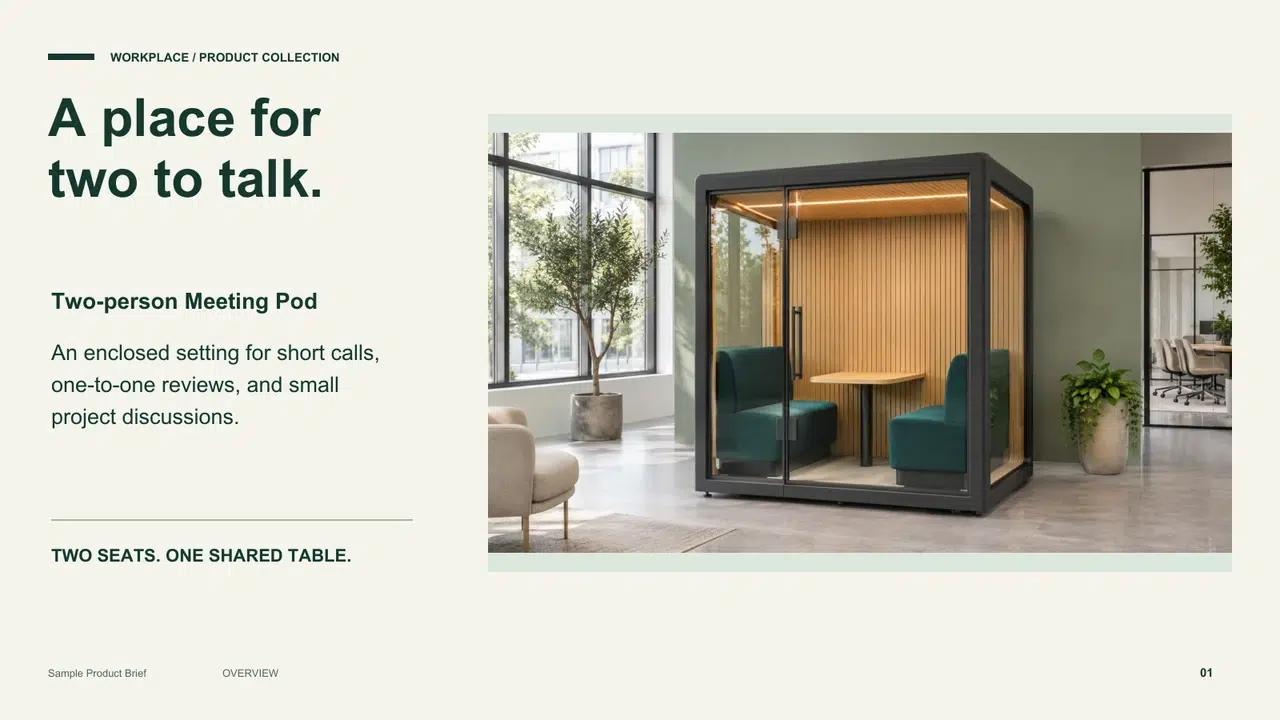
| Product overview | The enclosed pod, two seats, and shared table | The short calls, reviews, and discussions it is designed for |
| Interior details | Glass entrance, seating, table, and lighting | How those parts form the two-person layout |
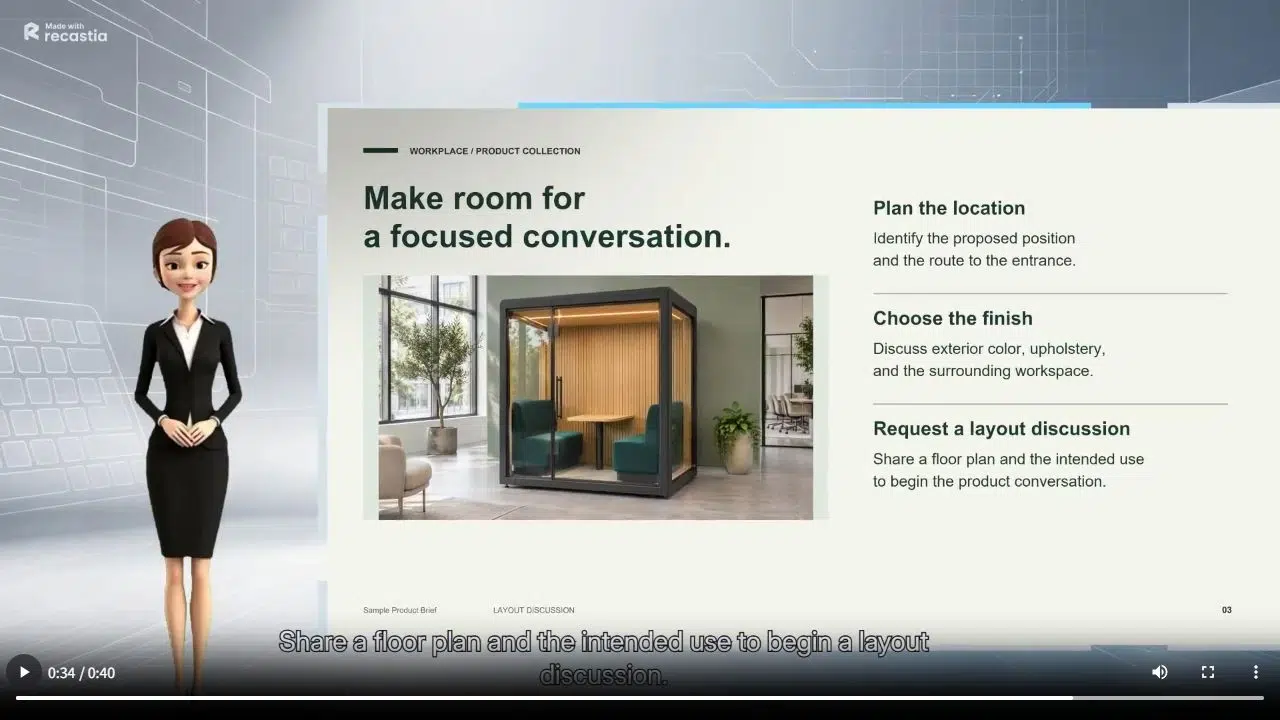
| Planning the location | Position, access, and finish choices | What to prepare for a layout discussion |
End with a request the buyer can act on. For the meeting pod, ask for a floor plan to begin a layout discussion.
Use a clear product photograph and short headings. Keep important dimensions, labels, and product names away from the area where subtitles or a presenter will appear. Revise the PDF first if its visible copy needs changing; editing the narration changes the spoken explanation.
Turn a Feature Into a Spoken Explanation
Explain why the visible detail matters to the buyer. The meeting pod brochure describes two seats facing a shared surface. The narration expands that into a short explanation of the layout:
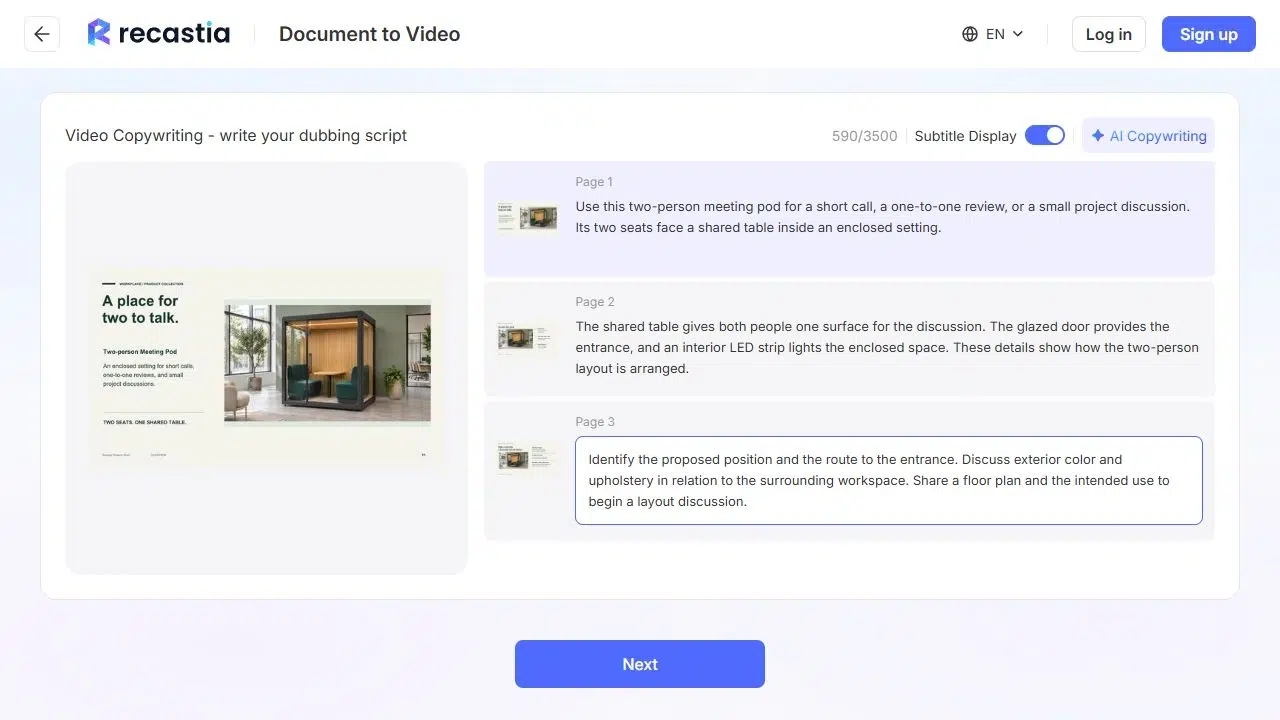
The shared table gives both people one surface for the discussion. The glazed door provides the entrance, and an interior LED strip lights the enclosed space. These details show how the two-person layout is arranged.
Keep technical claims within the brochure’s stated information. An enclosed design alone does not establish an acoustic rating or prove that the pod fits a particular office.
For the last page, make the action specific. The closing narration asks the buyer to identify a position, consider the entrance route, discuss finishes, and share a floor plan for a layout discussion. Use the equivalent next step for your product.
How to Create a Product Explainer Video With Recastia
Use Presenter Slideshow and Advanced Mode to give each selected PDF page its own narration.
- Upload the Product PDF and Choose a Template
Upload your prepared brochure in the PDF to Video tool. Select Presenter Slideshow or another suitable template. Keep the product photograph and specifications readable.
- Choose Advanced Mode and Select the Pages
Choose Advanced Mode and select the overview, relevant feature pages, and closing action. Keep them in the sequence prepared in your source PDF.
- Edit the Narration for Each Page
Choose AI Copywriting and a language, or Manual Input for approved copy. Edit each script beside its page, keeping product facts and qualifiers consistent with the source.
- Set the Voice, Subtitles, and Presentation Style
Choose a voice and enable subtitles. Use 16:9 for a landscape brochure. Keep the presenter away from key information, and select No Music for narration alone.
- Generate and Review the Product Video
Generate the video and play it through. Check the page sequence, product names, numbers, and subtitle placement. Correct mistakes in the script or source PDF before rendering again.

- Prepare the Video for a Customer Follow-Up
Use Download for a video file and sign in if prompted. Check your account’s download access, then prepare the accompanying message for your customer.
Use the Video in a Customer Follow-Up
Introduce the video with one sentence that explains why you are sending it. For the meeting pod, a follow-up could say: Here is a short overview of the two-person layout. Send us your proposed location and floor plan if you would like to discuss how it could fit your workspace.
Keep the floor-plan request alongside the video, with a reply or inquiry link in the accompanying email or webpage.
For another customer or application, adjust the page selection and script. A facilities manager may need the layout and access discussion; a colleague reviewing finishes may need a different detail page. Keep the product facts consistent across versions.
Frequently Asked Questions
It can explain the photographs, diagrams, and information in a product PDF. If a buying decision depends on seeing a mechanism move, a screen interaction, or a physical task, include an appropriate recorded demonstration in your wider sales material. A narrated brochure should not imply that it shows actions absent from its pages.
Choose the language when generating the script and select a suitable narration voice. Review product names, technical terms, and units before rendering. The printed text remains part of the PDF page, so prepare a translated source document when the visible headings and specifications also need another language.
Use the currently approved brochure and script. If the video contains a price, offer, availability statement, or delivery estimate, confirm it before sending the clip. Make a revised version when those details change instead of continuing to share an outdated product explanation.
Use it only when its visible pages and narration accurately describe all the variants you are discussing. Different capacities, materials, or configurations may need separate pages and scripts. Keep the relevant product name clear so the buyer can connect the video to the correct quotation or specification sheet.
Conclusion
A PDF to explainer video workflow helps you explain a product’s use, details, and next step while its brochure pages remain visible. Recastia’s page-specific narration lets you connect the spoken explanation to the photograph or feature the buyer is seeing.
Start your PDF to explainer video project with a focused product brief. Choose the relevant pages, edit the narration against the source, and review the finished clip before using it in a customer conversation.
Bring Your PDF to Life With Recastia
Create, customize, and share your content in a more engaging way.