
Five minutes before a meeting, the room display says No Signal. The host needs to know which cable to reseat and what to try next. A quick reference guide puts those answers beside the touch panel.
To build a quick reference guide from a long manual, pick one task, keep the actions and exceptions that can change the outcome, and put them in the order people will need them. The example below turns a meeting-room AV manual into a one-page card for hosts, with setup steps, two common fixes, and a clear point to call for help.
What Belongs on a Quick Reference Guide?
A quick reference guide is a short job aid someone can consult while doing a task. A room host can follow it to start a meeting. Facilities staff can still use the manual to understand the wiring, set up a replacement device, or troubleshoot a failure that the card cannot resolve.
Write for a person standing in a particular place, trying to get a particular result. For this example, the host is at the meeting table with a laptop and a wired room system. The task is complete when the room display shows the intended content and a remote participant can hear the host. That gives you a useful cut line. A rear-panel port diagram can stay in the manual. A microphone setting the host needs to choose belongs on the card.
How to Turn the Manual Into One Page
The room in this example has a labeled USB-C cable, a touch panel with a Laptop source, and a meeting audio option called Room Audio. Use the control names and help route from your own room.
- Start With the Moment People Get Stuck
Ask the support team what hosts call about and look for the repeated decisions. Suppose the common questions are “How do I show my laptop?”, “What does No Signal mean?” and “Why can nobody hear me?” These questions are narrow enough for one card. Reserving the room, pairing a wireless device, and resetting the controller can each go somewhere else.
- Pull Out the Steps, Checks, and Exceptions
Mark the parts of the manual that tell the host what to do, what a successful step looks like, or when to stop. Keep prerequisites beside the step they affect. For example, if a laptop charger is needed for that room configuration, put it in the pre-meeting check. Keep equipment details that only a technician can act on in the full manual.
- Rewrite Each Instruction Around a Visible Cue
Use the words that appear on the equipment. “Tap Laptop on the touch panel” is easier to follow than “Initiate laptop source selection.” Put an expected result immediately after the action. For a failure, write the cue first, then the remedy. “No Signal” is a better label than “Video troubleshooting” when the host is staring at that exact message.
- Check the Card in the Room
Give the page to a colleague who rarely uses the room. Ask them to start a call and show a slide with your help out of reach. Then ask what they would do if the display said No Signal. Watch where they hesitate. If they reach for a loose charging cable before finding the labeled room cable, change the instruction or label the cable. Ask the room owner to verify the final control names, support route, and printed revision date.
What Changed From the Manual to the Card?
The differences below show how to cut pages without cutting the decisions a host needs.
| Manual Material | What Goes on the Card | Why |
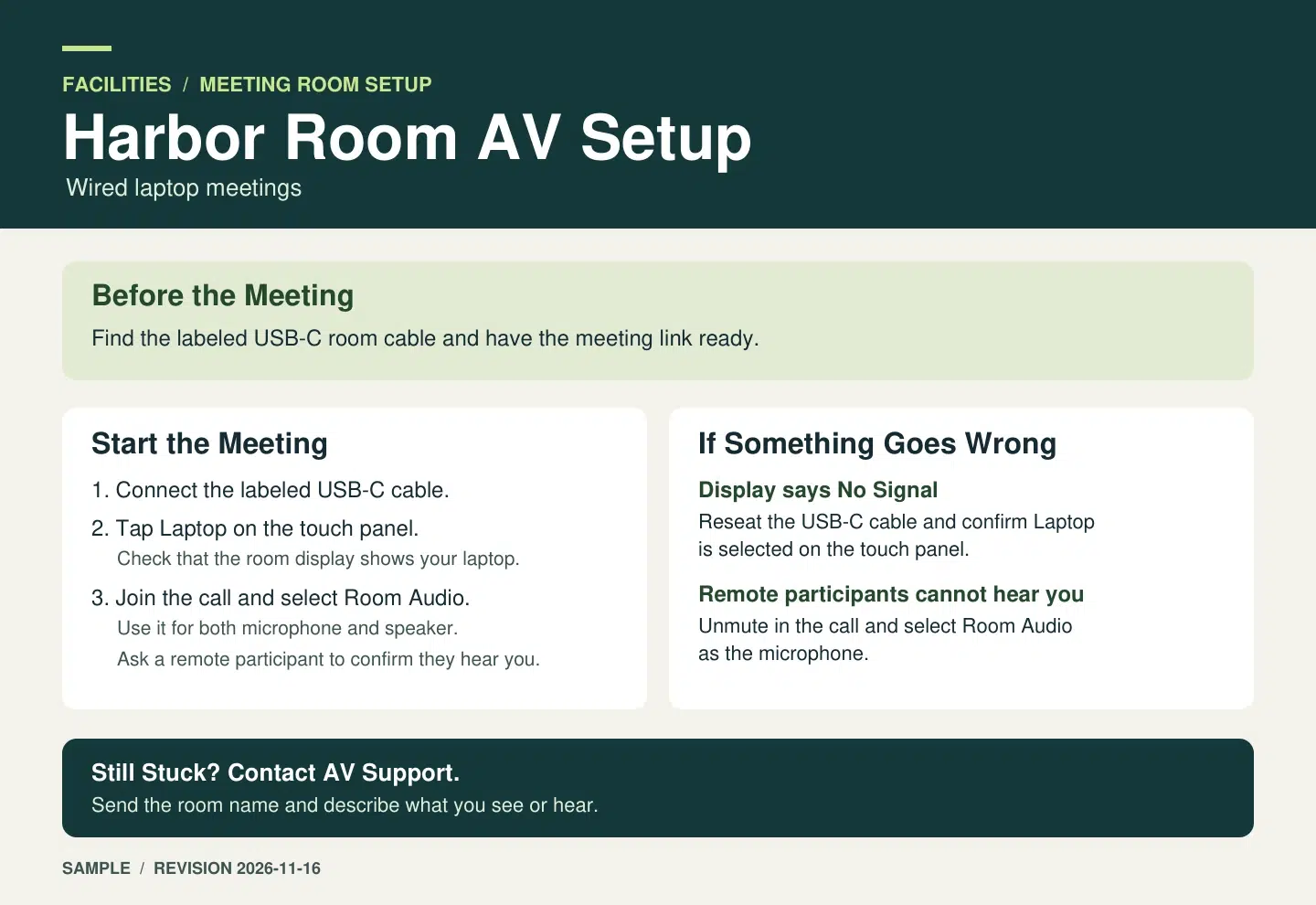
| Hardware inventory and rear-panel diagram | Keep this in the manual. Put Connect the labeled USB-C cable on the card. | Hosts need to identify the cable they can reach. |
| Controller chapter covering all input sources | Tap Laptop. Check that your laptop appears on the room display. | The host gets one action and can tell when it has worked. |
| Detailed diagnostic instructions | No Signal: reseat the cable and confirm Laptop is selected. | The host gets one quick check before escalating. |
| Audio troubleshooting chapter | Remote participants can’t hear you: unmute in the call and select Room Audio as the microphone. | The host can check the microphone source before calling support. |
| IT ticket and escalation policy | Still stuck? Contact AV Support with the room name and what you see or hear. | Support can identify the room and start from the symptom. |
A usable one-page job aid leaves space around the actions. Keep Before the Meeting, Start the Meeting, If Something Goes Wrong, and the support route easy to distinguish. Put the revision date in the footer so anyone replacing a printed copy can verify which version belongs in the room.
Give Hosts a Copy They Can Find
Put the card where the question comes up. A printed copy can sit by the touch panel, and a digital copy can live with the room booking details. If rooms use different control labels, make that clear in the title. “Harbor Room AV Setup” gives hosts more confidence than “Meeting Guide.”
For a browser version, Recastia can use the approved one-page PDF to generate a Document to Landing Page draft. Review the generated headings and text against the card, including the two troubleshooting cues and the point to contact AV Support. Edit the page copy and add the correct link to the full manual or help desk. Open the finished page on a phone and check that staff can reach the help link through the channel your organization approves.
Frequently Asked Questions
Use one card if the rooms share the same setup sequence, control names, and support route. If one room uses a USB-C cable and another uses a wireless receiver, give each room its own card and put the room name at the top. A quick scan should tell the host they have the right instructions.
Use a photo when someone may choose the wrong cable or press the wrong control. Crop it to the part they need to identify and add a plain-text label. A full screenshot is useful only if the layout itself helps the host find the control.
Look for a second task. If setup fits but wireless troubleshooting takes another half page, give wireless its own card and link to it from the setup guide. Keep any warning or decision that changes what the host should do next on the first card.
Review it when the room controls, support route, or login requirements change. Keep an editable master and a short list of where copies are posted. When you release a revision, replace the printed copy as well as the digital version.
Conclusion
A quick reference guide works best when it helps someone finish one task. For a meeting-room host, keep the startup sequence, the signs that it worked, and the two checks they can make before calling for help.
Before you share your quick reference guide, ask someone to follow it at the equipment. Fix the first point where they have to guess.
Bring Your PDF to Life With Recastia
Create, customize, and share your content in a more engaging way.