
A portfolio can look right in the editor and still be awkward to submit. A job application may need a PDF file; a client may prefer a link they can open immediately. Choose a PDF portfolio maker for both the pages you need to create and the way you need to send them.
This comparison covers seven tools for designers, photographers, architects, and other creative professionals. It separates page-design tools from services that publish a finished PDF online, with practical advice on export quality, video work, and editable files. The right PDF portfolio maker depends on which part of that work you still need to finish.
Key Takeaways
- Recastia and FlipHTML5 publish an existing portfolio PDF as an online edition.
- FlipBuilder creates flipbooks on your desktop, with HTML files for hosting and a Windows offline edition.
- Canva and Adobe Express suit template-based portfolios that you want to download as a PDF.
- Adobe InDesign and Affinity give you more control over multipage layouts and PDF output.
- Keep a PDF file for applications that require an attachment or upload. An online reading link is a separate delivery option.
- Agree on the editable source format before choosing a tool for a client project.
Compare the PDF Portfolio Maker Tools
Start with what you already have. If your project images and explanations still need arranging, choose a design tool. If your PDF is ready, choose a publishing tool for its online edition. You can use one of each: create the PDF in a layout application, then publish those pages for browser viewing.
| Tool | Where You Start | What You Deliver |
| Recastia | A finished portfolio PDF | An online flipbook for browsing and sharing |
| FlipHTML5 | A finished PDF to enrich online | An online portfolio with links or multimedia |
| FlipBuilder | A finished PDF to convert on your desktop | HTML flipbook files or a Windows offline edition |
| Canva | Project images and short descriptions | A template-based portfolio PDF |
| Adobe Express | Images and copy needing a designed document | A portfolio PDF created in a template-led editor |
| Adobe InDesign | A multipage layout requiring detailed control | A PDF with selected export and navigation settings |
| Affinity | A layout with photographs and vector artwork | A PDF exported from a desktop design document |
These are the roles used in this comparison, not a complete list of every format each product accepts. None of the online-publishing recommendations replaces a required PDF submission.
1. Recastia
Recastia turns a finished portfolio PDF into an online flipbook. Use its PDF to Flipbook feature when you already have the page design and want clients to browse it in a browser.
Key Features
- PDF-to-flipbook conversion for prepared portfolio pages.
- Page-turn navigation and a fullscreen reader.
- An online edition to share alongside your original PDF.
Pros
- Keep the layout you designed instead of rebuilding each project as a web page.
- Give a client a page-by-page presentation of your photographs or case studies before a meeting.
Cons
- This workflow starts with a finished PDF. Make changes to typography, images, and captions in your source document first.
- A reading link does not replace a PDF attachment when an application requires one.
Best For
Designers and photographers with a completed PDF who want an online portfolio edition for client introductions.
For help selecting and arranging projects, see our guide to organizing a portfolio flipbook.
2. FlipHTML5
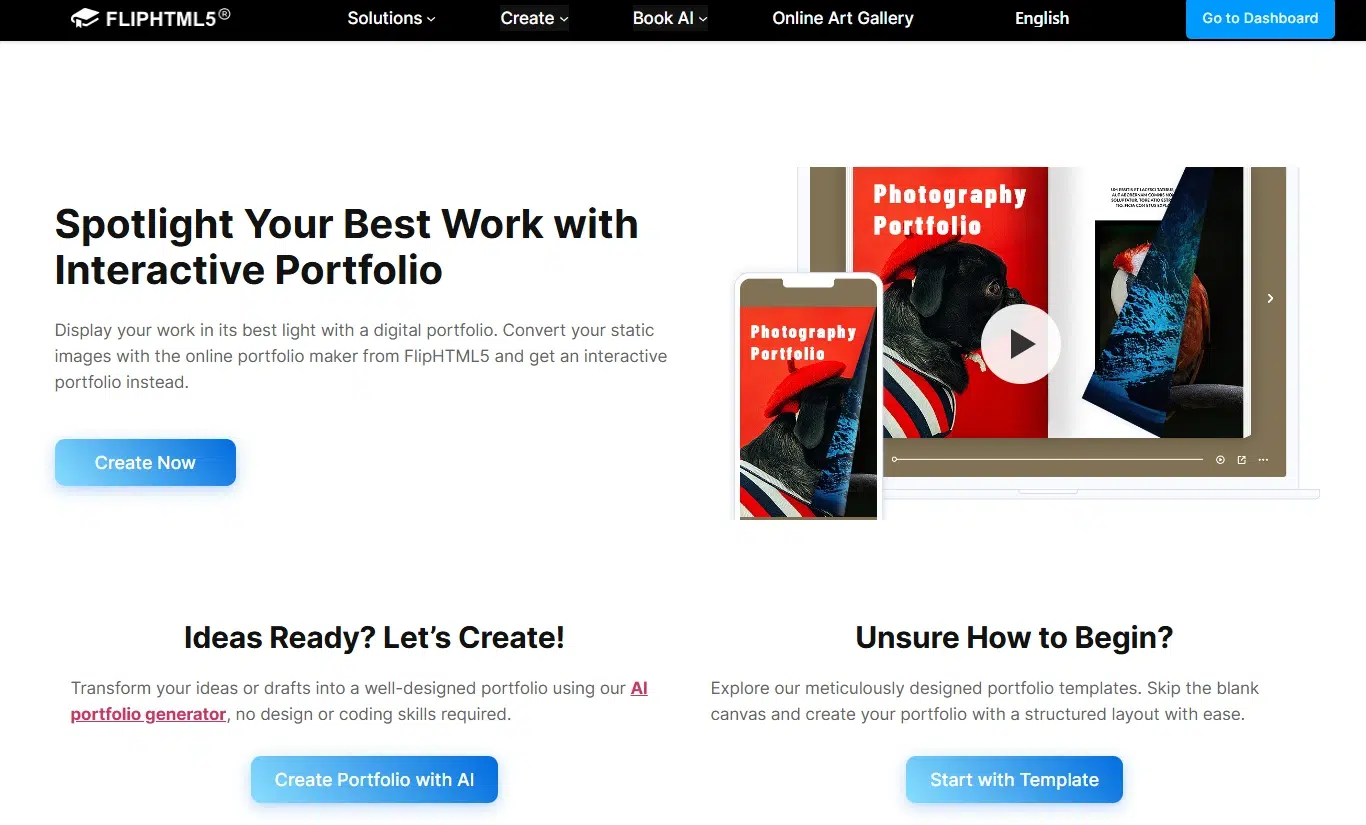
FlipHTML5 publishes a finished portfolio PDF online and lets you add supporting media. It is useful when a still image cannot explain the whole project, such as an animation or a filmed installation.
Key Features
- An online portfolio with a reading link or website embed.
- A multimedia editor for video, audio, and hyperlinks.
Pros
- A motion designer can place a video demonstration beside a project image.
- A photographer can link a selected series to additional work without filling the PDF with more pages.
Cons
- Check the plan requirements for the multimedia features you need.
- Keep the PDF understandable without online media. Include a representative still, a project description, and a separate video link where submission rules allow it.
Best For
Motion designers and other creatives who need an online portfolio with supporting video, audio, or project links.
3. FlipBuilder
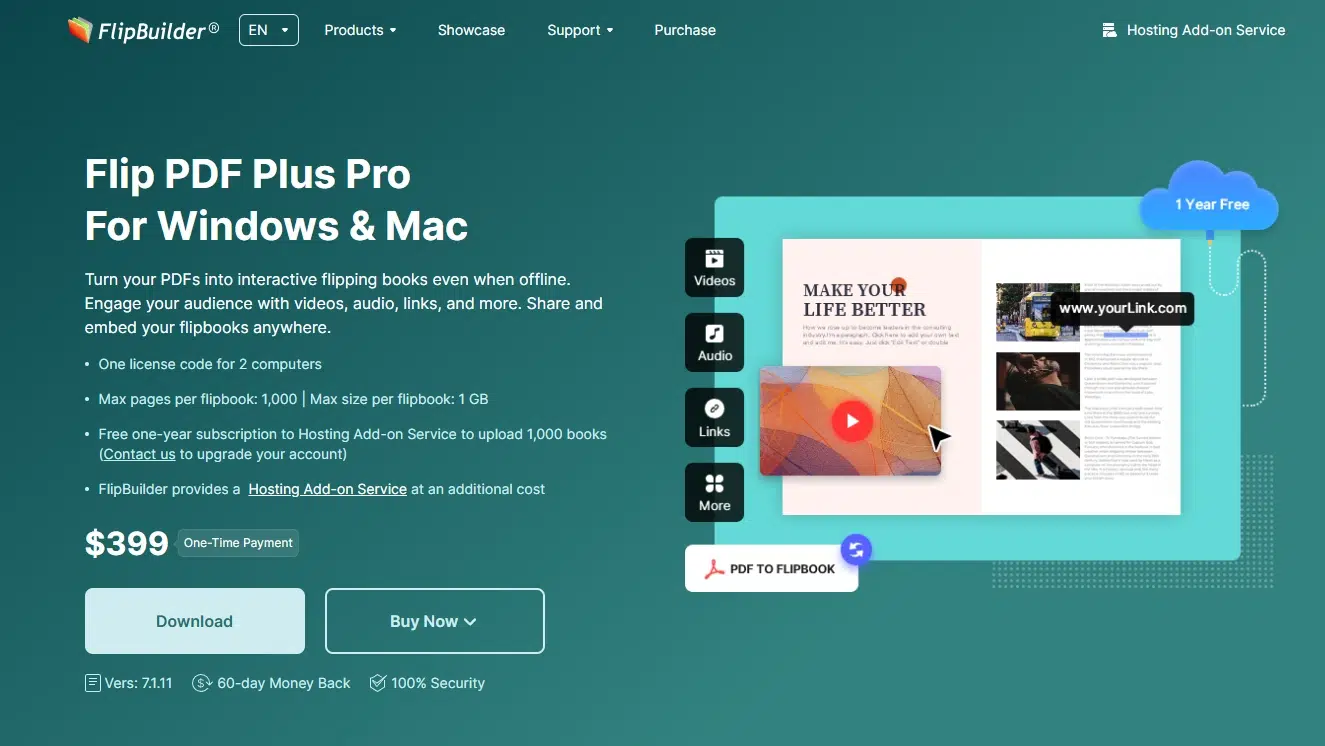
FlipBuilder’s Flip PDF Plus Pro converts a portfolio PDF into a flipbook on Windows or Mac. Choose this desktop route if you want to manage the publication files yourself.
Key Features
- A Pro multimedia editor for video, audio, images, and links.
- HTML publication files for your own web hosting.
- A Windows EXE edition for local presentations.
- A separate Hosting Add-on Service.
Pros
- A studio with its own website can host the exported HTML publication there.
- A Windows offline edition provides a local presentation option where running an executable is permitted.
Cons
- HTML files need hosting before you can send a public reading link.
- A Windows EXE will not run in a phone’s browser. External videos and links may still need internet access.
- The basic Flip PDF Plus edition does not have the same multimedia editor as Pro.
Best For
Studios that prefer desktop production and want to host their portfolio publication files themselves.
4. Canva
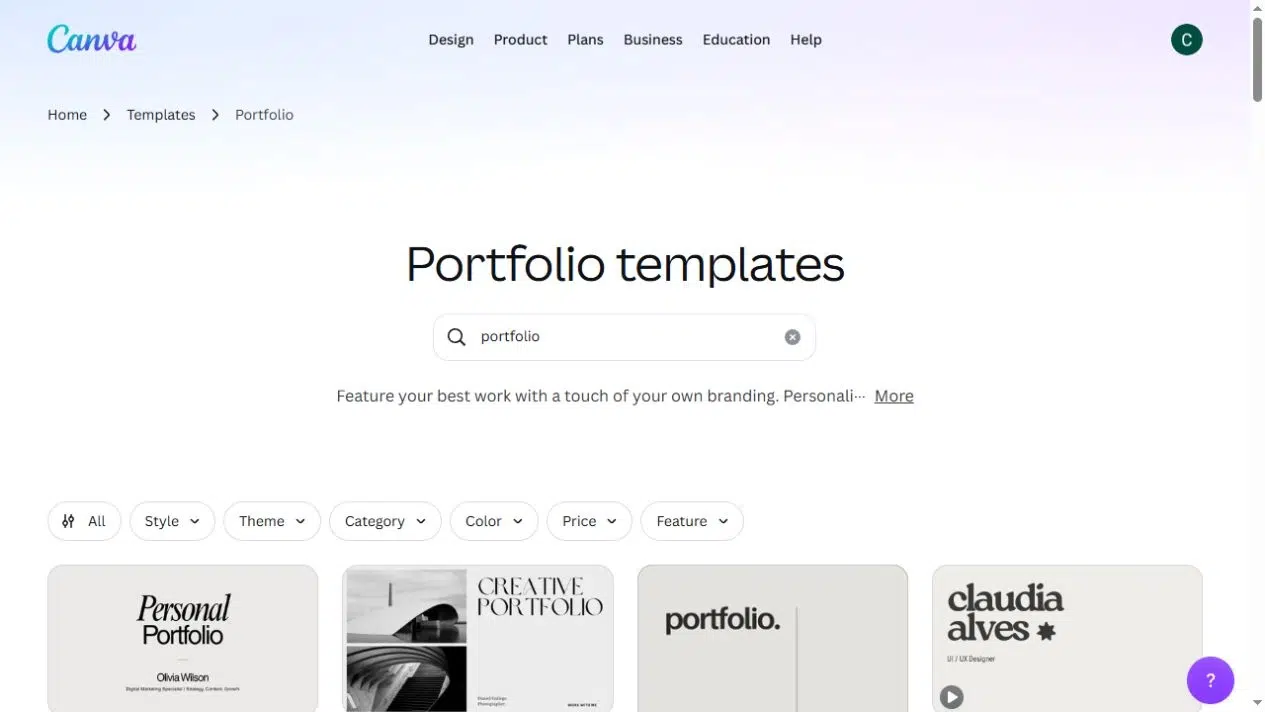
Canva helps you arrange project images and copy in a portfolio template. It suits a short document when you want a starting layout rather than a blank page.
Key Features
- Portfolio templates with editable images, text, fonts, and colors.
- Duplicate pages for a repeatable project layout.
- PDF Standard and PDF Print exports for different delivery needs.
Pros
- A template gives a freelancer an initial grid for project images, descriptions, and credits.
- Reusing a page design makes several case studies look consistent without laying out each one from scratch.
Cons
- A template built around large photos may need substantial adjustment for architectural drawings or detailed interface work.
- Check access to premium templates and assets before committing to the design.
- Choose a multipage document for a paginated PDF; a portfolio website is a different output.
Best For
Freelancers and students creating a short portfolio PDF from images and project descriptions.
5. Adobe Express
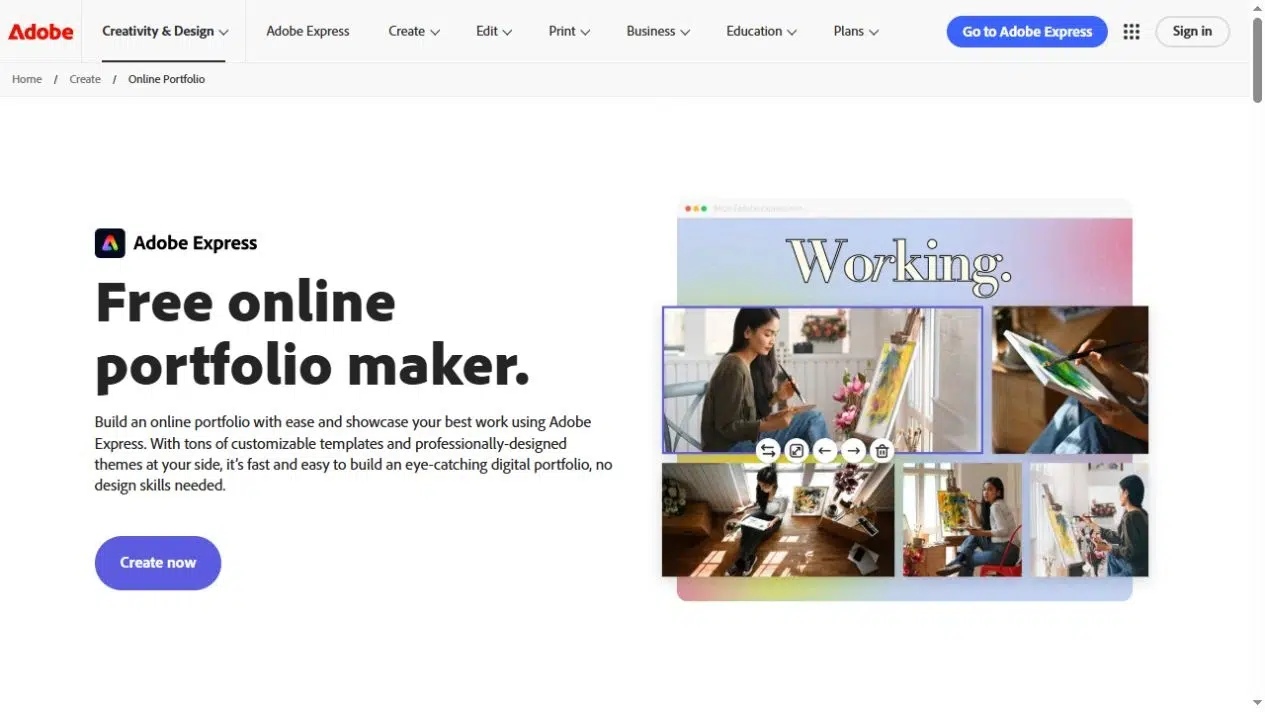
Adobe Express provides a template-based editor for a portfolio document. Its review-sharing options are useful when you want feedback before exporting the final PDF. It is separate from Adobe Portfolio, Adobe’s portfolio website product.
Key Features
- Portfolio templates for combining images and text.
- Design sharing for viewing, commenting, or editing.
- PDF download for emailing, printing, or uploading.
Pros
- A colleague can flag unclear descriptions or weak images while you can still revise the design.
- You can prepare a designed document for a submission that requires a file rather than a website link.
Cons
- Choose the document workflow if you need a PDF; Express’s webpage workflow serves a different purpose.
Best For
Creatives who want a template-based portfolio PDF and feedback from colleagues before export.
6. Adobe InDesign
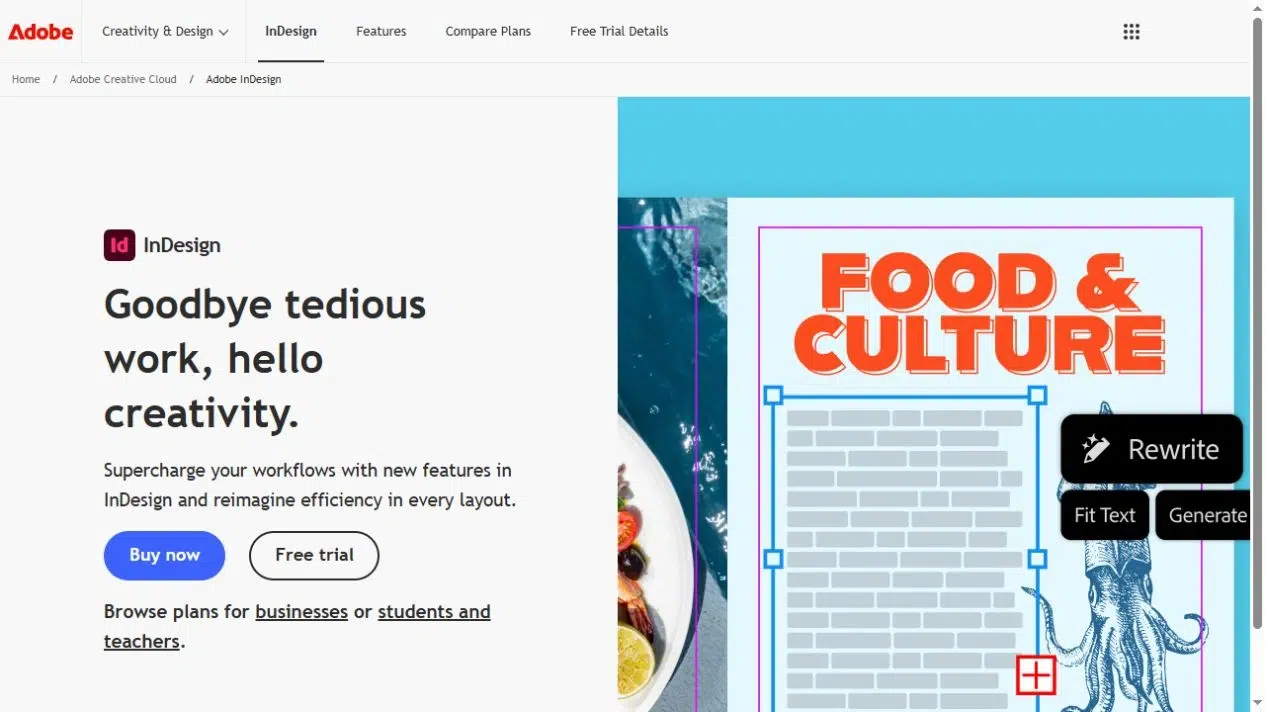
InDesign gives you detailed control over the portfolio’s typography, page grid, and image placement. It is a good fit when the layout itself is part of the work you want to demonstrate.
Key Features
- Desktop multipage layout with precise typography and image placement.
- PDF export presets and settings for image quality and file size.
- PDF hyperlinks and bookmarks for navigating project sections.
- A Links panel for managing external graphics.
Pros
- Build a custom page system for detailed drawings, captions, and longer case studies.
- Create separate screen and print PDFs from the same source, with export settings suited to each destination.
Cons
- You need to make more layout and export decisions than in a template-led editor.
- Missing original graphics can affect export quality; a high-quality preset cannot restore a missing image.
- An editable handoff needs the required linked assets, not just the layout file.
Best For
Graphic designers and architects who need custom layouts, controlled PDF exports, or an InDesign source-file handoff.
7. Affinity
Affinity combines page layout with pixel and vector editing in one desktop application. Its Layout Studio suits portfolios that mix photographs, illustrations, and designed project pages.
Key Features
- Multipage documents, master pages, and shared text styles.
- Pixel, vector, and page-layout work in the same application.
- Individual-page or full-document PDF export for screen or print.
- InDesign IDML import.
Pros
- Adjust artwork and its page layout without moving between separate applications for those tasks.
- Use master pages and text styles to keep a longer portfolio consistent.
Cons
- Its layout page documents IDML import, but not INDD or IDML export. Confirm compatibility if a client expects to continue editing in InDesign.
Best For
Designers combining photography and vector artwork who want desktop layout tools and do not require an editable InDesign delivery.
For a printed portfolio, follow your printer’s specifications for bleed, crop marks, and other output settings.
Choose the Delivery Format Before You Export
An application form may specify a PDF file and a maximum size. A client may need an editable layout as well as the final pages. Check those requirements before spending time on a design or publishing service.
For a Job Application
If the form asks for a PDF, send a PDF. Follow its file-size limit and open the exported file to check that small labels and project details remain legible. A browser link can be an additional option if the form permits it, but it does not replace an attachment field.
For a Client Introduction
A reading link is convenient for an initial conversation, especially when you already have a designed PDF. Keep an attachment version available if the client wants to save it for an internal review. For a confidential project, use a version you have permission to distribute and confirm the publishing service’s access controls before uploading.
For Motion or Interactive Work
An online edition can include supporting media where the platform permits it. Give the PDF a still image and a meaningful explanation too. Do not rely on a video playing inside every PDF viewer; provide a separate link where the submission rules allow one.
For an Editable Client Handoff
Agree on the source application as well as the final PDF. A client requesting an INDD file has a different requirement from one requesting only approved pages. Check source compatibility before designing the entire document, and include the fonts and linked assets you are licensed to share.
Pick the Tool That Finishes Your Portfolio
Choose a PDF portfolio maker for the work you actually need to complete. Canva or Adobe Express can help you turn images and copy into a document; InDesign or Affinity give you finer layout and output control. Recastia or FlipHTML5 can publish a finished PDF for online browsing, while FlipBuilder gives you desktop production and local publication files.
Before committing to a PDF portfolio maker, confirm the required delivery format and editable source. Use that requirement to narrow the list, then try a representative project page with your own images and text.
Bring Your PDF to Life With Recastia
Create, customize, and share your content in a more engaging way.
Frequently Asked Questions
No. A creative portfolio PDF usually contains a sequence of designed pages showing your work. Acrobat’s PDF Portfolio is a container for separate component files, such as documents and images. This comparison concerns the page-based portfolio you submit or publish, rather than assembling a multi-file container.
Yes, but check the template, included assets, and export access before you build the whole document. A free starting layout does not mean every photograph, font, or output option is included. Use your own work and assets you have permission to distribute, especially if you will send the PDF to employers or clients.
Follow the submission instructions. If there is no stated preference, single pages are often easier to view individually or print. Do not place essential text across a spread’s center without checking the exported result. Keep a separate spread-based version if presenting facing pages is important to the design of your work.
Check your agreement and obtain permission where necessary. Remove confidential details and avoid publishing work that has not been approved for public release. Credit collaborators and describe your own contribution accurately. If you cannot publish the complete project, ask whether selected images or an anonymized version can be used instead.