
Your webinar ends and three requests land in your inbox. One person wants the slides. Someone who missed the session asks where to start. A third person needs the answer to a question from the last five minutes. Knowing how to repurpose content lets you answer each of them without sending everyone to the same hour of footage.
To decide how to repurpose content from the session, start with the action each email should prompt. Give attendees the slides they can work from, give people who missed it a narrated recap, and turn the live answer into a short FAQ they can refer back to.
Key Takeaways
- Build the recap around the slides that show what people can do next.
- Turn a live question into a written answer after the subject expert confirms any conditions or exceptions.
- Lead with the slides for attendees, the recap for people who missed the session, and a direct answer for anyone who asked a specific question.
Pull the Follow-Up Material From the Webinar
Open the deck, the host’s notes, and the Q&A export side by side. Find the slides that show what someone could do next. Check the recording or transcript for details the speaker added aloud, especially exceptions and requirements that never made it onto a slide. Keep a slide number or timestamp next to anything you plan to quote or paraphrase.
Suppose you hosted a webinar about piloting a new meeting-room booking process. The deck walks through choosing a room, assigning a calendar owner, and collecting feedback. During Q&A, someone asks whether contractors can use the booking link. That answer needs a place in the follow-up even though the deck has no slide about contractors.
| Webinar source | Follow-up asset | What to carry over |
| Three slides on the pilot | Narrated recap | Start with one room, assign a calendar owner, and review access problems before expanding. |
| Q&A about contractor access | FAQ or direct reply | The answer depends on the room’s calendar permissions. |
| Booking demonstration | Link to the replay | Point to the moment the host books and cancels a slot. |
If your team uses an AI content repurposing tool to summarize a transcript, compare each answer you plan to send with the speaker’s wording. In the pilot example, “external access depends on permissions” could easily come back as “contractors can book.” Send that question to the calendar owner for confirmation before you publish the answer.
Create a Narrated Recap With Recastia
Recastia turns the PowerPoint slides into a new video with narration. For the room-booking example, the deck provides the visuals and you write the voiceover to explain what viewers should do. Keep the original replay available for anyone who wants to see the live booking demonstration.
- Upload the Webinar Slides
Open the PDF to Video tool and upload the PowerPoint directly. For the three landscape slides in this example, choose Horizontal Page Slide, then select Generate Video to open the mode picker.
- Select the Slides and Add Narration
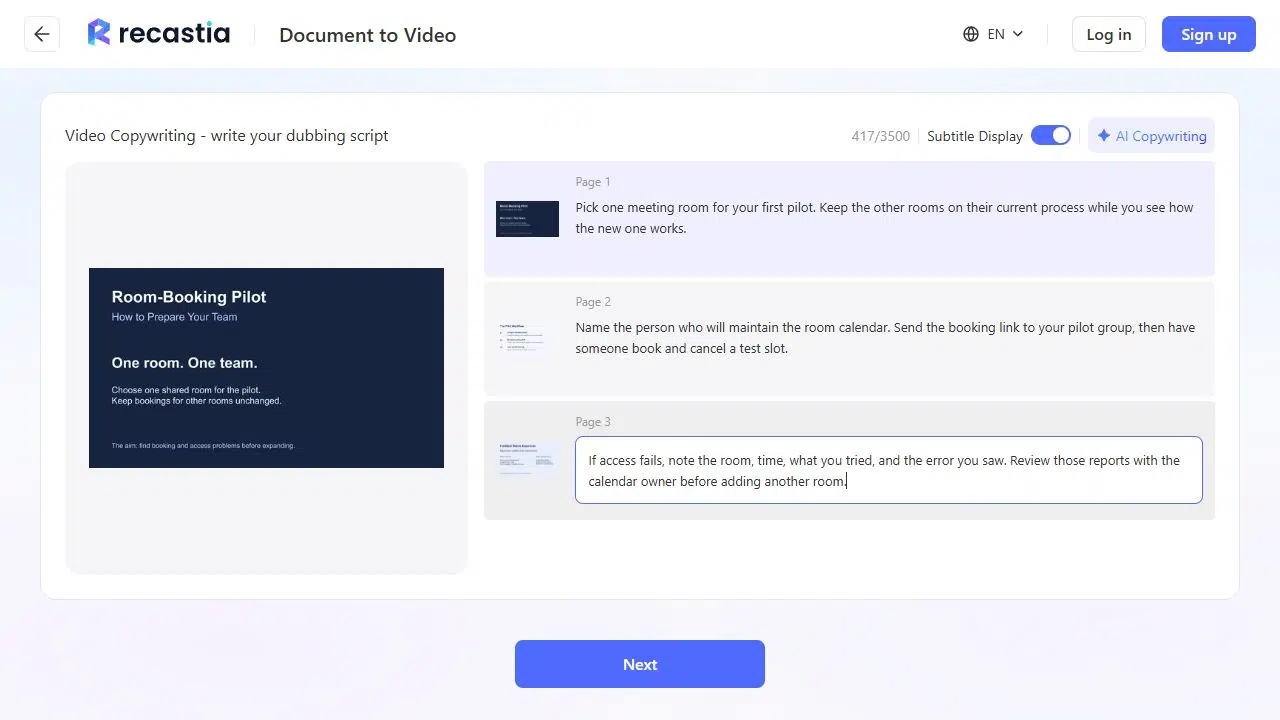
Choose Advanced Mode and select the pages that show the pilot. After you select Next, choose Manual Input and confirm. Enter narration for each page. On the feedback slide, explain what to include in an access report. Ask for the room, the time, the action the person tried, and the error they saw.
- Set the Voice and Generate the Recap
Select Next and choose a voice. For this recap, use 16:9, keep subtitles on, and choose No Avatar to give the slides more room on screen. Select Generate. When the video is ready, play it through once and check that the narration matches the slides. If you plan to share it via a Recastia link, sign in to get the link and open it on a phone before sending. Check that the slides and subtitles are readable.
Turn a Live Question Into a Written Answer
Start with the wording a reader would use. For the pilot, that might be “Can contractors book the pilot room?” Then write the general answer and the next action together.
Example answer
Contractor access depends on the permissions for the pilot room’s calendar. Ask the calendar owner to confirm access before you share the link. If a contractor can’t book, send the room name, the time they tried, and the error message to the calendar owner.
If the organizer only confirmed access for one contractor group, name that group and keep the answer limited to it. If the question involved a specific account or error screenshot, leave those details in the private reply. The public answer can cover the permission rule without identifying the attendee.
Send a Different First Link to Each Group
Use your event platform’s attendance report to separate attendees from people who registered and missed the session. You can reuse the recap and replay in both messages. Change what you put first.
For People Who Attended
Subject line
Try the one-room booking pilot
Thanks for joining the session. To try the process, pick one room, name its calendar owner, and ask someone on your team to book and cancel a test slot. The pilot slides have the steps. If you’re including contractors, see the access FAQ before sending out the booking link.
Lead with the pilot slides. Add the replay lower down for anyone who wants to revisit the demonstration.
For People Who Missed It
Subject line
Missed the room-booking webinar? Start with the recap
The recap shows how to set up a pilot for one room and what to record if someone can’t book it. Start with the recap, then use the full replay if you want to see how the host books and cancels a test slot.
Lead with the short recap. If your replay supports chapter links, link directly to the booking demonstration as the second option.
For Someone Who Asked a Specific Question
Answer their question in the first line. If they asked about contractor access, name the permission they need to check and who can confirm it. Link to the FAQ for the general policy. If the answer is still open, say who is checking it and when you’ll follow up.
Frequently Asked Questions
Send the recap and replay once the links work and the materials are ready to share. If the subject expert is still checking an answer, send the ready materials first and give the people who asked that question a time for their reply.
Pick the slides that carry one complete takeaway and use the speaker notes to fill in what you would have checked against the replay. Ask the presenter to confirm any details you add. Label the result as a narrated recap so viewers know what they’ll get when they click.
Check which assets you have permission to distribute. A webinar may include a guest’s slides or a screen share with customer data. If you can share an approved summary, build the recap from cleared slides and notes and leave restricted material out of the follow-up.
If your email platform supports link reporting, track clicks on the recap, replay, and FAQ separately. Read the replies too. If people click the replay and still ask about the same step, pull that step into the next recap.
Conclusion
The replies help you decide how to repurpose content for the next follow-up. If people still ask who can use the booking link, put the access answer next to the recap. If they’re looking for the demonstration, link to the moment it starts.
Keep the slide numbers and confirmed answers with the final email copy. When another teammate needs to know how to repurpose content from the session, they can see exactly what you used and where it came from.
Bring Your PDF to Life With Recastia
Create, customize, and share your content in a more engaging way.