
When a customer signs off on a new approval workflow, their IT team still needs to know what to check before giving everyone access. A PDF to video with voiceover workflow can turn the rollout brief into a short walkthrough the customer can share with their implementation team.
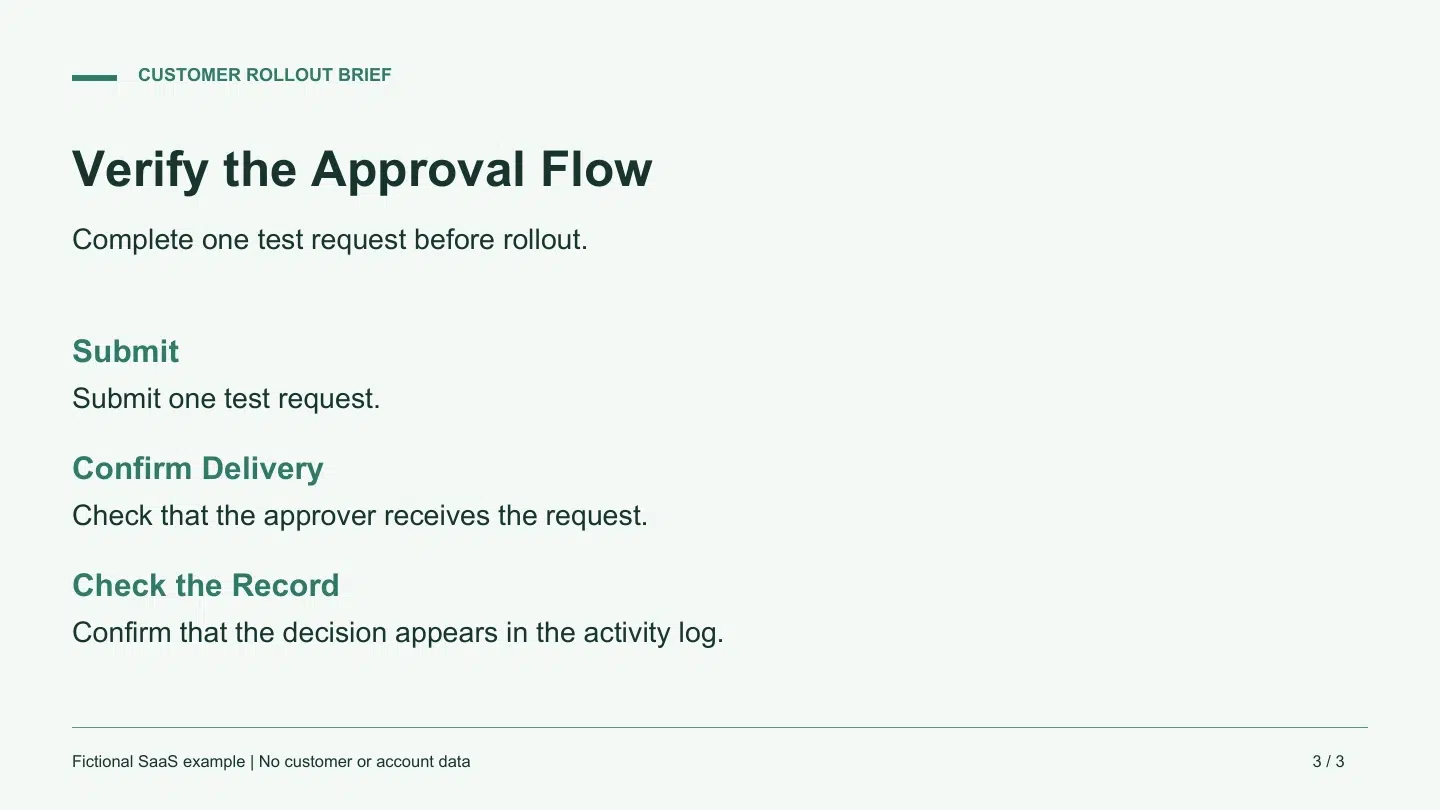
For a PDF to video with voiceover project, give each page one job and write the line that explains it. In this example, three slides cover who owns setup, how to run the pilot, and what to verify before rollout.
Key Takeaways
- Upload the PDF and use Advanced Mode to write a separate voiceover for each page.
- Choose an AI voice for the script language and turn on subtitles for viewers who watch without sound.
- Play the finished video to check the spoken terms, captions, and timing against the source.
Turn a Customer Rollout Brief Into a Script
A SaaS implementation team is preparing a customer to launch a new request approval workflow. The PDF is written for the customer’s IT administrator and pilot lead. They need to know who owns setup, how large the pilot should be, and what counts as a successful test.
| What the Brief Says | What the Voiceover Says | Why Edit It |
| Assign an IT administrator. | Choose an I T administrator to own the setup and confirm who can manage the approval workflow. | Spell out the initials for the voice and tell the team what the owner needs to check. |
| Pilot with 5 users for 2 weeks. | Pick five users for a two-week pilot. Tell them where to send feedback before the trial starts. | Say the number and duration in words and give the pilot lead a concrete action. |
| Submit one test request. Verify receipt and decision logging. | Submit one test request. Confirm the approver receives it. After they make a decision, check that it appears in the activity log. | Give each check its own sentence so the viewer can follow the sequence. |
Keep the five-user and two-week limits in both the slides and script. On the final page, say which person receives the request and where the decision appears. An implementation lead can use those details as acceptance checks at the end of the pilot.
Create the Narrated Video With Recastia
Use PDF to Video to keep the prepared pages visible and generate the audio from the script. Choose a layout with room for the approval checks and captions.
- Upload the PDF and Select the Pages
Upload the rollout brief, choose a video template, and continue to the mode picker. Choose Advanced Mode for a script on each page. Select the three pages in the order the implementation team will use them. For a short piece with a continuous explanation, Easy Mode uses one script for the video.
- Enter and Edit the Narration
Choose Manual Input to enter the prepared lines. Put each line beside the page that shows the corresponding action. You can also start from AI Copywriting and edit the resulting text. Read “I T” and “five users for two weeks” aloud while you edit. Put the receipt check before the activity-log check, in the order the team will see them.
- Choose a Voice and Set Subtitles
Continue to the voice settings and choose a voice that suits the language of your script. Try the voice preview if one is available. Listen again in the generated video, where you can hear how it reads the abbreviation and pilot figures. Turn on subtitles and leave space around the part of the PDF viewers need to read. Choose No Avatar if the page needs the full area.
- Generate the Video and Play It Through
Generate the video and open the result. Listen for “I T,” “five users,” and “two weeks.” On the last page, check that the visual stays on screen through both acceptance checks. Then check the same passage with the sound muted. If a caption covers important text, leave more space on the source page or shorten the line and generate another version.
Use a Playback Check That Matches the Task
Ask someone on the implementation team to watch once and name the two things they need to verify before wider rollout. They should be able to tell you who receives the test request and where to find the decision. If they miss one, check whether the page changed too early or whether the narration blurred two checks into one sentence.
Keep a note of where each fix belongs. A misread acronym starts with the script or voice. A pilot figure hidden behind captions starts with the layout. A missing prerequisite starts with the source and the procedure owner. Fix that part, then replay the revised passage and confirm it still leads into the next action.
Frequently Asked Questions
Enter or generate a script and select an AI voice to read it. The workflow uses that text to produce narration. Headphones can help you catch a misread code or background music that competes with the voice during review.
Advanced Mode provides a script field for each selected page. Use those fields when a line needs to match a particular diagram, instruction, or form. With one continuous script, use Easy Mode and check the resulting page timing during playback.
Write the intended pronunciation in the script and regenerate. A short letter-by-letter form can help with acronyms. For a duration or pilot size, write the number and unit in words. Check the resulting audio and captions because voices can read the same spelling differently.
You can turn subtitle display off. Keep subtitles on when teammates may watch with the sound muted or when the words on screen help them recognize a term. The subtitle setting controls on-screen text. The selected voice still reads the narration script.
Conclusion
Start your PDF to video with voiceover project with one short sequence you can check all the way through. For the customer rollout, that means the implementation lead can name the owner, scope the pilot, and repeat both acceptance checks.
Before you hand over a PDF to video with voiceover project, play the final result and check whether the words, page changes, and captions support the same action.
Bring Your PDF to Life With Recastia
Create, customize, and share your content in a more engaging way.