
To turn PDF into video, upload your document to Recastia, choose a generation mode, and decide whether the pages need a voiceover. Minimal Mode makes a silent page video; Easy and Advanced Modes add narration with different levels of script control.
This guide shows how to turn PDF into video step by step, from selecting pages to reviewing the MP4. It also explains what the free plan changes, so you can choose a mode before spending time on a script.
Key Takeaways
- Minimal Mode creates a silent video from PDF pages; choose Easy or Advanced when the pages need spoken explanation.
- Easy Mode uses one script for the video. Advanced Mode lets you write narration page by page.
- Select the pages you need and review the finished video before downloading the MP4 or sharing its link.
- The free plan can include Recastia branding. Check your account for current usage limits before planning several videos.
What to Prepare Before You Start
Use a PDF whose pages are readable at video size. A crowded chart or a tiny footer will be hard to follow on a phone, even when the original PDF looks fine on a desktop. Decide which pages should appear and what viewers need to learn from them. If the document contains personal or confidential information, remove it before uploading or sharing.
You also need a Recastia account. You can start on the free plan; the current limits shown in your account determine how many videos you can make.
How to Turn PDF into Video With Recastia
Use the Recastia PDF to Video tool to upload a PDF, choose a video style, and generate a video from the pages you select.
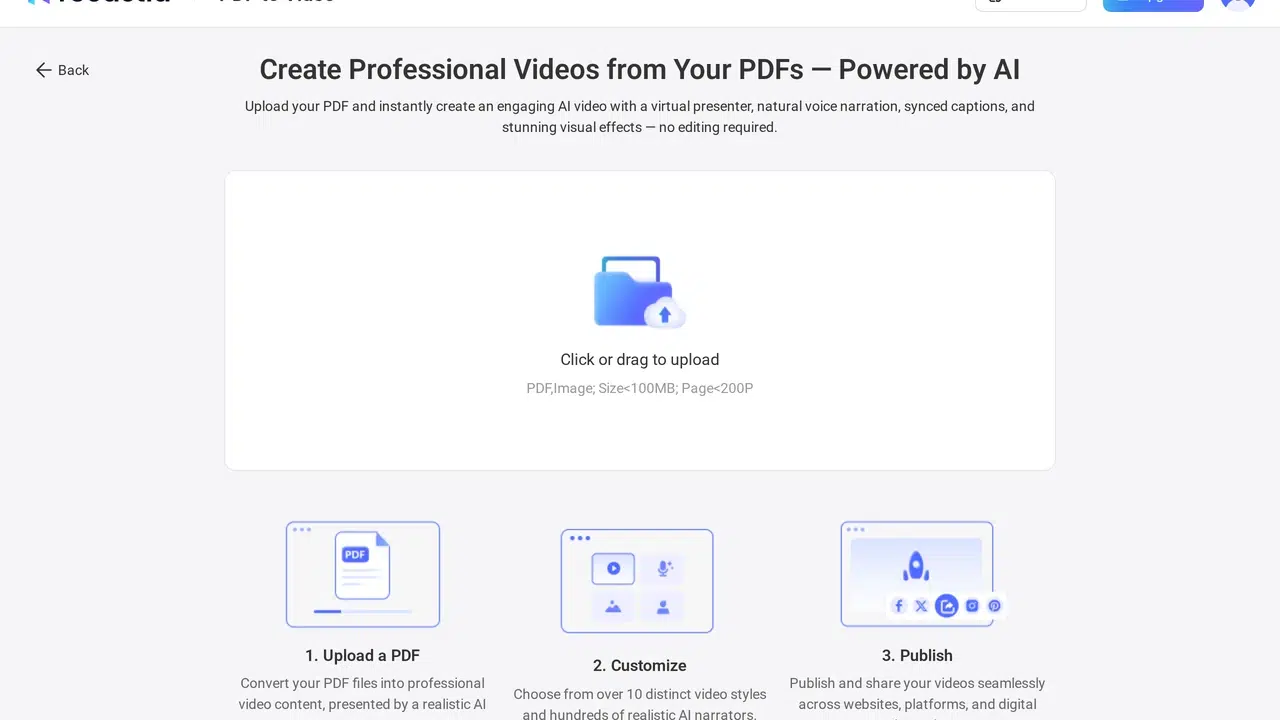
- Upload Your PDF
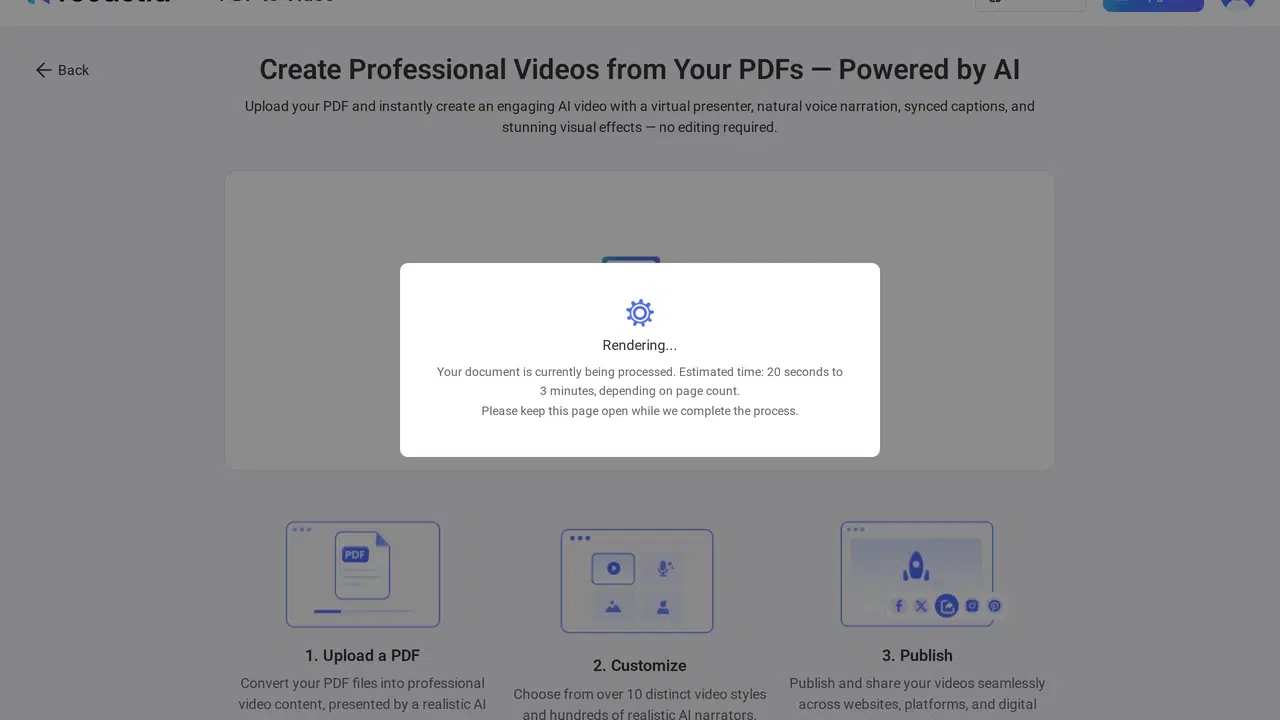
Sign in, open PDF to Video, and upload your file. Check the page preview before you continue, especially if the PDF contains pages you do not want in the video.
- Choose a Generation Mode
Choose Minimal for a silent video that shows your PDF pages with transitions and music. Choose Easy to add one narration script for the video, or Advanced to write separate narration for individual pages. Pick the mode according to the amount of explanation your PDF needs.

- Select Pages and Write the Narration
Select the pages you want to include. In Easy Mode, write or edit a single script for the video. In Advanced Mode, write or edit the narration for each selected page. AI Copywriting can suggest text, but read it against the PDF before you use it. Minimal Mode does not need a voiceover script.
- Set the Video Options and Generate
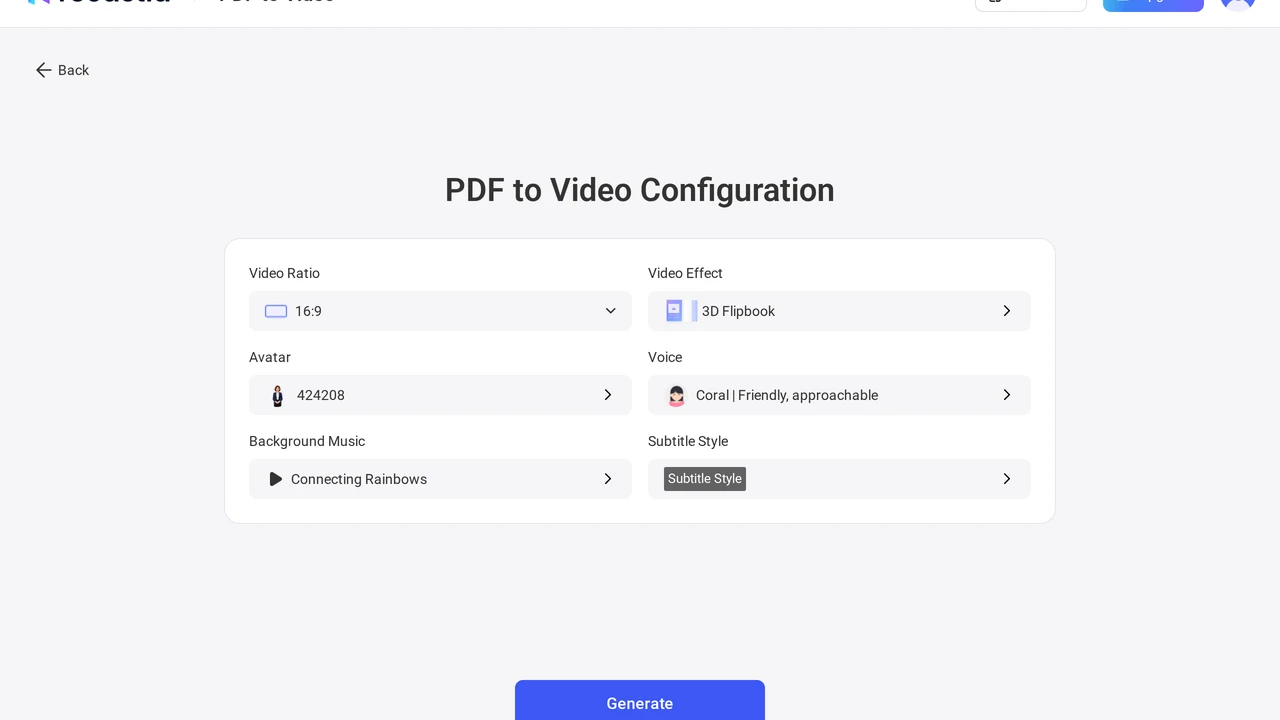
Choose the video ratio and visual effects. For narrated modes, select a voice and, if you want a presenter on screen, an avatar. You can also set music and subtitles where the mode offers them. Review your settings, then generate the video.
- Review and Share the Video
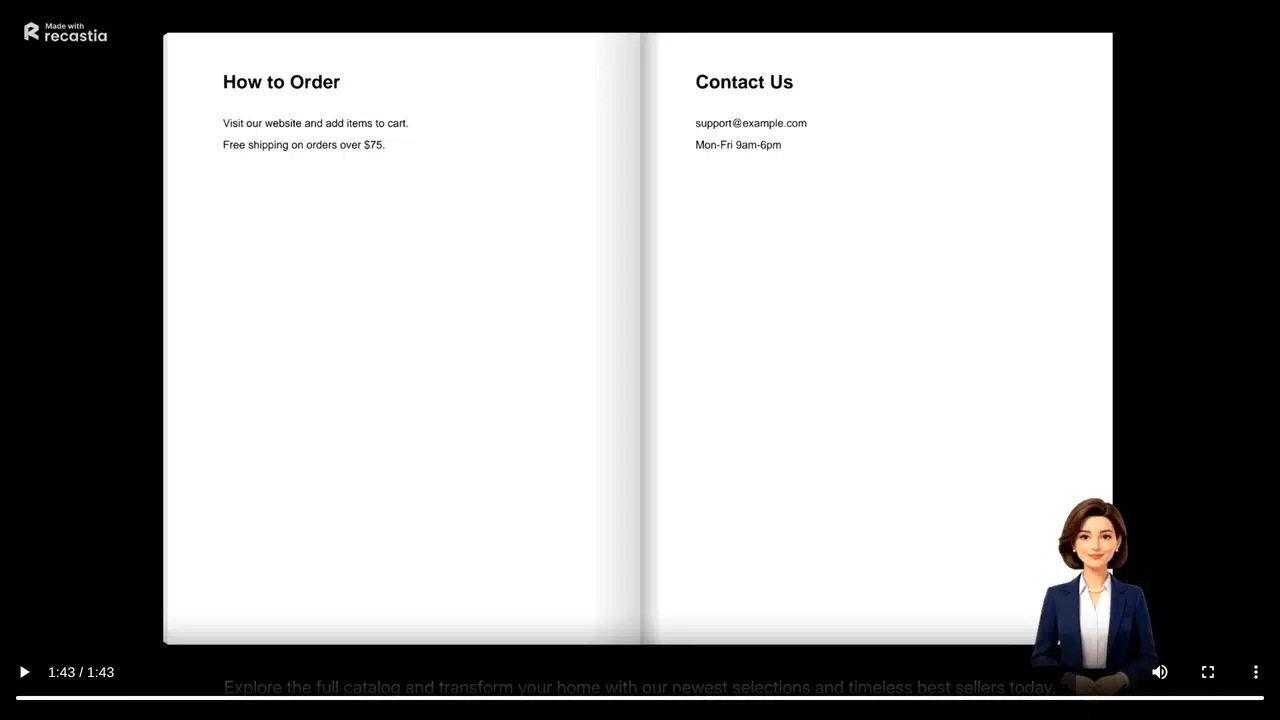
Play the result from beginning to end. Check that the selected pages appear in the intended order and that any narration matches what is on screen. Then download the MP4 or share the hosted video link. A free-plan video may carry Recastia branding.
Which Mode Should You Choose?
Choose Minimal when the PDF pages can speak for themselves, such as a visual portfolio or a short slide deck. It keeps the workflow simple because there is no narration script to prepare. Viewers still need enough time to read each page, so check the pacing before sharing.
Choose Easy when a single spoken explanation can cover the whole document. For example, you might introduce a proposal and summarize its main points without scripting every page separately. Choose Advanced when the explanation must follow specific pages, such as a lesson or a set of instructions. In that mode, keep each page’s narration close to the content visible on that page.
Can You Turn a PDF Into a Video for Free?
Yes. Recastia offers a free plan for creating PDF-based videos, and free output can include Recastia branding. Plan allowances and available controls can change, so use the limits shown in your account rather than an old list of exact quotas. If you are comparing free tools before starting, see our free PDF-to-video converter guide.
Frequently Asked Questions
The current upload screen shows a file size below 100 MB and fewer than 200 pages. Check the limits shown in your account before uploading a large document, as they can change.
Simplify that page in the source PDF or leave it out of the video and provide the original PDF alongside the video. A viewer should be able to read the visible text without pausing repeatedly.
Use the MP4 when a platform asks for a video file. A hosted link is convenient when you want to send someone directly to the finished video. Open either version once before distributing it.
Edit the suggested script before generating. Compare it with the relevant PDF page and restore any date, name, number, or instruction that viewers need.
Conclusion
You can turn PDF into video in Recastia by uploading the document, choosing a mode, selecting pages, and generating the result. Use Minimal for a silent page video, Easy for one narration script, or Advanced when each page needs its own explanation.
Before you share, play the full video and check the pages and voiceover. If you want to turn PDF into video for a lesson, proposal, or visual document, that final viewing tells you whether the pacing and narration work outside the editor.
Bring Your PDF to Life With Recastia
Create, customize, and share your content in a more engaging way.