
A buyer opens a product brief after a discovery call and sees a chart: 14 assigned requests, 6 without an owner. Where does the coordinator come in? If you’re making an AI avatar video from PDF pages, that’s the question to give the presenter.
To create an AI avatar video from PDF material, pick the pages the buyer needs, write a short script for each, and check that the avatar and captions leave the chart visible. Here’s how that works in Recastia, using a fictional facilities request portal as the example.
Make the PDF Work on a Video Screen
The brief has three pages: how a request reaches the coordinator, what the queue shows, and what to bring to the demo. Leave out pages the buyer can read on their own, such as a pricing appendix. Below is the original sample chart, before adding a presenter or captions.
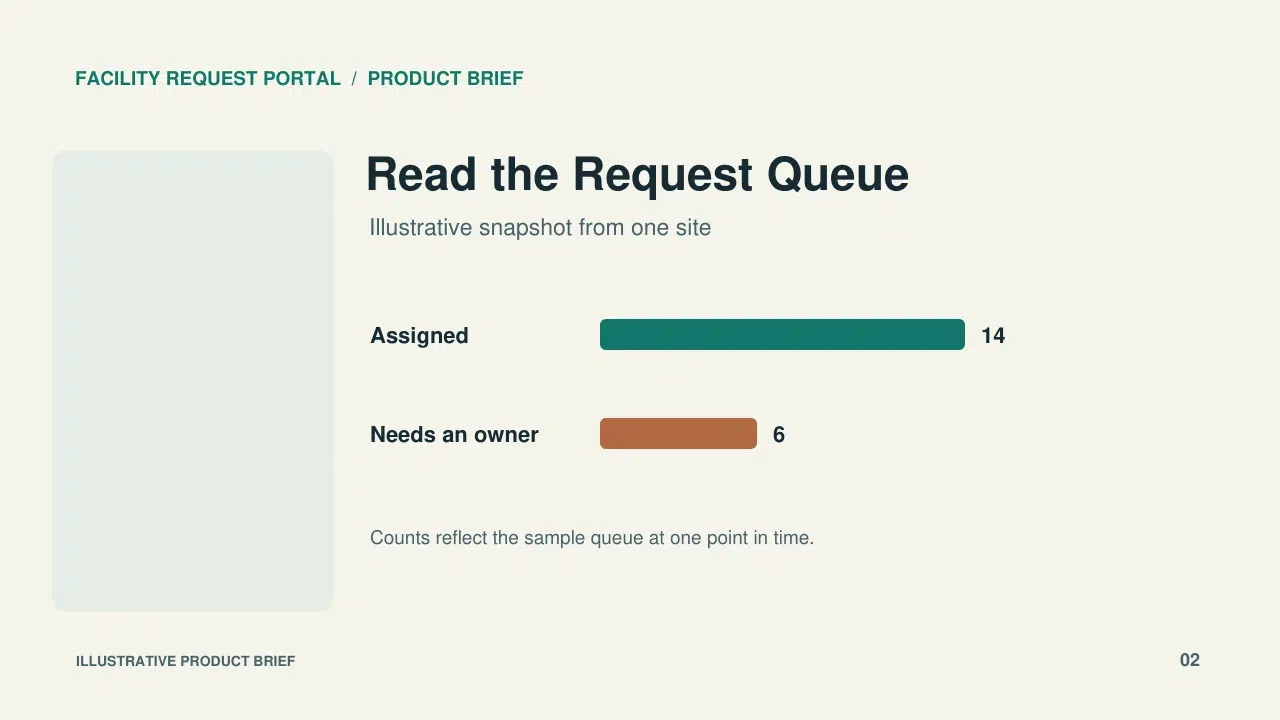
Notice the open space to the left of the chart. That leaves room for a presenter who appears on the left. Your template may use a different position, so check a preview first, then look again after generation. If the presenter covers a label, move it in the source document, save a new PDF, and generate the video again. Enlarge any labels that are hard to read on a phone.
How to Create the Video in Recastia
Open the PDF to Video tool from Recastia. Use a product brief cleared for external sharing and check that the PDF contains no private customer names or account data.
- Choose a Presenter Template and Upload the PDF
Look for Presenter Slideshow in the template gallery. Its preview shows how the document and presenter share the screen. Select the template and upload the brief. In the page selector, keep only the pages the buyer needs.
- Add Narration for Each Page
Choose Advanced mode for page-specific narration. With Manual Input, write one short passage per page. On the sample chart, the script might say: “This is a sample queue for one site. Six requests still need an owner. In the demo, I’ll show you how the coordinator assigns one.” This tells the buyer how to read the chart without passing the example off as a customer result.
On the last page, give the buyer something to bring to the call: “Bring one typical site request to the demo so we can see who should receive it.” - Select the Avatar, Voice, and Subtitles
Choose a presenter and voice suited to a product walkthrough. Turn on subtitles so viewers can follow along without sound. Read the script aloud, particularly the product name and acronyms. If you stumble over a term, spell it out or use the wording your team says on calls. Pick an aspect ratio that suits the source pages and check the result on a phone.
- Generate the Video and Check the Actual Frames
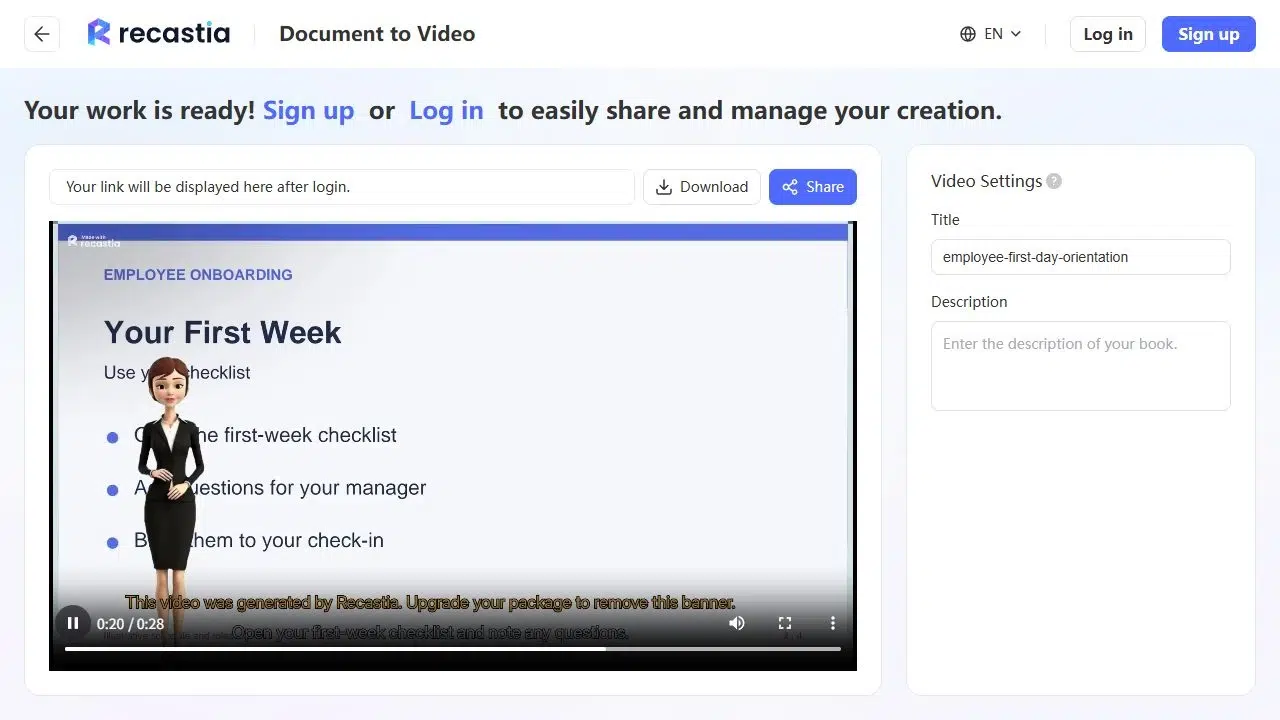
Select Generate, then play the result and pause on the busiest page. Can you read the chart without zooming? The playback screenshot below shows a separate Recastia onboarding example: the presenter covers part of the text on the left. On the queue page, pay the same attention to the chart labels and check that the captions don’t hide the note about where the figures come from.

- Share the Video With the Buyer
Sign in to access the sharing controls. Before you send the link, open it in a signed-out window to check what an external buyer can access. If you email the video, repeat the demo request beside the link so the buyer sees it even if they don’t watch to the end.
What to Change If the Avatar Gets in the Way
Pause on the chart at phone size. If something is hard to read, identify what’s competing for the space before changing the PDF.
| What You See in Playback | What to Change Before Sharing |
| The avatar covers one of the counts or its label. | Move both count and label into a part of the source page that stays clear in your template. |
| A caption covers the note that these are sample figures. | Move the note closer to the chart and keep “sample queue” in the narration so it’s also clear with the sound off. |
| The chart is visible but too small to read. | Give the chart a page of its own and make the labels larger. If it still competes with the presenter, use a template that gives the document more room. |
Play the chart page again after each change. Keep the presenter if their explanation helps the buyer interpret the numbers. If the chart needs the whole frame, a narrated video without an avatar is a better fit.
Frequently Asked Questions
Preview one page before committing to a format. A tall page in a widescreen video can leave room for the presenter, but the text may be hard to read. If it is, make a shorter, larger version of that page for the video. Keep the original portrait brief as a companion.
Yes, if the buyer will need details such as a feature list or technical requirements. Link to both in the same email and say why each is there: the short video walks through the request queue; the brief has the details the buyer can consult later.
Yes. Recastia’s Advanced mode supports page-specific narration in the Presenter Slideshow workflow. Split your script so each explanation arrives with the image or chart it describes.
Only if your organization allows it and the video is intended for that account alone. For a video the sales team will reuse, address the role instead: “your site coordinator” works across accounts and won’t leave the previous buyer’s name in the next follow-up.
Conclusion
Before sending an AI avatar video from PDF pages, pause on the hardest chart to read. The buyer should be able to see the numbers and follow the explanation at the same time.
If you plan to make another AI avatar video from PDF materials for a different account, keep the reviewed page layouts. Change the example and the next step to match what came up on that buyer’s call.
Bring Your PDF to Life With Recastia
Create, customize, and share your content in a more engaging way.