
Your PDF is finished, but you still need a video introduction, a presentation, or a webpage. Copying text, extracting images, and rebuilding each version adds another round of work. A PDF Repurposing Tool helps you reuse that document as the starting point.
Recastia brings nine workflows into one PDF Repurposing Tool, from narrated videos and flipbooks to websites, chatbots, and translated documents. Here’s what each creates and what you can customize.
What Is Recastia?
Recastia is an online platform for creating content from material you already have. A PDF supplies the starting pages and information; you choose a dedicated workflow for the version you want to make. A designed publication can remain a publication, while a service explanation can become a video script, a webpage, or a conversation about the document.
These workflows treat the source differently. Flipbooks retain the designed pages. Website generation reorganizes information into web sections. A chatbot gives readers a place to ask questions. Document conversion produces material you can continue editing in another application. Translation adapts the wording for another language.
You create and customize each project separately. Keep the complete brochure in a flipbook, for example, and prepare a shorter explanation for a video.
How the PDF Repurposing Tool Uses Your Source
The same PDF can contain several reusable ingredients: finished page layouts, explanatory text, photographs, process diagrams, and practical details. Choose the workflow according to the ingredient you want to use.
| Workflow | How It Uses the PDF | What You Work On |
| Flipbook | Presents the original publication pages | Reading appearance and publication settings |
| Video | Places selected pages in a timed sequence | Narration, page timing, and video presentation |
| Presentation | Uses pages in a browser presentation | Page selection, transitions, and presentation settings |
| Podcast | Uses document information for a spoken dialogue | Host script and scene configuration |
| Website | Reorganizes document content into a landing page | Web sections, text, styling, and links |
| Exhibition | Displays document pages in a virtual gallery | Gallery choice and displayed works |
| Chatbot | Uses document information in a question-and-answer experience | Assistant introduction and conversational access |
| Document | Converts the PDF into a working file | Further editing in the relevant application |
| Translation | Produces wording in another language | Translated text beside the source |
Publish the Pages as a Digital Publication
PDF to Flipbook
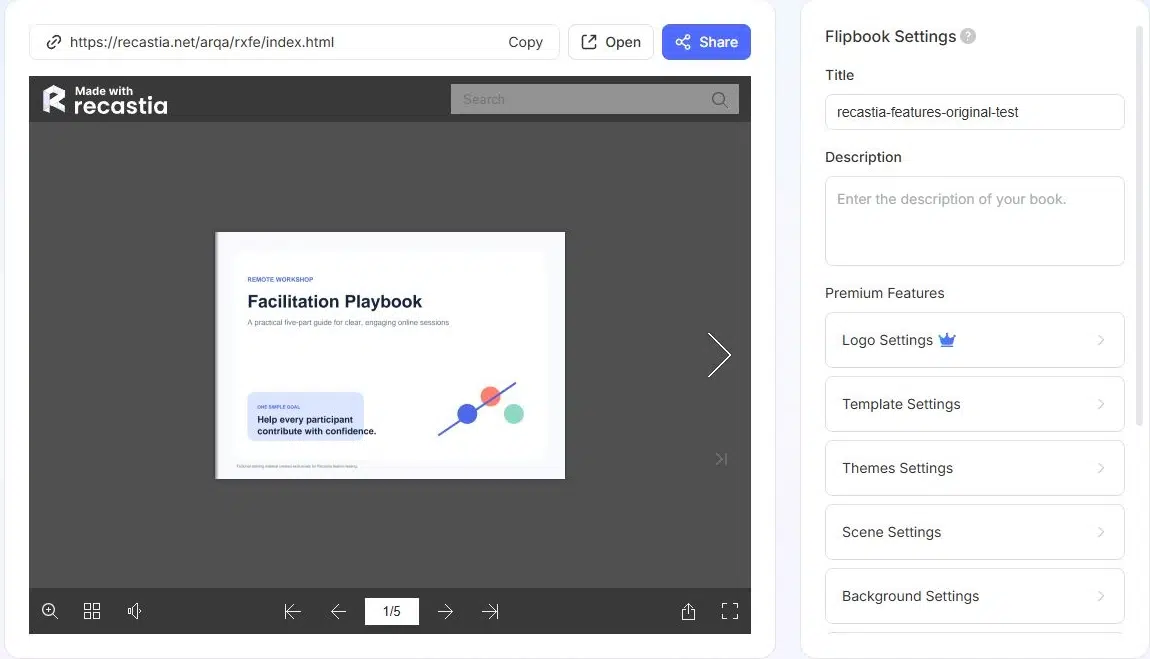
A flipbook keeps the page design of a catalog, magazine, brochure, or portfolio and presents it in an online page-turning publication. Readers can browse at their own pace instead of following a fixed video timeline.
You can customize the flipbook’s template, theme, background, and page-display settings, then preview the publication. Title and description settings help identify the finished project. The hosted reading link gives you a publication to share, while responsive embed code lets you place it within a website.
For a workplace-design brochure, this is the complete reference version: service descriptions, project stages, and visual material remain together. A shorter video can introduce the service, while the flipbook provides the pages a prospective client wants to study afterward.
Create Content to Watch, Present, or Discuss
PDF to Video
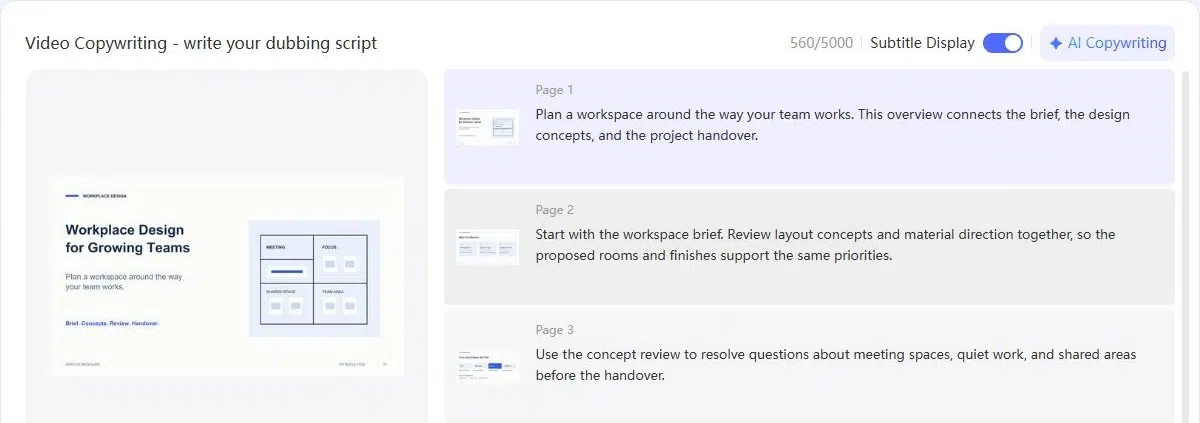
PDF to Video combines selected document pages with timing, effects, and optional narration. The PDF pages provide the visuals; your script can explain what those visuals mean instead of reading every line aloud.
Recastia provides three modes:
- Minimal Mode runs the pages without narration, using page duration or total duration to control the sequence.
- Easy Mode uses an overall script with Smart Page Sync for the narrated presentation of the material.
- Advanced Mode gives you page-specific scripts when each page needs its own explanation.
For example, a brochure lists Workspace Brief, Layout Concepts, and Materials Direction. A manually written voiceover can connect those labels: “Start with the workspace brief. Review layout concepts and materials direction together, so the proposed rooms and finishes support the same priorities.” The source supplies the service stages; the added narration explains how they relate.
In narrated modes, voice, subtitle, and optional presenter settings shape the explanation. Ratio, background, effects, and music control its visual and audio presentation. After generation, you can use the finished video as a file or share it online. The step-by-step PDF to Video guide covers the complete creation process.
PDF to Presentation
PDF to Presentation turns document pages into a browser presentation. Page selection and transition choices let you prepare a sequence for a meeting, lesson, or project discussion. The finished presentation provides page navigation, thumbnails, and full-screen viewing.
For a client conversation, start with the project brief, move to the proposed approach, and pause on the material that needs discussion. A website visitor may need a concise overview; a meeting participant may need several minutes with one layout. Presentation controls let you use the document in that second setting.
This workflow creates an online presentation. If your next task is editing slide objects in PowerPoint, use the document converter’s PowerPoint option described below.
PDF to Podcast
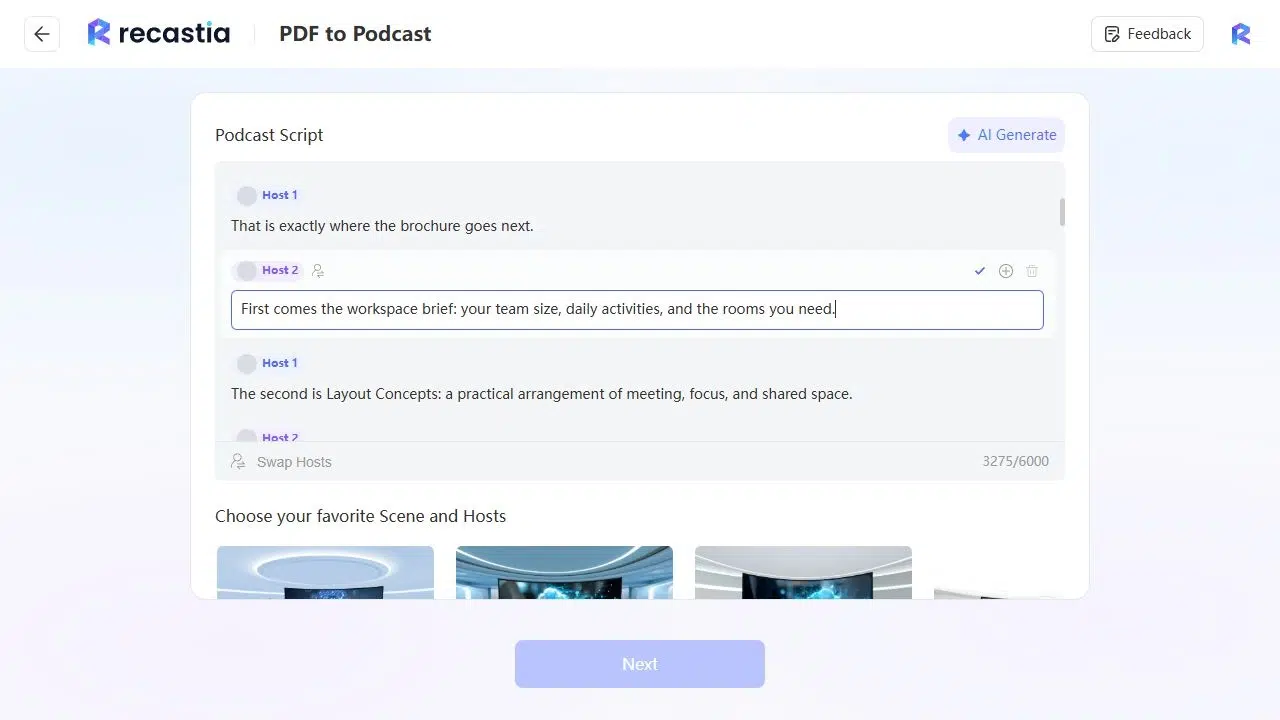
PDF to Podcast uses document information to prepare a two-host discussion. A conversational script can introduce a subject through questions and answers, rather than turning every source paragraph into a monologue.
In the workplace-design brochure, one section explains what the service includes. The generated dialogue opens that subject with “What does the service actually deliver?” The reply begins: “The first item is a Workspace Brief. It covers team size, daily activities, and the rooms you need.” The conversation carries specific information from the PDF while changing its delivery.
You can edit individual dialogue lines. For a tighter introduction, that answer can become: “First comes the workspace brief: your team size, daily activities, and the rooms you need.” Script preparation also includes scene and host-voice settings. This route suits material that supports a discussion, such as a guide, research summary, or service overview.
Make the Information Available Through the Web
PDF to Website
PDF to Website reorganizes document information into a landing page. Instead of asking visitors to turn through the original spreads, the generated page presents content in web sections with headings and navigation.
You can directly edit text and selected elements, including heading style, font, colors, backgrounds, and links. Desktop and mobile previews help you inspect the layout before sharing its hosted address. Rollback and Restore provide undo and redo for editing changes.
A service brochure might include a description, process, deliverables, and contact information. On a webpage, give each of those subjects a clear section. Use the opening to explain the service, place practical details below it, and make the intended contact action easy to find. The PDF remains the source; you refine the generated page for browsing.
See a PDF Landing Page Example
PDF to Exhibition
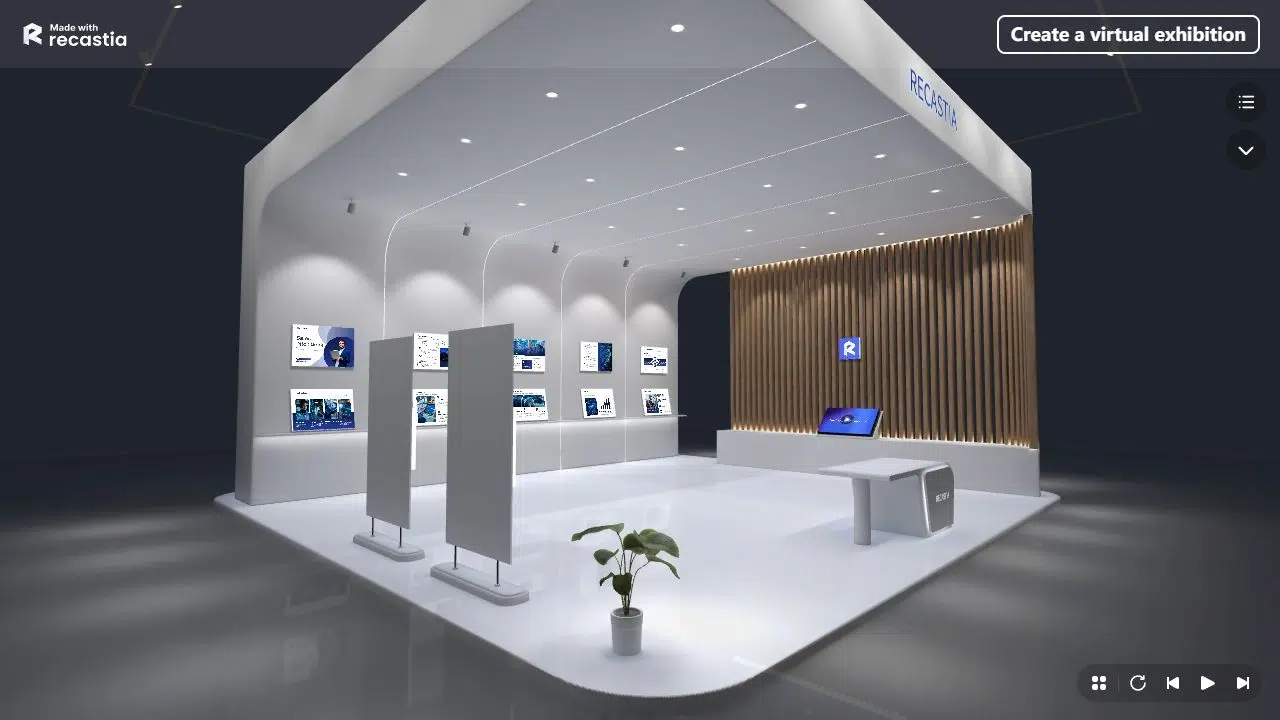
PDF to Exhibition places document pages in a virtual gallery. Visitors explore the space and view displayed works rather than advancing through a conventional publication.
Gallery templates provide different visual settings and numbers of display positions. With the Luminous Lightstrip & Glass Gallery, a four-page PDF supplies four works for the available slots. Choose the setting around the material you want visitors to see, review the displayed pages, and save the gallery project.
This format fits an illustrated portfolio, photography booklet, or visual project overview. Keep each displayed page focused enough to view as a work in a gallery. A page containing a long reference table belongs in a reading format where someone can examine its details.
PDF to Chatbot
PDF to Chatbot provides a conversational way to access document information. Readers can begin with a question about the material instead of locating the relevant section themselves.
You can write a welcome message that explains what the assistant covers. For a service brochure, that introduction can invite questions about the work included, the design process, or what a client should provide. Keep that scope tied to the PDF rather than inviting unrelated questions.
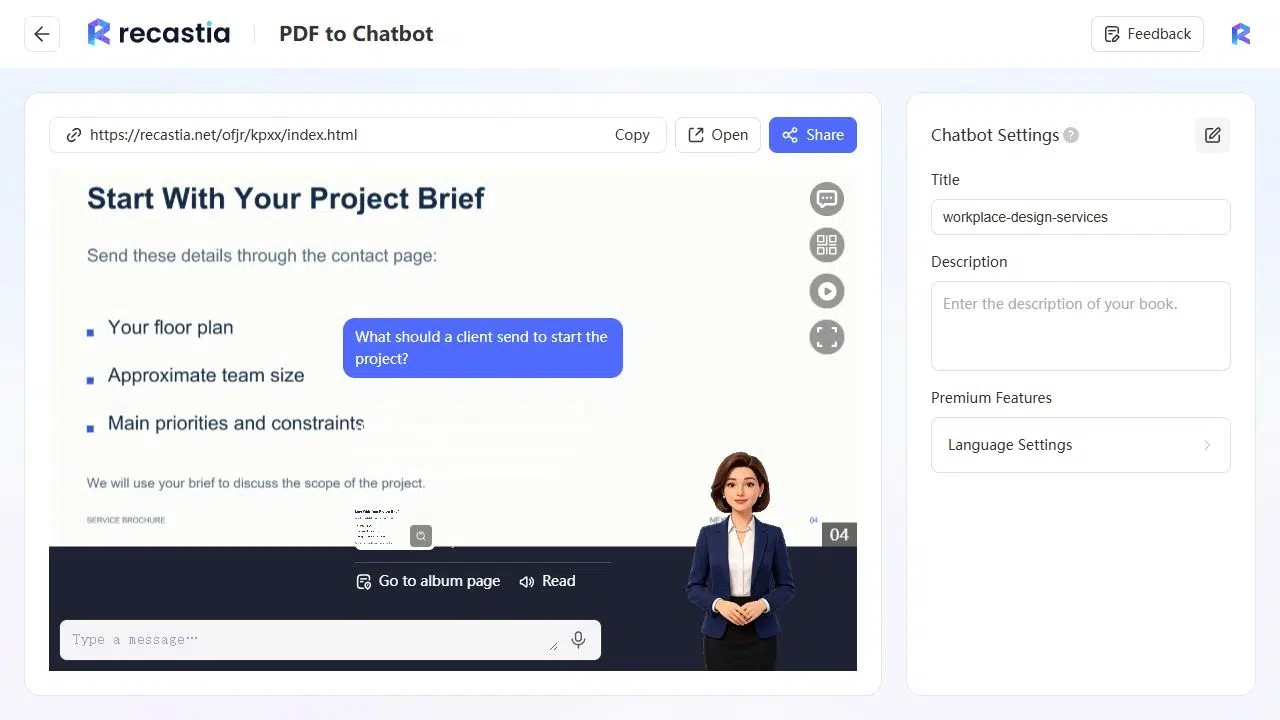
For example, the brochure’s final page asks clients for a floor plan, approximate team size, and main priorities and constraints. Asking “What should a client send to start the project?” produces an answer containing those three details and brings the relevant page into view. The reader gets the practical answer alongside the source page, rather than a general explanation of workplace design.
Recover and Localize the Content
PDF to Document
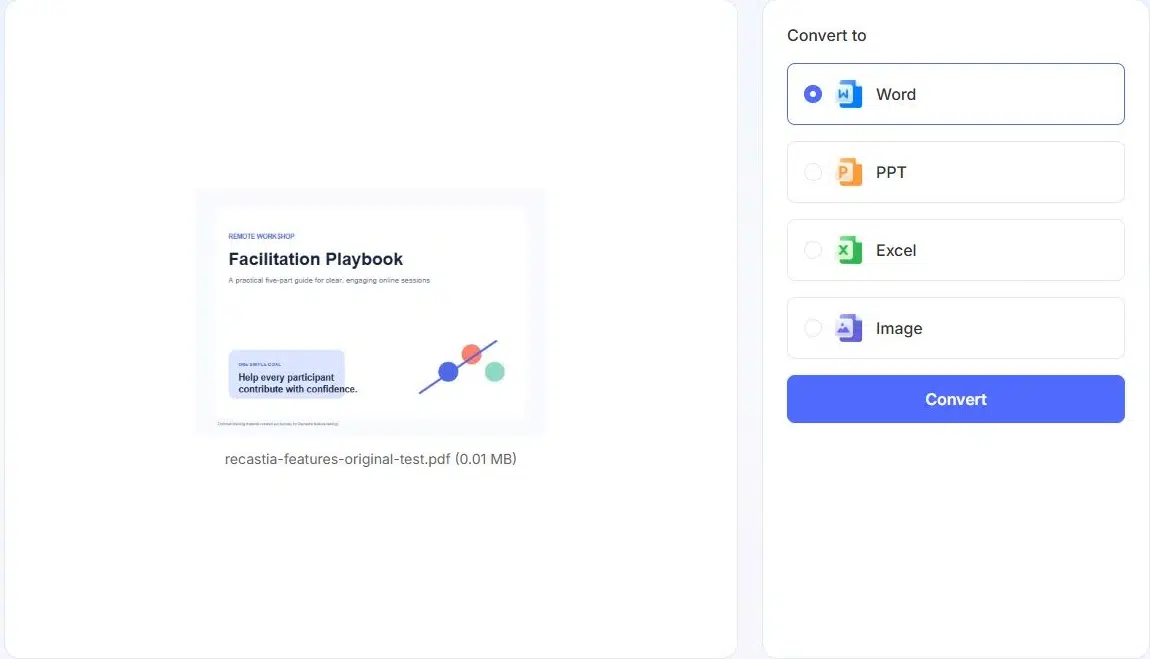
PDF to Document converts the source into a working format for further editing. Choose Word for text revision, PowerPoint for slide work, Excel for tabular material, or Image for page visuals. The downloaded format depends on that choice; a multipage image conversion can arrive as a ZIP containing JPEG pages.
This is useful when the PDF is the version you have, but the next project requires changes to its content. You can recover a service description for revision in Word or prepare slide material for continued PowerPoint editing. The image option creates page visuals, not editable text.
For spreadsheet work, check the imported values before calculating: a number displayed in a cell can still be stored as text. Word and PowerPoint outputs let you revise recovered wording for the next document or deck.
PDF Translation
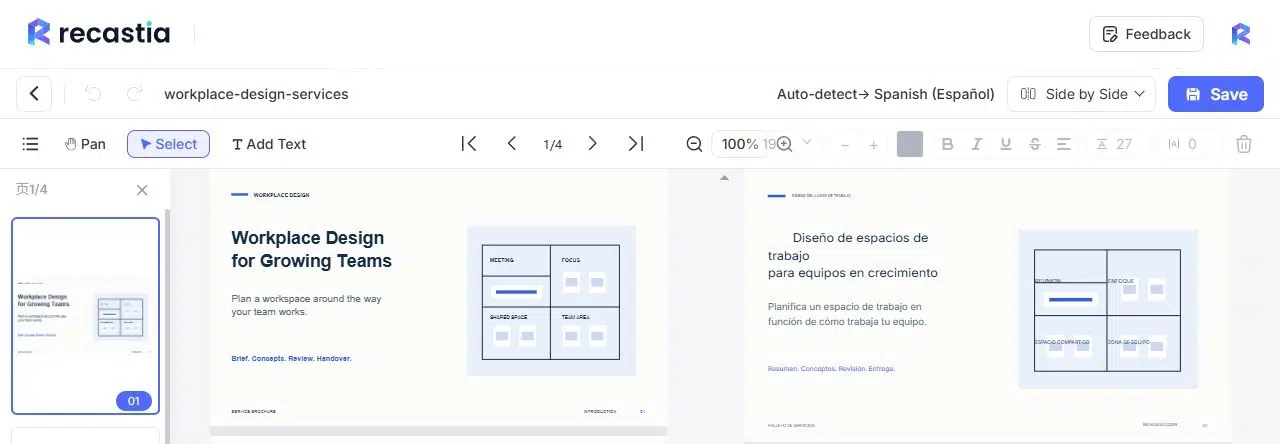
PDF Translation creates translated wording from the document and provides a side-by-side editing view. You can compare the source with the translation, change the translated text, and save the revision.
For the workplace-design brochure, Spanish translation makes the service explanation available in another language. The paired view keeps the source beside the translated copy while you refine a heading or check terminology. That is particularly useful for deliverables and service descriptions, where a small wording change can alter what a client understands.
Choose this workflow when the document text needs another language. It translates the content itself, rather than changing only a reader’s menu labels or selecting a narration voice.
Frequently Asked Questions
No. You can start with the PDF for these workflows. Use its pages directly for a publication or presentation, or use its information to develop a script, webpage, or document assistant. The document converter provides Word and PowerPoint options when you need an editable working file.
Yes. Hosted outputs such as flipbooks, landing pages, document chatbots, and exhibitions have viewing links you can share. Readers open the published content in a browser. Use the project’s sharing controls to obtain the link for the version you want people to view.
Yes. Keep the full brochure as a flipbook and create a separate video from selected pages. Share the shorter introduction first, then offer the complete publication to readers who want the detail. These are separate projects, so you can give each its own scope and settings.
Yes. For a narrated video, use Manual Input to supply your script, including page-specific text in Advanced Mode. In the podcast script editor, revise individual dialogue lines. This lets you keep approved service descriptions and preferred terminology while adapting the wording for speech.
Conclusion
Recastia brings nine ways to work with existing documents into one PDF Repurposing Tool. The right starting point depends on what you need next: the complete pages for browsing, a spoken explanation, a webpage, a document assistant, or editable and translated material.
For a first project, use the PDF Repurposing Tool to make one version you already have a use for. Turn the service brochure into a client introduction, for example, and keep its complete pages available as a flipbook for the follow-up conversation.
Bring Your PDF to Life With Recastia
Create, customize, and share your content in a more engaging way.