
A brochure can look right on a computer yet feel cramped when two pages share a phone screen. A PDF page flipper brings back that familiar page-turning presentation. This guide shows you how to create a PDF page flipper with Recastia, choose the page display, and keep your spreads readable on both computers and phones.
Key Takeaways
- Use Page Flipping for a book-style transition; Slideshow provides a different way to move between pages.
- Prepare the PDF in reading order. Printer spreads can put the wrong pages next to each other online.
- Choose the page display separately from the animation. A two-page spread needs more screen space than a single page.
- Recastia’s flipbook customization settings are premium features. You can start with a free flipbook, but do not assume the free plan includes those controls.
What a PDF Page Flipper Changes
A PDF page flipper presents your document as an online flipbook with animated turns between pages. It suits publications where the sequence and facing pages matter: a magazine feature, a photo portfolio, or a catalog with product images opposite their details.
The animation doesn’t redesign the PDF. Small print stays small, and a photograph split across two source pages still depends on those pages appearing together. Treat the turning effect and the page layout as two separate choices: one controls the movement, while the other controls how much of the publication appears at once.
If you mainly want to understand search, zoom, thumbnails, and sharing, use the PDF flipbook viewer guide. Here, the focus is on making the page turns work with your design.
Prepare the PDF for Facing Pages
Export the document in normal reading order, starting with the front cover. For a book-style display, individual PDF pages usually give you more flexibility than exporting every spread as one wide page.
A print-ready file may contain printer spreads: pages arranged for folding and binding rather than reading on a screen. Ask your designer for a version in reading order if, for example, the last page sits beside the cover. A page-turn animation cannot correct that sequence.
Also look at anything that crosses the center of a spread. Keep prices, names, and other essential text on one page where possible. Readers on a narrow screen may need to view each page separately, so a sentence split across the center is harder to follow. For product publications, the digital catalog guide covers how to organize the catalog itself.
How to Add Page Turns With Recastia
Recastia converts a PDF into an online flipbook and provides premium settings for its appearance and page behavior. The steps below use Page Flipping and Page Display; access to customization depends on your plan.
- Upload Your PDF
Open the Flipbook Maker and upload your PDF. Use the reading-order version you prepared, then open the generated flipbook in the editor. If you already have a flipbook, continue with that publication instead of uploading another copy.
For the complete upload walkthrough, see how to view a PDF as a flipbook online.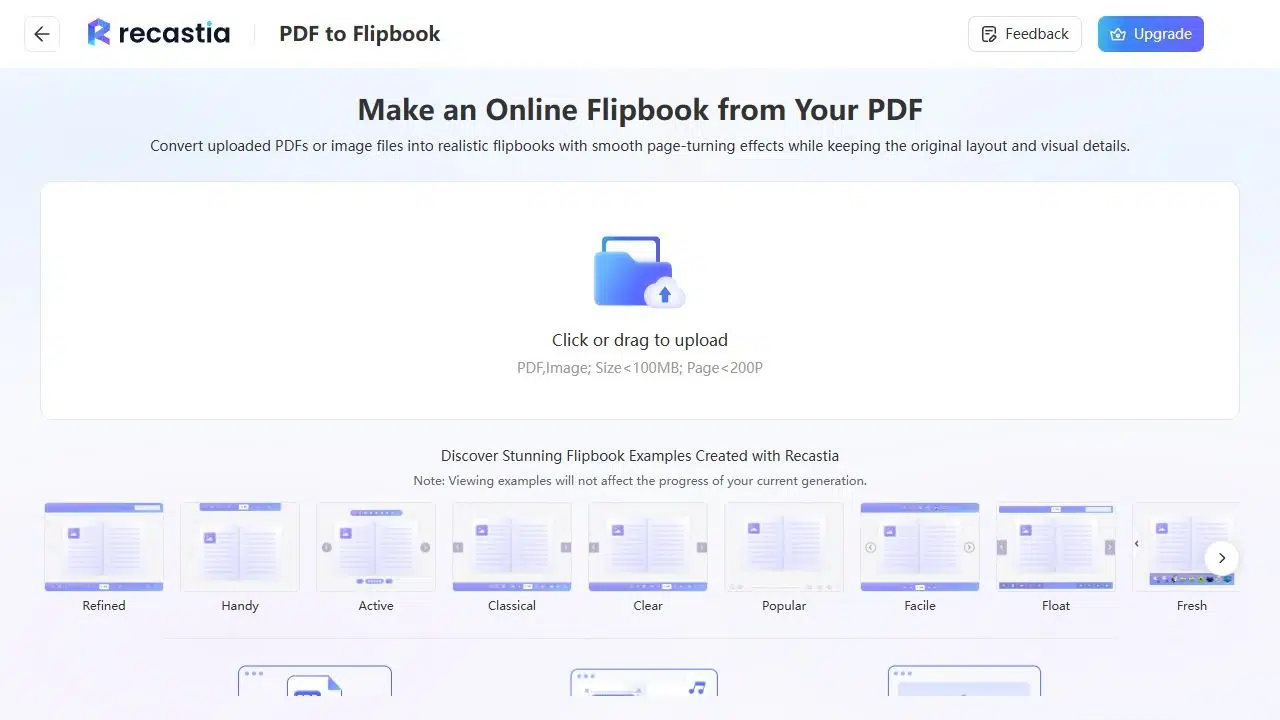
- Choose the Page-Turn Mode
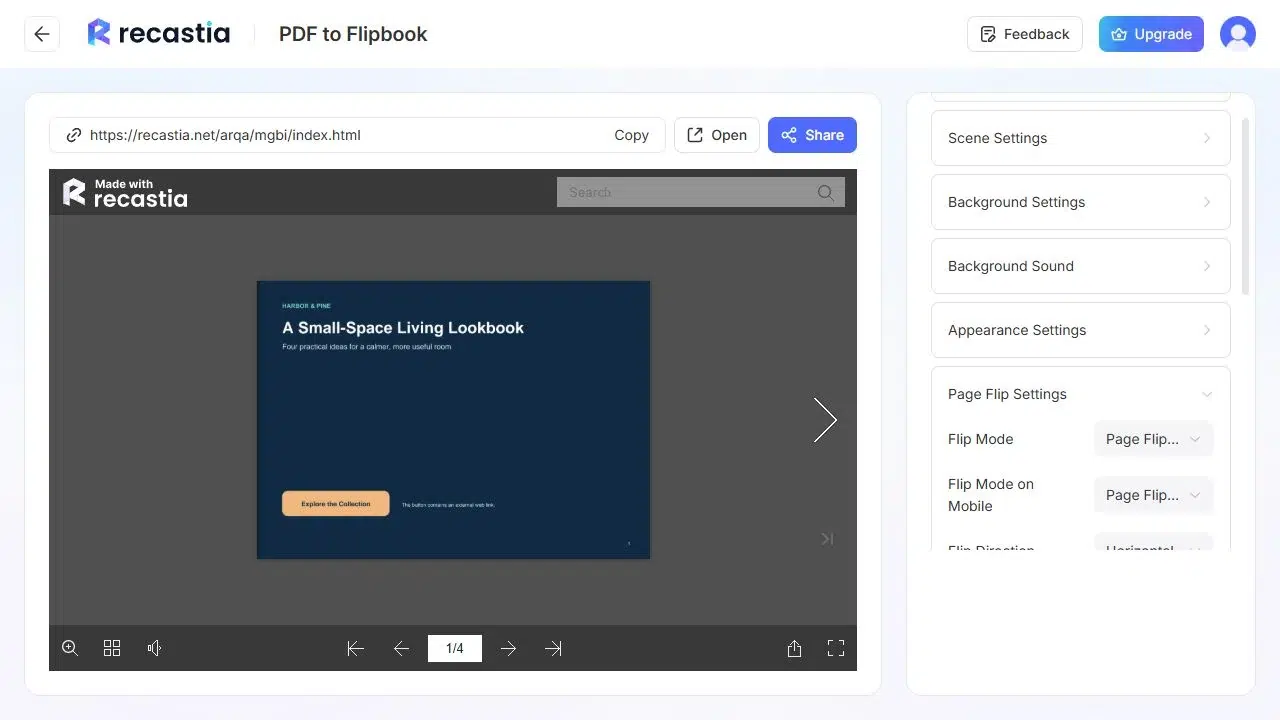
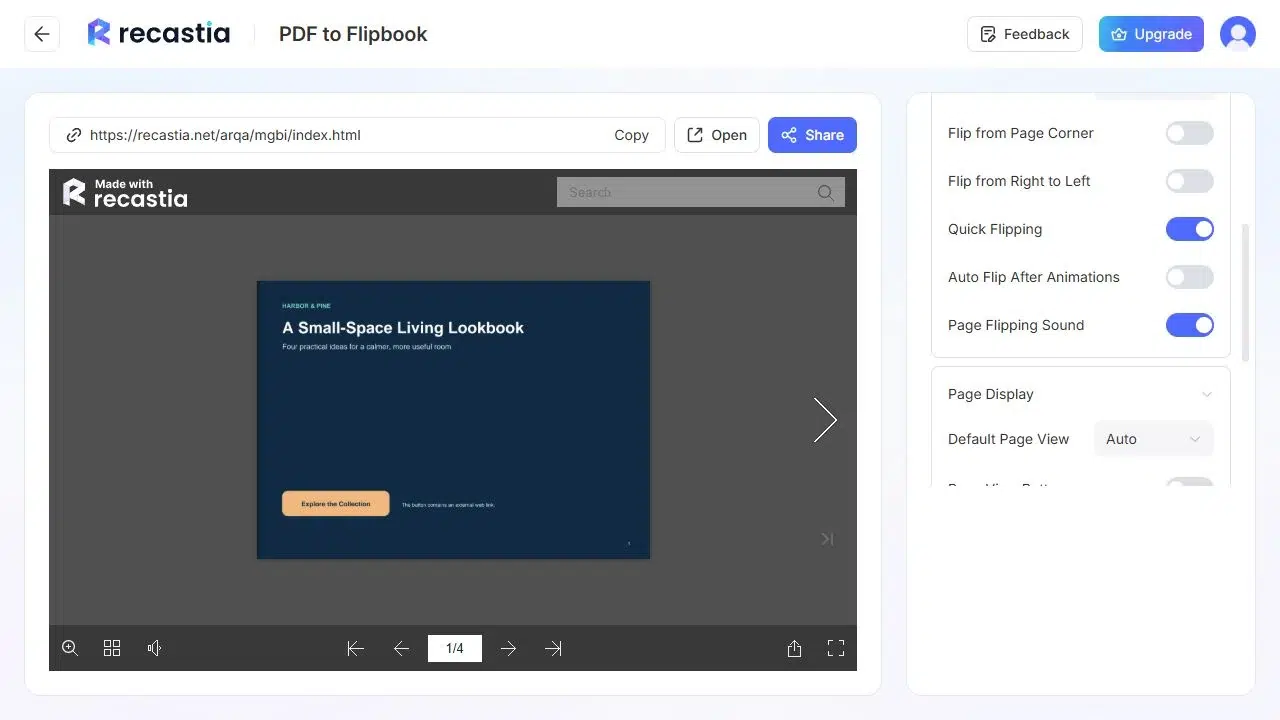
Open Page Flip Settings and select Page Flipping for a book-style turn. Recastia also provides Slideshow, which changes how the pages move without changing the source PDF. Compare the transition on a few consecutive pages before choosing it for the whole publication.
Set Flip Direction to Horizontal for movement across the screen or Vertical for movement up and down. Recastia has a separate Flip Direction on Mobile control, so you can choose the phone behavior independently.
Page Flip Time controls the duration in seconds. The editor starts at 0.3 seconds; adjust it if you want a shorter or longer turn, then preview several pages to judge the pace.
- Set the Page Display
Open Page Display to choose how pages appear together. Auto switches between single-page and double-page views according to the screen. You can also select Single Page or Double Page. Try Double Page when facing pages form one composition; compare it with Single Page when your PDF contains dense text or tall pages.
Start with the cover and first inside spread. Confirm that the pages pair as intended, then inspect any image or headline crossing the center. On a phone, check whether readers can read the body text without continually zooming and moving across the spread. - Save and Open the Reading Link
Save your changes and use Open to view the flipbook outside the editor. Turn from the cover through several spreads, then use Share to copy the reading link. Open that link on a phone as well as a computer before sending it to readers.
You can share the hosted flipbook by link. Website embedding is a paid feature, so check your plan if you want the publication inside your own web page. The free PDF-to-flipbook guide explains the free plan and its branding limits.
Fix Awkward Spreads Before Sharing
If the page turn looks right but the publication is difficult to read, check the PDF layout before changing more animation settings.
| What You See | What to Change |
| The wrong pages appear together | Check the source page order and whether the PDF contains printer spreads. |
| A double-page view makes text too small | Try Single Page, particularly for text-heavy documents and phone readers. |
| One PDF page already contains an entire spread | Re-export individual pages if you want the flipbook to pair them. |
| A face, price, or heading is difficult to follow across the center | Move essential content onto one page in the source design. |
Re-export the PDF when the problem belongs to the design itself. Changing the transition won’t enlarge the original type or rearrange content across pages.
The fundraising brochure below shows how a publication can combine page turns with facing-page layouts. Open a few spreads to see how the images and text sit together.
Frequently Asked Questions
Recastia creates an online flipbook from the file you upload. You can keep the original PDF separately. Changes to the flipbook’s page-turn mode or display affect its online presentation; edit the source document when you need different wording, images, or page order.
The page-turn effect does not depend on editable text. However, scanned pages still need to be clear enough to read. An animation does not sharpen a blurry scan or make its text searchable. Check the scan quality before converting the document.
Export individual pages in reading order when you want the flipbook to display facing pages. Exported spreads contain both sides in one PDF page, which limits how you can present them separately on narrow screens. Keep a separate print-production file if your printer needs imposed spreads.
You can create a flipbook with Recastia’s free plan, which includes Recastia branding. Customization settings and website embedding require a suitable paid plan. Start with the free output if a shareable reading link is enough; check the available plan before choosing premium page settings.
An online flipbook and a video are different outputs. The flipbook lets readers choose when to turn a page. To create a video from the same PDF with narration, use the PDF to Video tool rather than treating the flipbook link as an MP4 file.
Conclusion
A PDF page flipper works best when the source pages are in order and the display fits the design. Use book-style turns for a publication built around facing pages, and give text-heavy pages enough room to read.
Create your PDF page flipper in Recastia, choose the settings available on your plan, and open the reading link on both a computer and a phone before sharing it.
Bring Your PDF to Life With Recastia
Create, customize, and share your content in a more engaging way.