
An AI training video generator can turn an existing manual or slide deck into a narrated lesson. The important choice is how much of the source you want to keep: the original pages, editable slide elements, or the information reorganized into new scenes.
This comparison helps you choose an AI training video generator by document handling, script editing, presenter options, and training delivery. Recastia connects narration to existing PDF pages; the alternatives add other approaches, including revised lesson outlines, character dialogue, and interactive learning on eligible plans.
Compare the AI Training Video Generators
Start with the material you maintain. Keep clear diagrams on screen, or restructure a long manual into shorter scenes. Built-in questions and LMS delivery are separate requirements from producing the video itself.
| Tool | Document Treatment | Training Fit |
| Recastia | Uses PDF pages as video visuals | Explain a finished training guide page by page |
| Synthesia | Creates a new script or imports editable PPTX elements through a separate route | Develop and revise presenter-led lessons |
| HeyGen | Uses static PDF slides or editable PowerPoint elements | Maintain slide-based training and language versions |
| Colossyan | Plans scenes and courses from documents or decks | Add learner decisions and knowledge checks |
| Elai | Converts PDF backgrounds or editable PowerPoint slides | Build lessons around a maintained PowerPoint source |
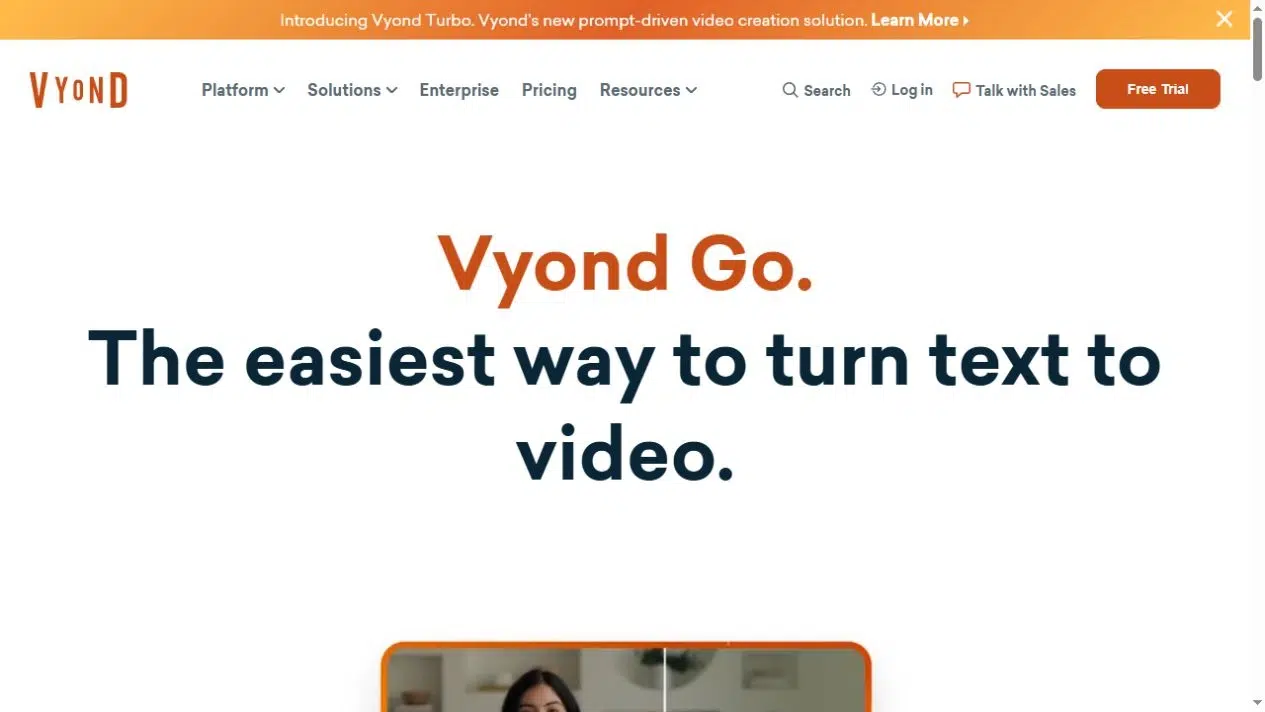
| Vyond | Summarizes documents into a script and scene layout | Explain workplace situations through character dialogue |
1. Recastia
Recastia suits training material whose page design already works. Its PDF to Video workflow combines those pages with narration, subtitles, visual effects, and an optional presenter. Advanced Mode gives each selected page its own script, so an explanation can stay beside the relevant diagram or instruction.
For a first-day orientation guide, a help-contacts page can use the narration: “Ask your manager about priorities. Contact IT for account access and the people team for forms.” The explanation tells a new employee where to take a question instead of reading three department labels aloud. You can revise that spoken guidance while keeping the page as the visual reference.
Key Features
- Easy Mode uses one overall script, while Advanced supports page-specific narration; available modes depend on the template.
- Manual Input and AI Copywriting support script preparation, with voice, subtitle, and optional avatar settings.
- Video ratio, template effects, background, and music settings control how the document appears in the lesson.
Pros
- Existing diagrams, instructions, and page layouts provide the visual material without rebuilding them as individual scenes.
- Separate page scripts let you explain a decision or clarify who handles a particular request.
Cons
- Narration edits do not change text printed inside a PDF page; revise the source when that information changes.
- Downloads require an account; branding removal has separate plan requirements.
Best For
- Teams turning a finished PDF training guide into a narrated explanation tied to its pages.
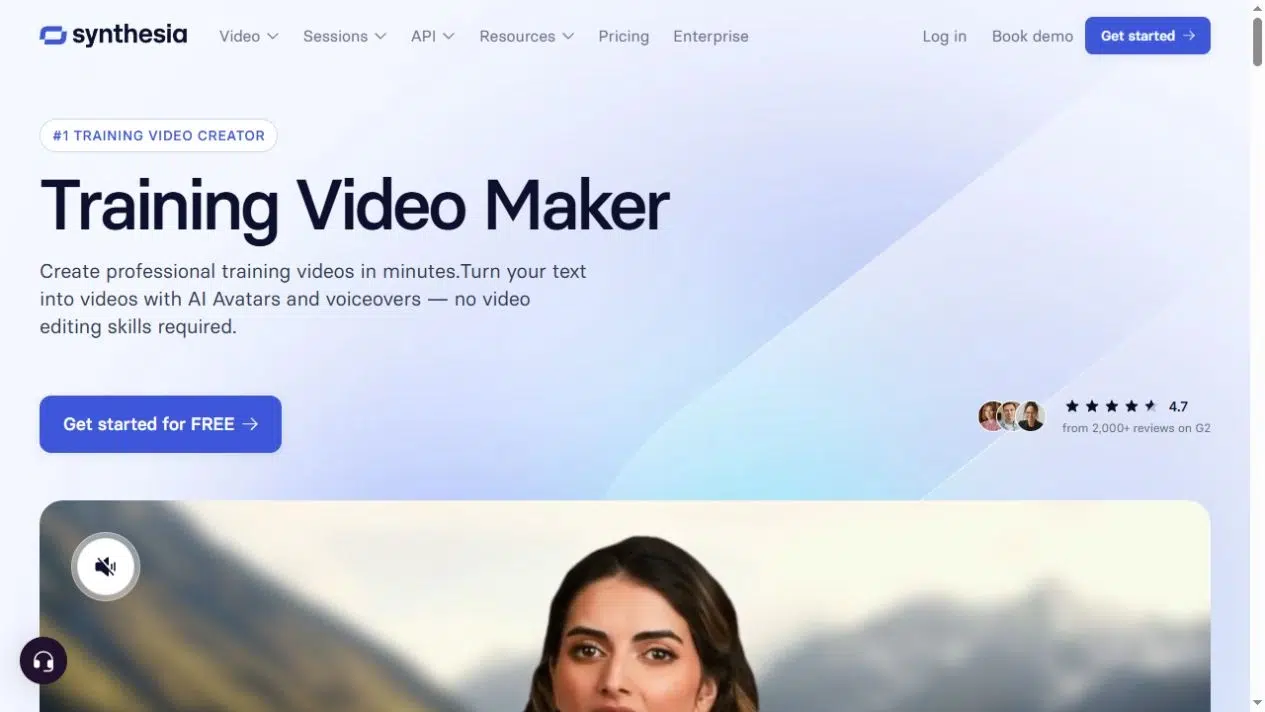
2. Synthesia
Synthesia is useful when a document needs a new lesson script. Its Assistant accepts PDFs, presentations, and other text sources, then lets you revise the outline and scenes. A separate PowerPoint importer brings supported slide objects into the editor. Choose the route before importing: generating a new explanation and retaining an editable slide design produce different starting points.
Key Features
- Assistant turns source material into an outline and script that you can revise before generating the video.
- The standalone PPTX importer supports editable objects and narration from speaker notes or slide text.
- Avatars and voices present the lesson; eligible plans add interactive navigation, quizzes, and SCORM delivery.
Pros
- Outline editing helps shorten a long manual into a lesson with a defined sequence and purpose.
- The separate PowerPoint route lets you adjust on-screen teaching material alongside the spoken explanation.
Cons
- Original PowerPoint animations do not transfer, and Assistant imports do not provide the same object-preservation behavior.
- Quizzes and SCORM require Enterprise; navigation and branching have their own plan requirements.
Best For
- Training teams developing presenter-led lessons that need script restructuring or edits to an existing PowerPoint design.
3. HeyGen
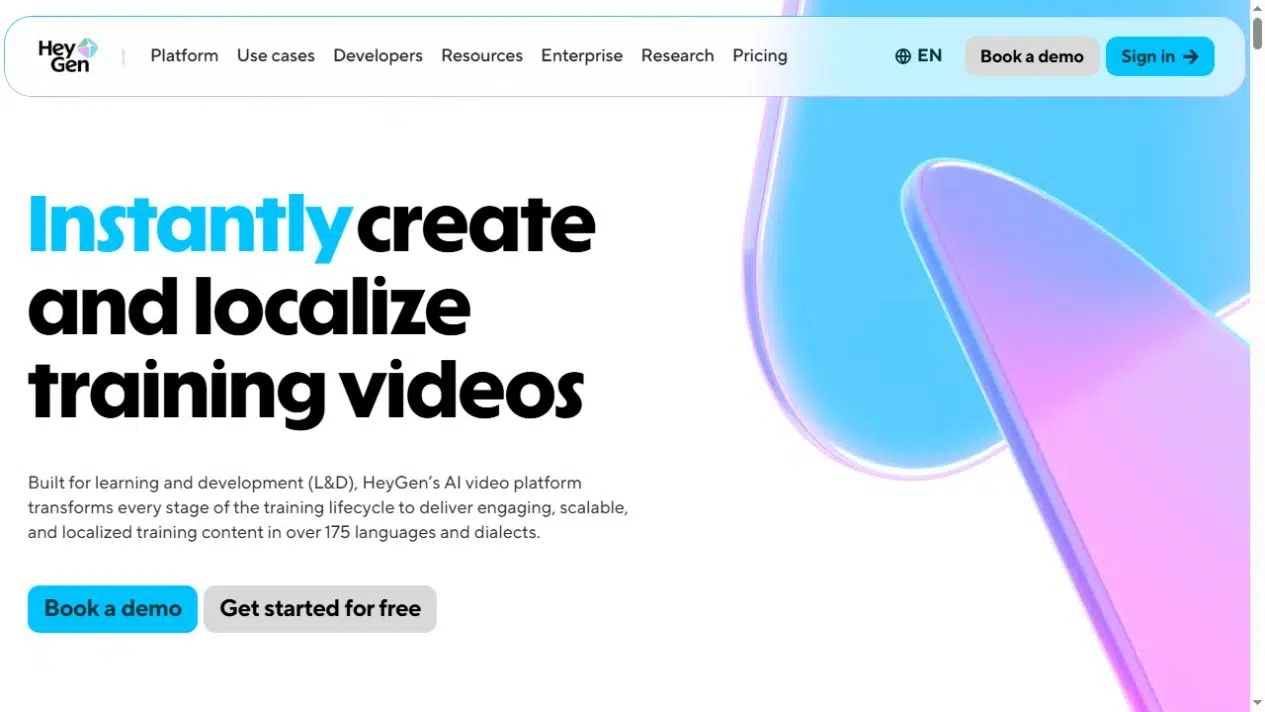
HeyGen connects slide segments to narration and a presenter. You can start with a PDF or PowerPoint, but the editing options differ: PDF pages become static backgrounds, while supported PowerPoint elements can remain editable. That matters when a lesson needs both a revised explanation and a changed label on screen, especially across language versions.
Key Features
- PPT, PPTX, and PDF imports provide slide-based starting points for presenter videos.
- PowerPoint imports can use speaker notes as narration and bring supported elements into the editor.
- Localization, caption export, and eligible-plan SCORM delivery support distributing lessons to different groups.
Pros
- Per-slide scripts let you revise the explanation where the relevant instruction appears.
- Editable PowerPoint content helps keep visual wording consistent with a localized or revised voiceover.
Cons
- PDF imports do not provide the editable-object and speaker-note options available with PowerPoint files.
- SCORM export requires Business or Enterprise; viewing completion is separate from a scored assessment.
Best For
- Teams maintaining slide-based presenter lessons and preparing versions for employees who use different languages.
4. Colossyan
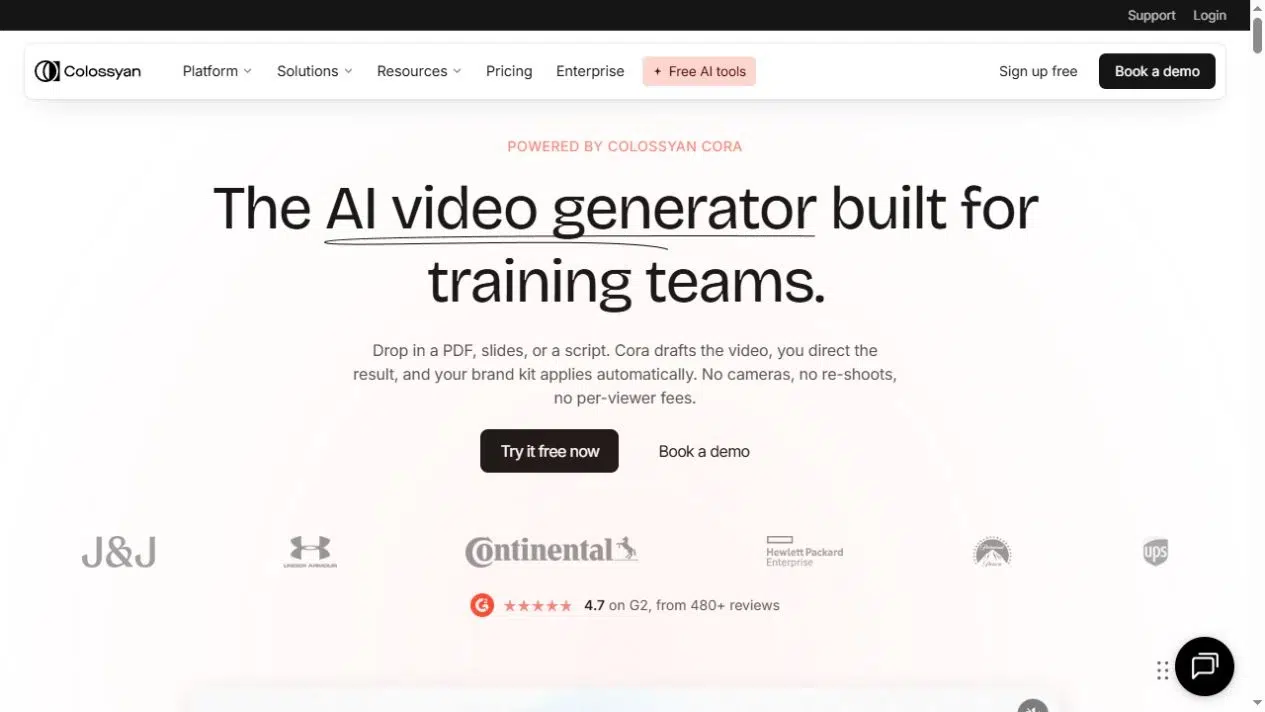
Colossyan extends document-based video production into course creation. Its Cora workflow plans scenes, scripts, and pacing from source material, then leaves the draft open for editing. For training that involves choosing a response, its course tools can combine an explanation with branching or a scored assessment instead of ending after a sequence of narrated scenes.
Key Features
- Document, deck, and script inputs can supply material for planned video scenes and lesson content.
- Trainers can revise script lines, visuals, scene choices, and presenter settings before generation.
- Course tools support lessons, branching, and assessments, with SCORM options on eligible paid plans.
Pros
- Course structure gives you a place to connect the explanation with a learner’s decision or answer.
- Scene editing lets you correct the sequence before generating the finished lesson.
Cons
- Add and review interactive elements deliberately; a generated video draft is not automatically a complete assessment.
- SCORM availability and export types vary by plan, so check the intended delivery option.
Best For
- Learning teams building document-based courses that include decisions, knowledge checks, and LMS delivery.
5. Elai
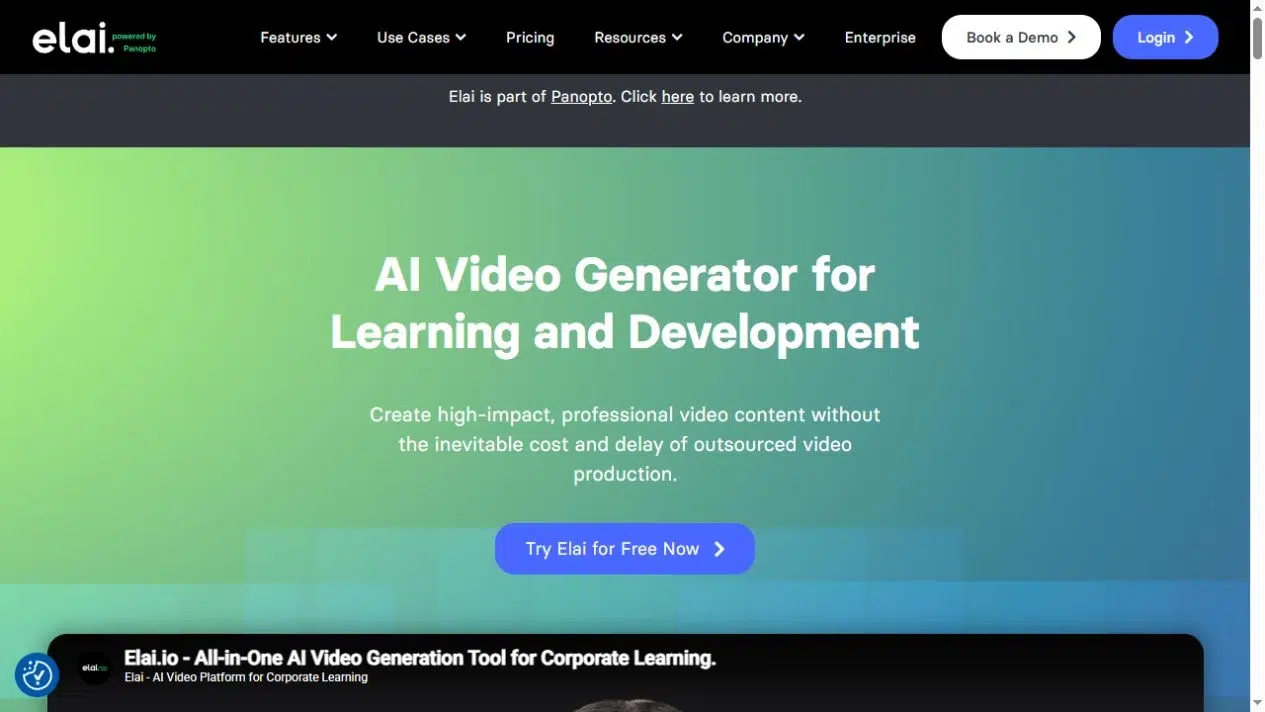
Elai suits trainers who maintain the source lesson in PowerPoint. Its Editable Mode can transfer supported slide objects and speaker notes, while Image Mode keeps slides as backgrounds. PDFs also use static backgrounds. You can review the storyboard and narration, then use a presenter or voice-only delivery according to how the lesson needs to explain the material.
Key Features
- PowerPoint imports offer Editable Mode and Image Mode; PDF pages become background slides.
- Script and storyboard editing support reviewing the explanation before rendering the lesson.
- Enterprise adds interactive elements, AI quiz generation, and SCORM export for structured training delivery.
Pros
- Editable PowerPoint objects let you revise a diagram label or instruction along with the narration.
- Presenter and voice-only options give you a choice for pages where an avatar would occupy teaching space.
Cons
- Imported elements may shift, so review the slide layout; PDF backgrounds do not become editable objects.
- AI quiz generation and SCORM are Enterprise features, not standard benefits of every document conversion.
Best For
- Trainers using PowerPoint as the source they regularly revise, with optional interactive-course requirements.
6. Vyond
Vyond Go can turn document content into a summary, script, and selected scene layout. Its Conversation, Talking Head, and Narration options suit different ways of explaining a situation. A conversation layout can show two colleagues discussing how to respond to a request, giving the trainer room to demonstrate wording and choices through characters.
Key Features
- Document-to-video accepts DOCX, PDF, PPTX, and TXT sources, with a summary you can review.
- Conversation and narration layouts organize the script; Quick Edit and Studio provide further dialogue and scene edits.
- Enterprise and Agency plans support SCORM export with configurable viewing-completion requirements.
Pros
- Character dialogue can demonstrate a workplace conversation instead of presenting every instruction as a slide.
- Summary review and scene editing let you select the material that belongs in a short lesson.
Cons
- Summarization can reorganize the source, so compare the script with instructions whose meaning must stay precise.
- Trial access does not include downloads; SCORM export requires an eligible plan.
Best For
- Workplace scenarios and conversation examples that benefit from animated characters and a newly arranged script.
Choose the Delivery Before Adding Questions
A normal MP4 works for a lesson employees can watch in a message, webpage, or training library. Clickable questions and branching need the tool’s supported interactive player or an appropriate course package. Those interactions do not remain functional simply because the same project can also export a video.
Choose the question by the decision you want to teach. After the orientation example, “Who should you contact when your account will not open?” asks an employee to apply the guidance. “Did you enjoy the video?” gathers feedback but does not check that decision.
If the LMS needs a completion record or score, confirm what the selected SCORM export reports. A viewing threshold records how much of the video was watched. A scored knowledge check records an answer. Keep that distinction when choosing the tool and configuring the course.
Frequently Asked Questions
Completion shows that the required viewing or course activity was recorded. To check understanding, ask the learner to make a relevant decision, answer a question, or demonstrate the task. Choose a response that matches the lesson’s purpose instead of treating playback progress as proof of competence.
Review captions for names, technical terms, and timing. Explain important visual information in the narration, and supply a readable transcript or document where appropriate. Captions address the spoken words; they do not explain an unlabeled diagram or make small on-screen text readable.
Check your organization’s rules for the information in the manual and the service’s account, storage, and sharing settings. Remove personal details that the lesson does not need. Use approved examples in place of live employee or customer records when explaining a process.
Use a manual or script-import route that lets you enter the approved text directly. AI summarization can change phrasing or omit detail, so compare the narration with the approved source before generation. Also review the spoken result for names and terms that need a specific pronunciation.
Conclusion
Choose an AI training video generator according to the lesson you need to maintain: a narrated PDF, an editable slide-based presentation, a character scenario, or an interactive course. Match the import route to the source material and the delivery option to the learner activity you need to record.
Start with one short lesson in your chosen AI training video generator. Recastia connects the existing guide with an explanation of the action or decision on each page.
Bring Your PDF to Life With Recastia
Create, customize, and share your content in a more engaging way.