
Your report is finished, but turning it into a video or social post can feel like starting over. The same problem follows a webinar: the ideas are there, yet someone still has to find and reshape them. A content repurposing tool handles part of that work. This guide compares six options so you can choose a content repurposing tool for the files you already have.
Key Takeaways
- Recastia suits PDFs you want to turn into videos, online presentations, flipbooks, or editable documents.
- OpusClip focuses on short clips from longer videos. Descript fits recordings that also need editing through a transcript.
- Castmagic turns recorded conversations into written drafts, including newsletters and articles, and also supports clips.
- Lumen5 builds video scenes from written content. Canva Magic Resize adapts existing designs to different dimensions.
- Compare the input and output first, then check editing access, branding, and usage limits before choosing a plan.
Content Repurposing Tools Compared
| Tool | Starting Material | Main Use Here | Limitation to Know |
| Recastia | PDFs | Videos, presentations, flipbooks, and editable files | Free flipbooks and videos include Recastia branding |
| OpusClip | Long videos | Short captioned clips | Free plan excludes editing and includes a watermark |
| Descript | Video and audio | Transcript-based editing and clips | Media hours and AI credits depend on the plan |
| Castmagic | Recorded conversations | Newsletters, articles, show notes, and social copy | Transcription library capacity depends on the plan |
| Lumen5 | Articles, scripts, and documents | Videos built from text and visuals | Does not copy PowerPoint slides scene for scene |
| Canva Magic Resize | Existing designs | Versions in different sizes | Requires an eligible Canva plan |
1. Recastia: Reuse a Finished PDF
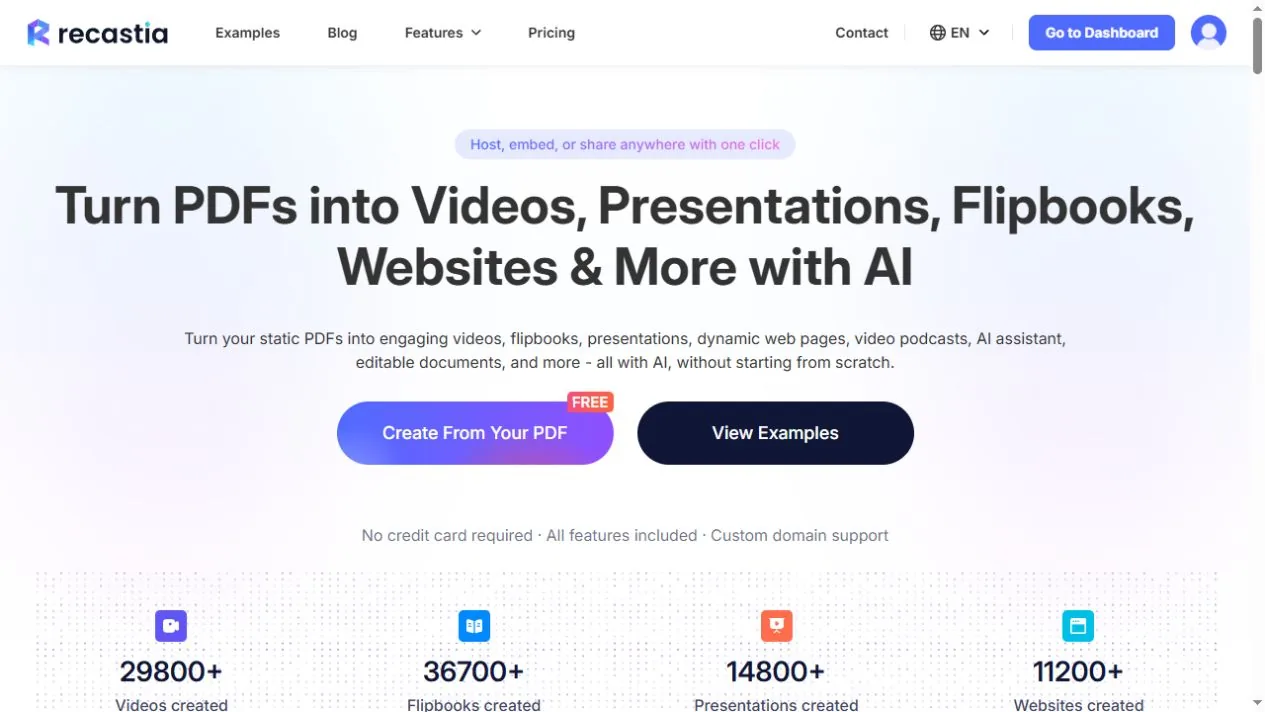
Recastia turns PDFs into online formats such as flipbooks, presentations, and videos. It also converts PDFs into editable documents. This makes it useful when your content is already laid out in a report, brochure, or guide and you want another way to publish or edit it.
For example, a product brochure can become a flipbook for browsing online. The same PDF can supply a narrated video that explains selected pages. You choose the format and configure each creation separately; the output depends on that choice.
Key Capabilities:
- Create a flipbook that readers can open through a shareable link.
- Turn PDF pages into an online presentation or a video with narration options.
- Convert a PDF into Word, Excel, PowerPoint, or image files for further work.
Plan Limitation: Free flipbooks and videos carry Recastia branding. Removing branding requires a paid plan; available settings also vary by format and plan.
Best For: Teams reusing completed PDFs across several formats. See these PDF repurposing examples for specific uses, or compare editable document outputs when you need to change the content itself.
2. OpusClip: Find Clips in Longer Videos
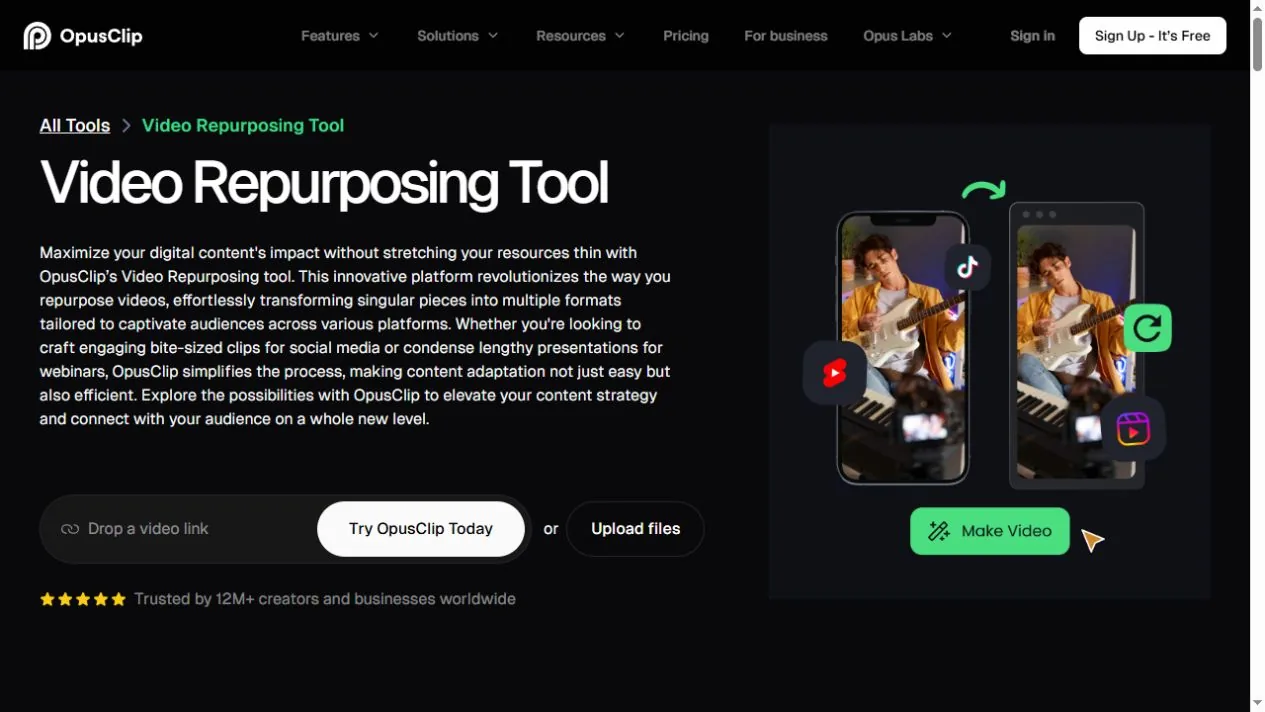
OpusClip identifies sections of a longer video and turns them into short clips. It can add captions and reframe footage for a vertical screen, giving you shorter versions of an interview, webinar, or other recording.
A webinar with several questions is a useful starting point: each complete answer could become its own clip. OpusClip supplies candidate moments, while its editing options let you adjust the result on eligible plans. Keep enough of the question or introduction for the answer to make sense on its own.
Key Capabilities:
- Generate short clips from uploaded videos or supported video links.
- Add captions and automatically reframe footage.
- Refine clips with editing tools on eligible plans.
Plan Limitation: OpusClip’s free plan includes watermarked clips and excludes editing. Free clips also have a limited export window, so it is worth checking the plan before processing a recording you need to publish later.
Best For: Creators who already have long videos and want to publish shorter excerpts.
3. Descript: Edit the Recording Before Reusing It
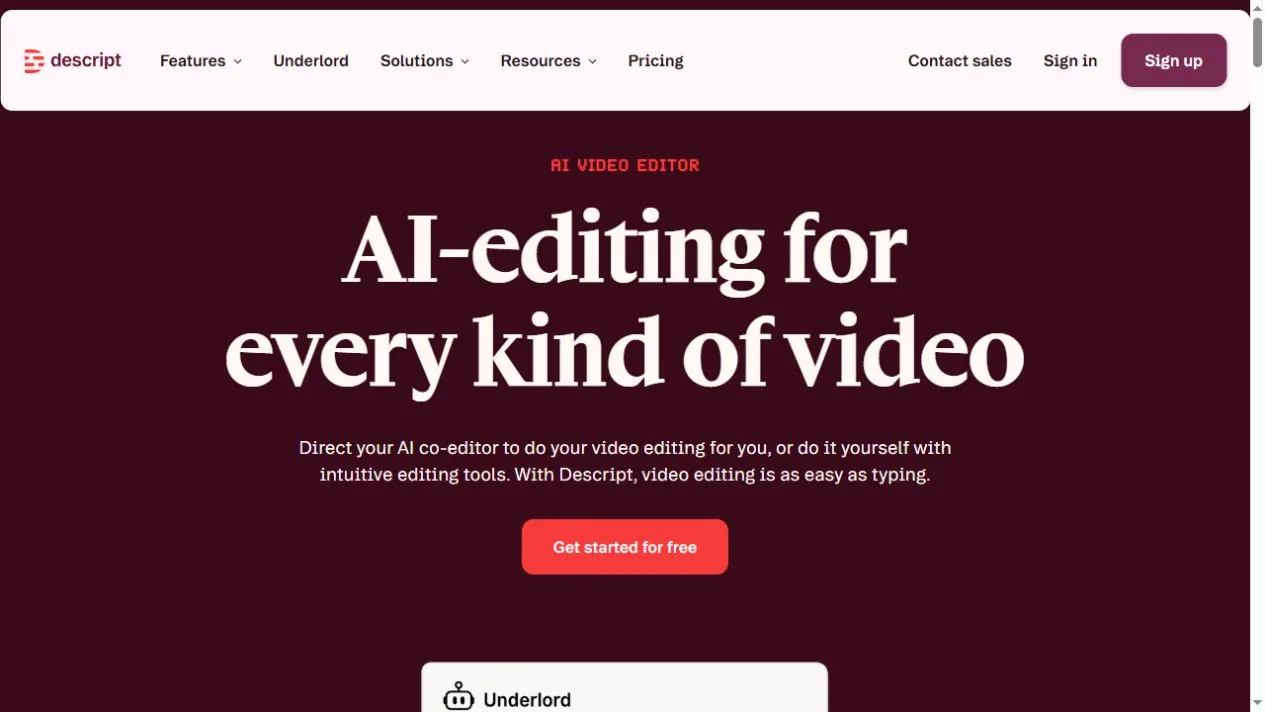
Descript links a recording to its transcript. Cut or rearrange words in the transcript, and Descript makes the corresponding edits to the audio or video. This suits interviews and lessons where you need to remove tangents or tighten an explanation before making shorter versions.
Descript also creates clips, so you can edit the full recording and prepare excerpts in one project. Choose it when control over the original conversation matters as much as finding highlights.
Key Capabilities:
- Edit audio and video through text.
- Create clips and add captions.
- Use audio cleanup and filler-word removal tools.
Plan Limitation: Descript allocates media hours and AI credits by plan. Estimate how much source material you will upload, as well as which AI features you intend to use.
Best For: Podcasters, educators, and interview producers who need to revise recordings as well as repurpose them.
4. Castmagic: Turn Conversations Into Written Drafts
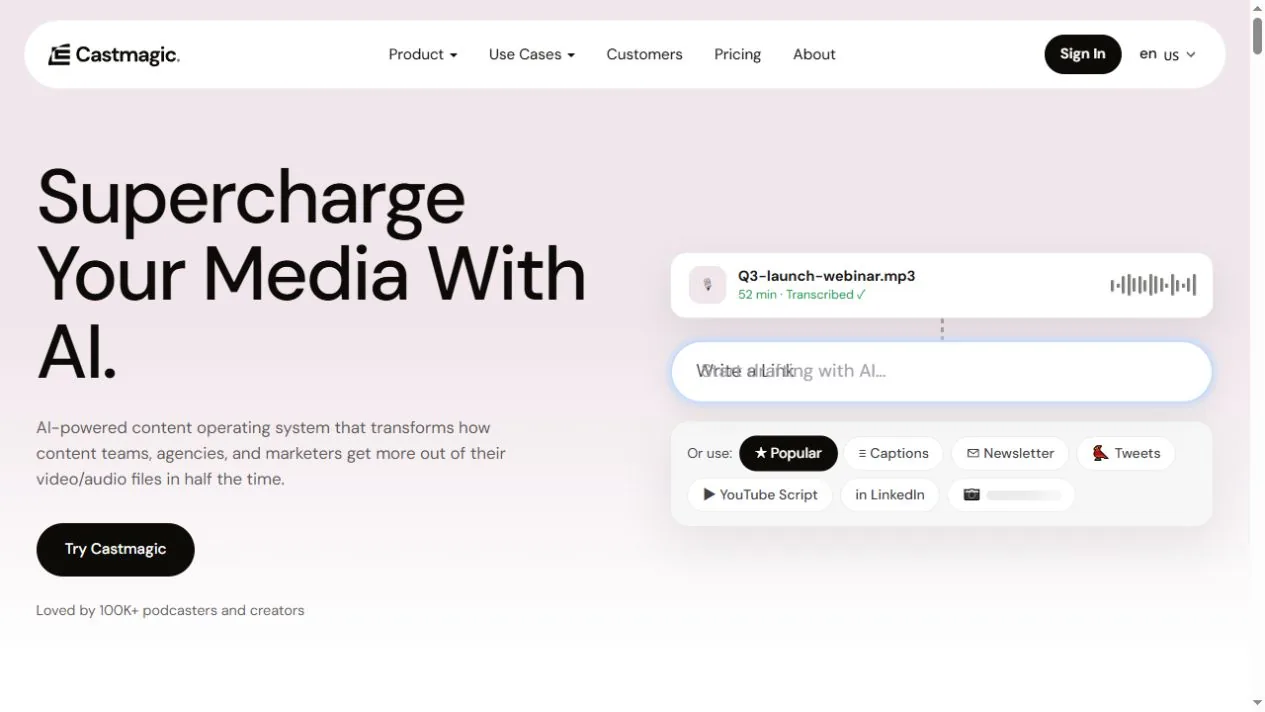
Castmagic transcribes recordings and uses their content to draft show notes, newsletters, articles, and social posts. It is useful when a discussion contains material for several written pieces but you do not want to work from a blank page each time.
A podcast episode might supply a newsletter about one question and a longer article about another. Castmagic also supports captioned clips, so its role extends beyond transcription and writing. For written outputs, choose the main idea for each piece instead of repeating the whole conversation across every channel.
Key Capabilities:
- Produce transcripts with speaker labels and timestamps.
- Draft newsletters, blog articles, and social copy from recordings.
- Create captioned clips from recorded material.
Plan Limitation: Castmagic’s plans include different transcription library capacities, with additional hours available to purchase. Check that capacity if you plan to import a back catalog of episodes.
Best For: Podcast and webinar teams publishing written content alongside recordings.
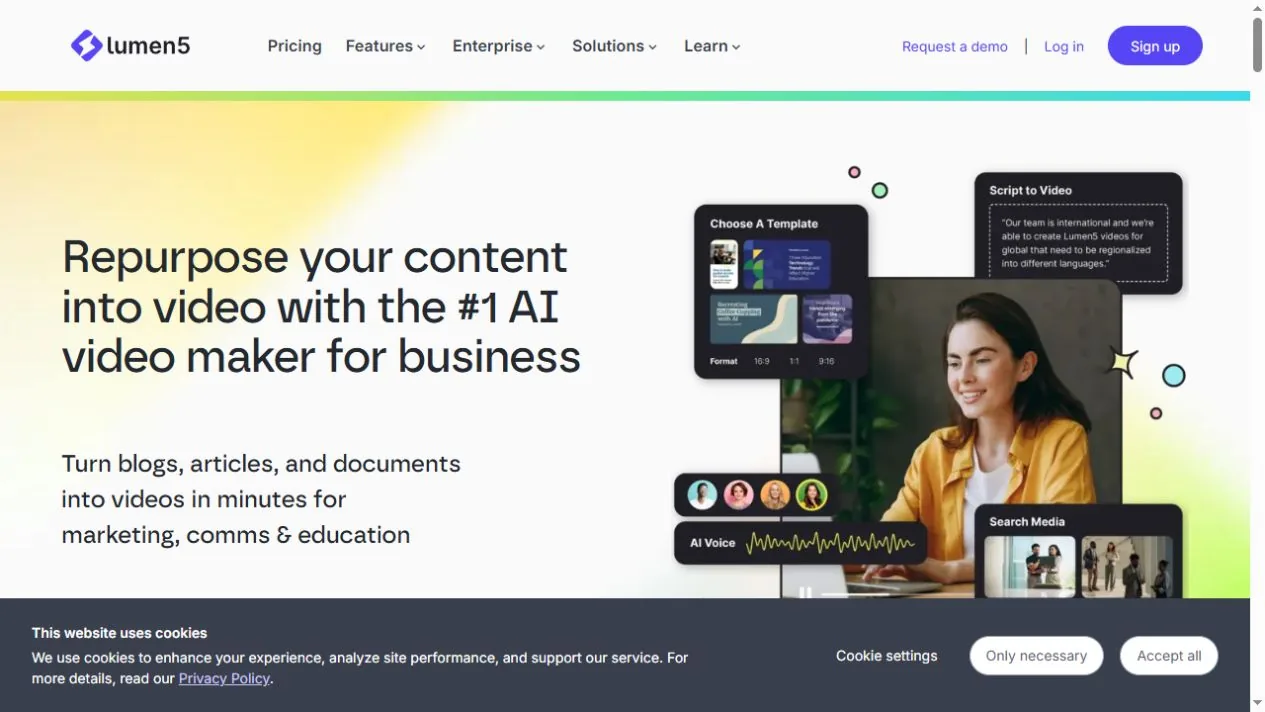
5. Lumen5: Adapt Written Content Into Video Scenes
Lumen5 builds videos from articles, scripts, and uploaded documents. It can import a public article URL or use pasted text, then help turn the material into a video script and scenes.
This suits an article you want to introduce through a short video. Keep the main explanation and use the original article for supporting details. Lumen5 lets you edit the script before moving into the video, which is useful when a long paragraph needs to become a few spoken sentences.
Key Capabilities:
- Import a public article, paste text, or upload a PDF, PowerPoint, or text document.
- Summarize source material into a script or use the source sentences.
- Adjust the script and build scenes with visuals.
Workflow Limitation: Lumen5 extracts content from uploaded presentations; it does not copy PowerPoint slides scene for scene. If retaining the page design is central to your project, compare the approaches in this PDF to video converter guide.
Best For: Marketing teams adapting written articles into video summaries.
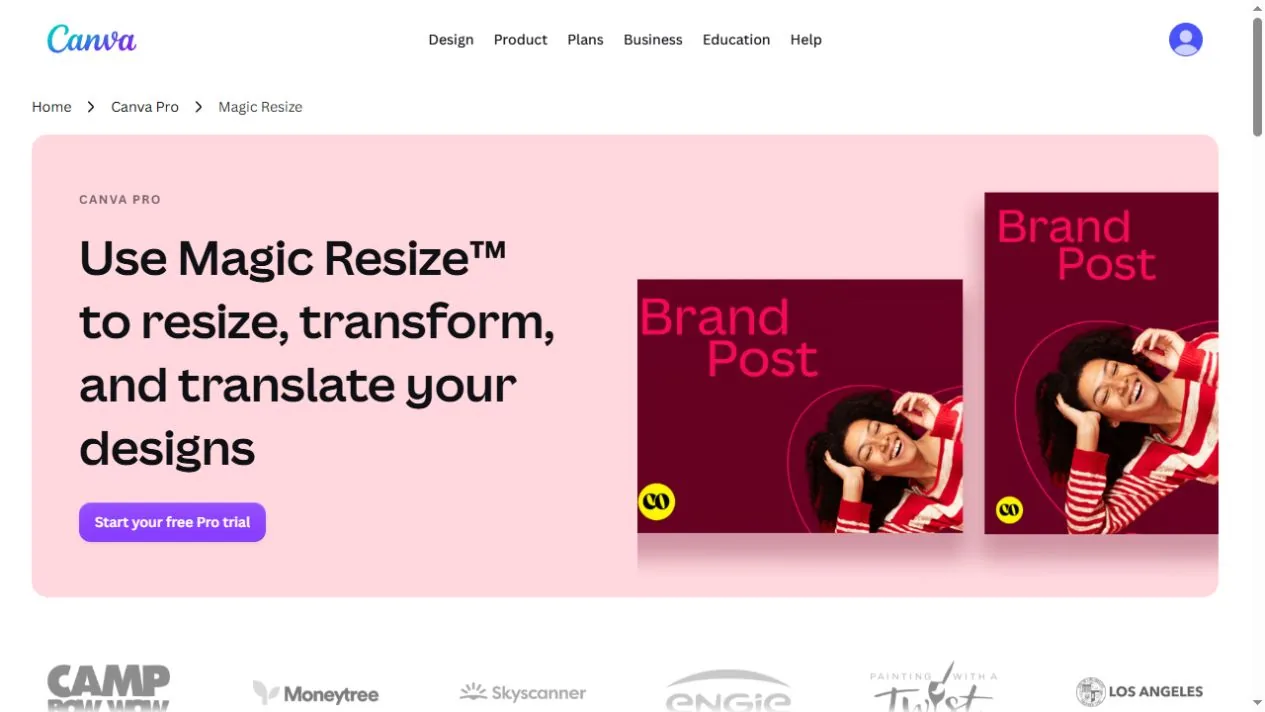
6. Canva Magic Resize: Adapt a Design for More Channels
Canva Magic Resize makes versions of an existing design in different dimensions. A campaign graphic can become a square post, a vertical story, and a banner without creating each canvas from scratch.
Canva keeps those versions editable. After resizing, adjust the text and images for the new space: a headline that fits a wide banner may need fewer words in a narrow layout. This is useful once you have chosen the message and visual design.
Key Capabilities:
- Copy an existing design into selected sizes.
- Prepare multiple formats from the same design.
- Edit each version before downloading or sharing it.
Plan Limitation: Magic Resize requires an eligible Canva plan, such as Pro or an eligible organizational plan. A free Canva account alone does not include it.
Best For: Teams adapting approved campaign graphics for several publishing channels.
Which Content Repurposing Tool Fits Your Next Project?
Choose based on the file you have and the output you need. For a PDF report, Recastia can create a flipbook or presentation for readers to browse. If you are choosing how to present that PDF, this comparison of interactive presentation websites explores the options in more detail.
For a recorded webinar, use OpusClip to find short excerpts or Descript to edit the conversation first. Choose Castmagic when the next deliverable is a newsletter or article. Lumen5 fits the reverse direction: written material becoming video. Canva handles the design sizes you need alongside those outputs.
Before buying, check the restriction that affects your actual deliverable. A watermark may matter on a campaign video; transcript capacity matters when importing an archive. Paying for more output formats is less useful if the tool cannot produce the one you need.
Frequently Asked Questions
Reposting shares the same content again. Repurposing changes its format or presentation for another use, such as turning an interview into an article or a PDF guide into a narrated video. Resizing a visual is a smaller change, but it can still make that design suitable for another channel.
Yes. You might edit a webinar in Descript, develop a newsletter from the recording in Castmagic, and prepare its promotional graphics in Canva. Add a second tool when it performs a task your first tool does not handle well enough for the project.
The dimensions may fit, but the content can still need adjustment. Check text size, image crops, and how much information fits on the screen. A detailed slide may need a shorter headline and fewer labels when adapted to a social post.
Update the source first. Correct old figures, product details, and links before creating new versions. Keep a record of the outputs made from that source so a later correction can be applied to the related video, article, or graphic too.
No. A new format gives you another way to publish the content, but results depend on the topic, distribution, and usefulness of that version. Give each piece a clear purpose, such as explaining one question or introducing a longer resource, and measure whether it serves that purpose.
Conclusion
The right content repurposing tool starts with a practical match: Recastia for PDFs, OpusClip for clips, Descript for editing recordings, Castmagic for written drafts, Lumen5 for text-based videos, or Canva for design sizes. Pick one existing piece and one output you need next. That gives you a concrete way to judge whether a content repurposing tool is worth adding to your work.
Bring Your PDF to Life With Recastia
Create, customize, and share your content in a more engaging way.