
Internal communication videos can explain company decisions, share project progress, or introduce a change at work. This guide covers four common types, what to include in each, and sample scripts you can adapt for your team.
You’ll also see how to organize an announcement into three PDF pages and use Recastia to create internal communication videos with narration and captions.
Four Types of Internal Communication Videos
Choose the type that fits your message. Explaining a company decision calls for different information than asking a team to review a project.
1. Leadership Updates
Use a leadership update to explain a new priority, a company milestone, or a decision that affects several teams.
The message should answer:
- What has been decided?
- Why was that decision made?
- What changes for employees?
- What stays the same?
For example, a quarterly update could explain why customer support is becoming a priority and which projects will receive more resources. Show a chart if the numbers help explain the decision.
When employees need to hear directly from a particular leader, record that person. A narrated slide summary can accompany the message.
2. Project Updates
A project update helps colleagues understand progress and plan their next contribution. Keep it focused on completed work, the next milestone, and anything you need from another team.
Example message:
“The new help center is ready for review. Support will check the answers this week. Product owners need to confirm their sections before we schedule the launch.”
The message names the work, the teams involved, and their next actions. Show the help center or a simple timeline alongside it. Keep the detailed task list in the project workspace, where dates and responsibilities can be updated.

3. Change Announcements
Use this format when employees need to follow a new process, use a different form, or send requests somewhere new.
Make these details easy to find:
- The change: What will employees do differently?
- The people affected: Does it apply to everyone or specific teams?
- The start date: When does the new process begin?
- The action: Which form, system, or channel should they use?
- Help: Where can they ask questions?
Show the actual form or destination so employees can recognize it later. Include a link to the full instructions in the message that accompanies the video.
The three-page example below uses this format.
4. Cross-Team Explainers
A cross-team explainer introduces a team’s work to the colleagues who need its help.
For a design team, useful topics include:
- The requests it handles.
- What to include in a design brief.
- Where to submit the request.
- How feedback and approval work.
Show one completed brief and explain the details that help the team start work. A colleague should finish the video knowing how to make a request; the team’s full production procedure can remain in a separate guide.
Turn a Written Announcement Into a Video Script
Start with the announcement you already have. Select the information employees need to act, and keep the background discussion in the accompanying document.
For an announcement introducing a weekly project-update form, the content could be divided like this:
| Information in the Written Announcement | What to Include in the Video |
| Reason for the change | Explain that project updates will use the same format. |
| Submission instructions | Name the form, where to find it, and the deadline. |
| Required information | List progress, the next milestone, and blockers. |
| Discussion notes and rejected options | Keep these in the source document unless they explain a decision employees need to understand. |
| Questions and responsibilities | Identify the support channel and any extra action for team leads. |
Organize the PDF Into Three Pages
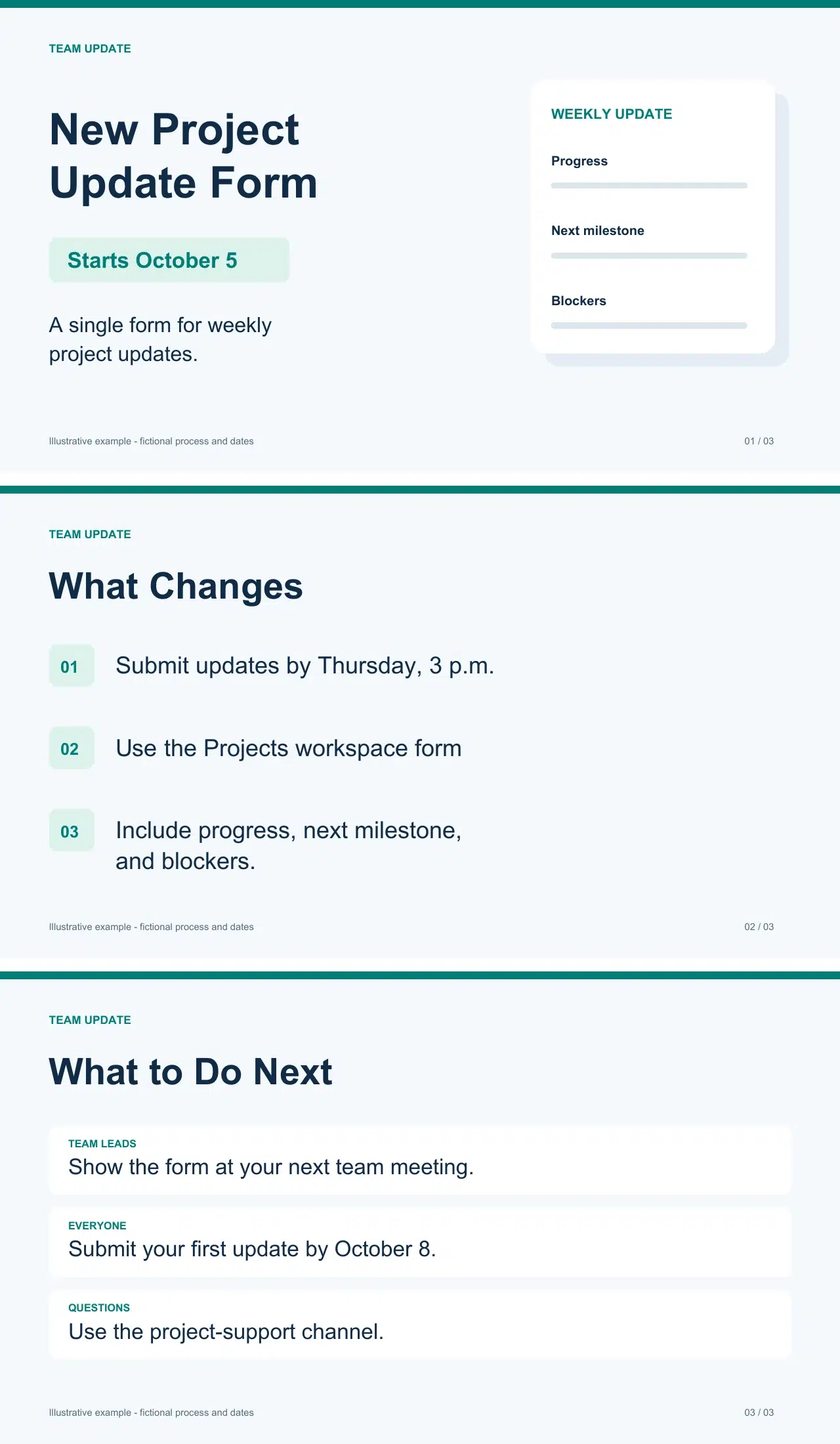
For this sample announcement, each page has a specific job:
- Announce the change. Introduce the new project-update form and its October 5 start date.
- Explain the submission. Show where to find the form, the Thursday deadline, and the information to include.
- Give the next action. State the first due date, October 8, and where to send questions.
Use short headings and essential details on the pages. Let the narration explain them. Adapt the sample dates and instructions to your own process.
Write the Employee Message First
The employee version should include everything someone needs to submit their first update.
Sample script:
“Starting October 5, use the form in the Projects workspace for your weekly update. Submit it by Thursday at 3 p.m. Include your progress, next milestone, and any blockers. Your first update is due October 8. Send questions to the project-support channel.”
Add Instructions for Team Leads
Keep the dates and submission instructions unchanged. Add the responsibilities that apply to team leads.
Additional script:
“Show the form at your next team meeting. Explain what belongs in each field, and collect questions in the project-support channel so everyone can find the answers.”
This gives team leads the extra instructions they need without rewriting the shared announcement.
Create the Video With Recastia
Once the PDF and script are ready, use the PDF to Video tool to create a narrated update. Use documents your organization has approved for uploading and sharing.
- Choose a Template and Upload Your PDF
Choose a video template, then upload the PDF. Page Slide is a straightforward option for the three-page announcement above.
Select Advanced Mode to enter narration for each page, then choose the PDF pages you want to include. - Add Your Narration and Captions
Enter the relevant part of the script beside each page. Keep names, dates, and deadlines consistent with the PDF.
Turn on Subtitle Display if you want captions. You can also choose:
• Voice: The voice used for the narration.
• Avatar: The on-screen presenter.
• Background music: Music to accompany the update.
• Video ratio: The shape of the video. - Generate and Share the Update
Generate the video, then share it through your team’s approved communication channel.
Alongside the video, include:
• A short headline explaining the update.
• The deadline or effective date.
• A link to the form or full instructions.
Employees can then find the link or deadline without replaying the video. For more detail on creating the video, see how to turn a PDF into a video.
Video Example Created By Recastia.
Make Your Next Update Easy to Act On
For your next internal communication video, choose one announcement and identify the decision or action it needs to explain. Prepare the PDF pages, add the narration, and share the relevant links alongside the finished video.
Recastia lets you create internal communication videos from those PDF pages, using the script and presentation settings you choose.
Bring Your PDF to Life With Recastia
Create, customize, and share your content in a more engaging way.
Frequently Asked Questions
For a single announcement, a 60–90-second script is a practical starting point, not a requirement. Allow enough time to explain the message. If it covers several unrelated updates, consider separate videos so employees can open the one they need.
You can send both together. Put the headline, deadline, and action link in the email or team-channel message. Use the video for the explanation or visual walkthrough.
Translate the script and essential on-screen text, then have someone familiar with the language and process review them. Keep dates, form names, and instructions consistent. Provide captions or a transcript in the language of each version.
Ask a question tied to the message, such as where to submit the next update or which deadline applies. Recurring questions can reveal what needs a clearer explanation. A view count alone doesn’t show whether someone understood the instructions.