
Recastia’s features turn a finished PDF into content people can browse, watch, present, explore, question, or edit. Instead of rebuilding the same approved material for every channel, you upload one source and choose the experience that matches the audience.
This guide walks through all seven creation paths — how to create each format, which modes and settings are available, and where each output works best.
Key Takeaways
- Recastia offers seven creation paths from one PDF: flipbook, video, presentation, website, 3D exhibition, chatbot, and document conversion.
- Each path is a dedicated workflow with its own modes and settings — not one converter with different labels.
- A flipbook preserves page design; a video adds narration and motion; a website turns the content into a scannable landing page.
- Choose the audience action first, then use the settings designed for that format.
- One PDF can power several projects, but each output should have its own audience and purpose.
What Is Recastia?
Recastia is a PDF repurposing platform with seven creation paths:
- PDF to Flipbook
- PDF to Video
- PDF to Presentation
- PDF to Website
- 3D Exhibition
- PDF to Chatbot
- PDF to Document
Most workflows follow the same rhythm: upload the source, choose the relevant settings, generate the project, review it, then share or download the result. For a broader introduction, see how to turn one PDF into multiple content formats.
Using one approved PDF source also keeps the message consistent: a product brochure can support a complete flipbook for buyers, a short video for promotion, a landing page for campaign traffic, and an editable document for the internal team.
PDF to Flipbook
PDF to Flipbook converts designed pages into a browser-based publication with realistic page turns. It suits magazines, catalogs, portfolios, reports, ebooks, and brochures because it keeps the original page order and layout at the center of the reading experience.
How to Create a Flipbook
- Upload the PDF or a set of images.
- Let Recastia render the pages into an online flipbook.
- Add a title and description.
- Customize the visual treatment and reading controls.
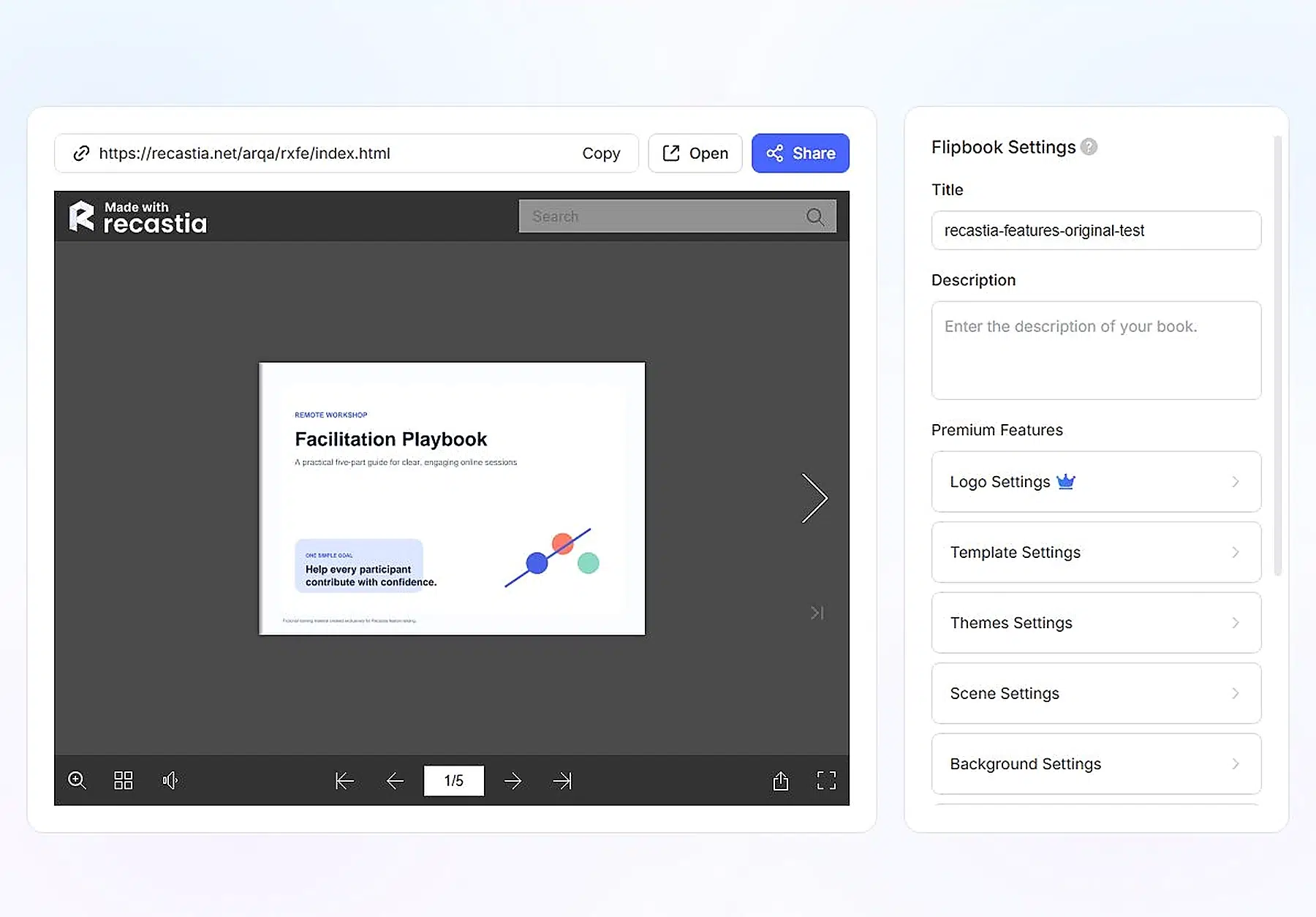
- Preview the publication, then copy its link, open it, or share it.
Flipbook Customization Options
The creation page offers twelve preset styles, and the editor and reader each come with their own controls:
- Styles: Refined, Handy, Active, Classical, Clear, Popular, Facile, Float, Fresh, Gorgeous, Lively, and Neat
- Editor settings: logo, template, theme, scene, background, background sound, appearance, page flip, page display, and language — all alongside a live page-turning preview
- Reader features: search, thumbnails, sound, page navigation, zoom, sharing, and full-screen viewing
Best Use Cases
Choose a flipbook when page design and sequence matter. An online catalog maker workflow can preserve product spreads, an annual report can retain charts and visual hierarchy, and a student portfolio can be reviewed in its intended order. It also works when the audience wants to browse at its own pace rather than follow a timed presentation.
Recastia Example
See a PDF to Flipbook Example
PDF to Video
PDF to Video reshapes static pages into a timed viewing experience, combining document visuals with page effects, AI narration, virtual presenters, captions, and music. It is useful for promotional content, explainers, training summaries, and social media.
How to Create a Video
- Upload the PDF or supported images.
- Choose Minimal, Easy, or Advanced Mode.
- Select the pages that belong in the video.
- Generate narration from the source or provide a script.
- Choose the ratio, visual style, presenter, voice, music, and subtitles.
- Generate the video and review the complete sequence before sharing or downloading it.
Video Modes and Styles
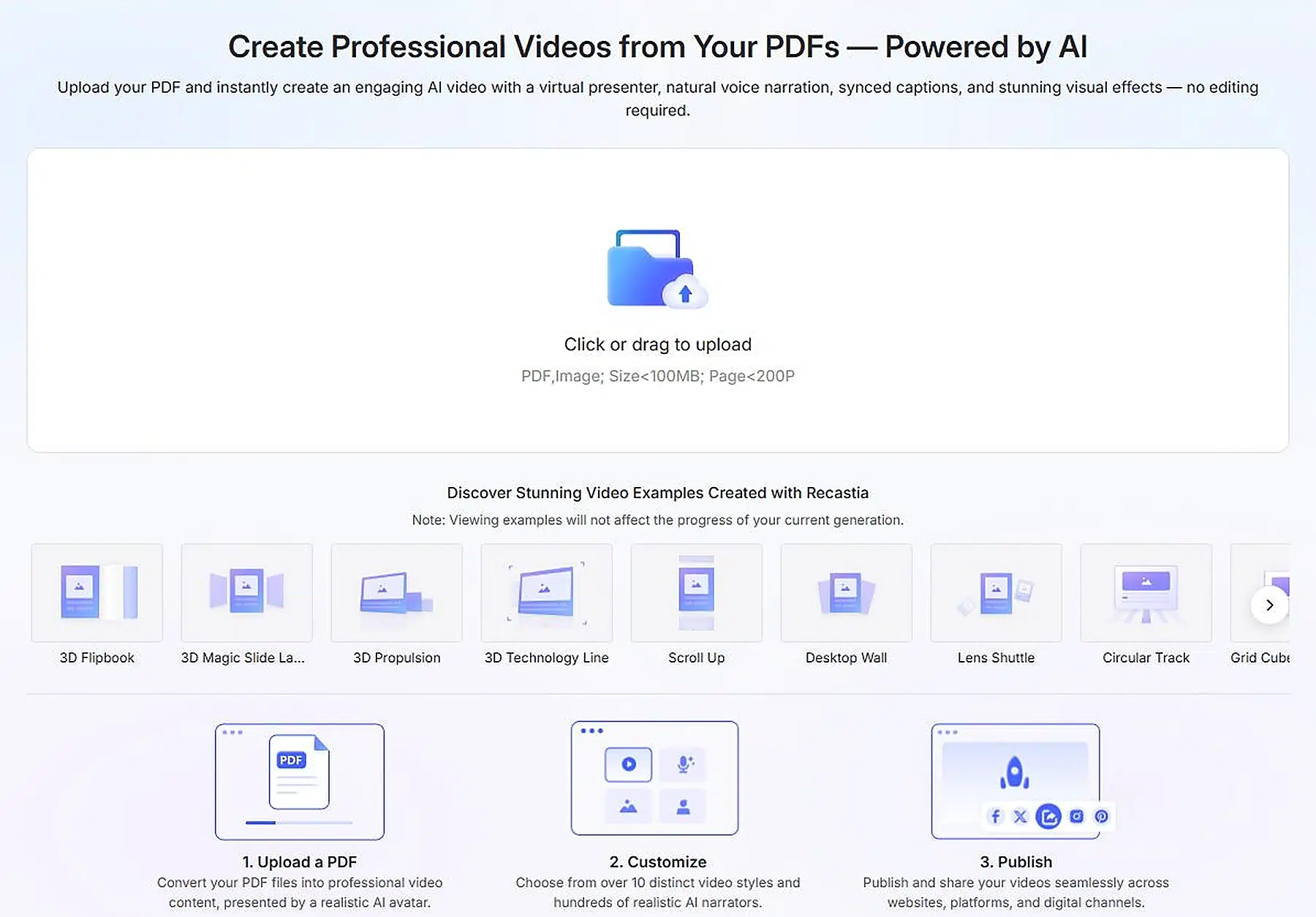
Minimal Mode creates an automatic page carousel without narration — good for visual documents that need motion but no explanation. Easy Mode adds AI voice and presenter options with automatic synchronization, a practical starting point for a narrated overview. Advanced Mode supports page-by-page reading with narration and presenter choices when individual sections need closer control.
The style gallery includes more than ten treatments:
- 3D Flipbook
- 3D Magic Slide Lamp
- 3D Propulsion
- Scroll Up
- Desktop Wall
- Lens Shuttle
- Laptop
- Film Narrative
- Projection Screen Speech
Landscape and vertical ratios match different channels, while voice, music volume, captions, and visual effects shape the viewing experience.
Best Use Cases
Use Minimal Mode for a lookbook teaser or animated product pages. Easy Mode fits a campaign overview, course introduction, or internal update. Advanced Mode is better for a PDF to video presentation where narration must follow selected pages closely. A short video should usually use only the pages that support one clear message.
Recastia Example
See a PDF to Video Example
PDF to Presentation
PDF to Presentation creates an interactive web presentation from the source. It is related to video, but the emphasis is guided delivery: organized slides, smooth transitions, optional narration, and virtual AI presenters.
How to Create a Presentation
- Upload the PDF or images.
- Choose the pages that support the presentation story.
- Select a transition style.
- Add or edit the voice-over script.
- Choose the virtual narrator and presentation settings.
- Preview the sequence, then share it through a link, QR code, social channel, or web embed.
Modes and Features
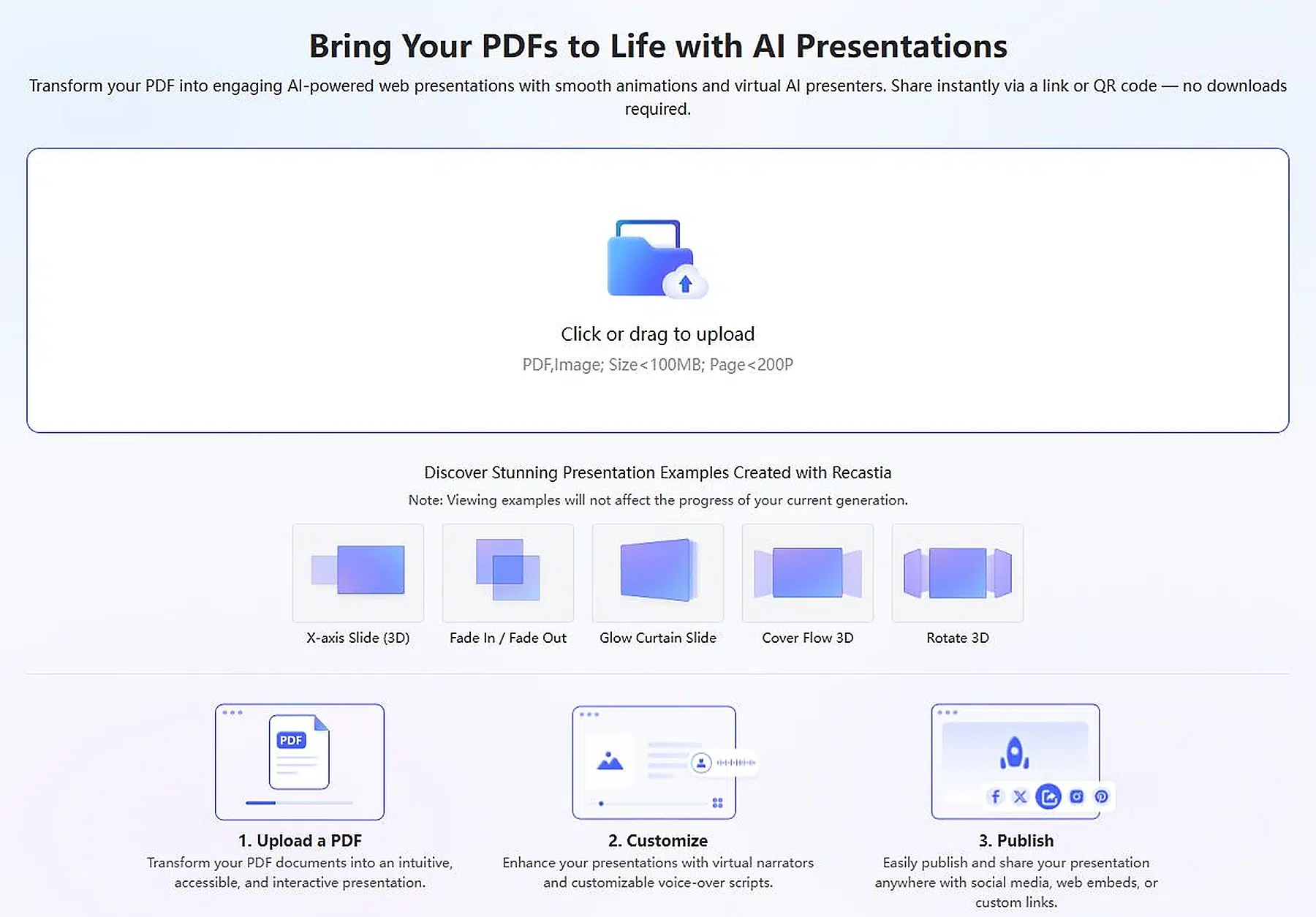
The visible transition choices include:
- X-axis Slide (3D)
- Fade In / Fade Out
- Glow Curtain Slide
- Cover Flow 3D
- Rotate 3D
Narration and AI presenter options can turn the presentation into a self-guided experience, while a simpler transition-led version works for a live speaker. In both cases, remove document-only pages such as legal notes or dense appendices when they interrupt the story.
Best Use Cases
This format works for lessons, webinars, sales pitches, product demonstrations, onboarding, and internal briefings. Choose it when information must unfold in deliberate stages but viewers should still experience it as a presentation rather than a finished video.
Recastia Example
See a PDF to Presentation Example
PDF to Website
PDF to Website builds a ready-to-publish landing page from the document. It changes the reading pattern from page turning to web scanning — useful when visitors need to understand an offer quickly and move toward a specific action.
How to Create a Website
- Upload the PDF in the landing-page workspace.
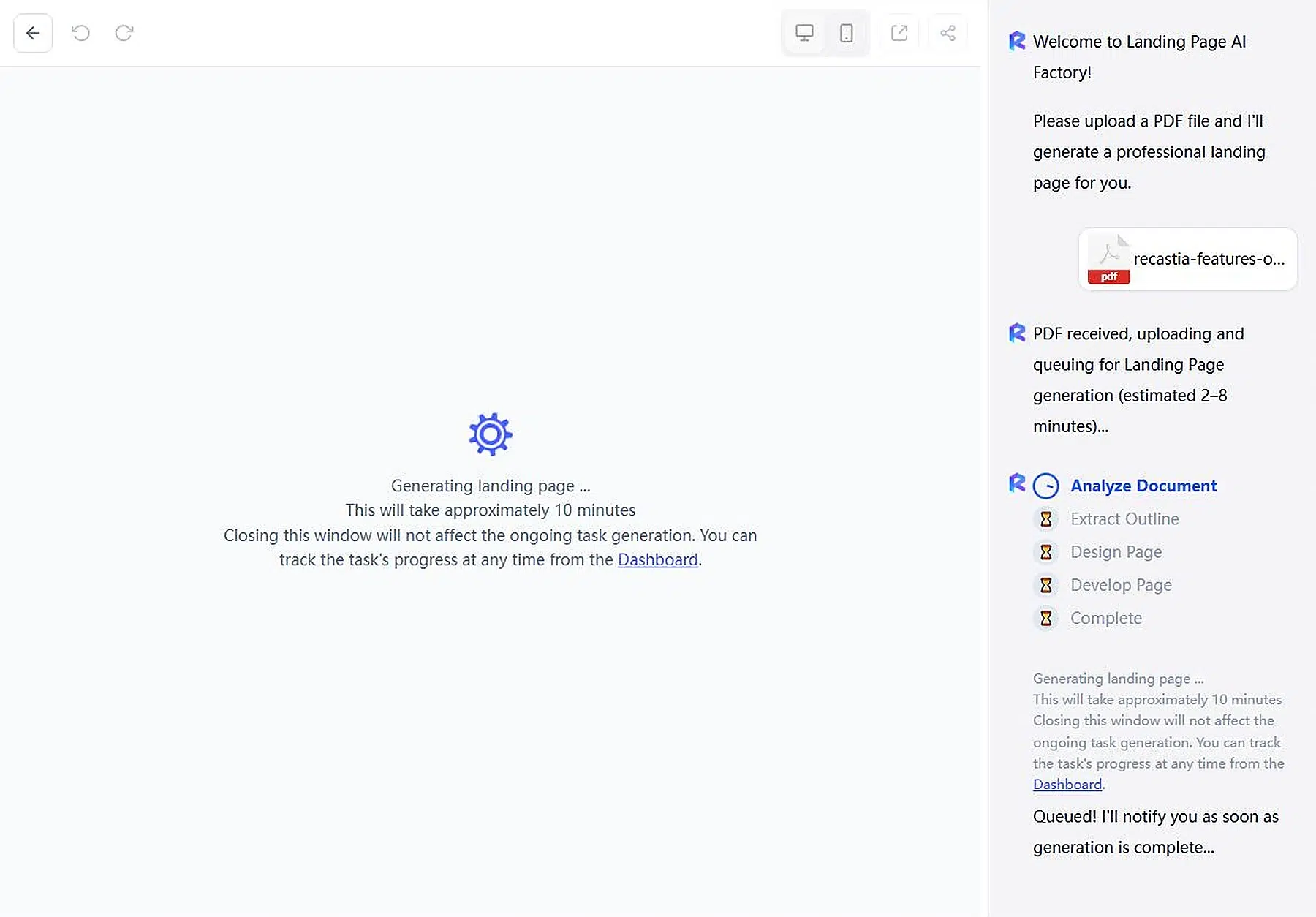
- Let the AI analyze the document and extract its outline.
- Wait while Recastia designs and develops the page.
- Review the sections in desktop and mobile preview.
- Refine the content where needed, then open or share the page.
Website Generation Features
The live generation panel shows five stages: Analyze Document, Extract Outline, Design Page, Develop Page, and Complete. The editor provides rollback and restore controls together with desktop and mobile previews, an external-window preview, and sharing.
Treat the result as web content, not a PDF copy. Check whether the opening explains the purpose immediately, whether the section order is easy to scan, and whether the final action is visible. Mobile preview matters because a layout that works on a wide screen can feel crowded on a phone.
Best Use Cases
Use this path for a product launch, event, service introduction, lead-generation campaign, course overview, or downloadable-resource page. It is most valuable when the source already contains approved messaging but the audience should not have to read the full document.
Recastia Example
See a PDF to Website Example
3D Exhibition
3D Exhibition places content inside an explorable virtual gallery. Instead of following pages in a fixed order, visitors move through a space and discover items as part of an environment.
How to Create a 3D Exhibition
- Choose a gallery template that matches the collection size and mood.
- Upload the PDF or the visual assets derived from it.
- Place works, pages, or displays into the available slots.
- Arrange the viewing route and add supporting information.
- Preview navigation through the space, then publish and share the exhibition.
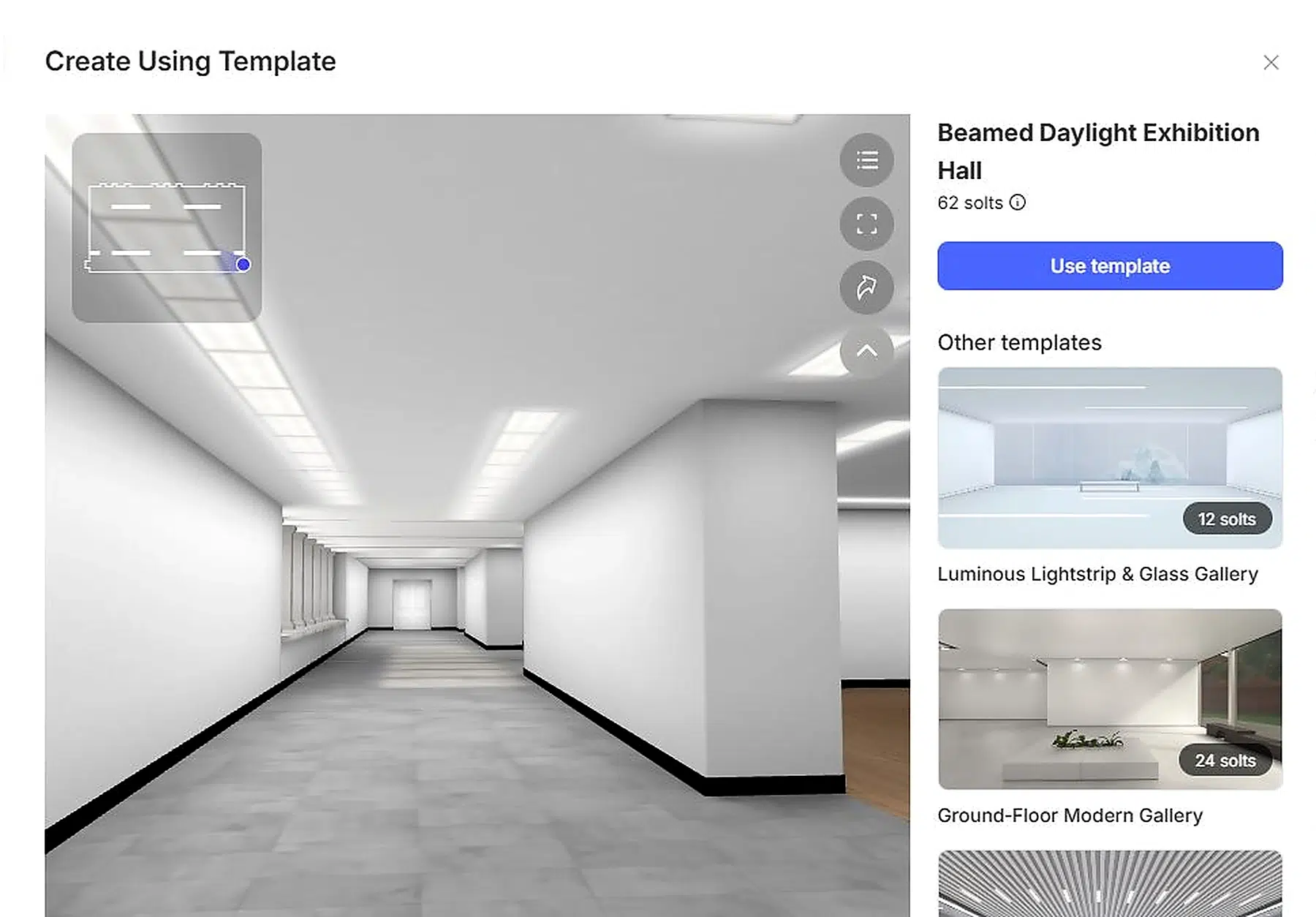
Templates and Features
The template library includes:
- Beamed Daylight Exhibition Hall
- Ground-Floor Modern Gallery
- Futuristic Curved-Wall Showroom
- Sunlit Terrace 3D Gallery
- Industrial Warehouse Exhibition Hall
- Forest Bookhouse
- Magazine Brand Art Space
- Several white-cube, atrium, pavilion, and salon layouts
Templates provide different numbers of content slots, so the choice should follow the collection size: a small portfolio benefits from a focused room, while a broad archive needs enough space to avoid crowding.
Best Use Cases
Choose 3D Exhibition for artwork, photography, student projects, visual portfolios, product collections, event displays, or digital archives. Use it when exploration adds meaning. If readers simply need the existing page sequence, a flipbook is the more direct format.
Recastia Example
See a 3D Exhibition Example
PDF to Chatbot
PDF to Chatbot lets visitors ask questions about the uploaded material, so people can begin with what they need to know instead of manually searching through every page.
How to Create a Chatbot
- Upload the PDF or supported images.
- Choose an avatar for the assistant.
- Write or edit the welcome message.
- Select the response subtitle style.
- Decide whether content should scroll automatically.
- Generate the chatbot and test it with realistic questions before sharing it.
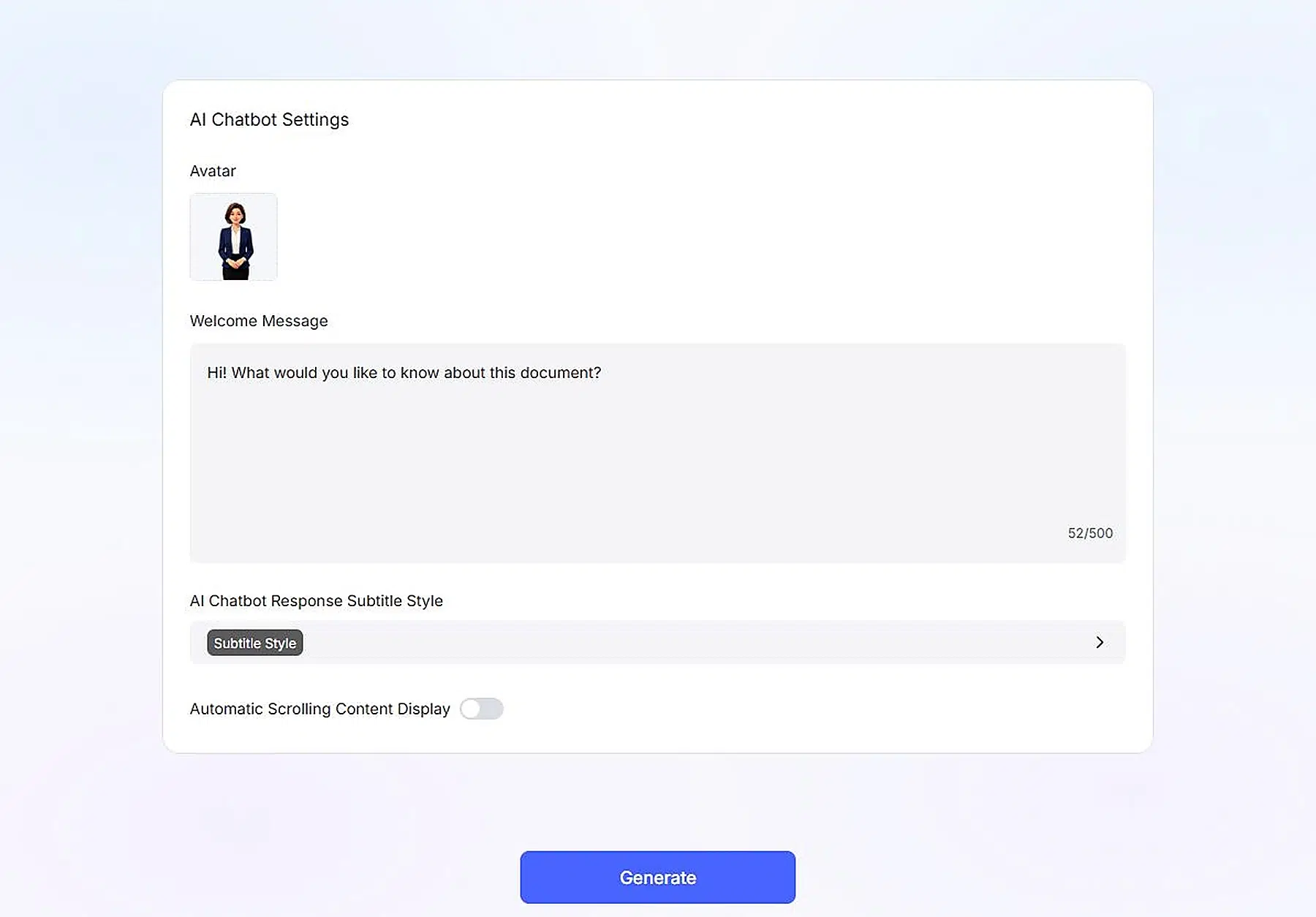
Chatbot Settings
The setup panel focuses on avatar, welcome message, response subtitle style, and automatic scrolling. The welcome message supports up to 500 characters — enough room to explain what the assistant can help with. For a training guide, it might invite questions about procedures or definitions; for a product manual, it can direct visitors to setup, features, or troubleshooting. Test several question types so the finished chatbot reflects the source accurately.
Best Use Cases
This feature fits product documentation, employee handbooks, training references, policies, research summaries, course notes, and help resources — especially when the source is long and readers usually arrive with a specific question.
Recastia Example
See a PDF to Chatbot Example
PDF to Document
PDF to Document converts the source into a working file rather than an audience-facing experience. It is the practical choice when the next task is editing, extracting, restructuring, or reusing content.
How to Convert a PDF
- Upload the PDF.
- Review the document preview and filename.
- Choose Word, PPT, Excel, or Image.
- Start the conversion.
- Download the converted file and continue editing it in the appropriate application.
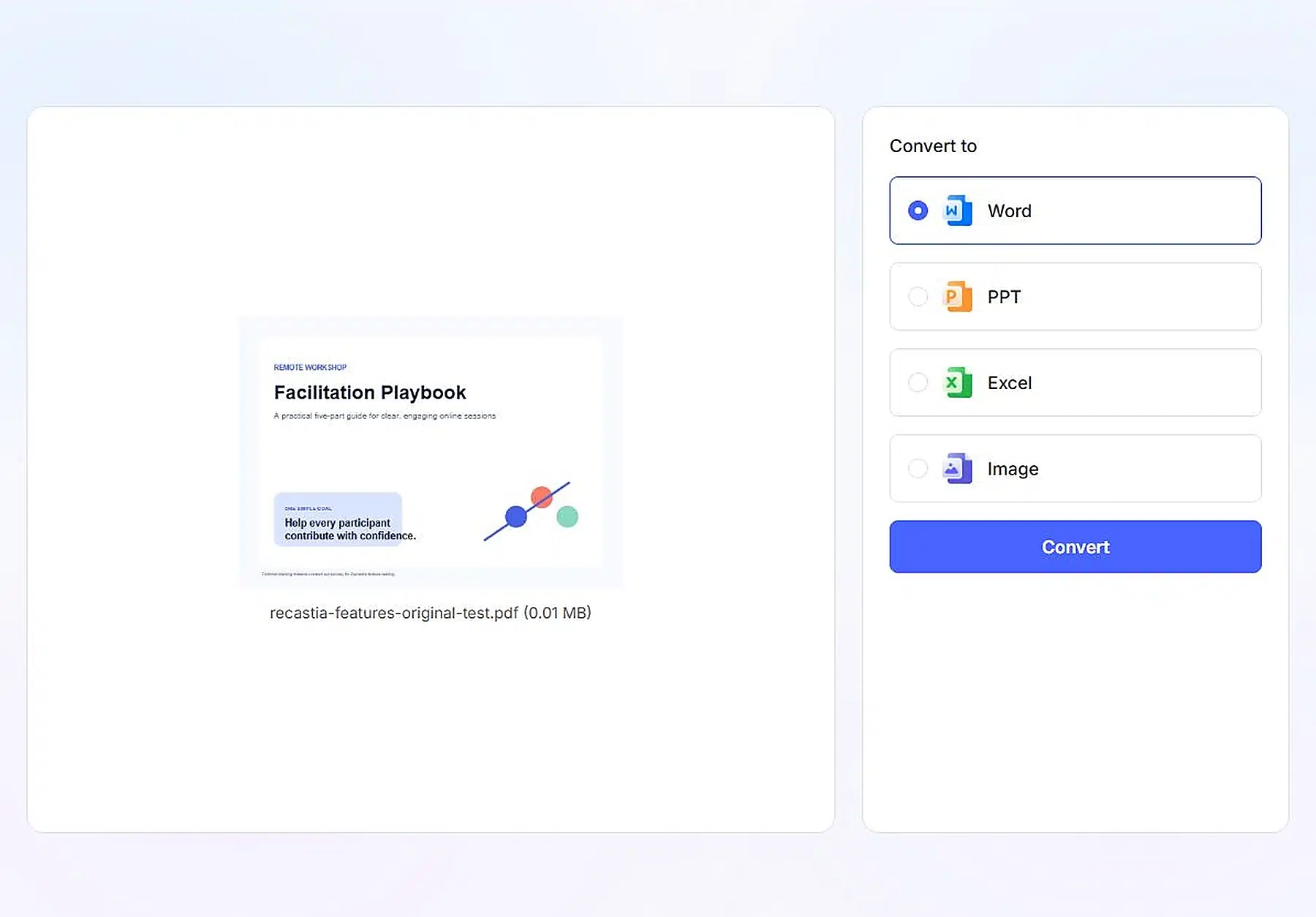
Output Modes
Word is suited to text revision and restructuring. PPT provides a starting point for rebuilding slides. Excel is intended for tabular information that needs further work, while Image turns pages into reusable visual files. The selector keeps all four destinations visible beside the source preview, so the conversion goal is clear before processing begins.
Best Use Cases
Each output format fits a different job:
- Word — revise an archived report
- PPT — rebuild a deck
- Excel — continue working with tables
- Image — reuse page visuals
This workflow can also start a republishing process: convert the old PDF, update and approve the content, then create a new flipbook, video, website, or chatbot from the revised source.
Honest Limits to Know Upfront
- Plan limits apply. The Free plan covers five creations with 200 pages per upload and Recastia branding on publications; Pro raises the limits and removes branding. Check the pricing page for current tiers.
- Every output inherits the source. Weak copy, blurry images, and outdated numbers carry over into every format you create.
- AI output needs review. Generated narration, scripts, outlines, and web pages should be checked by a human before sharing.
Frequently Asked Questions
PDF to Flipbook is the strongest default because it preserves page design, order, and browsing. Add a website or short video only when the catalog also needs a focused campaign destination.
Video creates a finished timed sequence for viewers to watch. Presentation organizes the material for slide-based delivery, with transitions, narration, and presenter options suited to guided communication.
Yes. One approved PDF can become several formats, but each project should have a distinct audience and purpose so the outputs complement rather than duplicate one another.
Choose a flipbook when readers need the complete designed manual, a chatbot when they usually have specific questions, or document conversion when the content needs editing.
No. The workflow generates the landing page from the uploaded PDF and provides browser-based preview and sharing controls.
Recastia’s seven features cover different jobs: page-based publishing, narrated video, guided presentation, landing-page creation, immersive exhibition, question-led access, and editable conversion. You do not need every output from every PDF — a small set of formats working together beats a folder of versions nobody asked for. If your project needs to organize multiple publications in one place, this guide to building an online magazine library from PDF is a practical next step.
Cassie is the Product Manager at Recastia, where she leads the design of the platform’s PDF conversion and publishing workflows — the same workflows covered in these guides. She writes from direct involvement in how the product is built: what each setting does, why it works that way, and where the real limits are.