
Have a brochure, menu, or guide in PDF form that you want people to see on Facebook? To share PDF on Facebook, post a reading link or turn selected pages into images for a photo post. A link gives people the whole document; images put the chosen pages directly into the post.
This guide explains how to share PDF on Facebook using both methods, with Recastia for document preparation and Facebook’s own posting tools. You’ll also learn how to choose the right format, write a useful caption, and check access before posting.
Key Takeaways
- Use a reading link when people need the complete brochure, catalog, or guide.
- Use page images when a few selected pages can explain the message on their own.
- You can pair a page image with a link to the full document.
- Check the Facebook profile or Page you are posting from, as well as the external document’s access settings.
Choose a Reading Link or Page Images
Choose based on how much of the document you want people to read. A long catalog belongs behind a reading link; a short menu or announcement can fit into a photo post.
| Method | Suitable Content | What to Consider |
| Reading link | A complete brochure, catalog, or multipage guide | People leave the post to open the document; check that the link works for them |
| Page images | A menu, announcement, or a few visual pages | Small text must remain readable; the pictures do not retain PDF links |
| Image plus reading link | A cover or highlight introducing a longer document | The caption should distinguish the preview from the complete document |
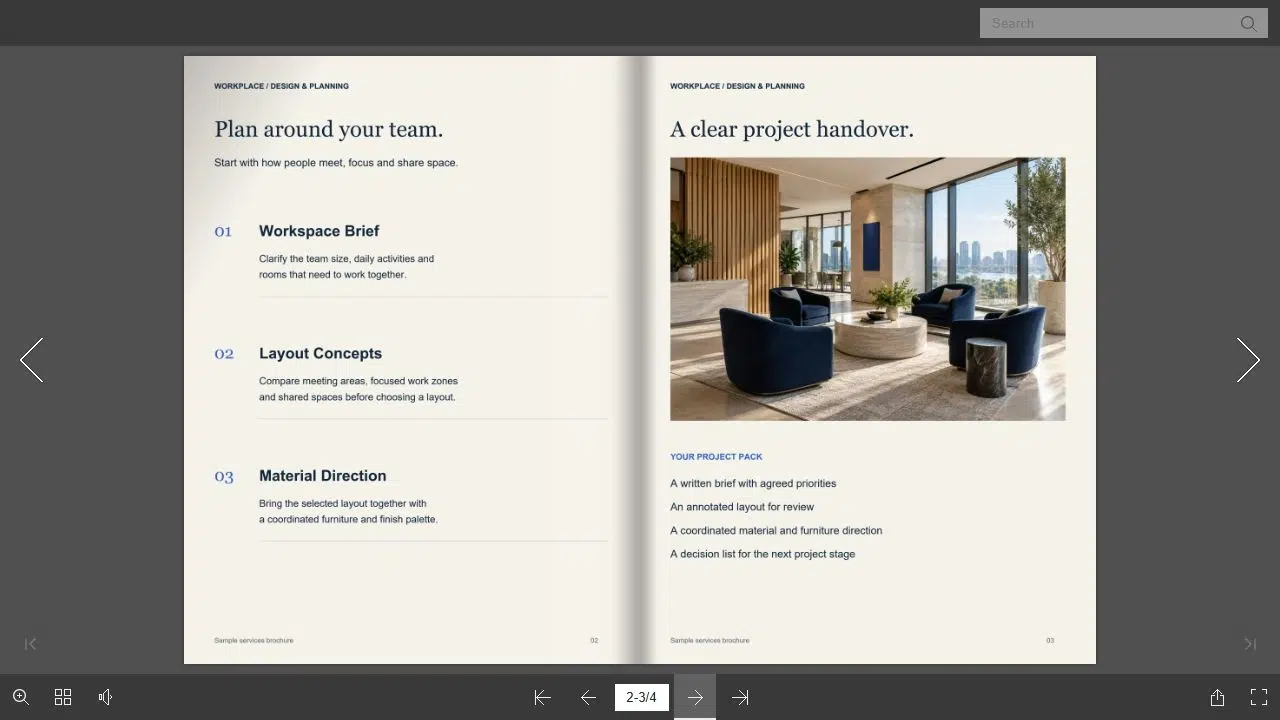
For example, a business could show its service brochure cover in a photo post and link to the full publication. The caption can name the topic: “Planning an office refresh? Browse our workplace services brochure for layout planning and project handover details.” Follow that sentence with the reading link. People know what they will find before opening it.
Prepare the Document With Recastia
Recastia’s Flipbook Maker converts a PDF into an online publication with a reading link. Use it when you want people to browse the complete document in their browser.
Upload your finished PDF, then review the converted flipbook and use Share to copy its reading link. Open that link separately and check that you can browse the intended pages. Use the publication link, not the dashboard or editor address, in your Facebook post.
If you want images instead, use the PDF Converter and choose Image. Download and extract the JPG files, then select the pages for your post. The PDF pages to JPG tutorial covers the conversion and ZIP download in detail.
Share the Complete Document With a Link
The link method suits documents that need their full sequence, such as a product catalog with separate sections or a guide with instructions spread across several pages. Facebook supports adding links to ordinary posts; you do not need to attach the PDF to the post itself.
Start with the publication’s reading link, ready to paste into Facebook.
- Open the Right Posting Identity
For a personal profile, open the post composer at the top of your Feed. For a business Page, switch into that Page before opening its composer. Confirm the displayed identity so you do not share a business document from your personal profile by mistake.
- Add the Reading Link and a Caption
Paste the link and explain what the document contains. Name its purpose, such as the full menu, current product catalog, or visitor guide. A webpage image may appear as a link preview, but do not rely on a preview card to explain the document.
- Check Access and Publish
Open the link in a signed-out browser to see what a visitor can access. Check the post’s audience or destination, then publish when both the caption and link are ready. Group rules and post approval can affect when a group post becomes visible.
Meta provides separate instructions for sharing a link on a profile and sharing a link from a Page. People with Page task access use Meta Business Suite rather than switching into the Page in the same way as someone with Facebook access.
Share Selected Pages as a Photo Post
Use images when the content can be understood inside the post. A restaurant menu, a short event announcement, or a product overview page can work; a dense report page usually needs a closer crop or a link to the document.
Choose pages that make sense together. If a chart refers to a definition on another page, include that explanation in the caption rather than posting the chart without context.
Prepare the JPG page images on your computer before opening Facebook.
- Select the Pages People Need
Open each JPG and remove pages unrelated to the post’s message. Check titles, diagrams, and page edges for completeness. Crop to the relevant section when a full page makes the text too small.
- Add the Images to Facebook
Use Photo/Video in the profile or Page posting interface and select your images. In a group, open Write something and choose Photo/Video from the post options. Review how the selected pages appear in the composer rather than assuming their filenames control the final arrangement.
- Write the Caption and Review the Post
Put the key information in the caption, including any date, contact detail, or action people need. Add a full-document link if the images are only a preview. Check the audience and readability, then publish when you are ready.
Facebook’s instructions cover profile photo posts, Page photo posts, and group photo posts. Group admins may require approval, so do not assume a submitted post will appear immediately.

Check Access and Readability Before Posting
These two checks catch different problems. The audience setting controls who sees the Facebook post. The external host controls who can open the reading link. A private Facebook group does not automatically make a publicly accessible document link private.
- Open the destination: a local file address, editor URL, or account-only dashboard is not a reading link for customers.
- Read the image on a phone: check the smallest text that matters, not just the headline. Use a closer crop if needed.
- Keep actions clickable: a URL printed inside a JPG is not an active link. Put the destination in the caption when people need to visit it.
- Check sensitive content: remove internal prices, personal details, and other information you do not intend to distribute.
If a link preview is missing, check that the actual link opens correctly and that the caption explains it. A working link and a useful caption can still communicate the document without a preview image. Do not replace the reading link with an editor address to try to force a card.
Match the Post to the Document
Share PDF on Facebook with a reading link when you want people to explore the complete publication. Use selected page images when the message can be read within the post, or combine an image preview with a full-document link.
Before you share PDF on Facebook, confirm the posting identity, document access, and readable text. Then give people a caption that tells them what they can read and what to do next.
Bring Your PDF to Life With Recastia
Create, customize, and share your content in a more engaging way.
Frequently Asked Questions
Do not assume every Facebook posting location accepts PDF attachments. The methods in this guide use links and photo posts. A group’s available file options may differ from a profile or Page composer; check the options and rules of that specific group before relying on a file attachment.
A preview card may not appear. Facebook may add an image from a linked webpage, but the result depends on what it can retrieve. Check the composer before posting, and write a caption that explains the publication even when no card appears.
No. A JPG contains the visible page as an image, not the PDF’s interactive links. Put the required destination in the Facebook caption. If the page has several links, explain which one people need rather than expecting them to copy tiny text from the picture.
Recastia prepares a reading link or JPG files, and you add them through Facebook’s posting tools. You choose the caption, posting identity, and audience in Facebook.