
Copying text and images out of a PDF is often just the start: you still need to build the new page, presentation, or translated version. PDF Repurposing Tools offer different ways to reuse the file, but they do not all create the same outputs or give you the same editing controls.
This guide compares PDF Repurposing Tools from Recastia, FlipHTML5, FlipBuilder, Gamma, and Canva. It explains what each creates, which parts you can change, and whether you receive a hosted publication or a file you can continue working on.
Compare PDF Repurposing Tools by the Work You Need to Do
Start with the change your PDF needs. Keep the designed pages when you want a publication people can browse. Choose script controls when those pages need a spoken explanation. Use an editable design or presentation workflow when the wording and layout need revision.
| Tool | PDF-Derived Output | What You Can Change | Best Fit |
| Recastia | Flipbooks, videos, presentations, webpages, documents, translation, chatbot, exhibition, and podcast scripts | Controls for each output, including page appearance, scripts, webpage elements, and translated text | Reusing PDFs across several content formats in one platform |
| FlipHTML5 | Hosted flipbook | Publication appearance and added multimedia | Publishing a complete PDF with links and media |
| FlipBuilder: Flip PDF Plus Pro | Flipbook and local publishing package | Publication styling and multimedia elements | Desktop authoring and own-server publishing |
| Gamma | Editable presentation or document | Supported imported content, layout, and generated wording | Revising a PDF into a deck or document |
| Canva | Editable design and exported files | Supported text, images, layout, and pages | Reworking the visual content of a PDF |
“Editable” needs a more precise explanation. Changing a flipbook’s background does not change the words printed on its PDF pages. Editing narration changes what viewers hear. Rebuilding a presentation changes the content they see. The profiles below distinguish those editing tasks.
1. Recastia
Recastia is a PDF repurposing tool with separate workflows for publishing pages, creating new content formats, translating documents, and answering questions about their contents. Its outputs include flipbooks, videos, browser presentations, landing pages, chatbots, and virtual exhibitions.
The editing options follow the output. You can revise narration for a video, change text and links on a landing page, edit translated wording, or customize a flipbook’s appearance. Choose the format first, then work on the parts that matter for that version.
Key Features
- PDF to Flipbook: Publish document pages as a browsable online book with customizable appearance and page-display settings.
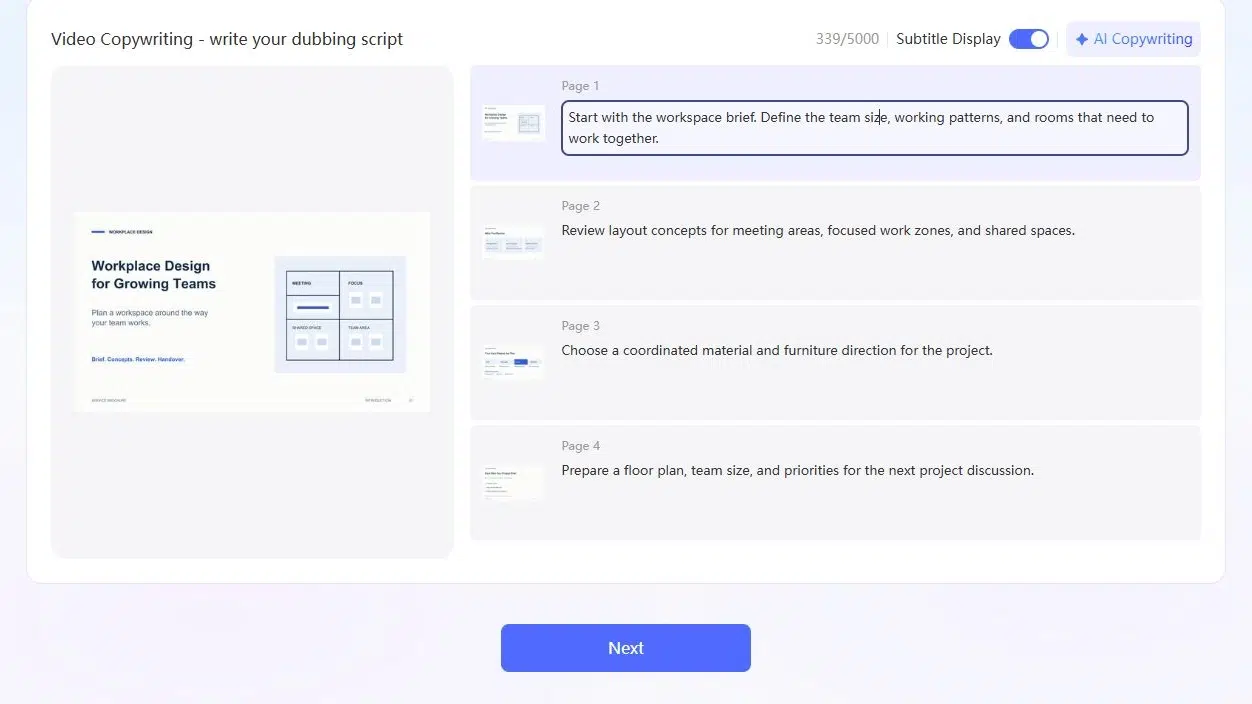
- PDF to Video: Use PDF pages in a video with page timing or narration, subtitles, and presentation settings.
- PDF to Presentation: Create a browser presentation with page navigation and configurable transitions.
- PDF to Landing Page: Reorganize document content into a webpage, then edit text, colors, and links.
- PDF to Document: Convert material into Word, PowerPoint, Excel, or image files for further use. Supported text in Word and PowerPoint outputs can be edited.
- PDF to Podcast: Generate a two-host dialogue script from a PDF and revise the individual dialogue lines.
- PDF Translation: Translate document text and review or edit translated wording beside the source.
- PDF to Chatbot: Create a document-based question-and-answer experience and customize its welcome message.
- PDF to Exhibition: Arrange PDF pages in a template-based 3D exhibition that visitors can explore in a browser.
Pros
- Several PDF-based workflows are available in one platform, including publications, websites, translated documents, and question-and-answer content.
- Output-specific controls let you revise the new version, such as landing-page text, translated wording, podcast dialogue, or video narration.
- You can retain the complete pages in a flipbook or use their content in a different presentation format.
Cons
- Each format has its own creation process. Creating one version does not automatically generate the other formats.
- Editing depends on the output. Flipbook styling and narration controls do not rewrite text printed on the original PDF pages; the document converter provides a separate route to working files.
Best For
- Teams reusing PDFs across several content formats instead of choosing a separate tool for every output.
- Publishers and businesses that need both complete online documents and other ways to present or access the information.
See the detailed Recastia guide for its individual workflows and examples.
2. FlipHTML5
FlipHTML5 turns a PDF into an online flipbook that keeps the publication’s pages together. Its editing tools let you customize the publication and add material to the reading experience, such as a video demonstration beside a product description.
You can distribute the book through a link or place it within a website. Readers open the publication in a browser instead of downloading an attachment.
Key Features
- PDF upload for creating a digital flipbook.
- Customization of background, theme, logo, toolbar, table of contents, and bookmarks.
- Page Editor elements including links, video, audio, animations, and actions, with availability depending on subscription.
- Sharing by book link or QR code, plus iframe options for size and starting page.
Pros
- The full publication can remain available while added links and media provide supporting information.
- A catalog can link a product page to further details; a portfolio can include a video alongside still images.
- Readers can browse the document and choose which supporting material to open.
Cons
- Adding multimedia to a page is different from rewriting the original PDF’s text.
- Download rights also depend on the subscription.
- The download options include several different deliverables; an HTML viewing package is not a transferable editable project, and continued editing stays with the account project.
Best For
- Publishing a finished catalog, magazine, brochure, or portfolio with added online media.
- Choose it when the complete page sequence is useful and you want readers to access the result as a digital publication.
3. FlipBuilder: Flip PDF Plus Pro
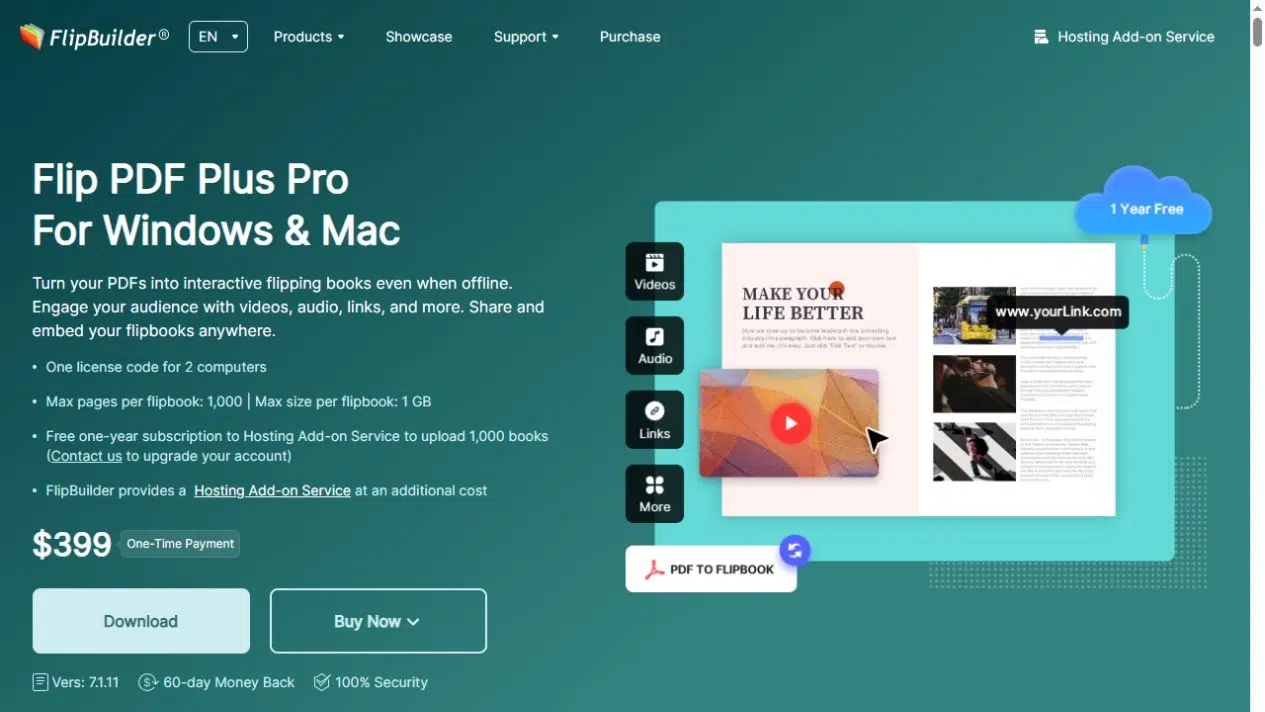
Flip PDF Plus Pro is FlipBuilder’s desktop option for creating flipbooks from PDFs and images. Its distinction here is the local publishing workflow: you work in a desktop application and can produce a package for your own website.
A web team can upload the generated publication to its own server and maintain it there. Choose this route when you need those files, rather than only a book link within a hosted account.
Key Features
- Desktop PDF and image import, including source table-of-contents and link import options.
- Templates, themes, backgrounds, toolbar settings, logo, table of contents, and bookmarks.
- Pro multimedia editing for video, audio, images, links, text, and shapes.
- Publishing formats including HTML and ZIP, with additional desktop and WordPress publishing options described in the product guide.
Pros
- You can prepare the publication in a desktop workflow and deliver the generated files to a web team.
- The multimedia editor also gives you objects to add around the source content, including explanatory text or a linked video.
- This suits a publication whose pages are already designed but need supporting material for online use.
Cons
- Self-hosting requires the complete generated book folder on a working server.
- Downloading HTML alone does not give readers an online address.
- FlipBuilder’s self-hosting instructions explain the upload requirement.
- Multimedia capabilities also vary by edition; the Pro capabilities described here should not be assumed for the base Plus product.
Best For
- Teams that prefer desktop flipbook authoring or need a local publication package for their own hosting.
- Choose FlipHTML5’s hosted workflow instead when your priority is publishing within an online account; choose FlipBuilder when the desktop project and file handoff fit your process.
4. Gamma
Gamma fits a PDF whose content needs to become an editable presentation or document. Its import options distinguish bringing material in with its existing structure from using that material to create a revised version.
For example, a detailed report can supply a shorter deck. You can work on the explanation and arrangement of the slides rather than simply presenting each PDF page as a finished image.
Key Features
- Direct PDF import, with options for importing existing material or using it as source content for a new version.
- Editable supported content in the Gamma 5 import workflow; the classic generator imports text rather than the original design, as explained in Gamma’s import guidance.
- PDF, PNG, and PowerPoint exports.
- Browser sharing and iframe embedding for documents and presentations, subject to public-access settings.
Pros
- Gamma is useful when you need to change the structure of an explanation and continue editing the resulting deck.
- PowerPoint export provides a file handoff for colleagues who need to work outside Gamma.
- A browser presentation is another delivery option when you prefer to share the result online.
Cons
- Import behavior depends on the selected workflow, so text-only import should not be confused with a layout-preserving import.
- Some charts remain static images; changing their data may require replacing them with native chart blocks.
- Export also changes the available behavior: a static PDF does not retain interactive elements.
- Gamma’s export guidance distinguishes those file outputs.
Best For
- Turning PDF information into a deck or document that needs further content and layout work.
- Choose it when you want to rebuild the explanation and revise the resulting slides.
5. Canva
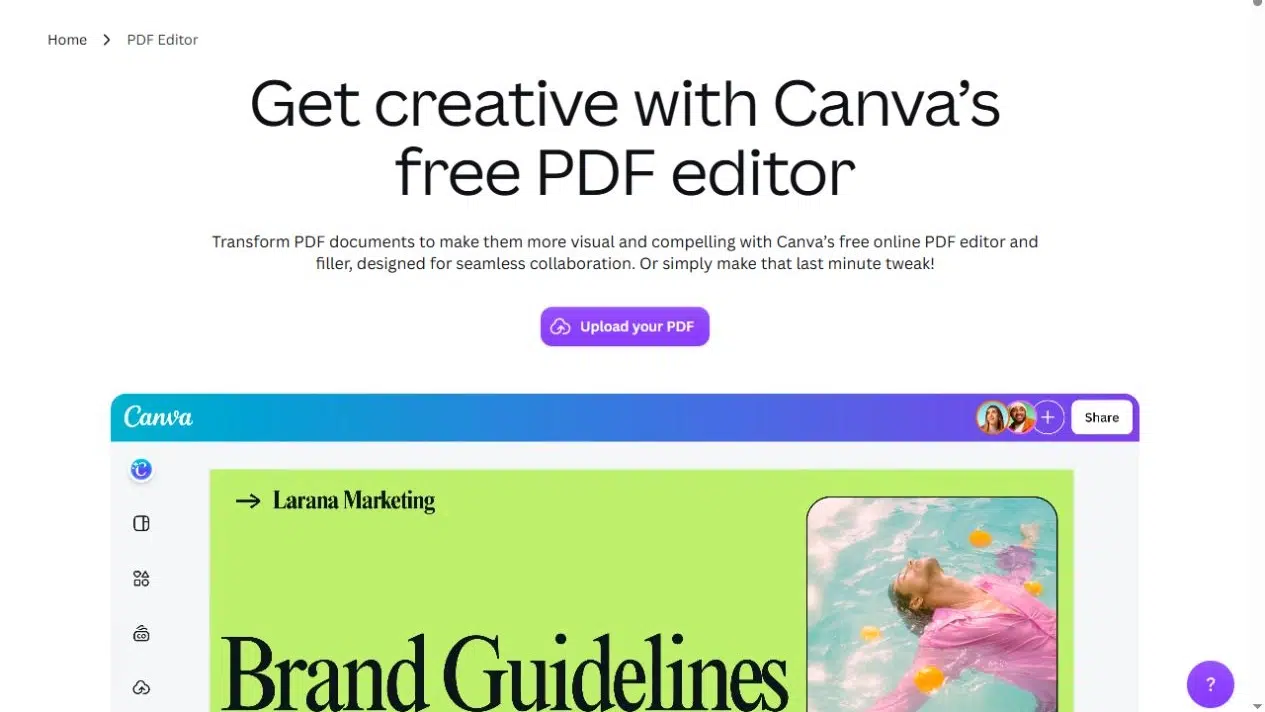
Canva suits a PDF whose visual content needs changes before you reuse it. Supported imported text, images, and layout elements can be edited in a design, so you can revise a heading, replace a picture, or rearrange material for a different page.
The source PDF affects how much freedom you have. A text-based page and a flattened scan can look identical on screen but import very differently.
Key Features
- PDF import for editing supported text, images, layout, and pages.
- Design changes such as replacing pictures, adjusting wording, and reorganizing page content.
- Sharing through view or edit links.
- PDF and image exports, plus MP4 export for designs containing animation or video.
Pros
- You can work on the content within a page rather than only changing its surrounding viewing interface.
- That is useful when a brochure needs updated wording or selected material needs a new visual layout.
- PDF and image downloads provide files for print, distribution, or use in another design.
Cons
- Not every PDF becomes a set of freely editable objects.
- Scanned or flattened content may remain an image, fonts can change, and complex layouts may shift.
- Canva’s PDF import guidance explains these distinctions.
- An animated design exported as MP4 also needs different preparation from a narrated explanation of the document.
Best For
- Revising the visual content of a PDF when you need to change wording, pictures, or arrangement.
- Choose it for design work you want to control element by element, with the understanding that the imported source determines which elements are available.
Match the Tool to Your PDF and Final Deliverable
A designed brochure and a text-heavy guide need different treatment. For the brochure, keeping the page composition may matter more than rewriting the copy. Recastia and FlipHTML5 provide hosted publication routes; FlipBuilder adds a desktop route with local publishing files. If the brochure itself needs revised text and pictures, Canva’s supported-element editing becomes more relevant.
For a text-heavy guide, the next use may require a different way to access the information. Recastia can create a document-based chatbot, a translated version, or a landing page, alongside its presentation and video workflows. Gamma suits a deck whose content and layout need further revision. Choose the workflow that produces the asset you actually need.
Then check the handoff. A reading link works for online access. An iframe places a hosted result inside a website. A PowerPoint file lets a colleague continue working in another application. A local HTML package needs hosting before it can serve as a public web publication. Make that delivery decision before spending time polishing the wrong output.
Frequently Asked Questions
A scanned PDF may contain page images rather than selectable text. Page-preserving publication workflows can use those images, while rewriting or summarizing requires readable text or supported OCR. Check the specific import path before relying on a scan for generated wording. Do not assume a PDF uploader includes OCR.
Use a document you are authorized to process and that the selected tool can open. If an opening password or restriction prevents import, ask the owner for an accessible copy. A password-protected source does not establish that the published result will have the same access controls.
Do not assume separate projects stay synchronized with the original file. A source correction may require replacing the upload, editing the new project, or generating the output again. Check the tool’s replacement behavior and whether an existing shared link will continue to point to the intended version.
Confirm that you may upload the document to that service, then review its data-use terms and project-sharing settings. Remove information the new asset does not need. Source access and output access are separate decisions: requiring sign-in to create a project does not by itself make its published link private.
Conclusion
Choose PDF Repurposing Tools according to the work after import. Recastia combines several PDF-based content workflows, FlipHTML5 and FlipBuilder focus on publication workflows, Gamma supports editable decks and documents, and Canva supports visual design revision. Their editing controls operate on different parts of the result.
Compare PDF Repurposing Tools against one deliverable you need now. Decide whether to keep the page layout or rebuild the content, then confirm what you can change and how you will hand over the finished asset.
Bring Your PDF to Life With Recastia
Create, customize, and share your content in a more engaging way.