
Sharing a PDF catalog usually means asking your customers to download a file, zoom in on a phone screen, and scroll through static pages. An online catalog removes that friction — it turns your PDF into a browser-based publication with page-flip navigation that anyone can open from a link.
This guide shows you how to create one with Recastia’s PDF to Flipbook tool in four steps, plus how to prepare your source PDF so the result looks professional on every screen.
Key Takeaways
- Upload a finished PDF to Recastia’s PDF to Flipbook tool and you get a hosted online catalog with page-flip navigation, a shareable link, a QR code, and an embed code.
- Upload limit: 100MB per file; page limits depend on your plan — 200 on Free, 500 on Pro, 1,000 on Enterprise.
- The viewer preserves your source layout exactly, so catalog quality depends almost entirely on the quality of your PDF.
- Match the template to your page density: restrained layouts keep dense pricing tables readable, especially on mobile.
- Recastia converts your document; it does not design it. Design and proof the source PDF before uploading.
- Lead with the online link for sharing and discovery; keep the original PDF for buyers who need an offline file.
How to Turn a PDF into an Online Catalog
Follow the four steps below to turn a finished PDF into a hosted online catalog with page-flip navigation, a shareable link, a QR code, and an embed code. The whole process takes only a few minutes.
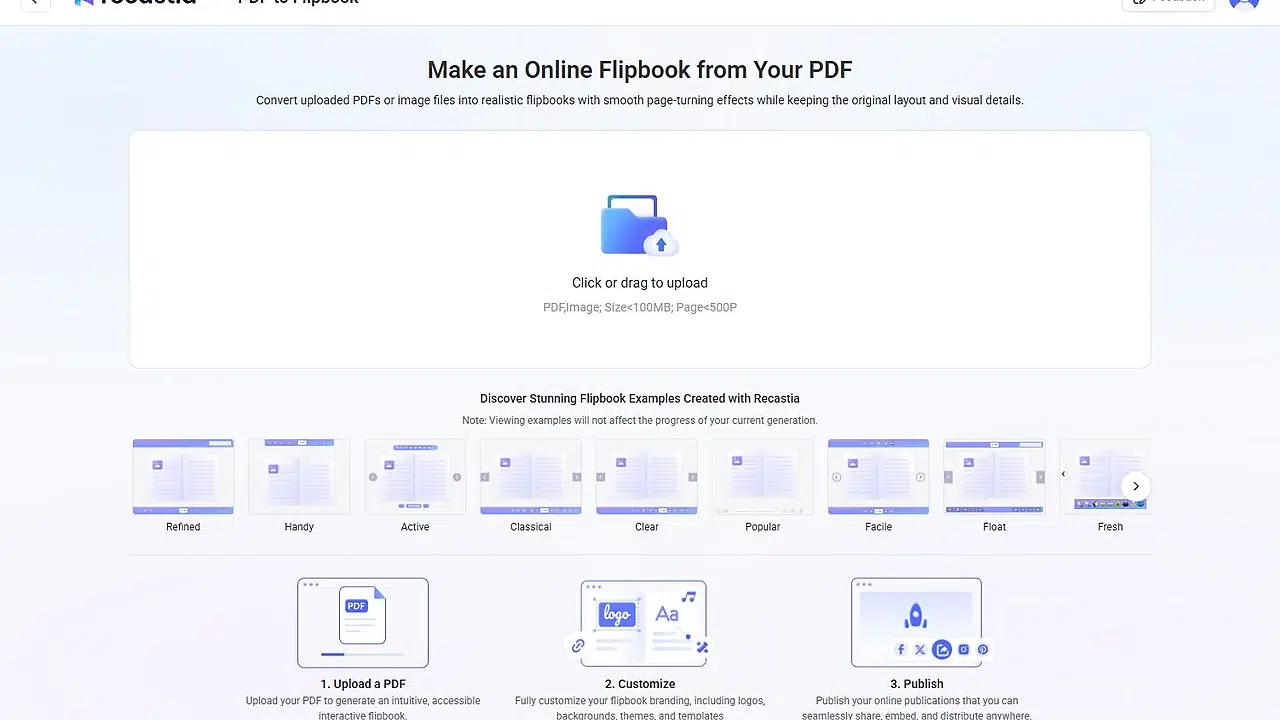
- Upload Your PDF
Open the Recastia dashboard and choose PDF to Flipbook. Drag your source file into the upload area or click to browse. Recastia accepts PDF and image files under 100MB; page limits depend on your plan (200 on Free, 500 on Pro, 1,000 on Enterprise). After the file is accepted, Recastia generates a preview automatically — you can leave the page while it processes and track the project from the dashboard.
- Preview and Name the Catalog
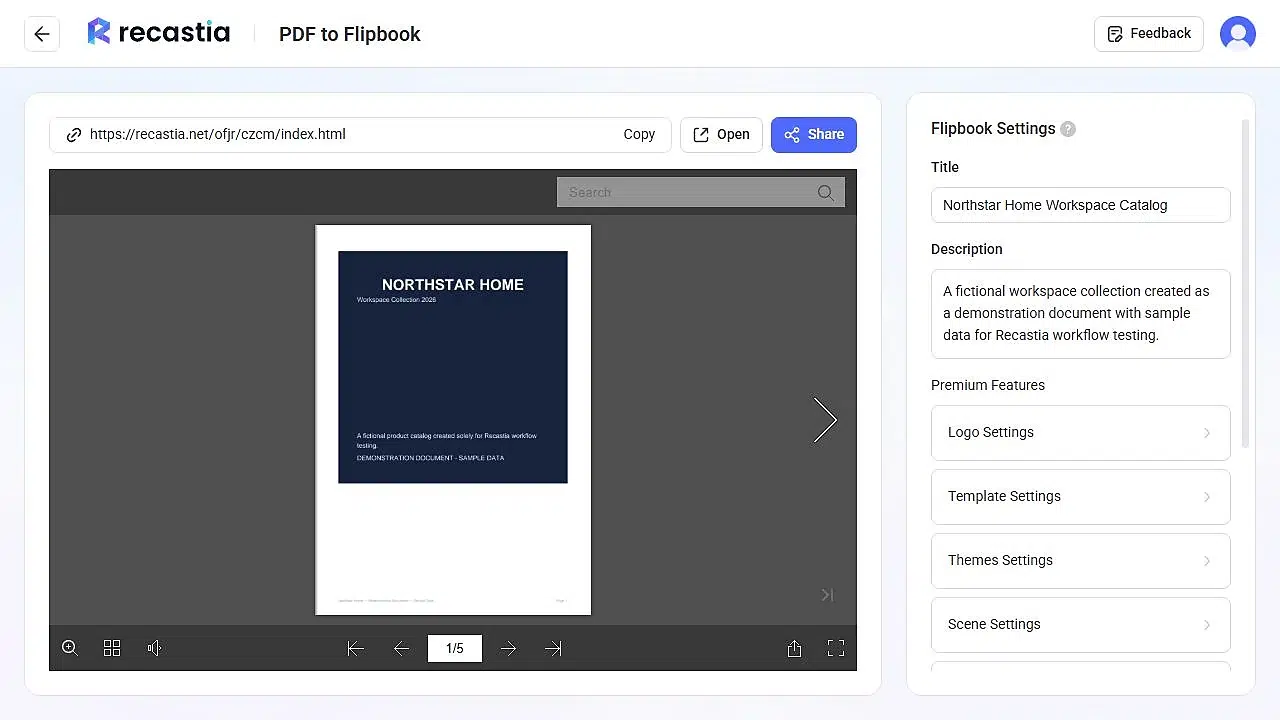
When processing finishes, the catalog editor opens with the viewer on the left and settings on the right. Turn through several pages and check that headings, prices, charts, and small labels stay readable — what you see here is exactly what your customers will see. Then replace the filename-based title with a reader-friendly publication title, such as Northstar Home Workspace Catalog, and add a concise description. A good title combines the collection name with a product type or season; do not stuff search phrases into this field.

- Choose a Flipbook Template
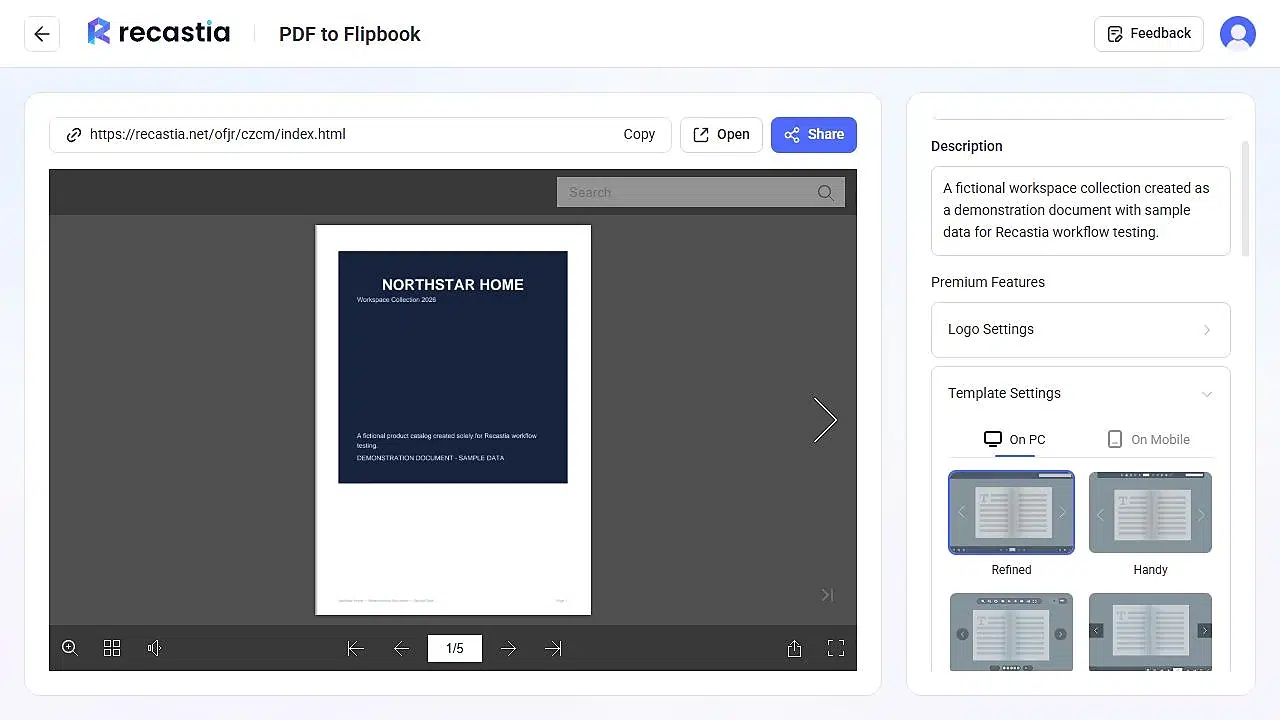
Open Template Settings to control how the viewer looks on desktop and mobile. Desktop templates include Refined, Handy, Active, Classical, Clear, Popular, Facile, Float, Fresh, Gorgeous, Lively, Neat, Pure, Simple, Specific, and Minimalist. Which one should you pick? Match the template to your page density: if your catalog has dense pricing tables or small product labels, choose a restrained layout that keeps the page area as large as possible — decorative frames and heavy backgrounds shrink the readable area on mobile. Note that some templates and controls are premium features, so availability depends on your plan.
- Share or Embed the Catalog
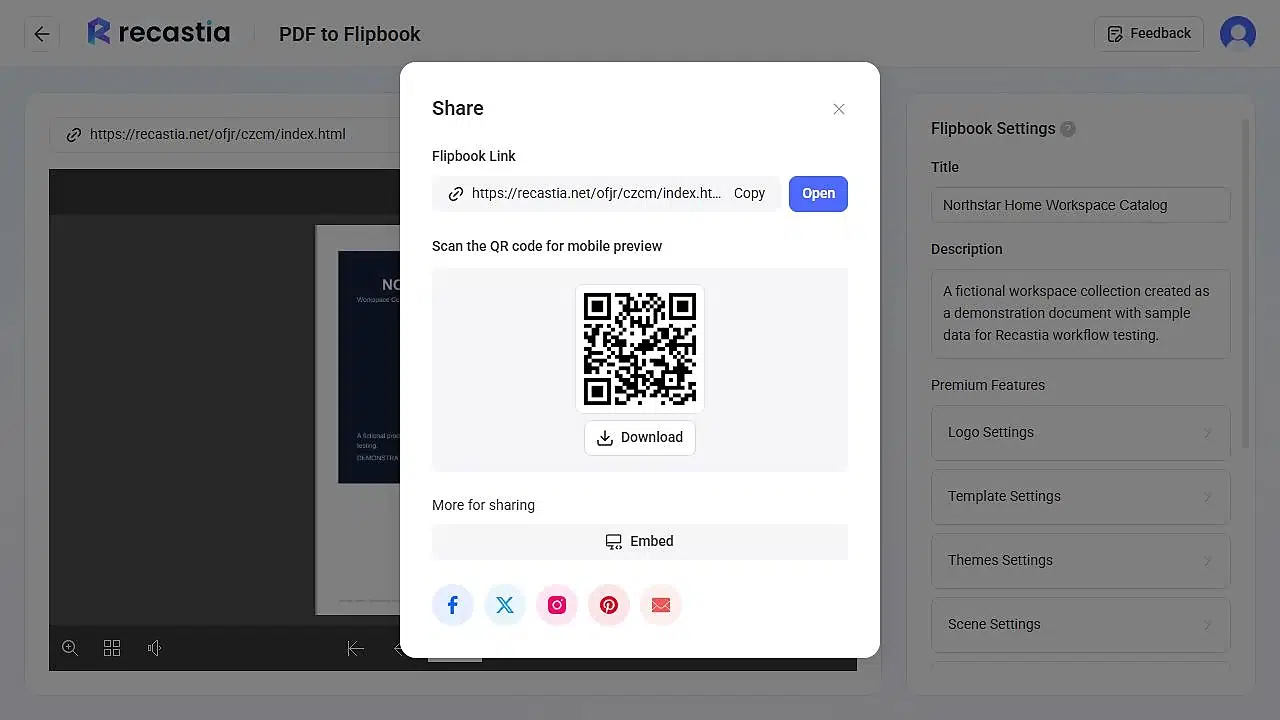
Click Share above the preview to get three distribution options: the direct link for email campaigns and social posts, a downloadable QR code for printed packaging and event signs, and an embed code to place the flipbook viewer inside your own website (website embedding is available from the Pro plan up). Before distributing, open the link in a fresh browser tab and check the first page, page-turn control, search, and full-screen view — then scan the QR code with your own phone. This five-minute check catches source-document problems before customers see them.
Tips for a Better Online Catalog
The viewer preserves your PDF exactly, so nearly every quality problem is a source-PDF problem. These five preparation choices have the biggest effect:
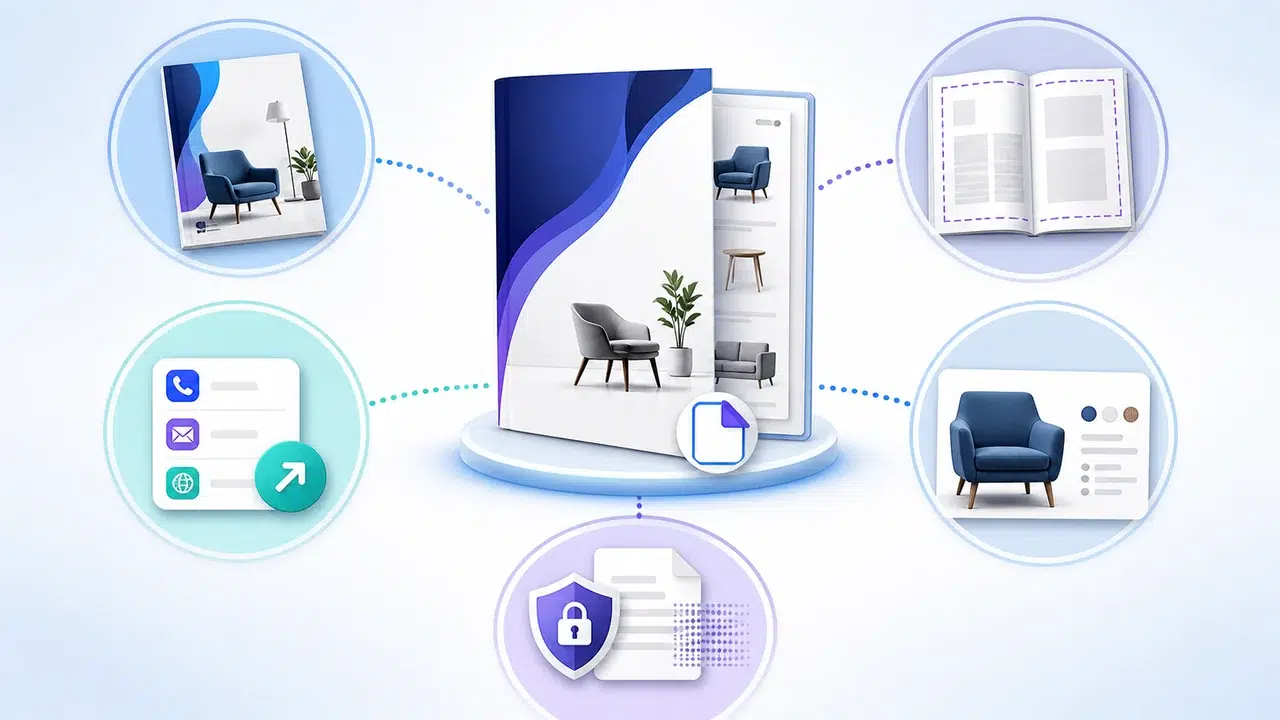
1. Give the cover one job.
The cover is the first thing people see in the viewer and in shared previews. One publication name, a short collection label, one strong focal image. A dense product-grid cover looks like an interior page and gets skipped. For layout inspiration, browse these product catalogue examples and product catalog design ideas before you finalize the PDF.
2. Keep important text away from page edges.
Page-turning viewers add visual depth around the edges. Leave comfortable margins so product names, prices, and buttons do not feel cramped near the fold.
3. Make the next step obvious.
Every catalog should tell the reader what to do next: a website, an email, an order process, a sales contact. The viewer helps people browse and share; the pages themselves still carry the sales message.
4. Compress without blurring.
A smaller file uploads faster, but excessive compression makes product labels fuzzy. Check the PDF at 100% zoom before uploading — if small text is unclear in the source, it stays unclear after conversion.
5. Remove anything you cannot publish.
Customer names, internal prices, private contact details, unlicensed photographs, third-party logos. Only upload content you are authorized to distribute.
Honest Limits to Know Upfront
- It converts; it does not design. Recastia turns a finished PDF or image file into an online publication. It does not build a catalog layout from product photos or spreadsheet rows — design and proof the source document first.
- The hosted catalog needs an internet connection. Keep the original PDF available for buyers who need an offline copy or a file for procurement records.
- Mobile readability depends on your layout. A page designed for A4 print with small print forces phone readers to zoom constantly. If more than half your audience is on mobile, increase font sizes in the source — our guide on viewing a PDF as a flipbook online covers how the reader behaves on small screens.
Frequently Asked Questions
Can I make an online catalog from an existing PDF?
Yes. Choose PDF to Flipbook in Recastia and upload the finished PDF. Recastia creates a hosted page-flip publication while retaining the source page layout.
Is Recastia’s online catalog maker free?
Yes. The Free plan ($0) covers up to five creations with 200 pages per upload, with Recastia branding on the published catalog. Paid plans raise the limits and add white labeling, password protection, and website embedding — see the pricing page and our free PDF to flipbook guide for current details.
What is the maximum PDF size?
100MB per upload. Page limits depend on your plan: 200 on Free, 500 on Pro, and 1,000 on Enterprise.
Can readers open the catalog on a phone?
Yes. The Share panel provides a QR code for mobile preview, and Template Settings include separate mobile presentation options. Always scan the QR code yourself to check text size before distributing.
Can I embed the catalog on my own website?
Yes — website embedding is available from the Pro plan up. Choose Embed in the Share panel to get the embed code, and check it at desktop and mobile widths so the viewer does not overflow the page. On the Free plan, the direct link or QR code is the way to share.
Should I still send the PDF file to customers?
For discovery and browsing, lead with the online catalog link. Keep the PDF available for buyers who explicitly need an offline file or procurement record — the two formats work better together than either alone.
Start Publishing Your Catalog
Prepare a clean PDF, upload it, and check the result on your own phone before sharing. That is the entire workflow — create your online catalog with Recastia today. If you are still comparing platforms, our flipbook creator software comparison covers the main options.
Cassie is the Product Manager at Recastia, where she leads the design of the platform’s PDF conversion and publishing workflows — the same workflows covered in these guides. She writes from direct involvement in how the product is built: what each setting does, why it works that way, and where the real limits are.