
PDF hosting services cover different jobs: publishing a brochure online, sending the original file, or collecting comments on a draft. A flipbook platform presents your pages as a publication, while a file-sharing service gives people access to the PDF itself.
This guide compares six PDF hosting options by what readers open, how access works, and who keeps the publication online. You’ll find tools for public flipbooks, everyday file sharing, and PDF review, along with the restrictions to check before choosing one.
Key Takeaways
- Choose a hosted flipbook for a brochure or catalog that readers will browse online.
- Choose file sharing when readers need the original PDF or access through an existing team account.
- An unlisted link is not the same as restricted access. Anyone who receives the link may still be able to open it.
- FlipBuilder’s desktop publishing software and its Hosting Add-on serve separate roles.
- Passwords, expiration dates, and download restrictions depend on the service and plan. Check the specific control you need.
What Kind of PDF Hosting Do You Need?
Start with the document’s purpose. A customer browsing a catalog and a colleague reviewing a contract need different things from the same file format.
- Hosted publication: A service converts PDF pages into a browser flipbook. Choose this for brochures, magazines, and catalogs where the reading presentation matters.
- Original-file sharing: A cloud service stores the PDF and provides access through a sharing link or invitation. Choose this for file delivery and team documents.
- Self-hosted publication: Desktop software exports a flipbook’s web files, which you upload to your own server. Choose this when you want to manage where the publication runs and can maintain the hosting.
A reading link may open a flipbook or a document preview rather than a direct PDF download. If your website needs a raw PDF file URL, confirm that requirement separately before choosing a publication platform.
Compare the Six Services
| Service | What Readers Open | Best Starting Use |
| Recastia | A flipbook converted from PDF pages | Publishing a finished brochure or catalog for online reading |
| FlipHTML5 | A hosted flipbook with sharing and embed options | A publication that needs website display or eligible-plan access controls |
| FlipBuilder | A desktop-created flipbook published through its Hosting Add-on or your server | Hosting publications made in Flip PDF Plus |
| Google Drive | Access to the stored PDF through shared file permissions | Sharing an original PDF with a team or specified people |
| Dropbox | A preview through a view-only file link | Delivering an original PDF, with optional link restrictions on eligible plans |
| Adobe Acrobat | A PDF viewing or review link | Collecting comments on a document before approval |
1. Recastia
Recastia converts a finished PDF into a flipbook that readers can open in a browser. It fits a service brochure, product catalog, or other publication whose page layout is already complete.
Share your brochure or catalog with a reading link, use its QR code for mobile access, or embed it on your website so visitors can browse it without leaving the page.
Key Features
- Converts PDF pages into a browser flipbook with page navigation and the document’s existing layout.
- Provides a reading link and a QR code for mobile preview after signing in.
- Provides responsive iframe embed code for displaying the publication on your website.
Pros
- A designed brochure can become an online publication without rebuilding its content as web pages.
- A customer email can point to the online brochure instead of carrying a PDF attachment.
- Your service page can display the full brochure alongside its contact form or other website content.
Cons
- This route publishes a flipbook rather than acting as a raw PDF file host.
- It starts with an existing PDF. Make copy and layout revisions in your source document before converting it.
- Sign in to access the sharing options.
Best For
Businesses with a finished PDF that they want to present as an online brochure or catalog. For a closer look at the reading format, see the guide to the PDF flipbook viewer.
2. FlipHTML5
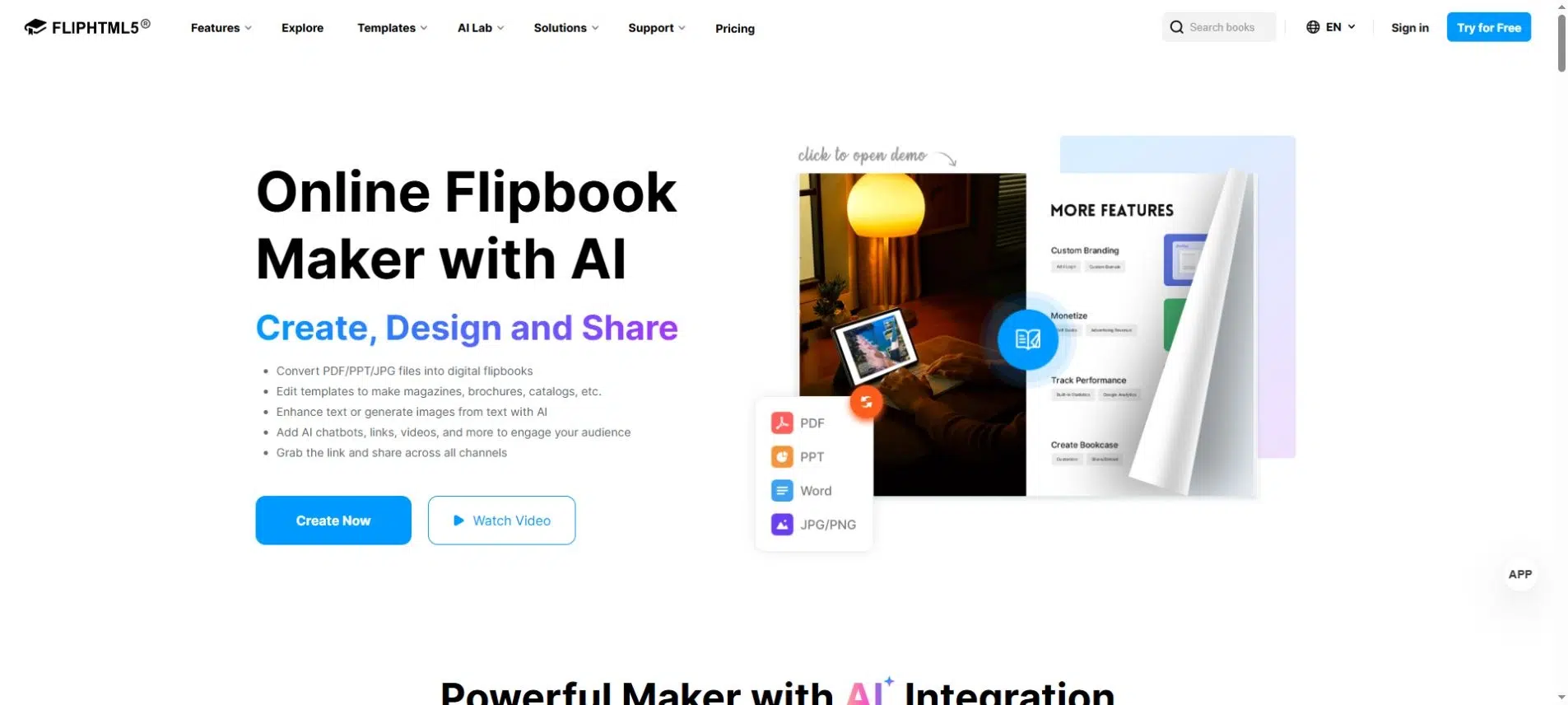
FlipHTML5 hosts PDF-based flipbooks and provides reading links, QR codes, and website embed options. It suits publications that need distribution beyond a file attachment, such as a catalog shown on a business website.
Key Features
- Hosted flipbook links and QR access.
- Embed code for displaying a publication on your website.
- Password access and email verification on eligible paid plans.
- Custom-domain links after domain configuration, subject to applicable requirements.
Pros
- The same publication can be shared directly or displayed within a website.
- Separate access options let you distinguish a public publication from one intended for a restricted group.
Cons
- Private visibility hides a publication from discovery surfaces, but anyone with its link can still read it. Use password access or email verification when you need to restrict readers.
- Advanced access controls require eligible plans. Check the current visibility documentation against the restriction you need.
Best For
Businesses publishing brochures or catalogs on their website and distributing them through customer emails or QR codes.
3. FlipBuilder
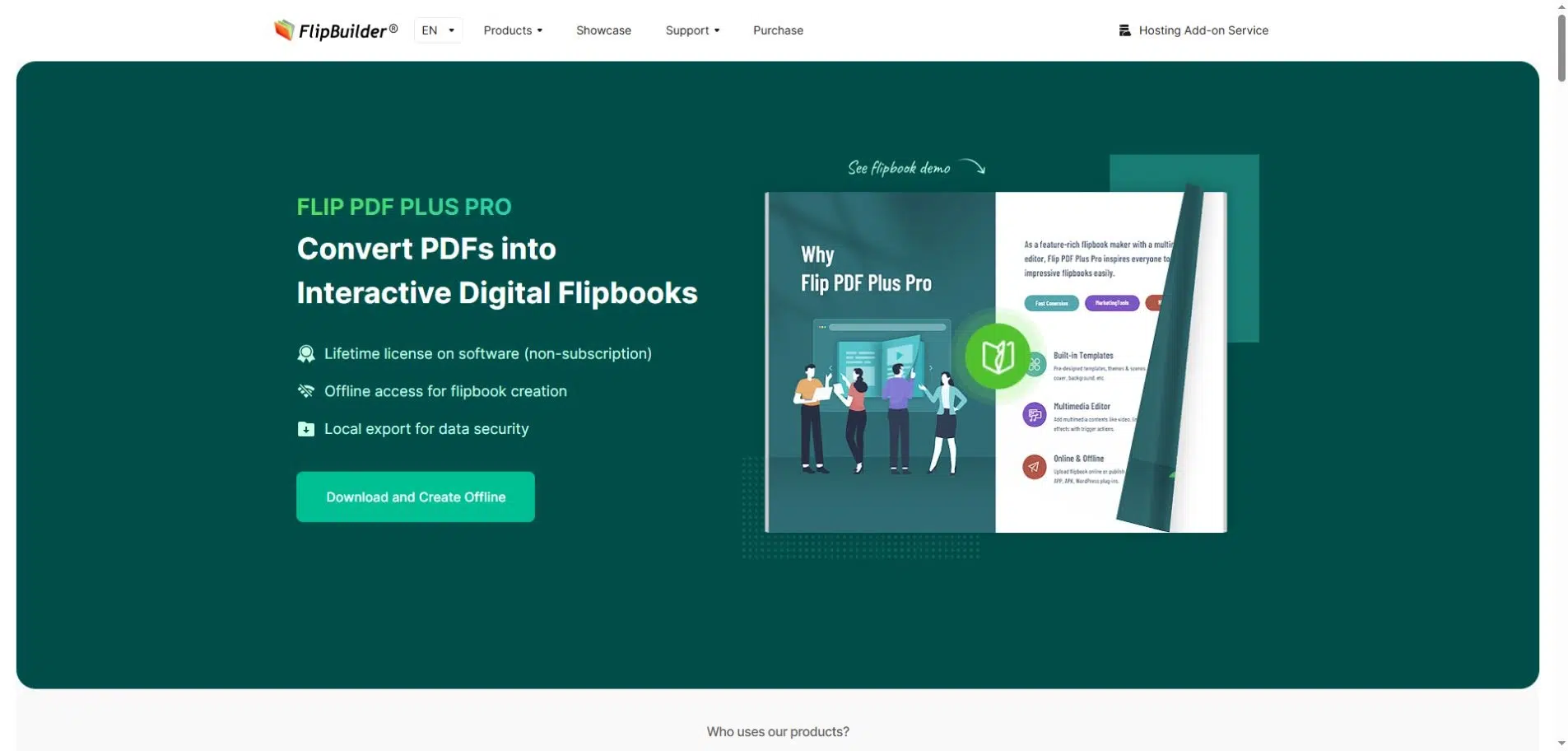
FlipBuilder separates publication creation from hosting. Flip PDF Plus creates the flipbook on your desktop; the Hosting Add-on publishes it online. You can also export the publication’s web files and upload them to your own server.
Key Features
- Hosting Add-on for publishing desktop-created flipbooks online.
- Browser links, QR access, and embed code for hosted books.
- Public and private controls in the hosting service.
- A separate self-hosting route using exported publication files.
Pros
- Existing FlipBuilder users can publish without setting up a separate website upload workflow.
- Self-hosting lets your web team choose the server and deployment location.
Cons
- Exporting HTML does not make a publication live. You still need the add-on or a working web server; self-hosting also requires ongoing server maintenance.
- Continued add-on hosting depends on the service entitlement or points. The Hosting Add-on documentation explains that insufficient points can disable hosted books.
Best For
Teams creating publications in Flip PDF Plus who need either managed hosting or a route to their own server. For self-hosting, upload the complete output folder, not only its opening HTML file.
4. Google Drive
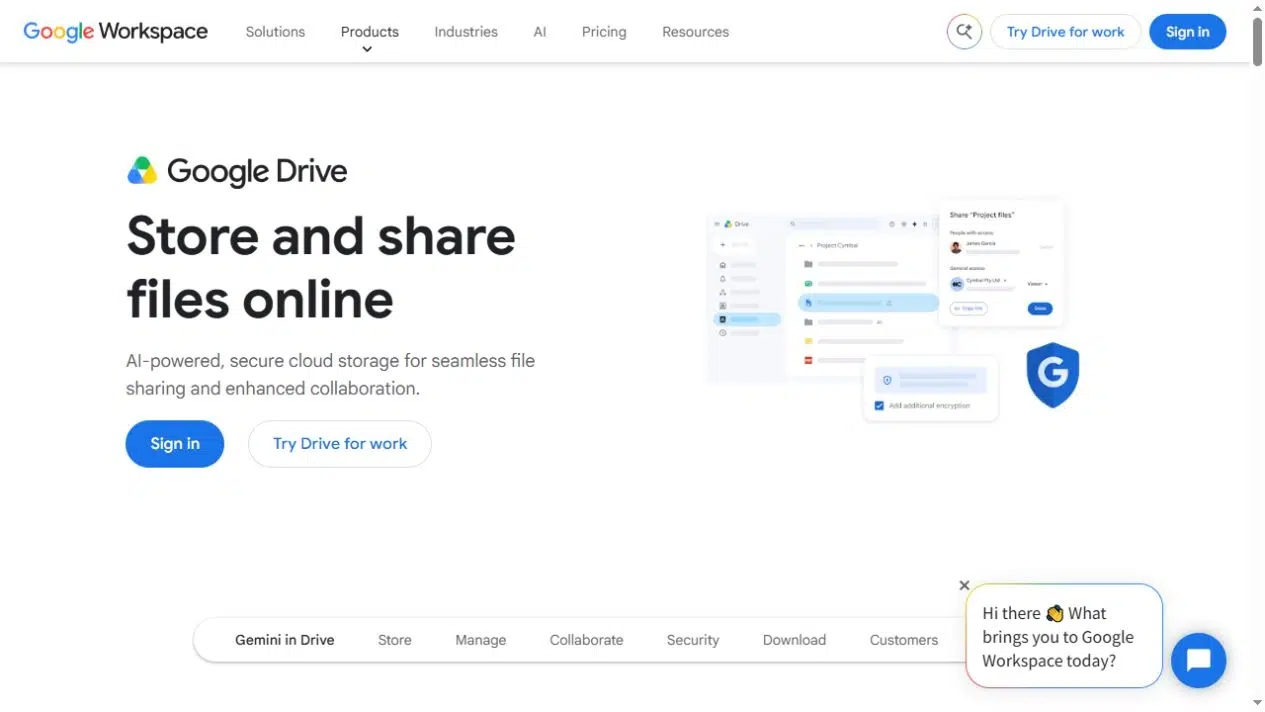
Google Drive shares the PDF as a stored file. You can grant access to specified people or use an Anyone with the link setting where your account permits it. This fits team handoffs better than a publication-style reading interface.
Key Features
- Sharing with specified people or through a general-access link.
- Permission roles such as Viewer, Commenter, or Editor where applicable.
- Owner controls for restricting viewers and commenters from downloading, printing, and copying.
Pros
- Teams already using Drive can share the PDF within their existing file organization.
- Named access suits a document intended for particular colleagues rather than the public.
Cons
- Work or school policies may prevent public sharing.
- Inherited folder access can be broader than the permissions you intend for one file. Review the sharing rules before placing a sensitive PDF in a shared folder.
Best For
Teams sharing working PDFs with specified colleagues through an existing Google account.
5. Dropbox
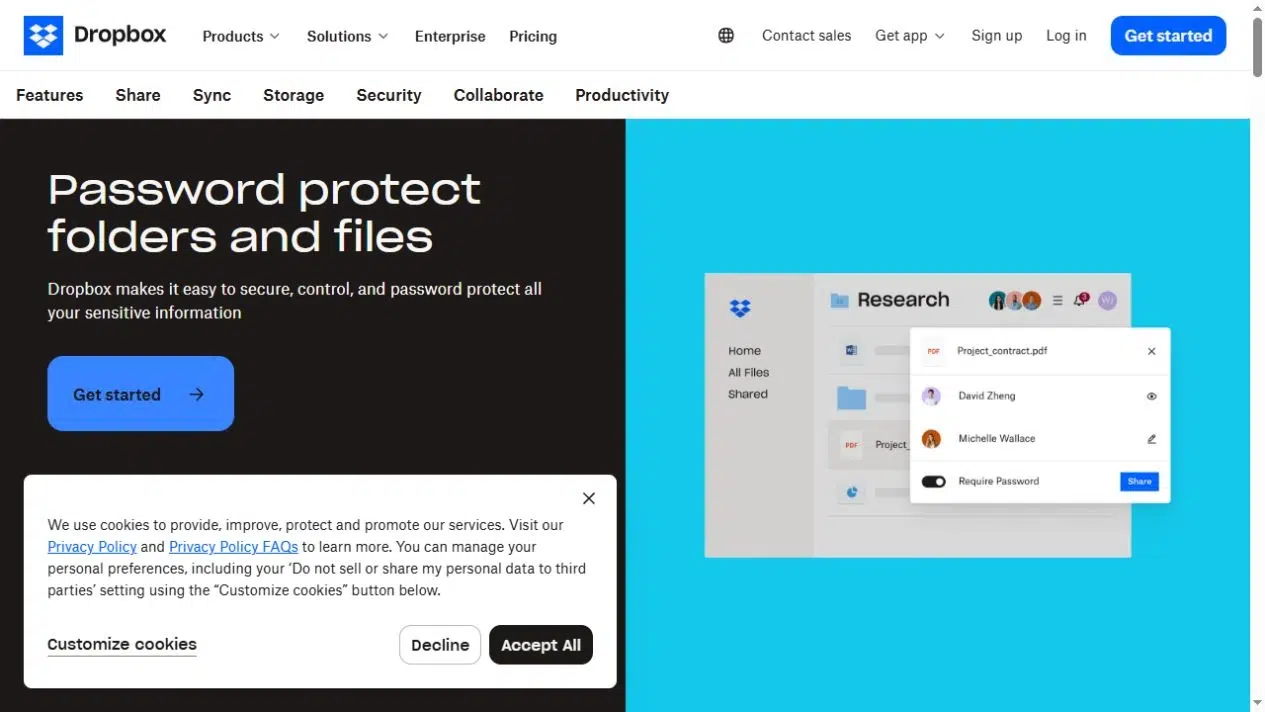
Dropbox provides view-only links that let readers preview a file without editing the original. It is a practical choice when you want to send the PDF itself rather than convert its pages into a flipbook.
Key Features
- View-only shared links for file previews.
- Link passwords and expiration dates on eligible plans.
- Download restrictions on eligible plans.
Pros
- You can deliver the original document without creating a separate publication.
- A time-limited link can suit a temporary file handoff when your plan includes expiration controls.
Cons
- Passwords, expiration dates, and download restrictions require an eligible plan.
- Changing one link’s settings does not revoke existing direct access. Check both the link and other permissions using the shared-link controls.
Best For
Original PDF delivery, especially for teams already storing files in Dropbox. If you need a password on the PDF itself after download, that is a separate requirement from protecting its Dropbox link.
6. Adobe Acrobat
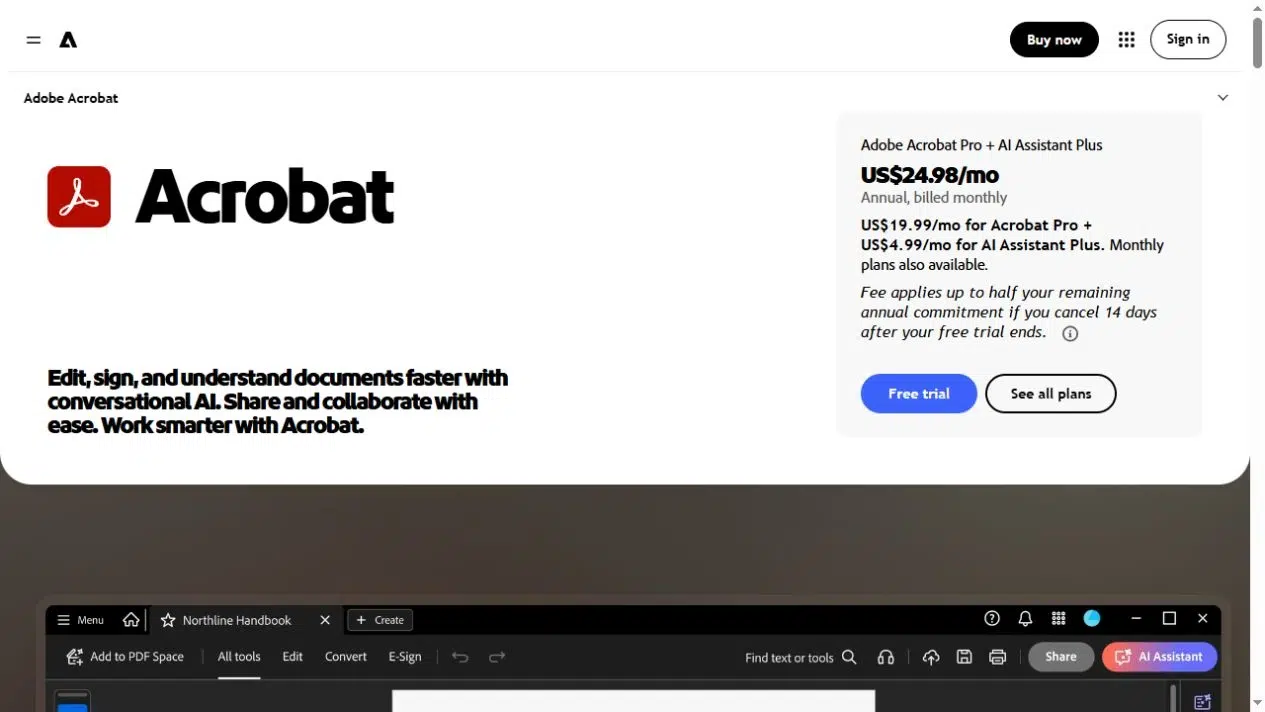
Adobe Acrobat shares PDFs for viewing and review. Acrobat on the web creates a browser link, and you can enable comments to collect feedback on a proposal or report before approval.
Readers can open the viewing link without signing in.
Key Features
- Browser viewing through a shared document link.
- Optional commenting for document review.
- Cloud-based sharing of the PDF review copy.
Pros
- Reviewers can discuss the PDF through its review workflow instead of returning separate annotated copies by email.
Cons
- Web commenting requires reviewer sign-in, which adds a step for occasional external reviewers.
- The document review interface is not a publication-style flipbook. See Adobe’s share-via-links instructions for the supported viewing and commenting workflow.
Best For
Draft proposals, reports, and other PDFs that need comments before approval. Choose a publication platform instead when your main aim is to display a finished catalog to customers.
Check Access Before You Send the Link
A public brochure should be easy to open. A confidential proposal should only reach the people you authorize. Avoid using the same sharing arrangement for both.
Before sending or embedding a document, check these points:
- Intended access: Should anyone with the link be able to open it, or only named people?
- Existing permissions: Do folder membership or earlier invitations already grant broader access?
- Reader sign-in: Will readers need an account to view the file or leave comments?
- Hosting responsibility: Does the service keep it online, or does your team maintain the web server?
- Ongoing availability: Does the publication depend on a paid hosting entitlement, points, or subscription?
An embed changes where readers see a document; it does not, by itself, restrict who can access it. Download restrictions also cannot guarantee that someone will not capture or redistribute visible content. Use access controls that fit the information you are sharing.
Choose the Service Around the Document’s Job
For PDF hosting that presents a finished brochure or catalog online, choose Recastia or FlipHTML5. If you create publications in Flip PDF Plus, use FlipBuilder’s Hosting Add-on or publish the exported files on your server.
For original-file delivery, consider Drive or Dropbox; for comments on a draft, choose Acrobat. Before selecting a PDF hosting service, confirm that its sharing permissions and ongoing hosting requirements fit your document.
Bring Your PDF to Life With Recastia
Create, customize, and share your content in a more engaging way.
Frequently Asked Questions
Do not assume so. A flipbook link opens an online publication, while a direct PDF URL points to the PDF file itself. If a website, application, or download button needs the original file, choose a service that provides that file access and confirm the required URL format.
Not necessarily. An unlisted link keeps a document out of public listings but may remain readable if someone forwards it. For confidential material, require the appropriate authentication or named access. Open the link in a signed-out browser to check what an unauthorized visitor can see.
You can display a hosted publication through an embed where the service supports it, or host exported web files on your own server. These are different arrangements. An embed still depends on the external host; self-hosting requires your team to upload the complete publication files and maintain the server.
Viewing and commenting can have different permission or sign-in requirements. For example, Acrobat’s web links allow viewing without sign-in, but reviewers must sign in to add comments. If you want feedback, send a review-enabled link and explain any account requirement before asking people to review the document.