
You designed your brochure to be browsed, but sending it as an attachment leaves readers opening a file before they see the first page. You can view a PDF as a flipbook through a browser link instead. This guide shows you how to view a PDF as a flipbook with Recastia, give it a clear title, and share the finished book.
Key Takeaways
- Upload the finished PDF to create a hosted flipbook with a reading link.
- Export individual pages in reading order if you want each page to turn separately.
- The publication title and description identify the online book; they don’t change text printed inside the PDF.
- A reading link works without your own website. Embedding and premium customization depend on your plan.
Turn Your PDF Into an Online Book With Recastia
Recastia adds a browser reading interface to your PDF and hosts the publication online. Your document supplies the page layout, photographs, and text. A catalog can keep the descriptions beside its product images, and a portfolio can keep the pages for each project together.
The online book has its own link. Readers can open it in a browser and turn the pages without installing a dedicated flipbook app.
How to View a PDF as a Flipbook With Recastia
Use the PDF to Flipbook tool for the following steps. Start with the version of the PDF you intend readers to see, including the cover and all interior pages.
- Upload Your PDF
Select your PDF in the upload area or drag the file onto it. Recastia converts it into a flipbook and opens the publication workspace. For a catalog or magazine, upload one PDF containing the full publication in reading order.
Check the upload panel for the file size and page limits that apply to your account. If the PDF is too large, compress the images carefully rather than reducing them until text and product details become blurry.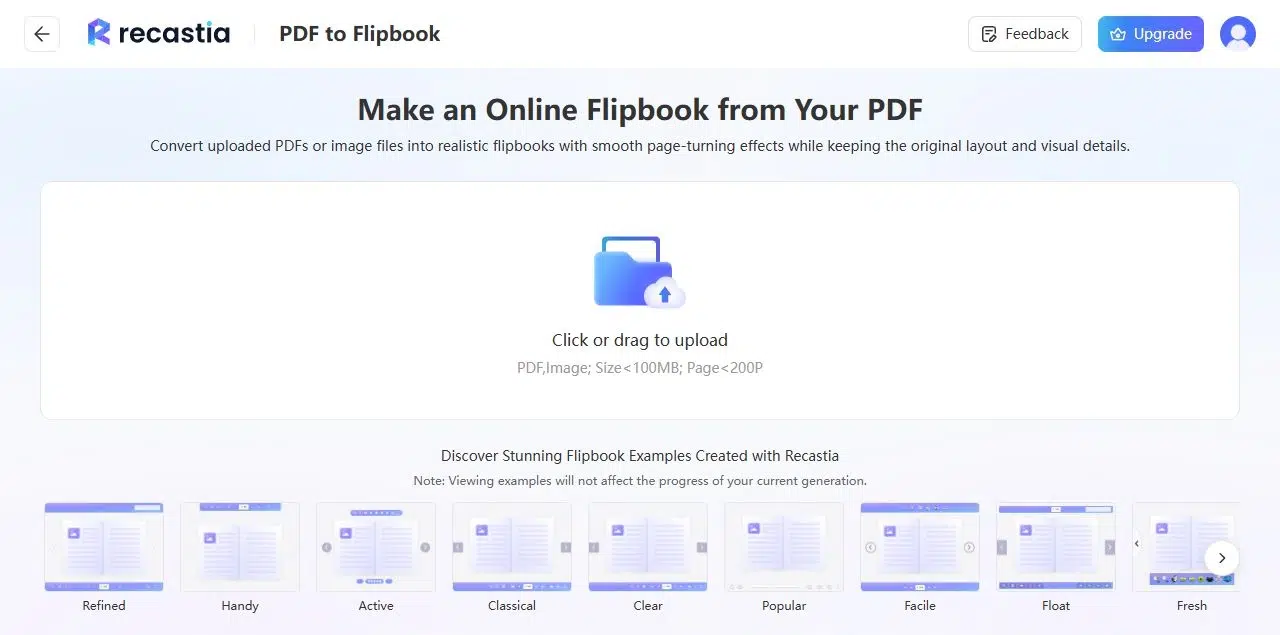
- Add a Title and Description
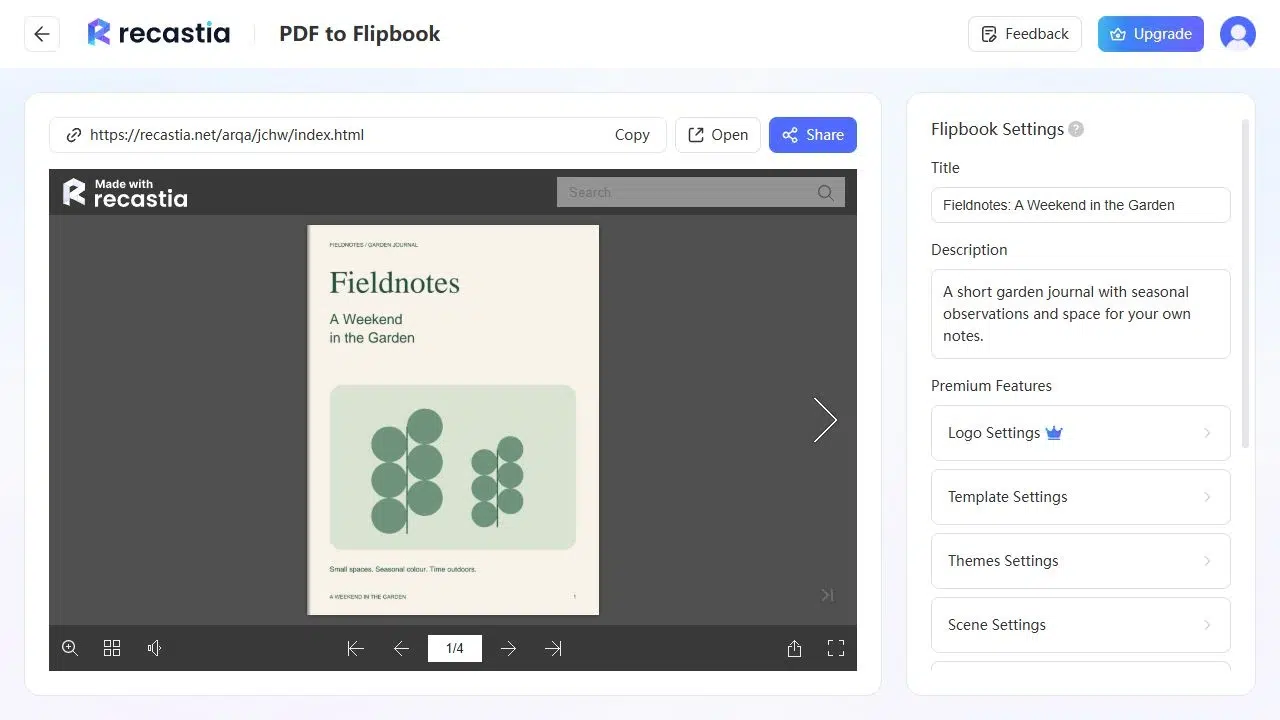
Use Flipbook Settings to name the publication and describe what it contains. A specific name such as “Autumn Furniture Collection” is more useful than an export filename. The description can explain which collection, issue, or guide readers are opening.
These fields describe the hosted book. To correct wording on the cover or update a price inside it, make the change in the source document and export a revised PDF.
- Open the Online Book
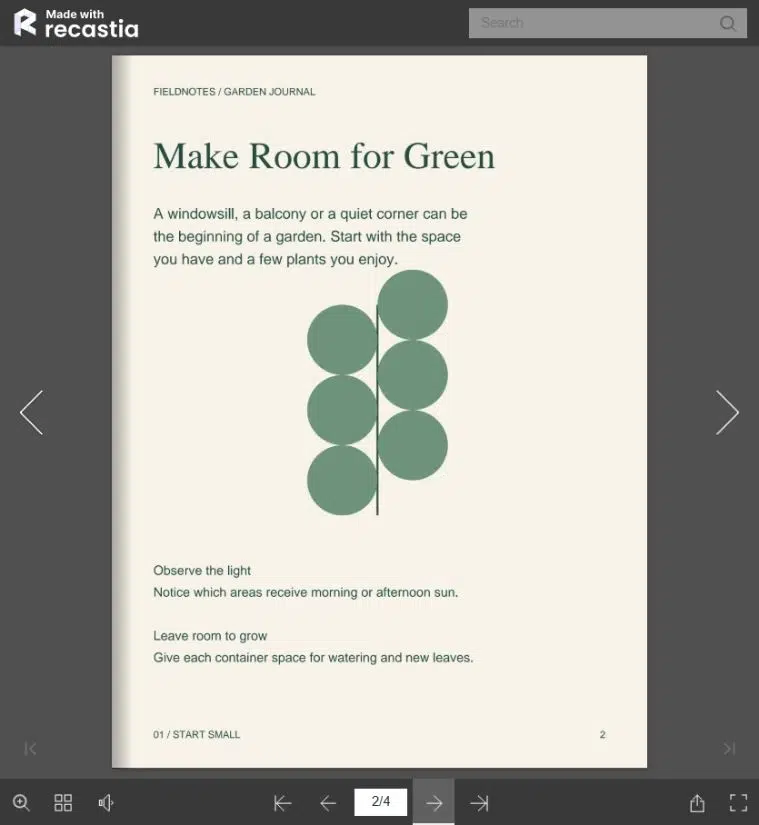
Choose Open to read the publication outside the editor. Turn through the pages and try a detailed page at normal size, then use zoom for smaller text. Thumbnails let you jump between sections without turning every page.
The PDF flipbook viewer guide explains these reading controls in more detail. If you want to change the appearance or page-turn behavior, see the page-flipper settings guide. Templates, themes, and Page Flip Settings are premium customization features.
- Share the Reading Link
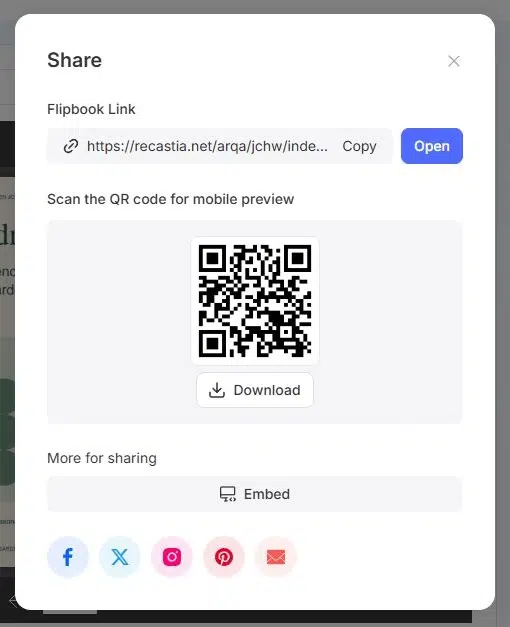
Open Share and copy the Flipbook Link. Add it to a message, email, or resource page with a name that tells readers what they’ll find. The same panel provides a QR code for printed material or displays.
For reading inside your own website, use Embed on a plan that includes website embedding. You don’t need an embed to send the hosted reading link. See the free flipbook guide for the difference between free sharing and paid features.
Fix the PDF Layout Before Sharing
Export Separate Pages for Separate Page Turns
A spread exported as one PDF page stays one wide page in the file. If you want the left and right pages to turn independently, export individual pages into a single PDF. Keep an intentional panoramic spread together only when that’s how you want it displayed.
Use reading order rather than printer’s spreads. Printing software may rearrange pages for folding and binding, which can put them in the wrong sequence for an online book. The cover should come first, followed by the interior pages in the order readers will follow.
Keep Small Text Readable on Screen
Fine print that works on a large printed sheet can be difficult to read on a phone. Give captions and product details enough space, and use larger type for information readers need immediately. Zoom helps with details, but a page shouldn’t require it for every sentence.
Export directly from the design or document file when possible. Enlarging an already blurry image won’t recover its detail. If a scanned page is crooked or faint, clean up or rescan that page before uploading the PDF.
The travel guide below shows an illustrated publication as an online flipbook. Try a few pages to see how its headings, pictures, and text fit together.
Frequently Asked Questions
Yes. Upload the finished PDF to Recastia’s flipbook maker. You don’t need to recreate its pages in a separate design tool. If the document needs corrections, make those changes before uploading the version you want readers to use.
No dedicated flipbook app is required to read the hosted publication. Readers open its link in a browser. The online reading page needs an internet connection, so a hosted link and an offline file serve different purposes.
The flipbook settings don’t replace a document editor. Edit the text in the source file or a PDF editor, then use the corrected PDF for your publication. Changing the flipbook’s title or description won’t rewrite the page content.
Recastia has a free plan with Recastia branding. Website embedding and premium customization require a plan that includes them. Choose based on how you intend to share the book and whether you need to remove the branding.
Check whether your PDF contains landscape pages or two-page spreads. The viewer displays that page design within the available screen space. Export individual pages if a spread was accidental; otherwise readers may need to zoom to inspect smaller details.
Conclusion
You can view a PDF as a flipbook by uploading the finished document, naming the publication, and opening its hosted reading link. Preparing the pages in the right order saves you from sharing a book with misplaced sections or unintended spreads.
Recastia lets readers view a PDF as a flipbook in their browser. Send the link when the book is ready, or embed it on your website with a plan that supports embedding.
Bring Your PDF to Life With Recastia
Create, customize, and share your content in a more engaging way.