
You only need to update a paragraph or reuse a table, but copying it out of a PDF leaves you fixing broken lines and misplaced numbers. PDF to Document conversion gives you a file you can work on. This guide explains which PDF to Document output to choose in Recastia: Word, Excel, PowerPoint, or page images, with advice on what to do after downloading.
Key Takeaways
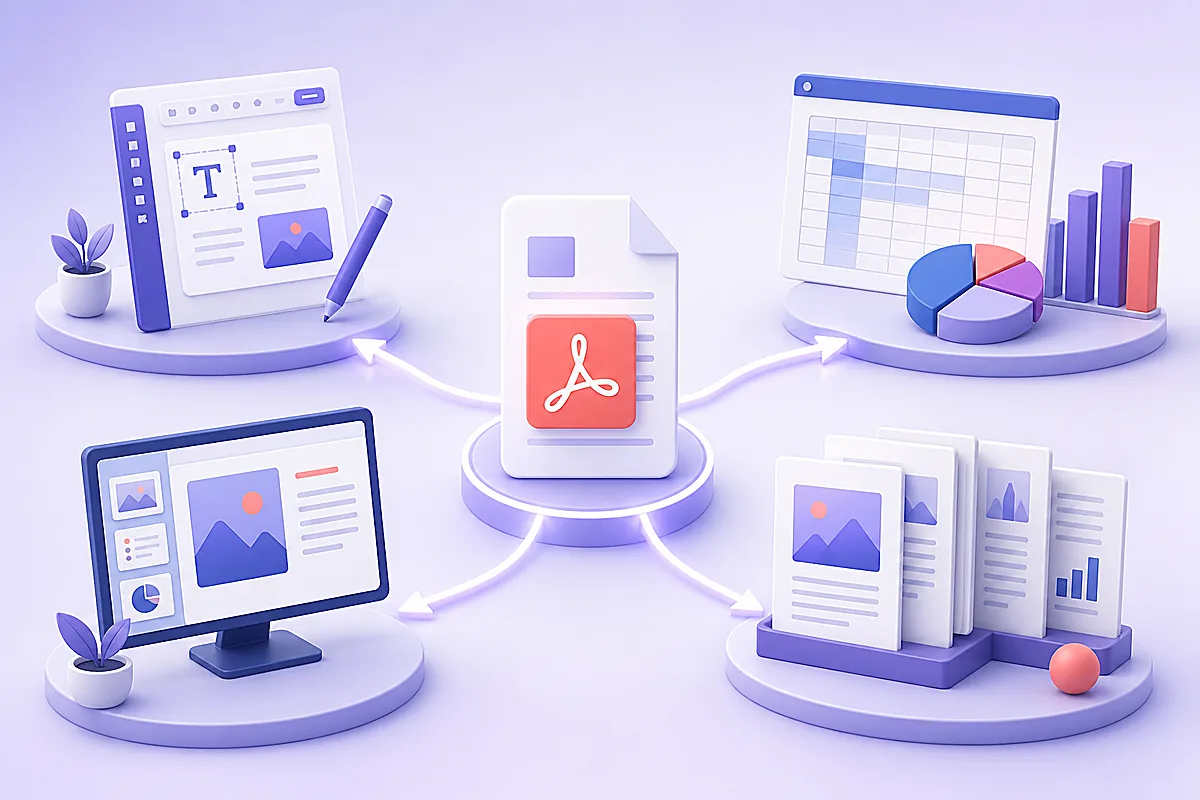
- Choose Word to revise text, Excel to work with figures, PowerPoint to prepare slides, or Image to reuse a page visually.
- Recastia converts the PDF into your selected format. Choose the output before starting the conversion.
- A page image preserves the page as a picture; it does not give you editable paragraphs or spreadsheet cells.
- Keep the original PDF so you can compare important wording, figures, and page content with the converted file.
Which Format Should You Choose?
Start with the work you need to finish. A report can become a Word document for rewriting or an Excel workbook for working with its tables. The same source does not always need the same output.
| Your Next Task | Choose | Work to Do After Conversion |
| Update wording in a proposal, policy, or guide | Word | Edit the text and adjust paragraph formatting |
| Sort prices, compare figures, or calculate totals | Excel | Check number formats and organize the data |
| Adapt existing material for a meeting or lesson | PowerPoint | Arrange slides and simplify crowded content |
| Place a complete page in a post or another document | Image | Select the page image and size it for its destination |
Word for Text You Need to Rewrite
Word is the practical choice for changing paragraphs, headings, and lists. If a handbook needs a new leave policy, you can work on the converted document without copying each unchanged paragraph by hand.
Expect to spend some time on formatting when the PDF has columns, floating images, or tightly arranged text. Fix the document’s paragraph styles before making dozens of individual font changes. The separate PDF to Word formatting guide explains those repairs in more detail.
Excel for Figures You Need to Use
Choose Excel when the task involves calculations, sorting, or filtering. For a PDF price list, you need each item and its price to stay together. For a monthly report, you need numbers that work in formulas.
Conversion does not restore the source spreadsheet’s formulas. Check whether amounts are numbers rather than text, whether headings line up with the correct columns, and whether subtotals are mixed into the data you intend to sort. See how to convert PDF to Excel for the workbook workflow.
PowerPoint for Material You Need to Present
Choose PowerPoint when you need a downloadable deck to work on in a presentation app. A PDF exported from an old presentation gives you a starting point for a new meeting. A report can also supply presentation material, although its dense pages may need more editing.
The file format alone does not make a document ready for a screen. Remove pages you will not discuss and give the key chart or explanation enough space. Use the PDF to PowerPoint tutorial for the conversion steps and slide preparation advice.
Images for Pages You Want to Show
Choose Image when you want to reuse the complete page as a picture. This works for a brochure preview, a visual reference in a blog post, or a page you want to insert into another document. Recastia packages the JPG pages from a multipage PDF into a ZIP download.
Page images are different from extracting the individual photos inside a PDF. You get the page’s text and graphics together. If you need to change a sentence or calculate a total, choose Word or Excel instead of trying to edit the page image.
How to Convert a PDF With Recastia
Use the PDF converter for all four outputs. Keep a copy of the source PDF and choose the format that matches your next task.
- Upload Your PDF
Open the PDF converter and upload your document. Check the upload requirements before selecting a large document.
- Select the Output Format
Choose Word, PPT, Excel, or Image, then start the conversion. Select one format for the task you are doing now. For example, choose Excel if you need to compare prices, even when most of the source PDF consists of written descriptions.
- Download the Converted File
Download the result and open it in the application you plan to use. For Image output, extract the ZIP to access the individual JPG pages. Keep the downloaded working file separate from the original PDF so you can refer back to the source while editing.
Handle Mixed Content Without Rebuilding Everything
A sales report may contain a written summary, a table of regional results, and a full-page chart. Choose Word if you are rewriting the summary. Choose Excel if you are calculating changes between regions. Choose Image if you only need to place the existing chart page in another document.
You can convert the same PDF into different formats for separate tasks. If you change a figure in the workbook and also use it in a presentation, update both working files; they do not stay linked after conversion.
If the goal is simply to let people read the PDF online, you may not need an editable file. A PDF flipbook is a separate option for sharing the pages in a browser.
FAQ
No. Conversion creates a separate output file. Keep the PDF you uploaded as your source copy. Make your edits in the downloaded file and save it with a different name. This leaves you a reference for wording, figures, and layout.
A PDF normally contains the displayed results, not the workbook formulas that produced them. After converting to Excel, add the formulas you need and compare the resulting totals with the PDF.
No. A JPG represents the page as a picture. Choose Word if you need to revise paragraphs, or PowerPoint if you need a deck to work on in a presentation app.
A scan needs text recognition before its words can become editable text. Check whether your chosen conversion workflow supports OCR for that file. Selecting Word output alone does not establish that a scanned page will become editable.
Use that source file when it is available and up to date. It already contains the document structure or presentation elements you need. Conversion is most useful when the PDF is the only usable version you have.
Conclusion
PDF to Document conversion helps you get back to the task: revising text, using data, preparing slides, or reusing a page. Choose the output for that task and open the downloaded file in the app where you will finish it.
Keep the original nearby while you work. A useful PDF to Document workflow ends with a file you can use, with the important wording and figures carried over correctly.
Bring Your PDF to Life With Recastia
Create, customize, and share your content in a more engaging way.