
Looking for the best PDF converter? This guide compares Recastia, Adobe Acrobat, Smallpdf, iLovePDF, and PDF24 for turning PDFs into Word documents, Excel spreadsheets, PowerPoint files, and images.
The best PDF converter depends on what you need to do next. Below, you’ll find each tool’s main features, the differences that matter when choosing one, and a short guide to getting started with Recastia.
Best PDF Converter Tools at a Glance
| Tool | Best For | Main Reason to Choose It |
| Recastia | Converting and sharing documents | Download the output or share a link for online viewing |
| Adobe Acrobat | Conversion alongside PDF editing | Export files, edit PDFs, and work with scanned text in one product family |
| Smallpdf | Working with cloud folders | Save converted files to Google Drive, Dropbox, or OneDrive |
| iLovePDF | Exporting tables and individual pictures | Choose Excel sheet layouts or extract images from a PDF |
| PDF24 | Free online conversion | No account required; adjustable JPG and PNG export settings |
1. Recastia
Recastia lets you convert a PDF and share the converted document from the same workspace. You can download the output, open a browser preview, or send someone a link to view it online.
Key Features
- Word, Excel, and PowerPoint output in DOC, XLS, and PPTX formats.
- JPG output for PDF pages.
- Online previews of converted documents.
- Shareable links and QR codes.
Pros: Convert PDFs to Office files or JPG images, then download the results or share them through links and QR codes.
Cons: Uploads must be smaller than 100 MB and contain fewer than 200 pages.
Best For: Converting documents you also want to share online.
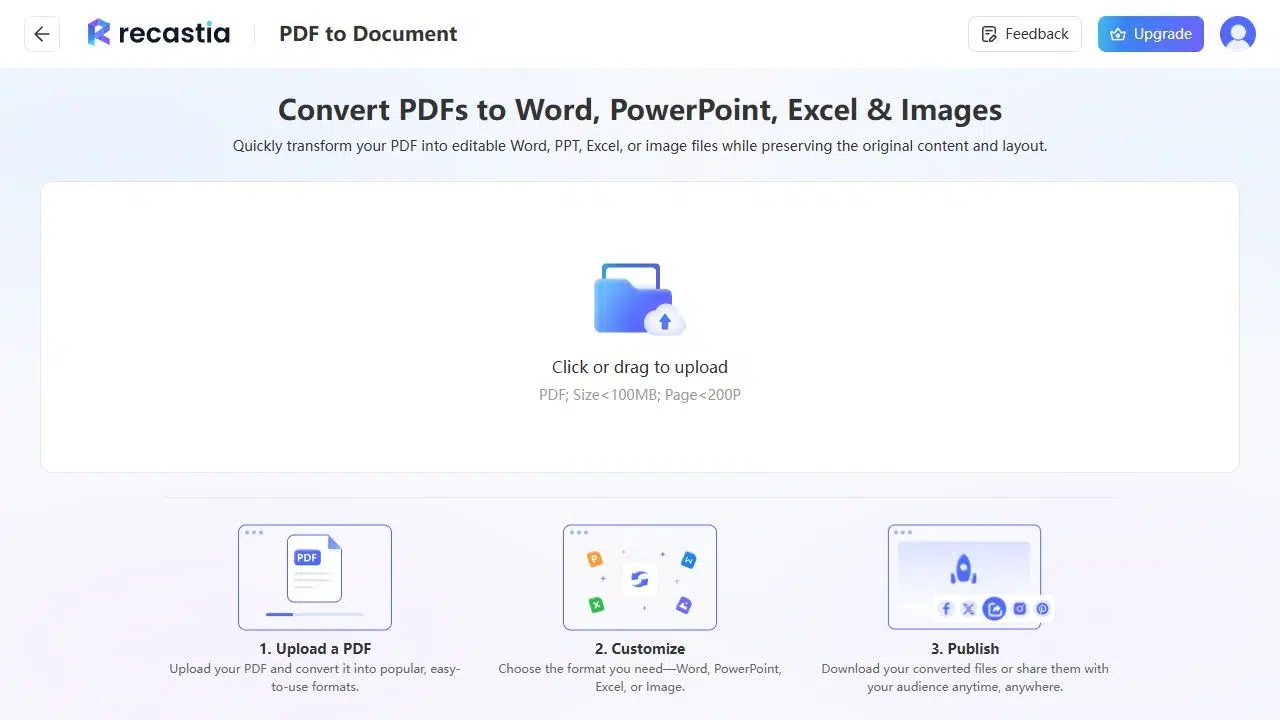
How to Convert a PDF With Recastia
Open the PDF Converter to get started.
- Upload Your PDF. You can upload a PDF smaller than 100 MB with fewer than 200 pages.
- Choose an Output Format. Select Word, Excel, PowerPoint, or Image, then start the conversion.
- Download or Share. Save the converted file to your computer, or share its link or QR code for online viewing.
For more detail on spreadsheet output, see how to convert PDF to Excel.
2. Adobe Acrobat
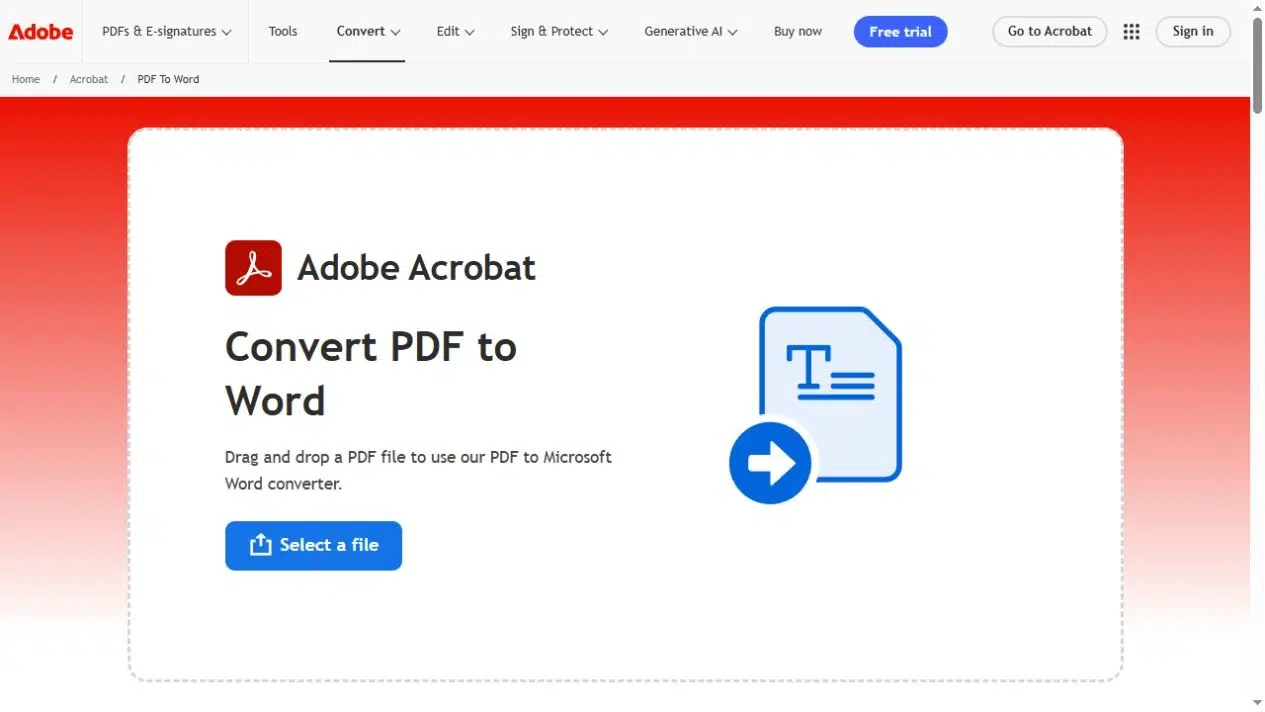
Adobe Acrobat combines PDF conversion with tools for editing documents and recognizing text in scanned pages.
Key Features
- Word, Excel, and PowerPoint export.
- JPG, PNG, and TIFF image output.
- OCR for recognizing scanned text.
- Online tools and a desktop application.
Pros: If you already use Acrobat for PDF editing, you may also have the conversion tools you need in your existing plan.
Cons: Free online access has usage limits. For example, the PDF to Word tool limits daily conversions; advanced scan editing is part of Acrobat Pro.
Best For: Regular PDF editing and conversion, including work with scanned documents.
3. Smallpdf
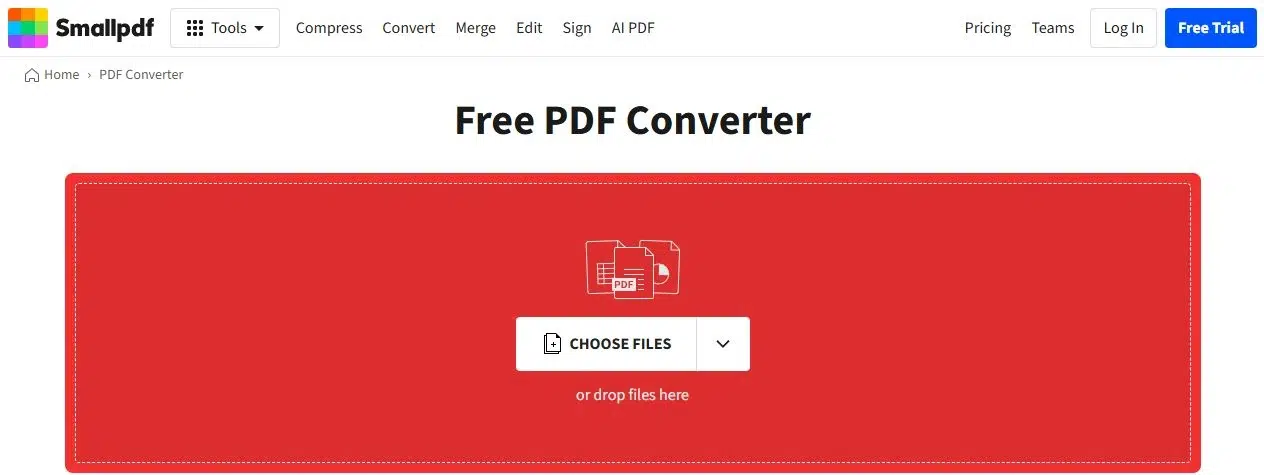
Smallpdf converts PDFs in your browser and lets you save the converted files directly to cloud storage.
Key Features
- Conversion between PDF and Word, Excel, PowerPoint, and image formats.
- Saving to Google Drive, Dropbox, OneDrive, or Smallpdf storage.
- Browser access without installing a desktop app.
Pros: Save converted files directly to a cloud folder without downloading them and uploading them again.
Cons: The free plan limits downloads. Converting scanned PDFs with OCR requires Pro.
Best For: Working with documents stored in Google Drive, Dropbox, or OneDrive.
4. iLovePDF
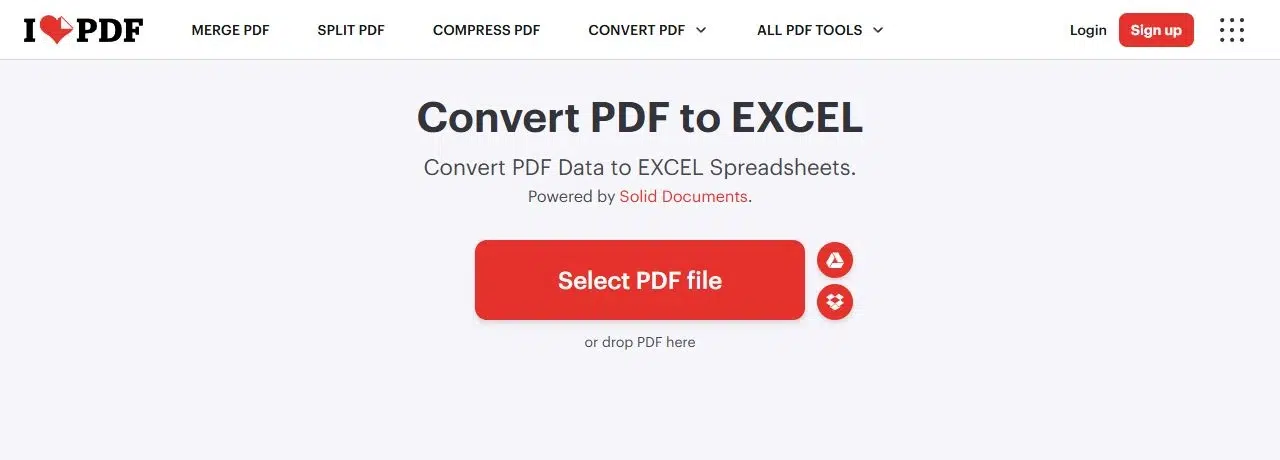
iLovePDF converts PDFs into Office files and gives you separate options for saving whole pages as images or extracting the pictures inside them.
Key Features
- One-sheet or multiple-sheet Excel output.
- Word and PowerPoint conversion.
- Whole-page JPG export through the PDF to JPG tool.
- Extraction of embedded images as JPG files.
Pros: Extract embedded product photos as separate JPGs instead of cropping whole-page images. For spreadsheets, choose a single-sheet or multiple-sheet layout before conversion.
Cons: The free plan has file and task limits. OCR for scanned Word and Excel conversions requires Premium.
Best For: Exporting PDF tables to Excel or extracting pictures from a document.
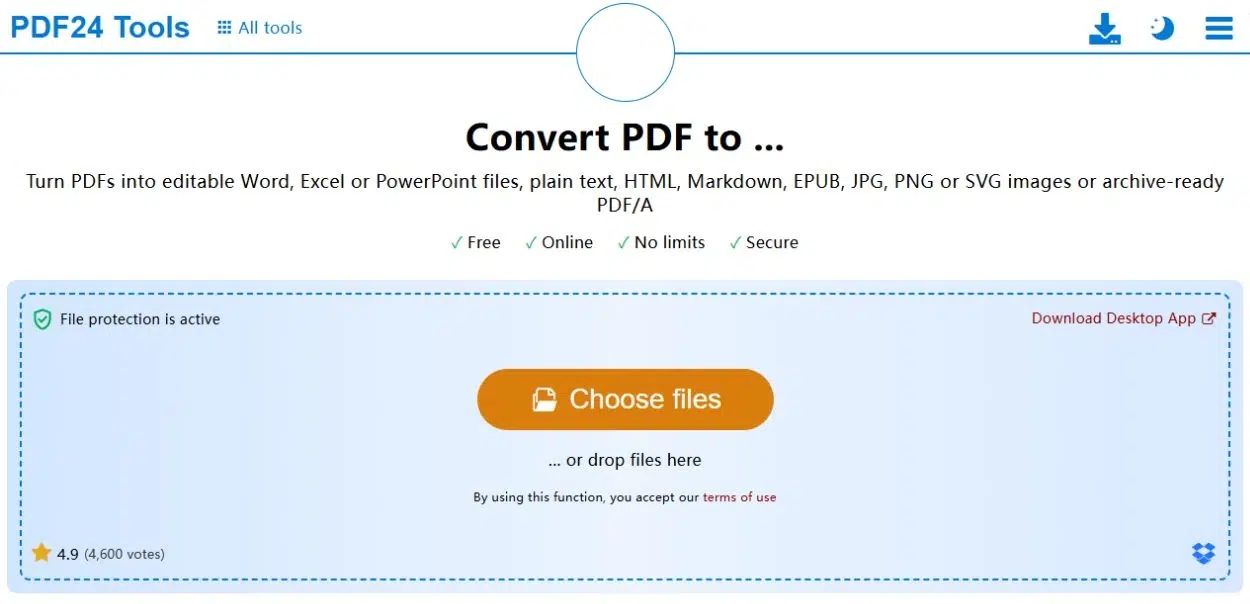
5. PDF24
PDF24 offers free online PDF conversion without requiring an account or software installation.
Key Features
- Word, Excel, and PowerPoint conversion tools.
- JPG and PNG page images with resolution and quality settings.
- Browser access on Windows, macOS, and Linux.
Pros: Free conversion without an account or subscription, with adjustable settings for image exports.
Cons: The online tools display ads and upload files to PDF24’s servers for processing.
Best For: Free online conversion without installing software or creating an account.
Choose the Best PDF Converter for Your Task
To choose the best PDF converter, narrow the decision to the requirement that matters most: scanned text, Excel layout options, individual pictures, cloud saving, or image export settings. Those differences are more useful than a long list of file formats that most tools share.
If you want Office or JPG output with a link for online viewing, start with Recastia. The best PDF converter for that workflow should help you both create the file and share it.
Bring Your PDF to Life With Recastia
Create, customize, and share your content in a more engaging way.
Frequently Asked Questions
Yes. The desktop version of Word can open a PDF and convert a copy into an editable document. Microsoft’s guidance says this works best with PDFs that are mostly text.
A PDF stores the positions of text and graphics, not necessarily the paragraph and table structure Word needs. Conversion software reconstructs that structure, which can change line breaks, tables, or page breaks in complex documents.
Use a converter to create a different file type, such as an Excel workbook or PowerPoint deck. Use a PDF editor to change text, add comments, or rearrange pages while keeping the file as a PDF.
You may need the password or an unrestricted copy from the owner. If you are authorized to change the file’s security settings, Adobe’s instructions explain how to remove password protection.